
How to use Test on storefront function
Overview
Test on storefront checks that an offer from XB: Bundles Quantity Breaks can show on your store, helps you fix what is missing, and opens your store so you can see the offer.
Steps
1. Open the test
The test window, Test offer in the online store, opens in two ways:
- Right after you click Publish on a new or edited offer.
- For an active offer: open it from Offers and click Test on storefront next to Edit offer name.

2. Fix the checks that fail
The app first checks that the offer can show on your store. If everything is fine, the window goes straight to step 3. If a check fails, the window lists the conditions the offer needs ("The offer is only shown if these criteria are fulfilled") and the ones that fail:
- Xboost core script is added to your theme. If the check fails, click Add Xboost to your theme and turn on the app embed. See Getting started with XB: Bundles Quantity Breaks.
- Trigger product is available in online store and has an image, and the same for the offered product. The products must have an image, be active in the online store, and be in stock or not track inventory.
- The app's discount is active in Shopify. If the app's automatic discount was turned off, click Reactive discounts. Shopify allows at most 5 automatic discounts. If your store has reached this limit, either click Manage Auto Discounts to free a slot, or click Use code discount instead so the app applies a discount code.
After you fix something, click Verify Changes to run the checks again.
3. Look at your store
The window asks How does it look on your store?
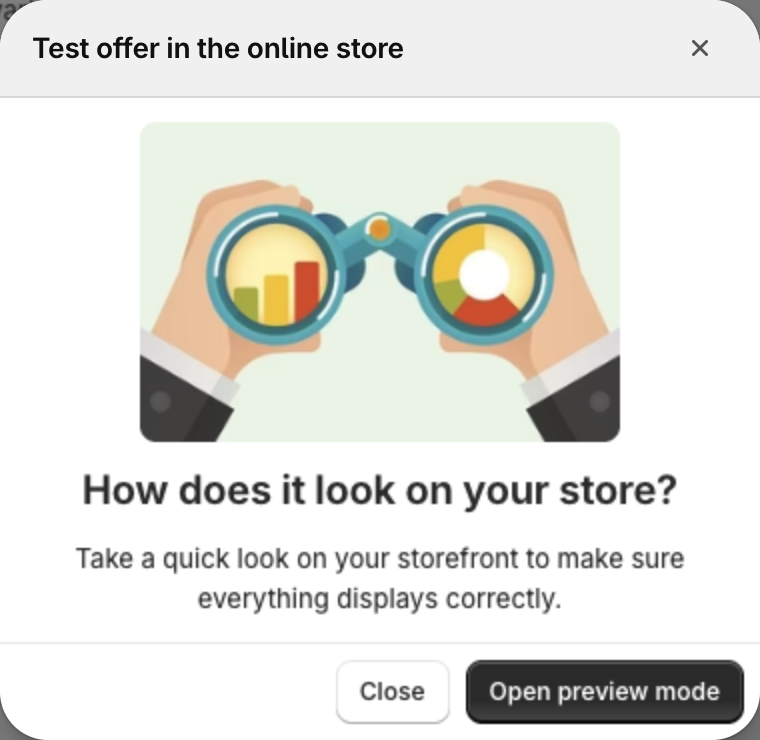
- Click Open preview mode to open your store and check the offer.
- Click Close to go back to the Offers page.
If the offer does not look right, contact us through the in-app chat.