
Getting started with XB: Bundles Quantity Breaks
Overview
XB: Bundles Quantity Breaks (shown as Xboost Bundle in your Shopify admin) adds bundle and quantity discount offers to your product pages. The offers show on your store through an app embed called Xboost Core Script. No offer appears on your store until this app embed is on. You only need to turn it on once per theme.
Before you start
- Install XB: Bundles Quantity Breaks from the Shopify App Store.
- If you switch to a new theme later, turn on the app embed again in that theme.
Steps
1. Open the app dashboard
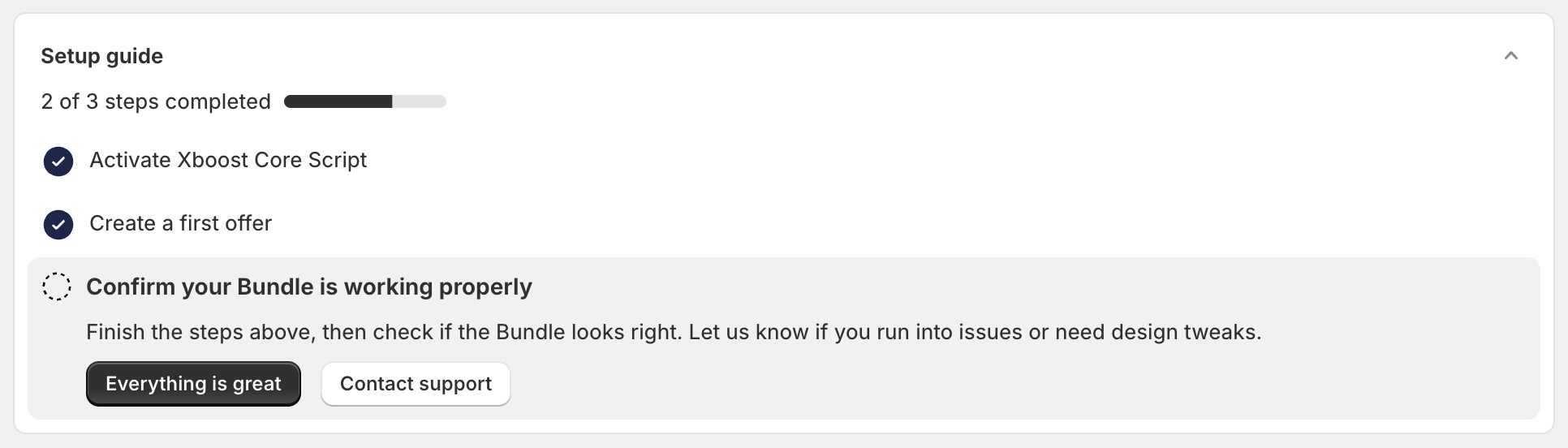
In your Shopify admin, go to Apps and open Xboost Bundle. The dashboard opens with the Setup guide:
- Activate Xboost Core Script turns on the app embed.
- Create a first offer opens the offer editor.
- Confirm your Bundle is working properly asks you to check the offer on your store.
2. Add Xboost to your theme
Find the App Status card on the dashboard.
- Active with the message "Xboost app embedded successfully in the online store." means the app embed is on. Go to step 3.
- If the status is not Active, the app embed is off. Click the button on the card to open the theme editor, then follow the steps below.

To turn on the app embed in the theme editor:
- In the theme editor, open App embeds in the left sidebar.
- Turn on Xboost Core Script (the one listed under Xboost Bundle).
- Click Save in the top-right corner.
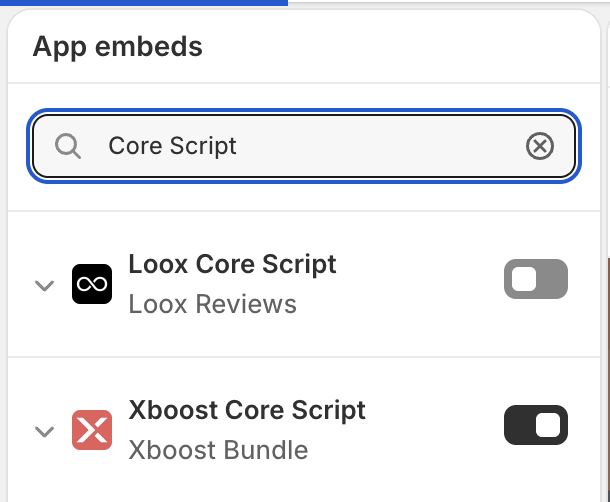
You can also open the theme editor yourself: go to Online Store > Themes, click Customize on your theme, then open App embeds.
Every XBoost app has its own app embed, some with a similar name. Make sure you turn on the one under Xboost Bundle.
3. Create your first offer
Click Create offer on the dashboard, then pick an offer type. Each type has its own guide:
| Offer type | What it does | Guide |
|---|---|---|
| Bundle Builder | Shoppers build their own bundle in steps, for example a top, a bottom and shoes. | How to create a Bundle Builder offer |
| Quantity Discounts | Lower price per item when the shopper buys more of the same product. | How to create a Quantity Discounts offer |
| Fixed bundle | A set of products you choose, sold together at a discount. | How to create a Fixed bundle offer |
| AI Frequently Bought Together | Recommended products shown with the current product, with a bundle discount. | How to create an AI Frequently Bought Together offer |
| Mix & match | A discount when the shopper buys a number of items from the products you choose. | How to create a Mix & match offer |
| Product Add-Ons | Add-on products the shopper ticks to add with the main product. | How to create a Product Add-Ons offer |
| Buy X Get Y (BOGO) | Buy one product and get another free or at a discount. | How to create a Buy X Get Y offer |
For the parts that all offers share, such as the offer list, status and priority, see How to create and manage offers.
4. Check your store
Open a product page that the offer targets. On the dashboard, go back to the Setup guide and click Everything is great if the offer looks right, or Contact support if you need help.
Troubleshooting
If an offer does not show on your store, see Why is my bundle offer not showing?