
How to create and manage offers
Overview
Every bundle or discount that XB: Bundles Quantity Breaks shows on your store is an offer. This guide covers the parts that all offer types share: picking a type and template, the three editor steps, publishing, and managing offers on the Offers page, including status and priority.
Before you start
- Turn on the Xboost Core Script app embed. See Getting started with XB: Bundles Quantity Breaks.
Steps
1. Start a new offer
- In your Shopify admin, open Apps > Xboost Bundle.
- Click Offers in the app menu, then click Create offer. You can also click Create offer on the dashboard.
2. Choose the offer type
On Select offer type, click Create an offer on the type you want. Cards with a Start free button belong to other XBoost apps and open the Shopify App Store.
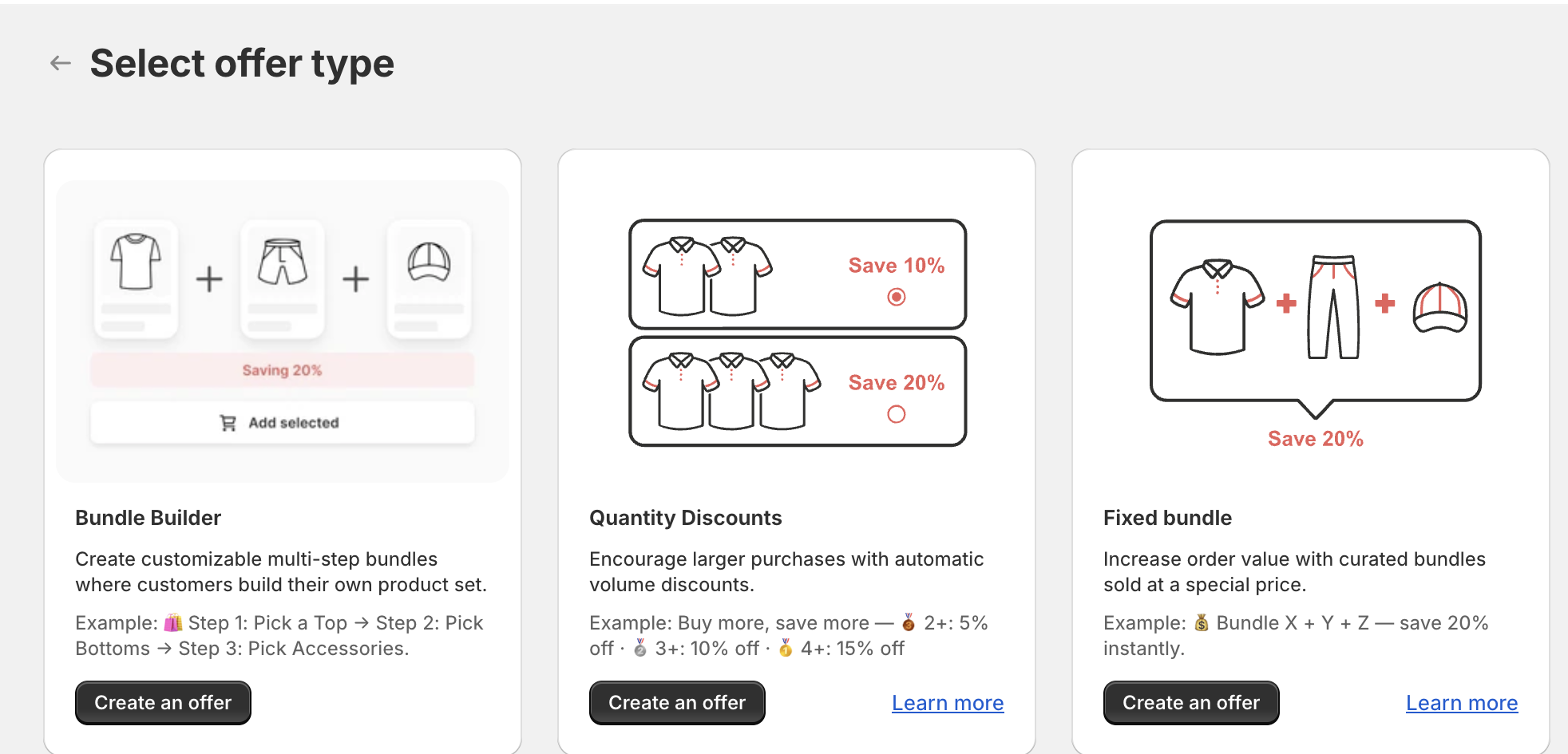
Some offer types are listed only in stores that installed the app before the feature moved to a separate XBoost app:
- Buy X Get Y (BOGO): in newer installs the card opens XB: Free Gifts & Buy X Get Y on the Shopify App Store.
- Product Add-Ons: in newer installs the card is not shown. Use XB: AI Product Upsell & Addons instead.
3. Pick a template
Click Select and customize on the template you like. Optional: pick a Color theme at the top right first. You can change the text, colors and layout later in the editor.
4. Set up the offer
The editor has three steps: Trigger, Offer and Appearance. The right side shows a live preview. Switch between desktop and mobile with the icons above the preview, and use Storefront Language to see and edit the text in another language of your store.
- Trigger: the products that show the offer.
- Offer: the discount and the products in the offer, plus Integrations and Settings.
- Appearance: content options, design, colors, text size and Custom CSS.
The steps differ by type. Follow the guide for your type:
- Bundle Builder
- Quantity Discounts
- Fixed bundle
- AI Frequently Bought Together
- Mix & match
- Product Add-Ons
- Buy X Get Y (BOGO)
To rename the offer, click Edit offer name at the top. Shoppers do not see this name.
5. Publish the offer
Click Next to go through the steps. On the Appearance step the button changes to Publish. Click Publish to make the offer live. New offers start as a Draft and do not show on your store until you publish them.
After you publish, the Test offer in the online store window opens. Click Open preview mode to check the offer on your store, or Close to go to the Offers page. See How to use Test on storefront function.
Manage your offers
Open Offers in the app menu. The list shows each offer with its type under the name.
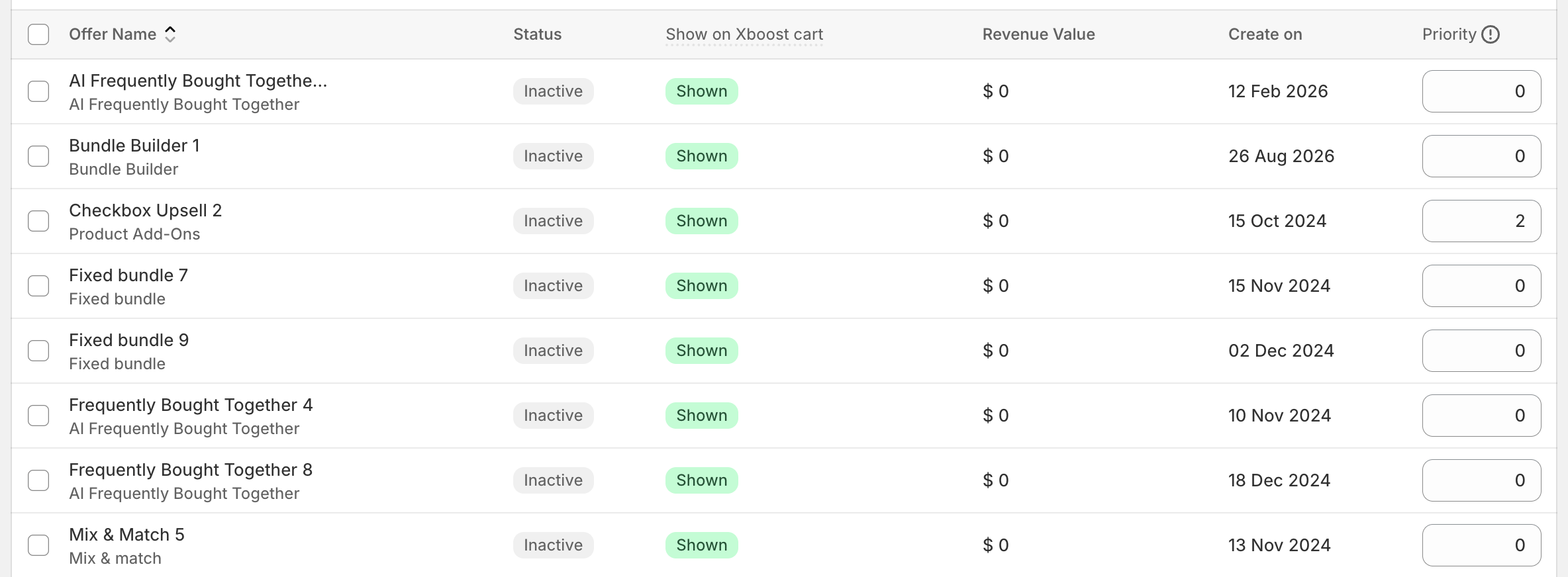
Above the list, filter offers by the page they show on: Product page, Cart page, Checkout page or Thank you page. Sort the list by Newest or Oldest. Click an offer name to edit it.
| Column | What it shows |
|---|---|
| Status | Whether the offer is live on your store. |
| Show on Xboost cart | Whether the offer also shows in the cart drawer of XB: AI Cart Upsell Cart Drawer. You set this in the Integrations section of the Offer step. |
| Revenue Value | Revenue the app reports for the offer. |
| Create on | The date you created the offer. |
| Priority | A number that ranks offers that target the same products. The higher number wins. |
Status
The Status column shows Active for live offers and Inactive for offers that are turned off. To change one offer, click its status. To change several, select one or more offers with the checkboxes, then click Activate or Deactivate above the list.
Clone or delete offers
Select offers with the checkboxes, then click More actions:
- Clone: makes a copy of each selected offer. You can clone up to 20 offers at a time.
- Delete offers: removes the selected offers.
Priority
Type a number in the Priority column. When more than one offer can show for the same product, the offer with the higher priority number shows. For example, an offer with priority 2 shows instead of an offer with priority 0.