
How to create a Fixed bundle offer
Overview
A Fixed bundle offer sells a set of products that you choose together, at a discount. For example: a shirt, trousers and a cap for 20% off. The bundle shows on the product page of each product in the set, and shoppers add the whole bundle to the cart with one button.
By default the widget shows on the product page, below the product form or the product section, depending on the template layout.
Before you start
- Turn on the Xboost Core Script app embed. See Getting started with XB: Bundles Quantity Breaks.
Steps
1. Choose Fixed bundle and a template
- In Xboost Bundle, open Offers and click Create offer.
- On the Fixed bundle card, click Create an offer.
- Optional: pick a Color theme at the top right.
- Click Select and customize on a template.
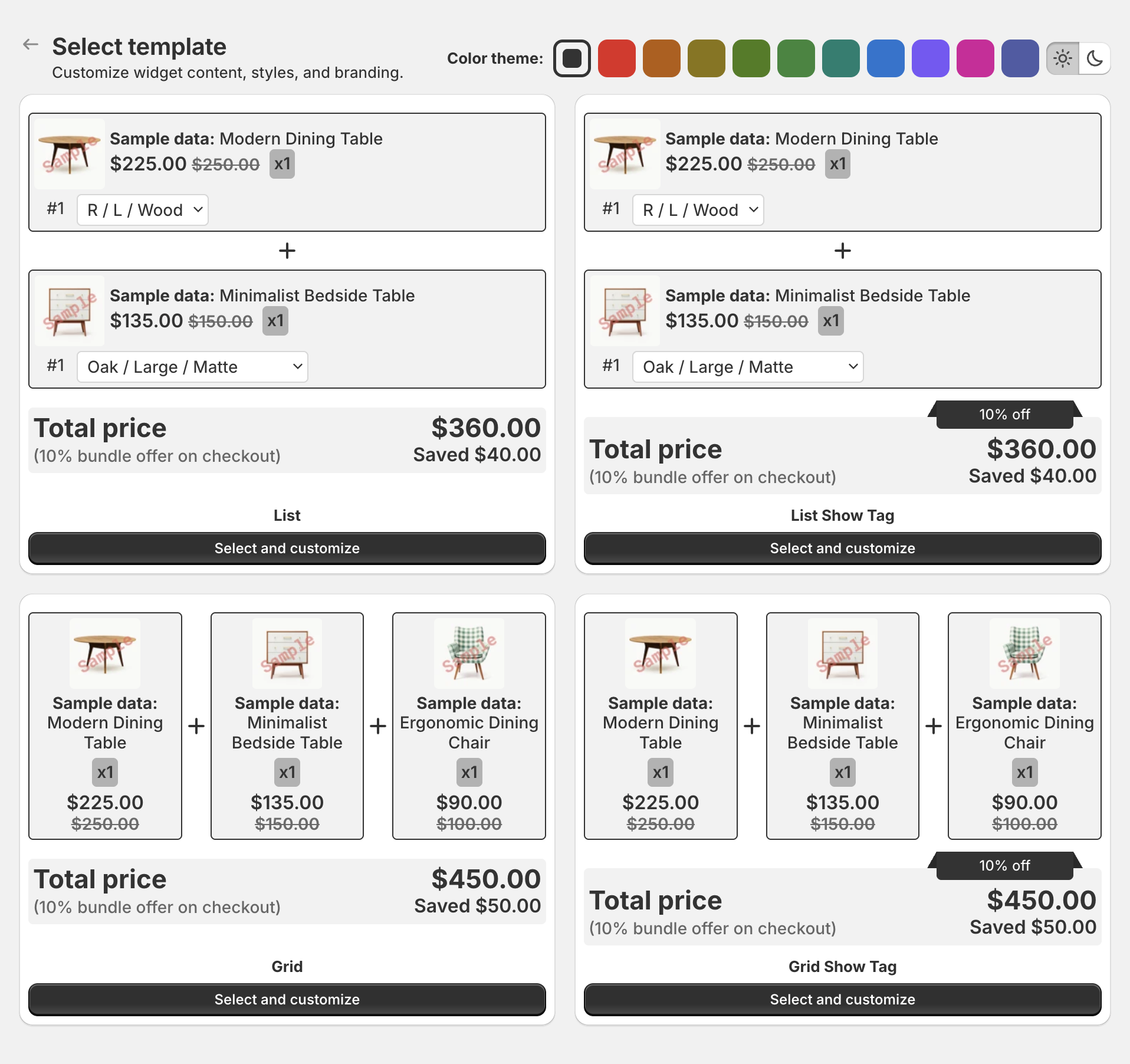
The offer opens in the editor as a Draft. Click Edit offer name to rename it. Shoppers do not see this name.
2. Choose the bundle products (Trigger)
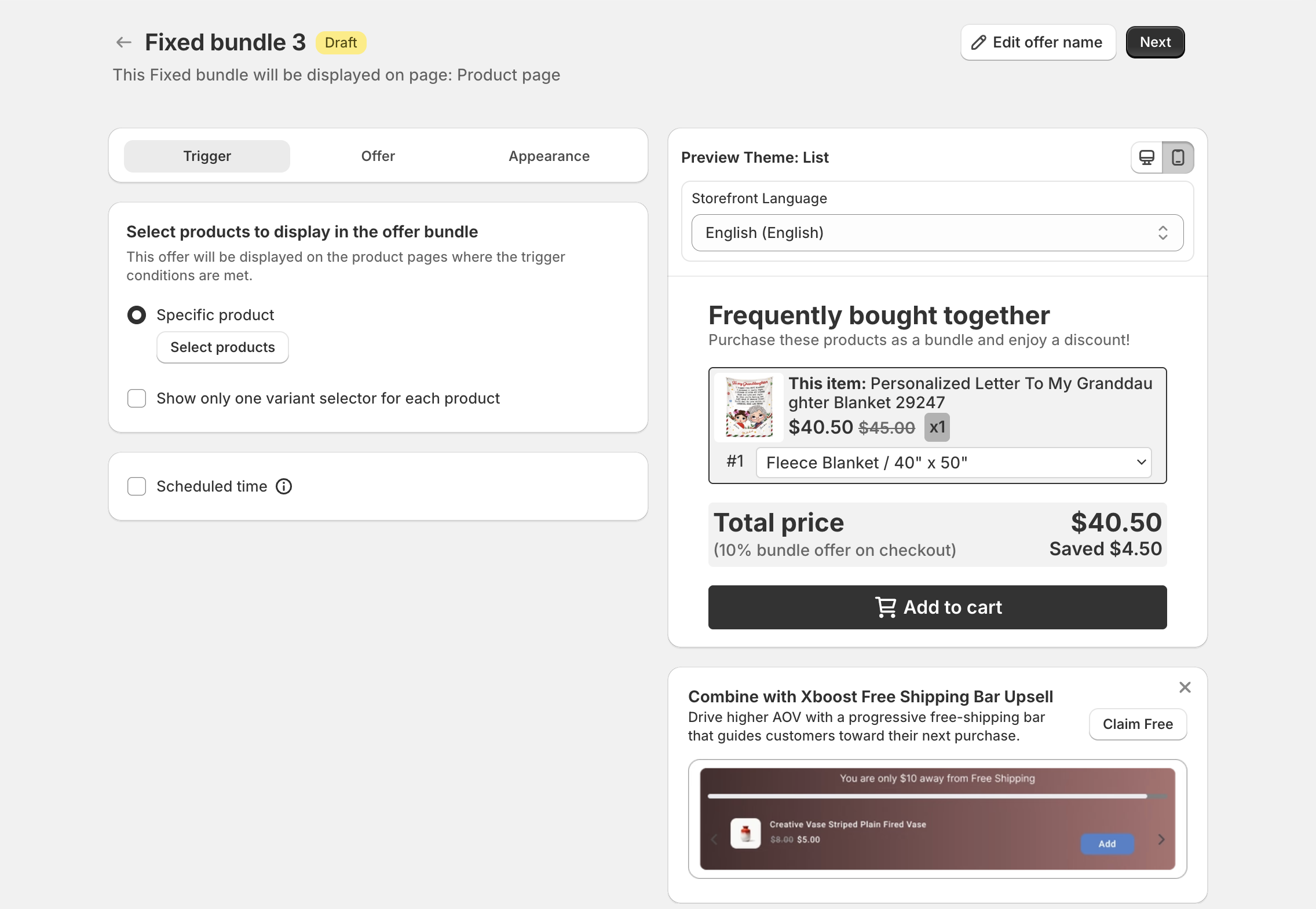
Under Select products to display in the offer bundle, click Select products and pick the products in the bundle. The offer shows on the product pages of these products.
- Optional: tick Show only one variant selector for each product to show one variant picker per product.
- Optional: tick Scheduled time to set a start and end date.
Click Next.
3. Set the discount (Offer)
-
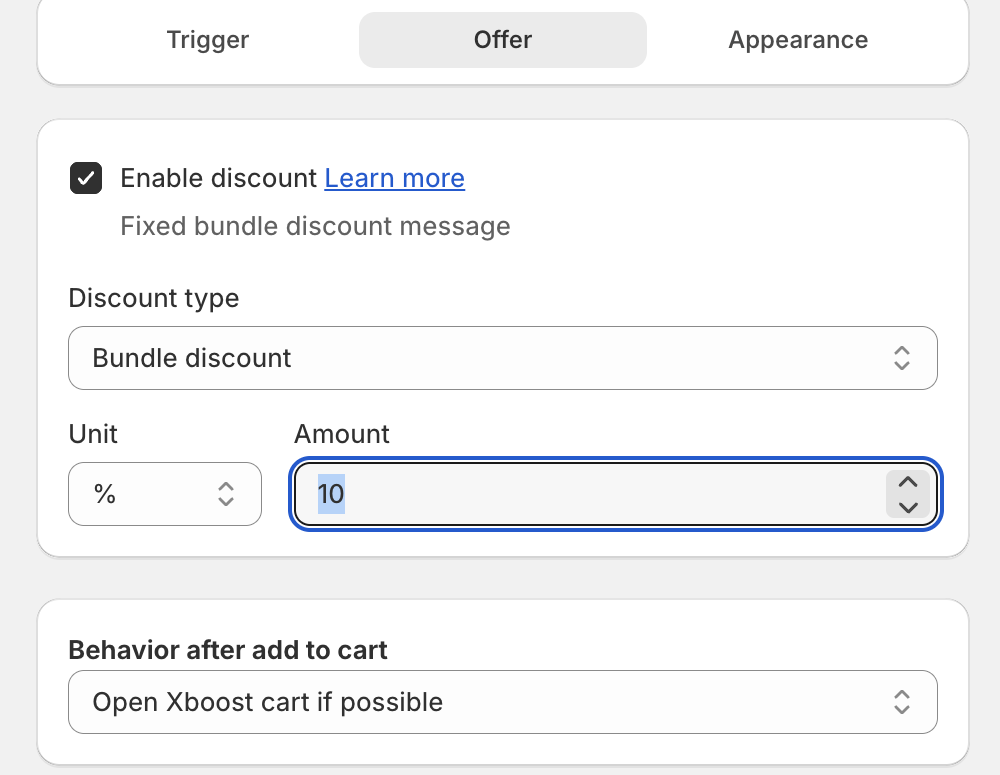
Keep Enable discount ticked to give a discount. Clear it to sell the bundle at the normal price.
-
Pick the Discount type:
- Default price: no discount.
- Bundle discount: a discount on the bundle items. Set Unit (% or $) and Amount.
- Fixed price: the bundle sells at a fixed price.
-
Under Behavior after add to cart, choose what happens after the shopper adds the bundle: Open Xboost cart if possible, Go to cart page, Go to check out or Refresh page.
If your theme's cart drawer does not open or does not show the new items, see Why doesn't the bundle offer work with my theme's cart drawer?
For more about the discount types, see Fixed Bundle discount types.
4. Optional: Integrations and Settings
- Integrations shows the offer in the cart drawer of XB: AI Cart Upsell Cart Drawer, and adds a trust badge, countdown timer or estimated delivery from other XBoost apps. For a Fixed bundle you can place them at Top, Bottom, Below offer title, Below offer subtitle, Above price block or Above add to cart block. See Integrations.
- Settings > Customization holds the widget text: Title, Subtitle, This item label, Out of stock message, Total price label, Discount note, Saved money message (use
{{money}}for the amount saved), Add to cart label and Discount tag. Put{{timer}}in the discount tag to show a countdown, then set Countdown time and Timer end behavior. - Pricing setting > Price rounding rounds the discounted price up to the price ending you choose, such as .99.
Click Next.
5. Adjust the look (Appearance)
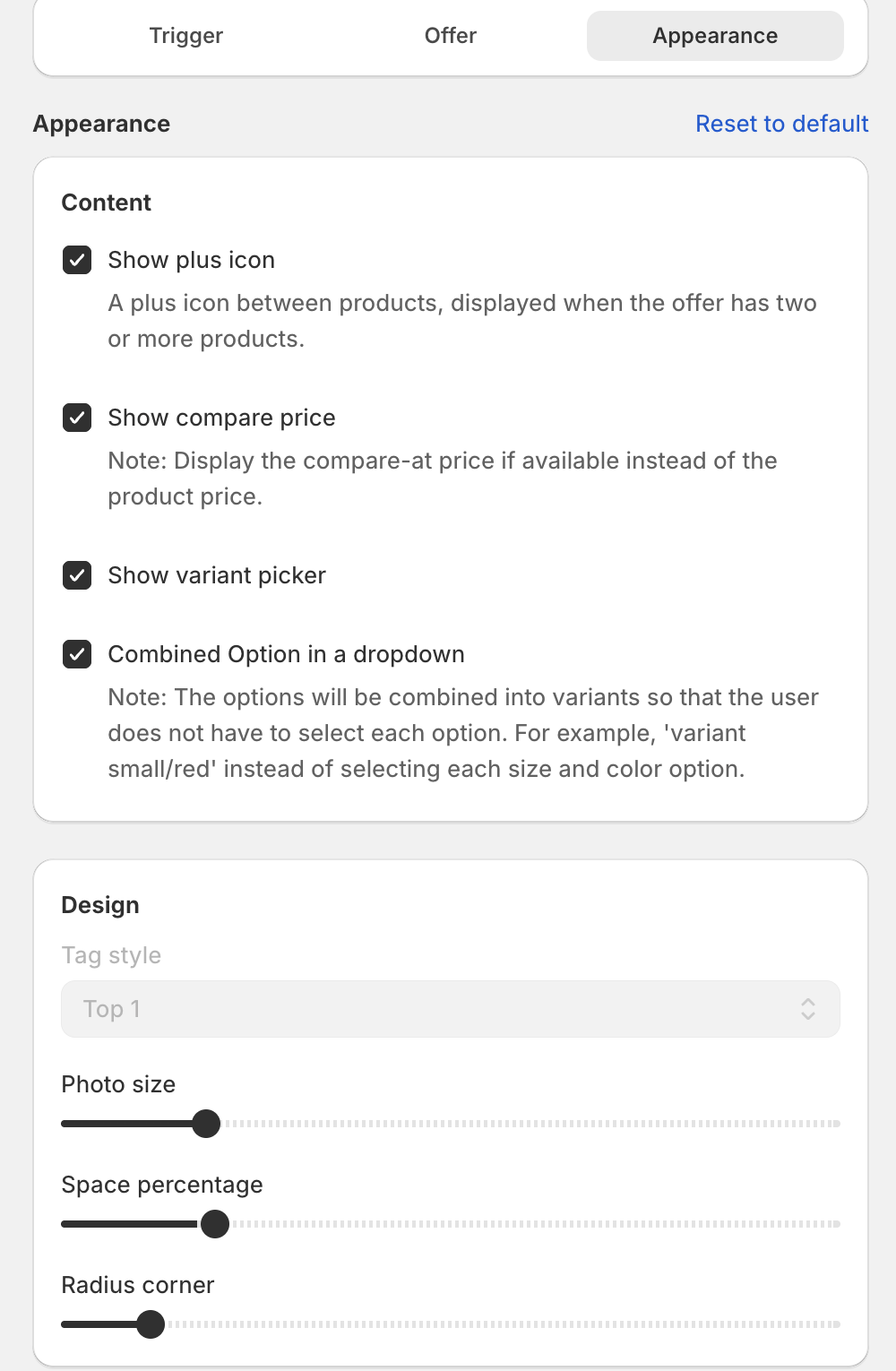
- Content: Show plus icon (between products), Show compare price, Show variant picker and Combined Option in a dropdown.
- Design: Tag style, Photo size, Space percentage and Radius corner.
- Colors, Text size and Custom CSS.
6. Publish
Click Publish at the top right. Then open one of the bundle products on your store to check the widget, or use Test on storefront.
Change where the widget shows
- Theme editor: open your product template, click Add block and add the Fixed Bundle app block from Xboost Bundle. The block's Margin Horizontal setting sets the space above and below the widget.
- Page builders or custom code: copy the code under Use this code for custom placement or page builders (Optional) in Settings. It is an empty
divwith the idxb-fixed-bundle-root.
Make the widget shorter
On the Appearance step, lower Photo size and Space percentage under Design, and lower the sizes under Text size. Clear options you do not need under Content, such as Show compare price.
Change the font
The widget uses your theme's font. To use another font, add a font-family rule in Custom CSS on the Appearance step. Click Show list under the CSS editor to see the widget's class names. See How to change the font of a bundle offer.