
How to create a Buy X Get Y (BOGO) offer
Overview
A Buy X Get Y (BOGO) offer gives the shopper product Y free or at a discount when they buy product X. If X and Y are the same product, it is a Buy One Get One (BOGO) deal. The widget shows X and Y together, and the shopper adds both to the cart with one button.
By default the widget shows on the product page, below the product form or the product section, depending on the template layout.
Buy X Get Y (BOGO) is available in this app only in stores that installed XB: Bundles Quantity Breaks before this feature moved to a separate app. In newer installs, the card opens XB: Free Gifts & Buy X Get Y on the Shopify App Store. See How to create your first Buy X Get Y offer.
Before you start
- Turn on the Xboost Core Script app embed. See Getting started with XB: Bundles Quantity Breaks.
Steps
1. Choose Buy X Get Y (BOGO) and a template
- In Xboost Bundle, open Offers and click Create offer.
- On the Buy X Get Y (BOGO) card, click Create an offer.
- Optional: pick a Color theme at the top right.
- Click Select and customize on a template.
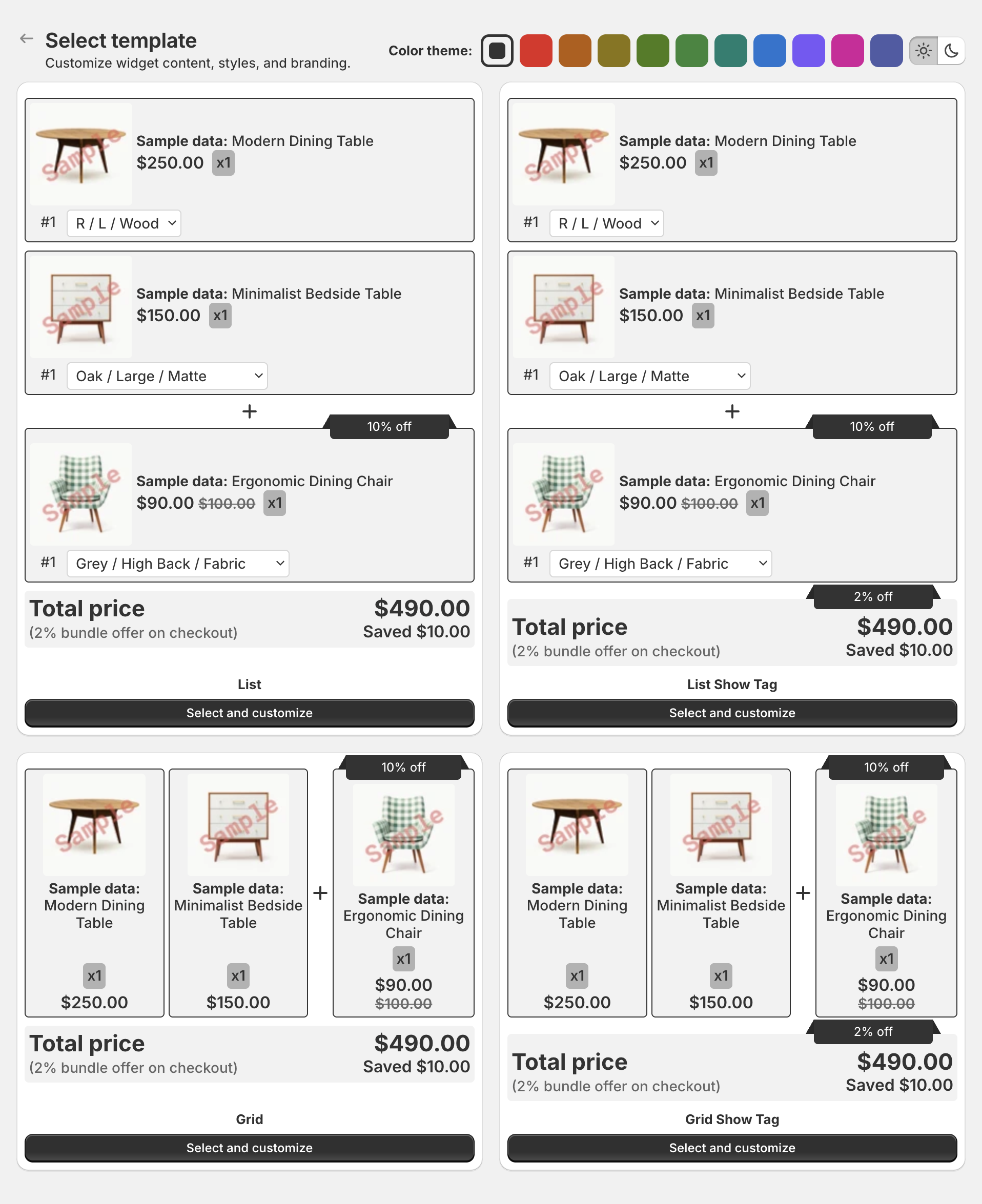
The offer opens in the editor as a Draft. Click Edit offer name to rename it. Shoppers do not see this name.
2. Choose product X (Trigger)
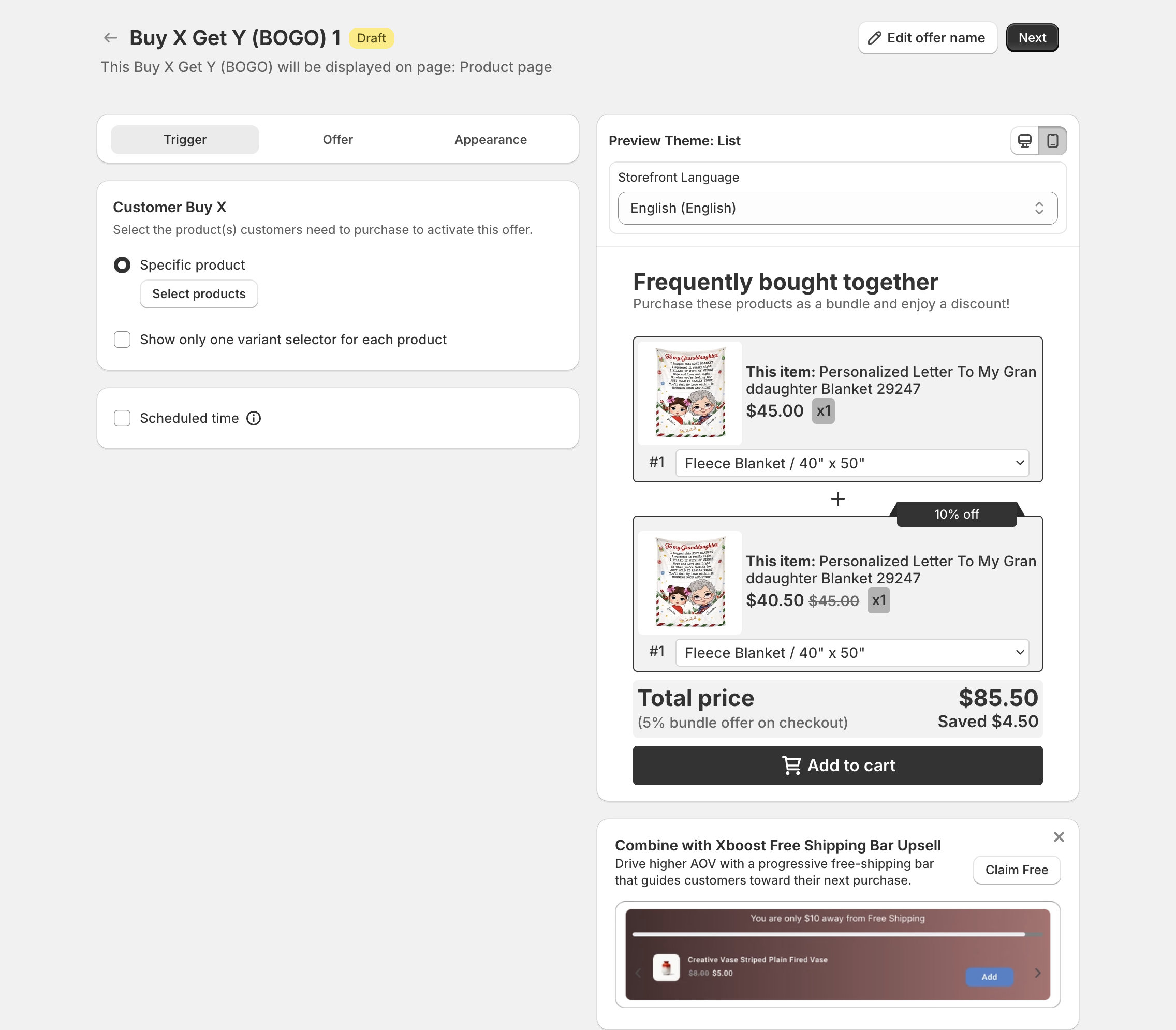
Under Customer Buy X, click Select products and pick the products the shopper must buy. The offer shows on the product pages of these products.
- Optional: tick Show only one variant selector for each product.
- Optional: tick Scheduled time to set a start and end date.
Click Next.
3. Choose product Y and the discount (Offer)
-
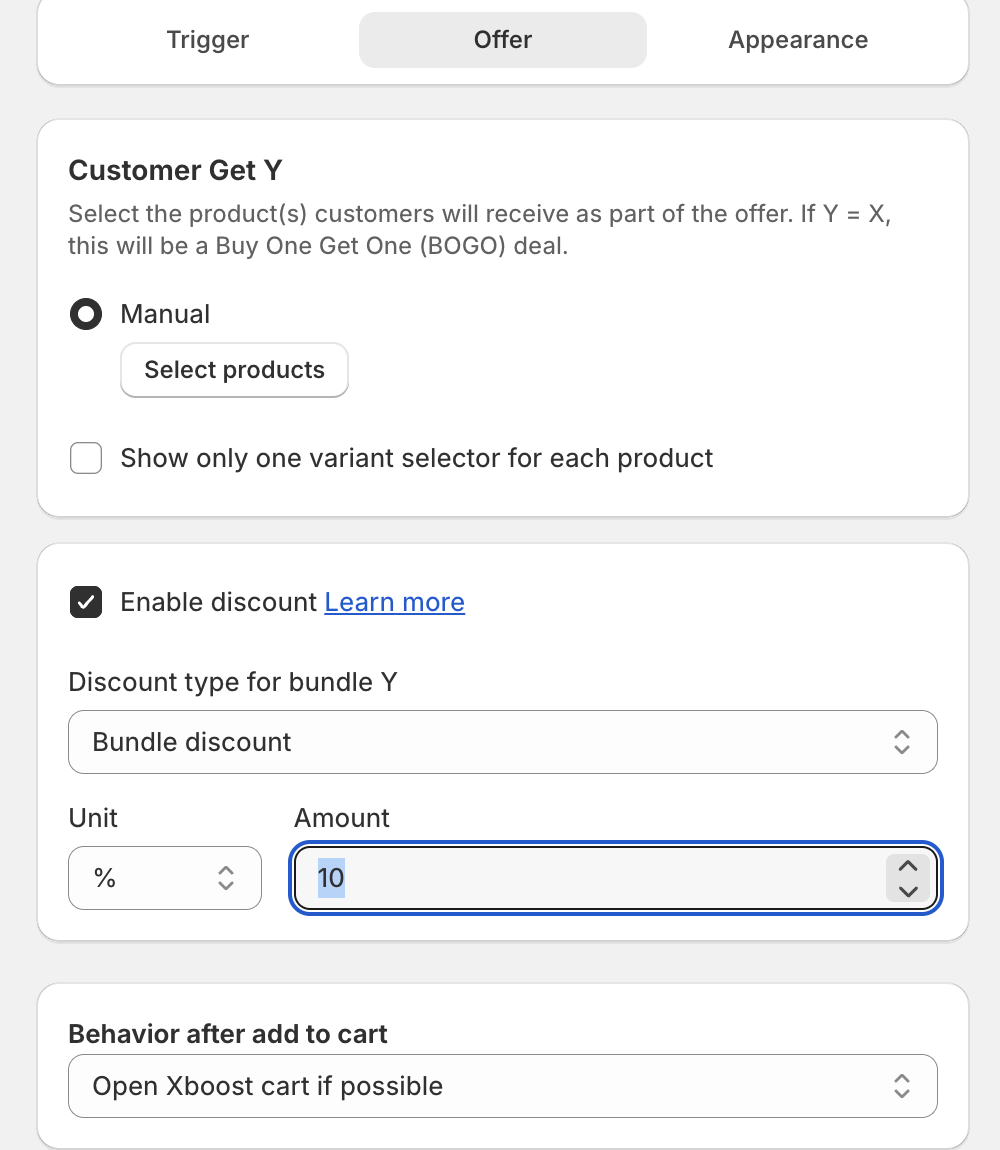
Under Customer Get Y, click Select products and pick the products the shopper gets. Pick the same product as X for a BOGO deal.
-
Keep Enable discount ticked and pick the Discount type for bundle Y:
- Default price: no discount.
- Bundle discount: a discount on Y. Set Unit (% or $) and Amount.
- Fixed price: Y sells at a fixed price.
- Free gift: Y is free.
-
Under Behavior after add to cart, choose Open Xboost cart if possible, Go to cart page, Go to check out or Refresh page.
If your theme's cart drawer does not open or does not show the new items, see Why doesn't the bundle offer work with my theme's cart drawer?
For more about the discount types, see Buy X Get Y & BOGO discount types.
4. Optional: Integrations and Settings
- Integrations shows the offer in the cart drawer of XB: AI Cart Upsell Cart Drawer, and adds a trust badge, countdown timer or estimated delivery from other XBoost apps. See Integrations.
- Settings > Customization holds the widget text: Title, Subtitle, This item label, Add to cart label, Out of stock message, Discount note, Saved money message (use
{{money}}for the amount saved), Total price label, and the tags Free tag ( Y ) and Discount tag total. Put{{timer}}in a tag to show a countdown, then set Countdown time and Timer end behavior. - Pricing setting > Price rounding rounds the discounted price up to the price ending you choose, such as .99.
Click Next.
5. Adjust the look (Appearance)
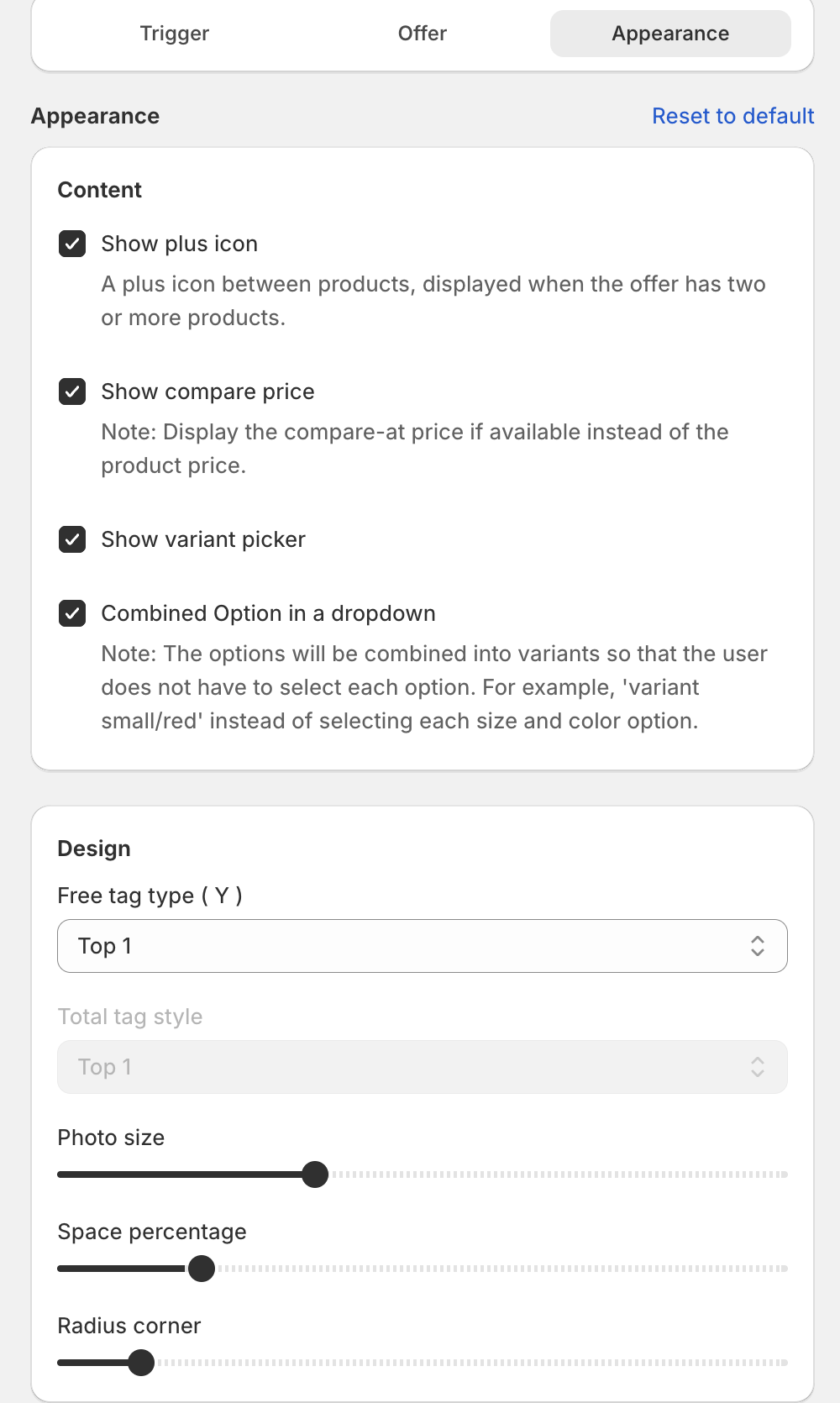
- Content: Show plus icon, Show compare price, Show variant picker and Combined Option in a dropdown.
- Design: Free tag type ( Y ), Total tag style, Photo size, Space percentage and Radius corner.
- Colors, Text size and Custom CSS.
6. Publish
Click Publish at the top right. Then open product X on your store to check the widget, or use Test on storefront.
Change where the widget shows
- Theme editor: open your product template, click Add block and add the Buy X Get Y & BOGO app block from Xboost Bundle. The block's Margin Horizontal setting sets the space above and below the widget.
- Page builders or custom code: copy the code under Use this code for custom placement or page builders (Optional) in Settings. It is an empty
divwith the idxb-buy-x-get-y-root.
Make the widget shorter
On the Appearance step, lower Photo size and Space percentage under Design, and lower the sizes under Text size. Clear options you do not need under Content, such as Show plus icon.
Change the font
The widget uses your theme's font. To use another font, add a font-family rule in Custom CSS on the Appearance step. See How to change the font of a bundle offer.