
How to create a Bundle Builder offer
Overview
A Bundle Builder offer lets shoppers build their own bundle in steps. For example: step 1 "Choose Your Top", step 2 "Choose Your Bottom", step 3 "Add Shoes". In each step the shopper picks products from the list you set, and then adds the whole bundle to the cart with Add bundle to cart. You can give a discount per step.
By default the widget shows on the product page, below the product form or the product section, depending on the template layout.
Before you start
- Turn on the Xboost Core Script app embed. See Getting started with XB: Bundles Quantity Breaks.
Steps
1. Choose Bundle Builder and a template
- In Xboost Bundle, open Offers and click Create offer.
- On the Bundle Builder card, click Create an offer.
- Click Select and customize on a template, for example Clothing Outfit (top, bottom and shoes) or Gift Box (three items).
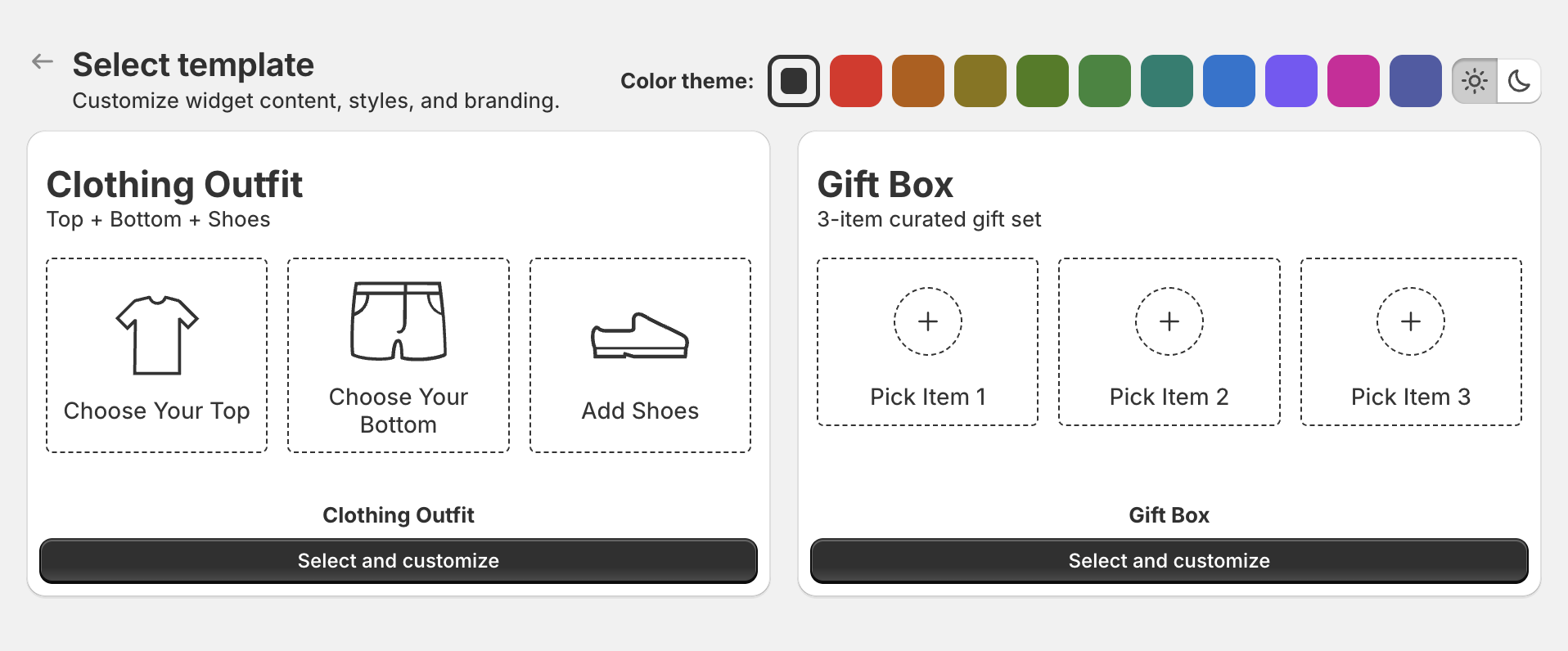
The offer opens in the editor as a Draft. Click Edit offer name to rename it. Shoppers do not see this name.
2. Choose the products that show the builder (Trigger)
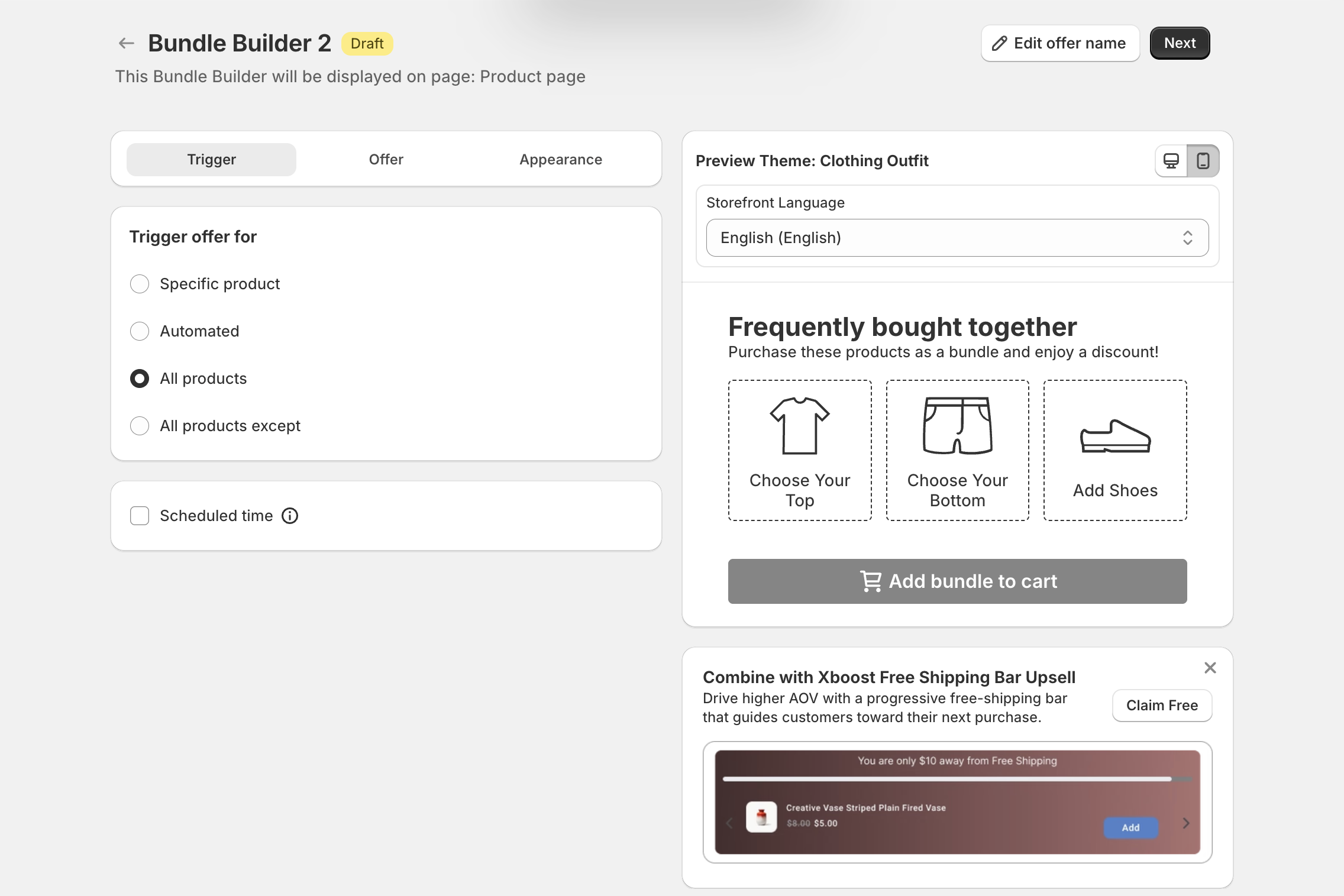
Under Trigger offer for, choose where the builder shows:
- Specific product: only on the products you select.
- Automated: on products in the collections you select.
- All products: on every product.
- All products except: on every product except the ones you select.
Optional: tick Scheduled time to set a start and end date. Click Next.
3. Set up the steps (Offer)
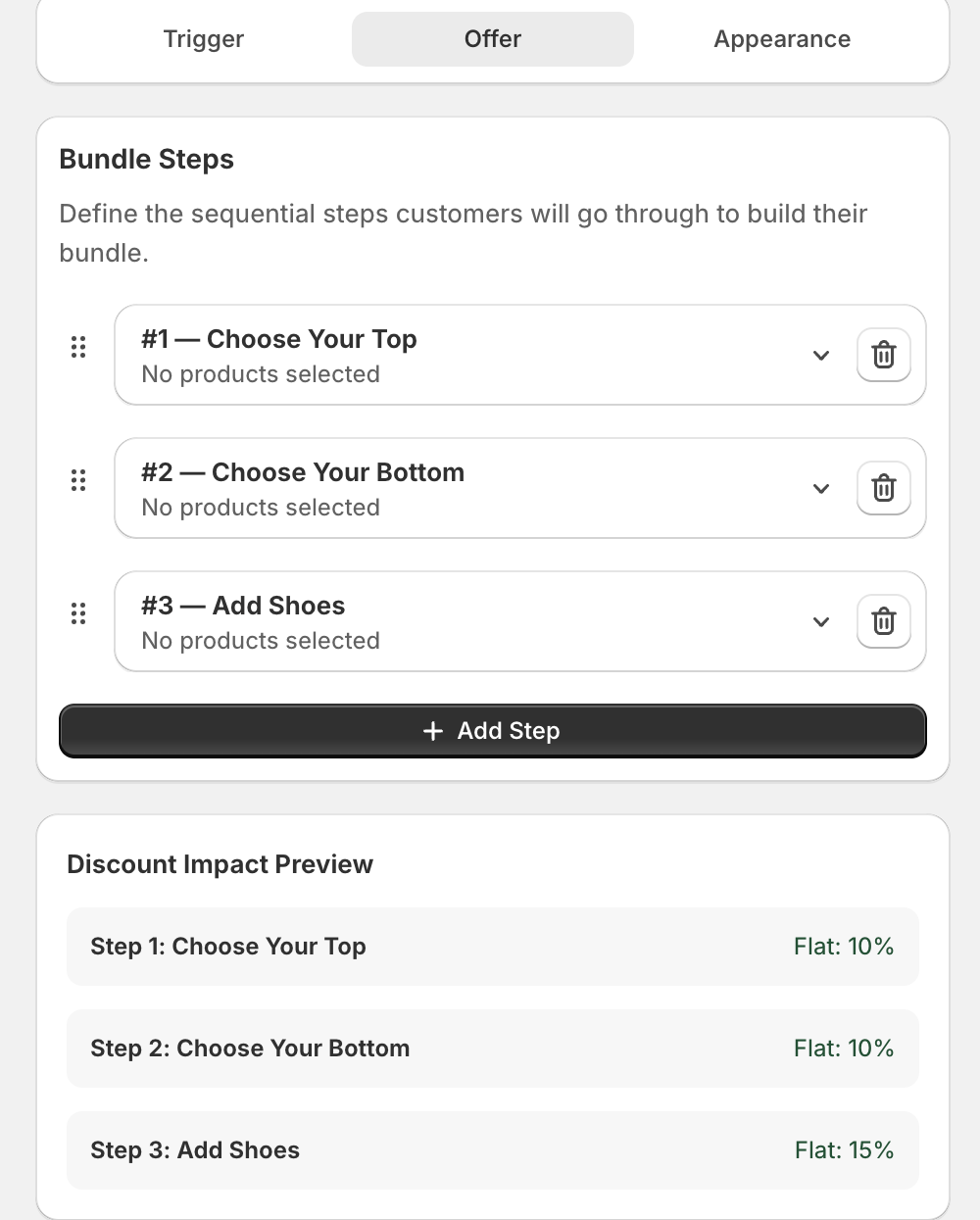
Bundle Steps lists the steps shoppers go through, in order. The template adds three steps with no products yet.
Click a step to open it:
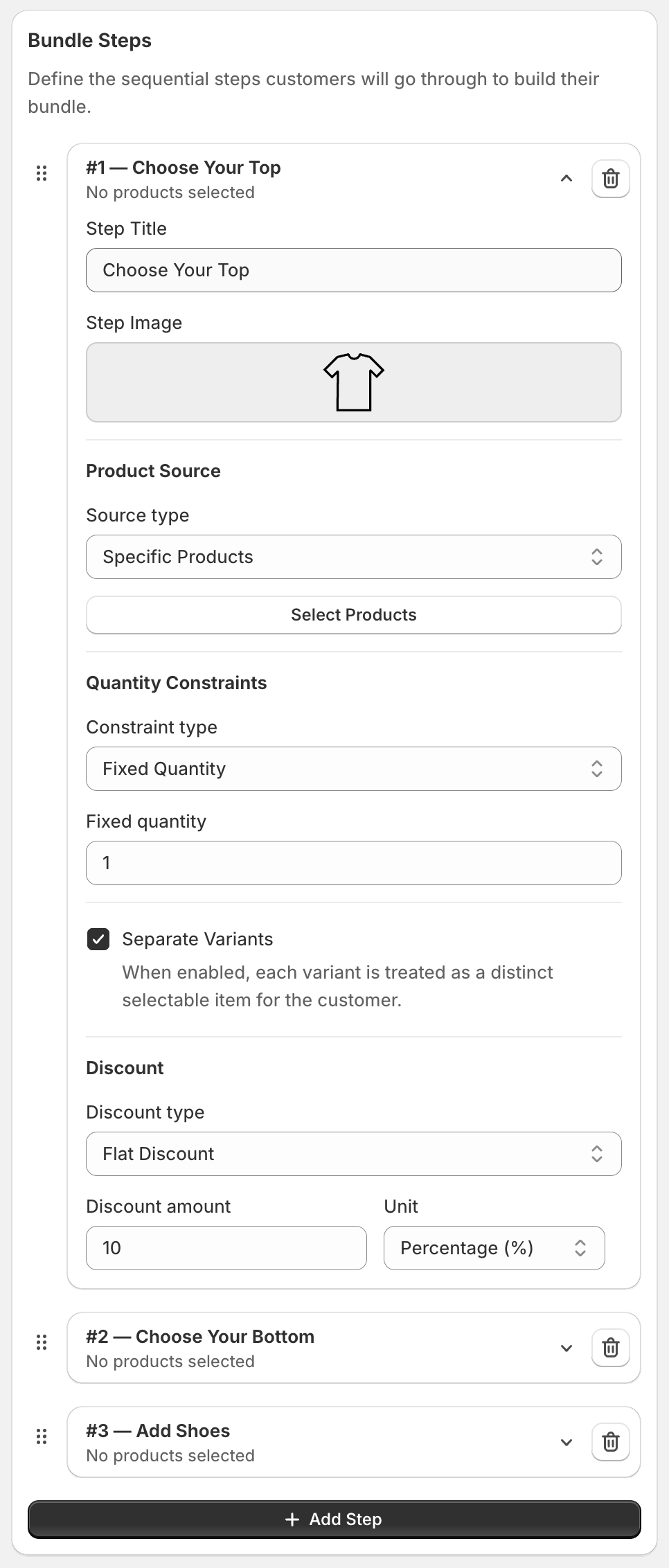
- Edit the Step Title and, optional, the Step Image.
- Under Product Source, pick the Source type: Specific Products or Specific Collections. Then click Select Products (or select the collections) to choose what the shopper can pick in this step.
- Under Quantity Constraints, pick the Constraint type:
- Fixed Quantity: the shopper must pick exactly this number of items. Set Fixed quantity.
- Min / Max: the shopper picks between a minimum and a maximum number of items.
- Optional: tick Separate Variants to show each variant as its own item the shopper can pick.
- Under Discount, pick the Discount type:
- No Discount.
- Flat Discount: set Discount amount and Unit (Percentage (%) or Fixed Amount).
- Tiered Discount (Mix & Match): add Discount tiers, each with Buy qty, Discount and Unit.
To add a step, click Add Step. To remove one, click the trash icon on the step. To change the order, drag a step by the handle on its left.
Discount Impact Preview under the steps sums up the discount of each step, for example "Step 1: Choose Your Top — Flat: 10%".
A step with no products shows No products selected. Add products to every step before you publish.
4. Optional: change the text (Customization)
Under Customization you can edit all text the shopper sees:
- Offer text: Title, Subtitle, Add to cart label and Out of stock message.
- Offer discount text: Total price label, Discount note and Saved money message.
- Popup picker: Step hint label, Step hint satisfied label, Item add button label and Item remove button label.
- Offer step buttons: Next button label, Previous button label and Done button label.
Click the {} button next to a field to see the variables it supports. Click Next.
5. Adjust the look (Appearance)
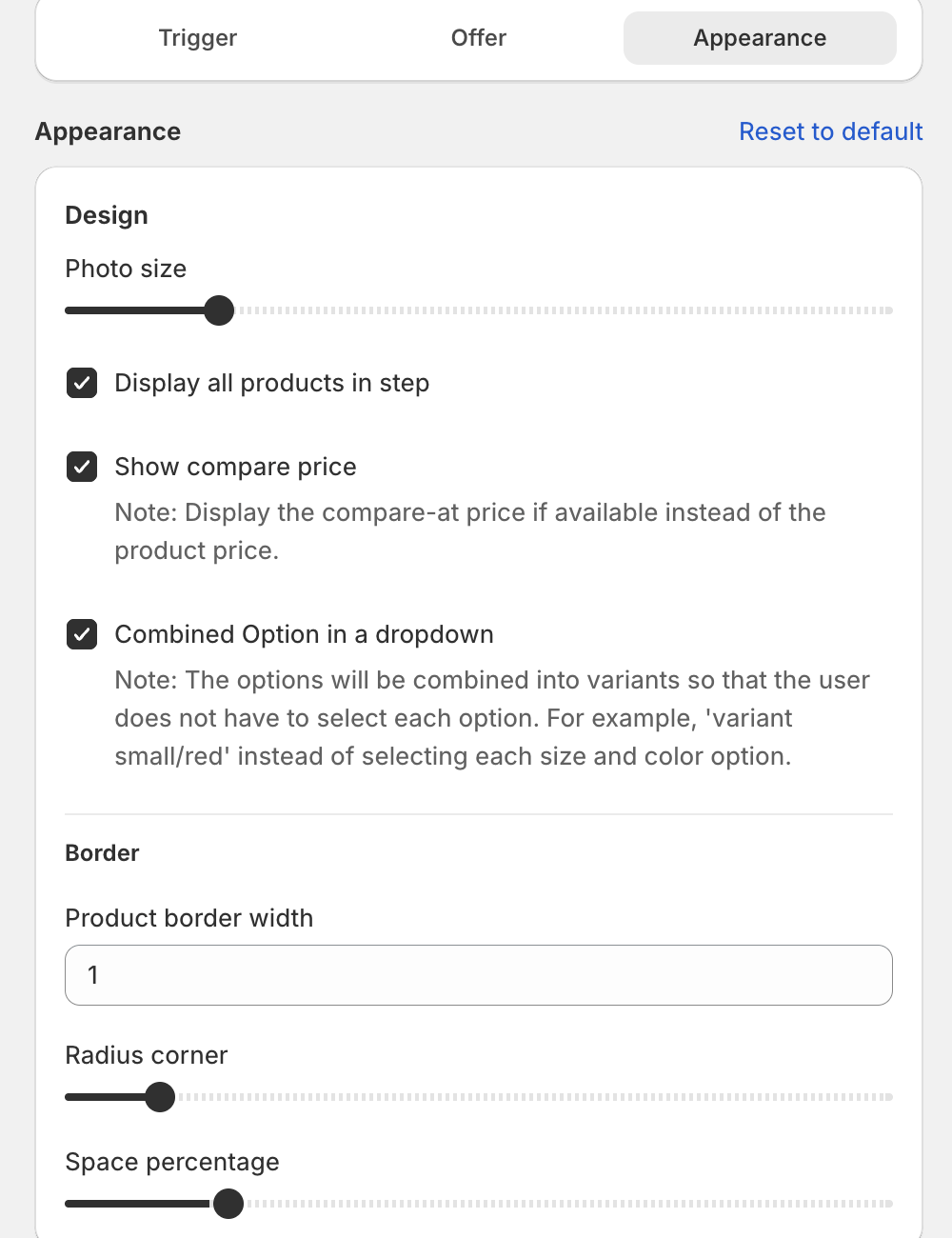
- Design: Photo size, Display all products in step, Show compare price and Combined Option in a dropdown.
- Border: Product border width, Radius corner and Space percentage.
- Colors, Text size and Custom CSS.
6. Publish
Click Publish at the top right. Then open a product that the offer targets to check the builder, or use Test on storefront.
Change where the builder shows
In the theme editor, open your product template, click Add block and add the Bundle Builder app block from Xboost Bundle. The block's Margin Horizontal setting sets the space above and below the builder.
Make the builder shorter
On the Appearance step, lower Photo size and Space percentage, and lower the sizes under Text size.
Change the font
The builder uses your theme's font. To use another font, add a font-family rule in Custom CSS on the Appearance step. See How to change the font of a bundle offer.