
Why doesn't the bundle offer work with my theme's cart drawer?
Overview
A shopper clicks the add to cart button of a Buy X Get Y (BOGO), Fixed bundle or AI Frequently Bought Together offer. The products are added to the cart, but your theme's cart drawer does not open, or it opens with the old items until the shopper reloads the page.
Why it happens
The offer adds the products with Shopify's cart API, not with your theme's add to cart button. After that, the app must tell your theme's cart drawer to reload and open.
Every theme has its own code to update and open its cart drawer. XB: Bundles Quantity Breaks calls this code for Shopify themes such as Dawn and for some other popular themes. Many themes keep this code private, so the app cannot call it. The products are in the cart, but the theme's cart drawer does not show them.
This happens when Behavior after add to cart is Open Xboost cart if possible and the cart drawer of XB: AI Cart Upsell Cart Drawer is not active. The app then tries to update your theme's cart drawer.
You have two options.
Option 1: Use the XBoost cart drawer (recommended)
XB: AI Cart Upsell Cart Drawer replaces your theme's cart drawer and works directly with XBoost offers. Each time a shopper adds a bundle, the cart drawer reloads and opens with the new items.
- Install XB: AI Cart Upsell Cart Drawer and turn on its cart drawer. See Getting started with XB: AI Cart Upsell Cart Drawer.
- In XB: Bundles Quantity Breaks, open the offer and go to the Offer step.
- Under Behavior after add to cart, select Open Xboost cart if possible.
- Click Save.

What shoppers see
On the product page, the shopper clicks Add to cart in the bundle:
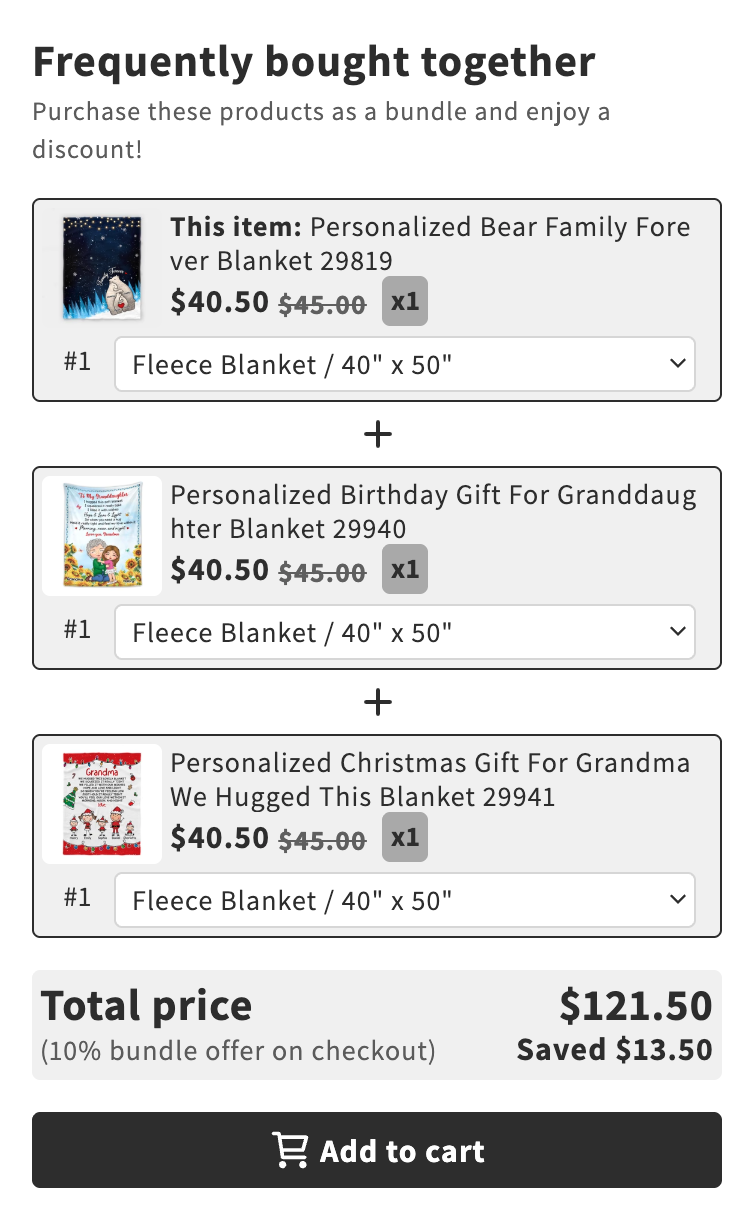
The XBoost cart drawer opens right away with all the bundle products. Shoppers do not have to reload the page or go to the cart page. The bundle discount applies at checkout, as the widget says.
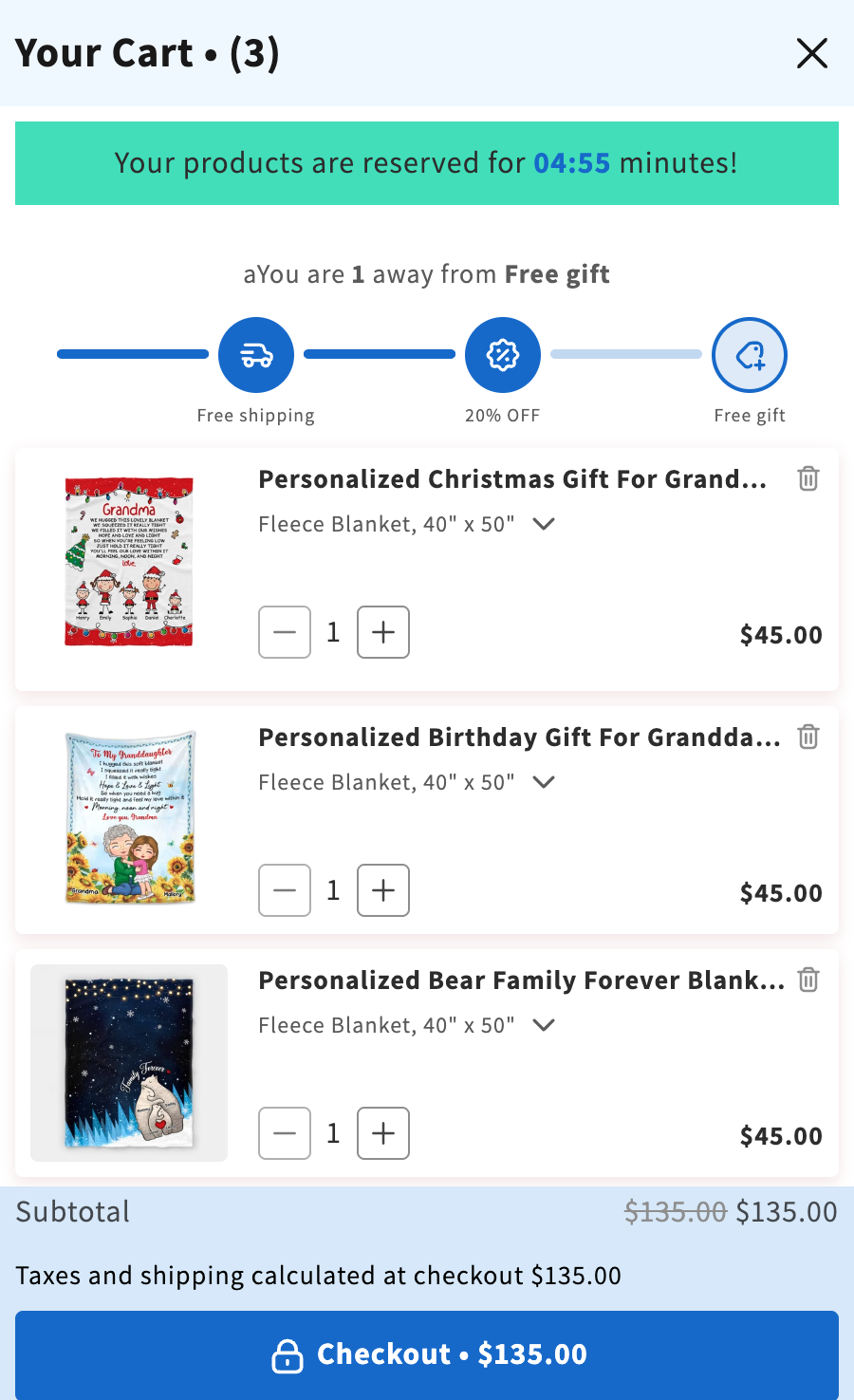
Let shoppers add the bundle from the cart
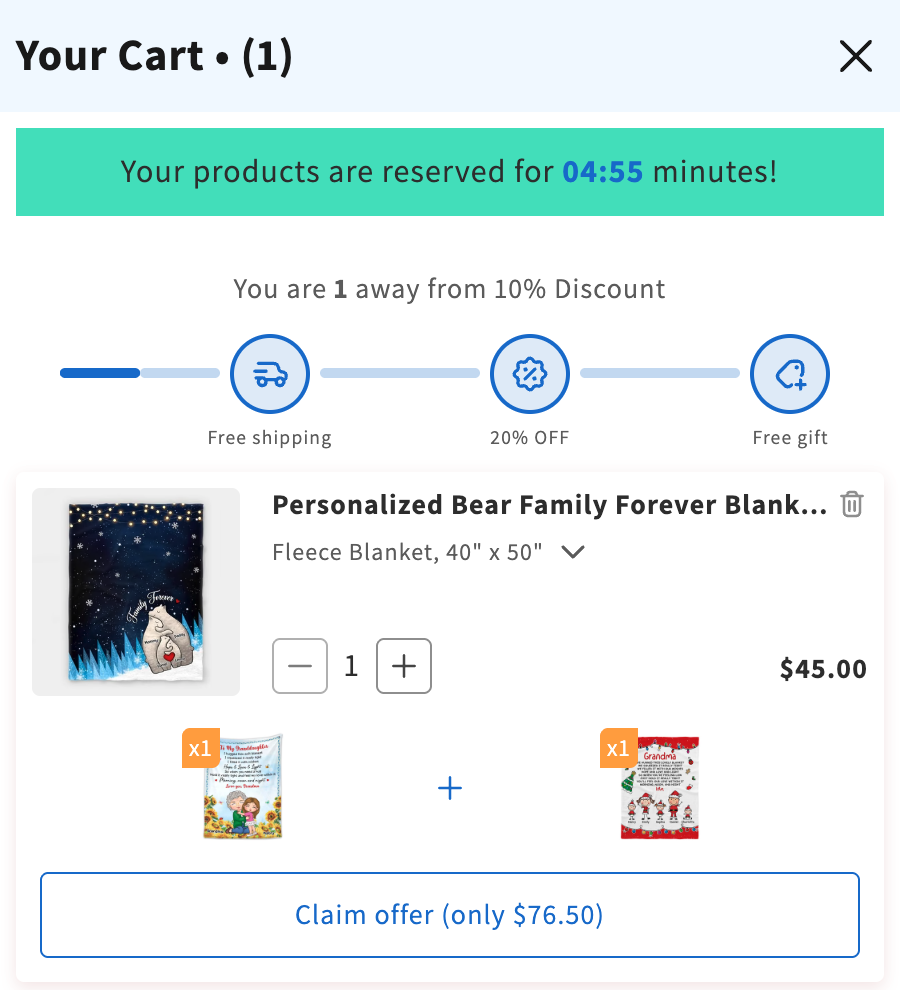
The two apps also work together inside the cart. When a shopper adds only one product of a bundle, the cart drawer shows the rest of the bundle under that cart item. The shopper can add the bundle from there without going back to the product page.
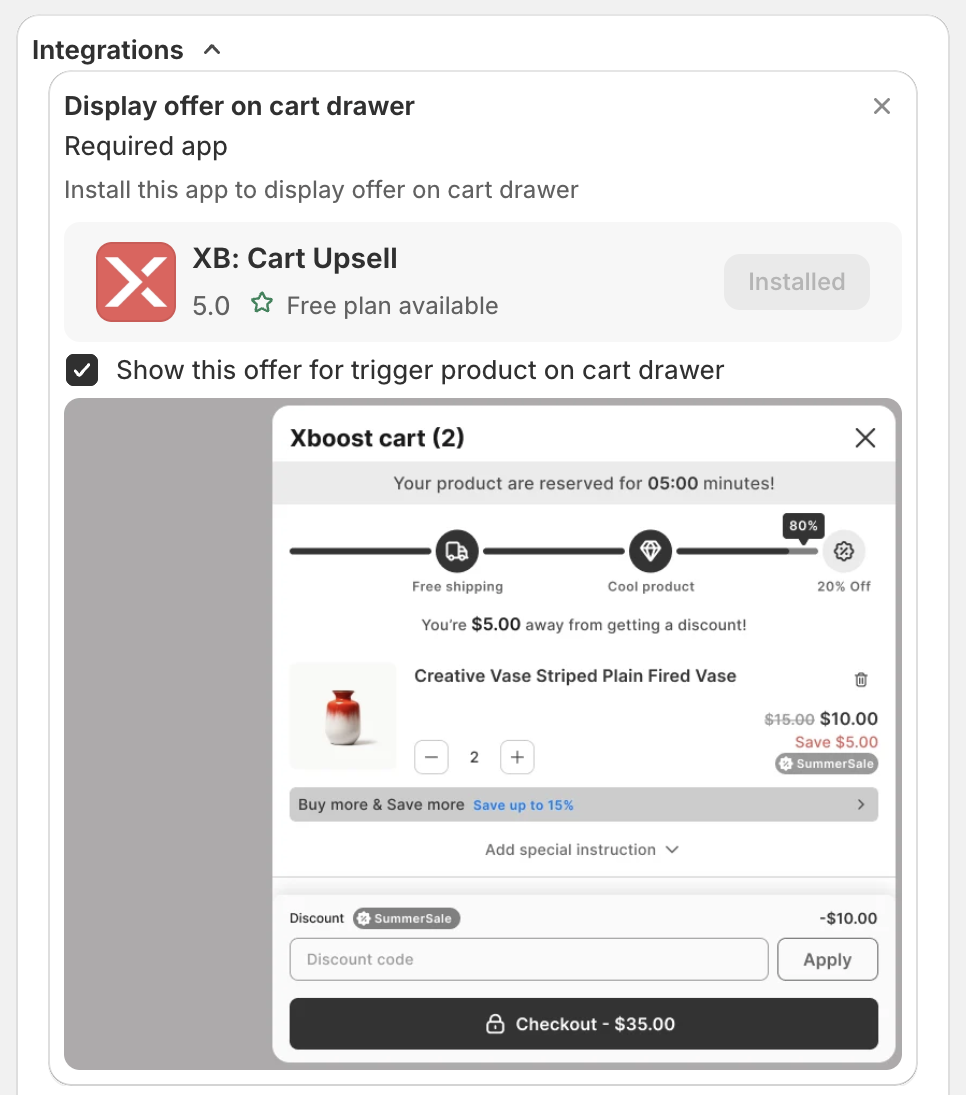
- In XB: Bundles Quantity Breaks, open the offer. On the Offer step, open Integrations.
- Under Display offer on cart drawer, tick Show this offer for trigger product on cart drawer.
- Click Save.
- In XB: AI Cart Upsell Cart Drawer, go to Cart Drawer > Integrate - Buy more & Save more > Product Bundle. Tick Show product bundle upgrade tips, and optionally Show expanded product bundle tips. Click Save. See How to show bundle offers in the cart. The integrations need a paid plan of XB: AI Cart Upsell Cart Drawer.
This is how it works on the store:
-
The shopper adds one blanket to the cart. Under the cart item, the cart drawer shows the other products of the bundle and a Claim offer button with the bundle price:
-
The shopper clicks Claim offer. The bundle opens inside the cart drawer. The shopper picks the variant of each product and clicks Claim offer:
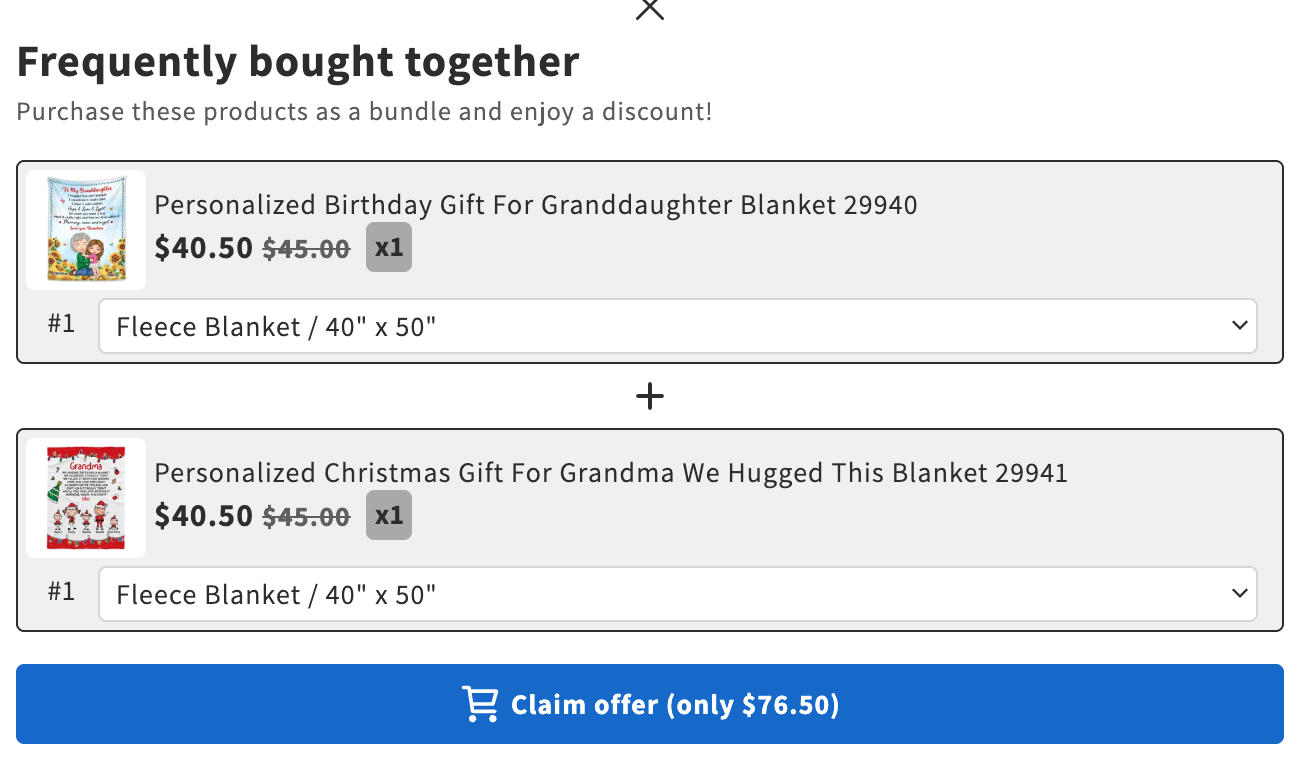
-
The bundle products are added to the cart and the cart drawer updates at once, with the bundle discount:
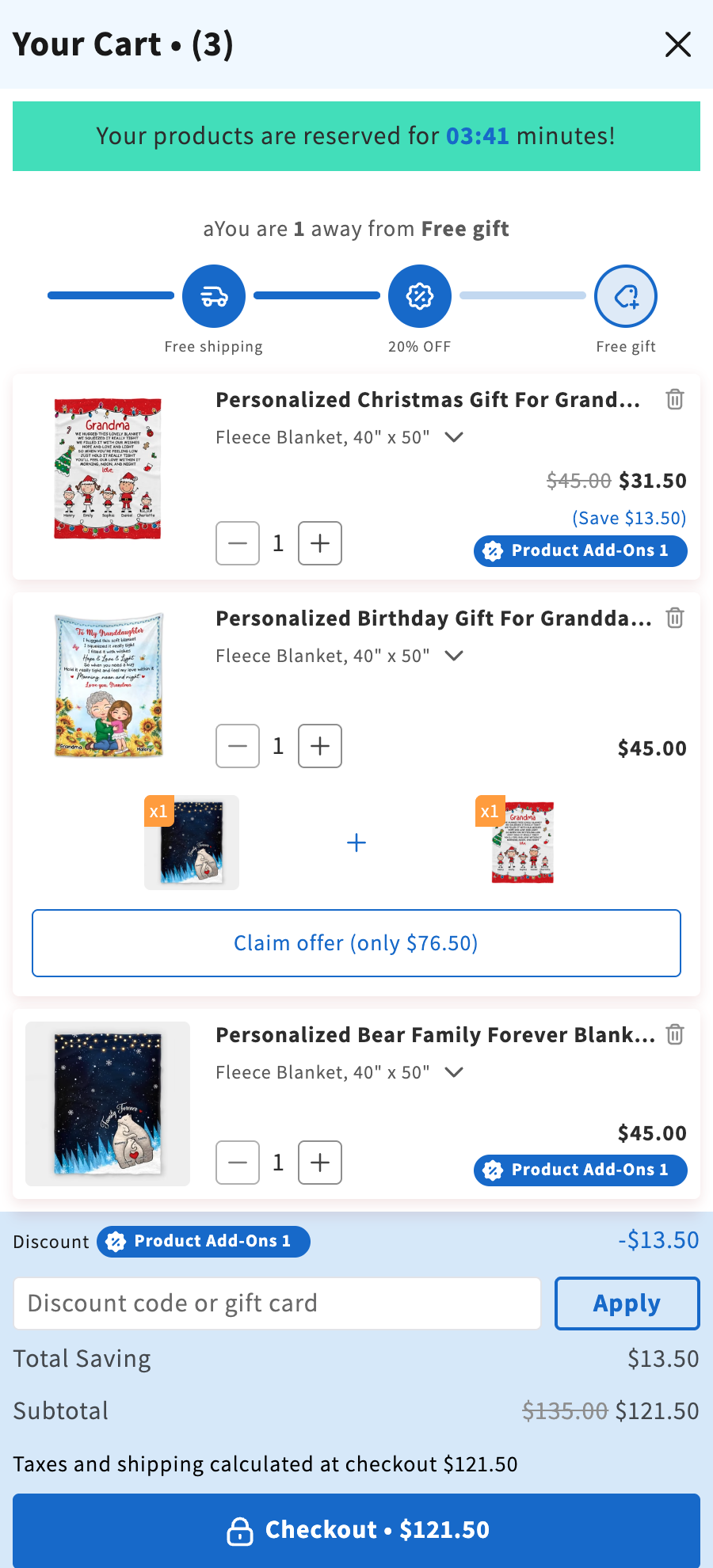
Option 2: Choose another behavior
To keep your theme's cart, choose a behavior that does not need the theme's cart drawer:
-
Open the offer and go to the Offer step.
-
Under Behavior after add to cart, select one of these options:
Option What happens after the shopper adds the bundle Go to cart page The shopper goes to your store's cart page. Go to check out The shopper goes straight to checkout. Refresh page The page reloads, so your theme shows the updated cart. -
Click Save.