
Why can't shoppers choose variants in my Quantity Discounts offer?
Overview
In a Quantity Discounts offer, shoppers cannot pick a variant, such as a size or color, for each item in a tier. There are two common causes:
- Let customers choose different variants for each item is turned off.
- The offer uses a template that does not support variant selection. This is the most common cause.
1. Turn on variant selection
- Open Offers and click the offer name.
- Click Appearance at the top of the editor.
- Under Variant, tick Let customers choose different variants for each item.
- Click Save in the bar at the top of the page.
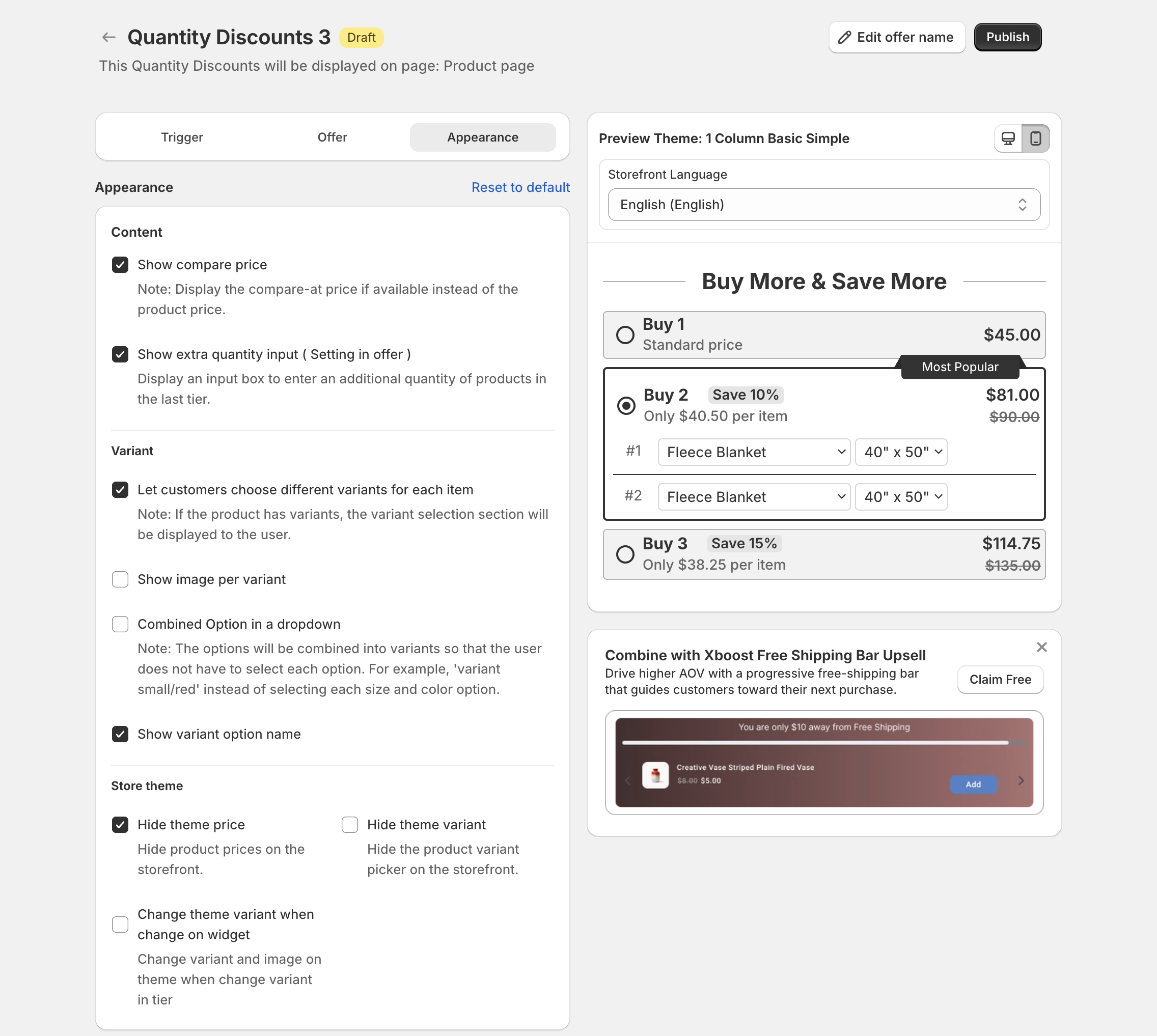
If you do not see Let customers choose different variants for each item under Variant, your template does not support it. Go to the next section.
2. Use a template that supports variant selection
Minimal and grid templates show only the tiers and their prices. They have no variant pickers, so the Appearance step hides Let customers choose different variants for each item.
| Template | Variant selection |
|---|---|
| 1 Column Basic Simple | Supported |
| 1 Column Basic | Supported |
| 1 Column Tier Image | Supported |
| 1 Column Variant Image | Supported |
| Ticket Basic | Supported |
| 1 Column Minimal | Not supported |
| 2 Column Minimal | Not supported |
| Ticket Minimal | Not supported |
| Grid | Not supported |
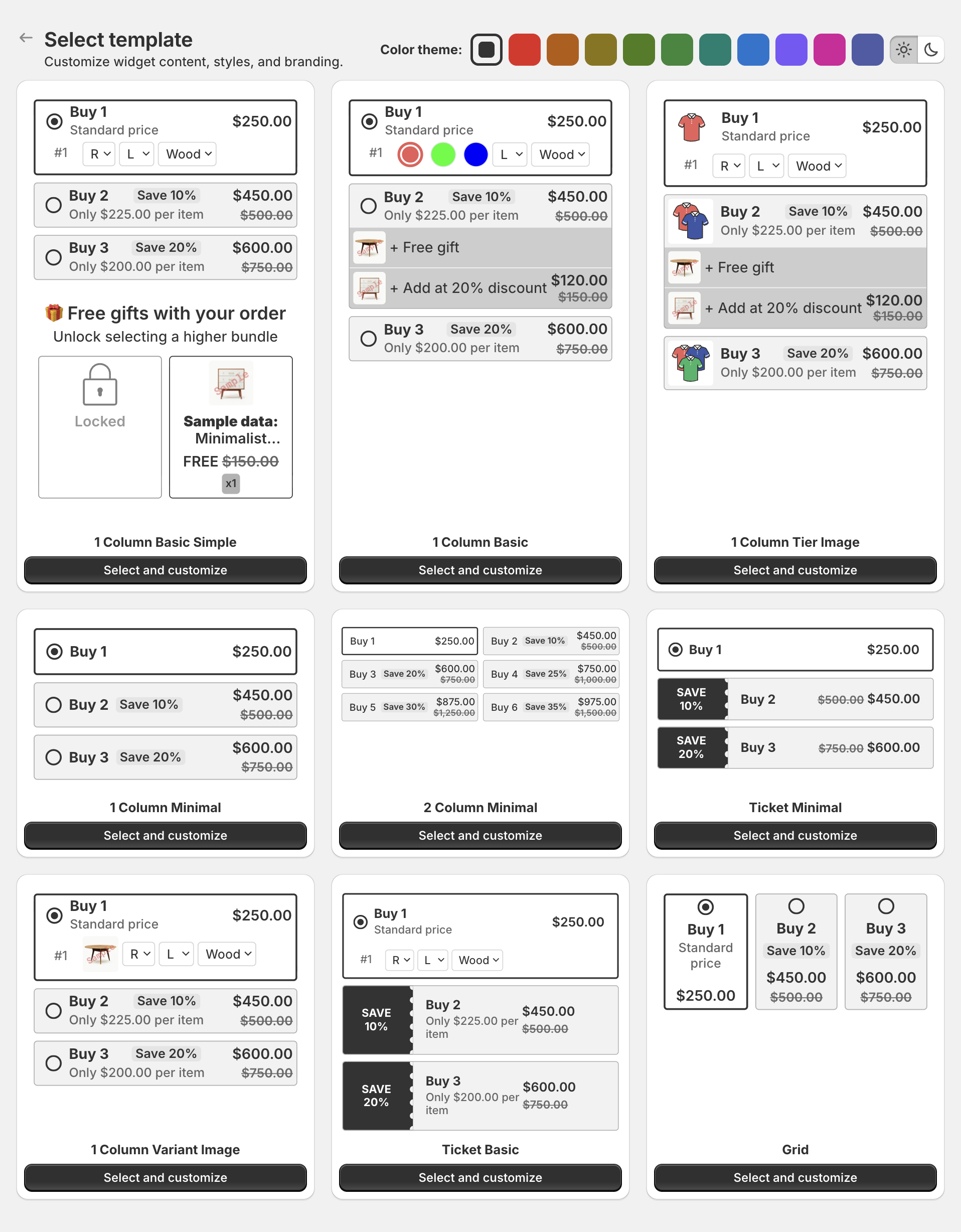
You pick the template when you create the offer. To switch to a template that supports variant selection, create a new offer:
- Open Offers and click Create offer.
- On the Quantity Discounts card, click Create an offer.
- Click Select and customize on a supported template, for example 1 Column Basic.
- Set the same products, tiers and discounts as in your current offer. See How to create a Quantity Discounts offer.
- On the Appearance step, under Variant, tick Let customers choose different variants for each item.
- Click Publish at the top right.
- On the Offers page, select the old offer and click Deactivate, so only the new offer shows.