How to add bundle widgets with app blocks
Overview
Offers from XB: Bundles Quantity Breaks place themselves on the product page: Quantity Discounts, Mix & match and Product Add-Ons above the Add to cart button, the other types below the product form or the product section. To choose the position yourself, add the offer's app block in the theme editor. When the page has the app block, the offer shows there instead of in its default position.
Before you start
- Turn on the Xboost Core Script app embed. See Getting started with XB: Bundles Quantity Breaks.
Steps
1. Start customizing theme
In your Shopify admin, go to Online Store > Themes and click Customize to open the theme editor.
2. Select page
At the top of the theme editor, select the product page template where you want to show the widget.
3. Add the app block
In the left sidebar, click Add block in the Product information section, open the Apps tab and pick the block for your offer type from Xboost Bundle. To see all the blocks of the app, type "Xboost Bundle" in the search box.
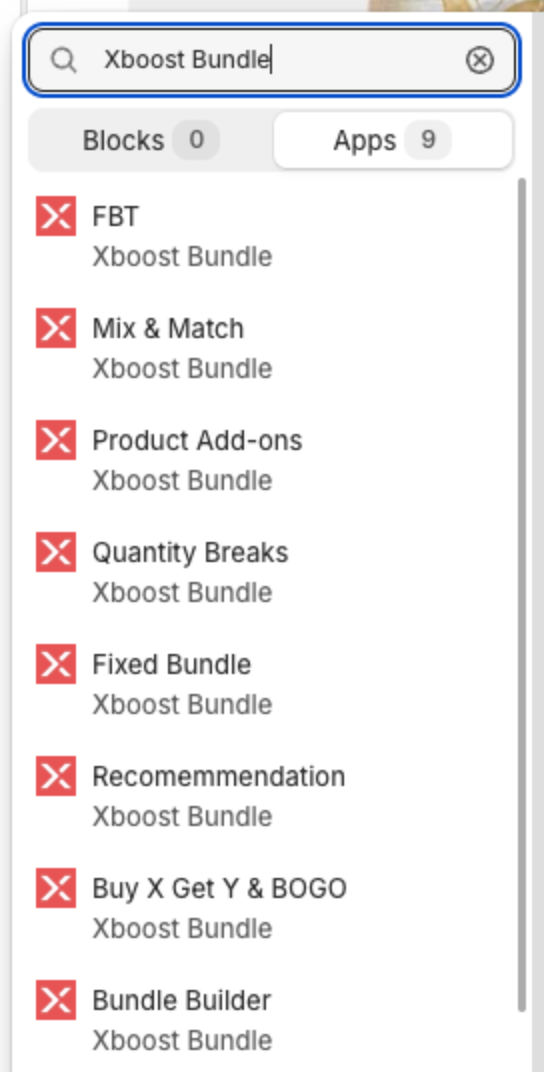
| Offer type | App block |
|---|---|
| Bundle Builder | Bundle Builder |
| Quantity Discounts | Quantity Breaks |
| Fixed bundle | Fixed Bundle |
| AI Frequently Bought Together | FBT |
| Mix & match | Mix & Match |
| Product Add-Ons | Product Add-ons |
| Buy X Get Y (BOGO) | Buy X Get Y & BOGO |
If you also use XB: Free Gifts & Buy X Get Y, the list shows a second Buy X Get Y & BOGO block. Pick the one with Xboost Bundle under the name.
4. Set up the block
Click the block in the left sidebar to see its settings. This is the Quantity Breaks block:
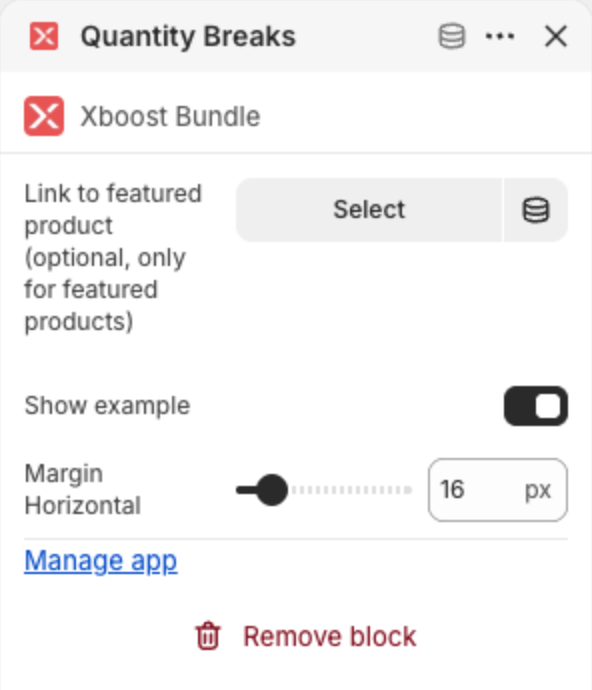
- Link to featured product (optional, only for featured products): shows the offer of the product you select. Use it when the block is in a featured product section on another page, such as the home page. Leave it empty on product pages. See How to add a quantity break offer when using featured product on the home page.
- Show example: on by default. It shows a sample offer on pages without a real offer. Clear it when your real offers are ready. See How to hide the sample bundle offer on my store.
- Margin Horizontal: the space above and below the widget, from 0 to 120 px. The default is 16 px.
The Fixed Bundle, FBT, Mix & Match, Product Add-ons and Buy X Get Y & BOGO blocks have the same settings. The Bundle Builder block has Link to featured product (optional, only for featured products) and Margin Vertical, and no Show example.
5. Select block location
Drag the block to the position you want, then click Save to apply your changes.
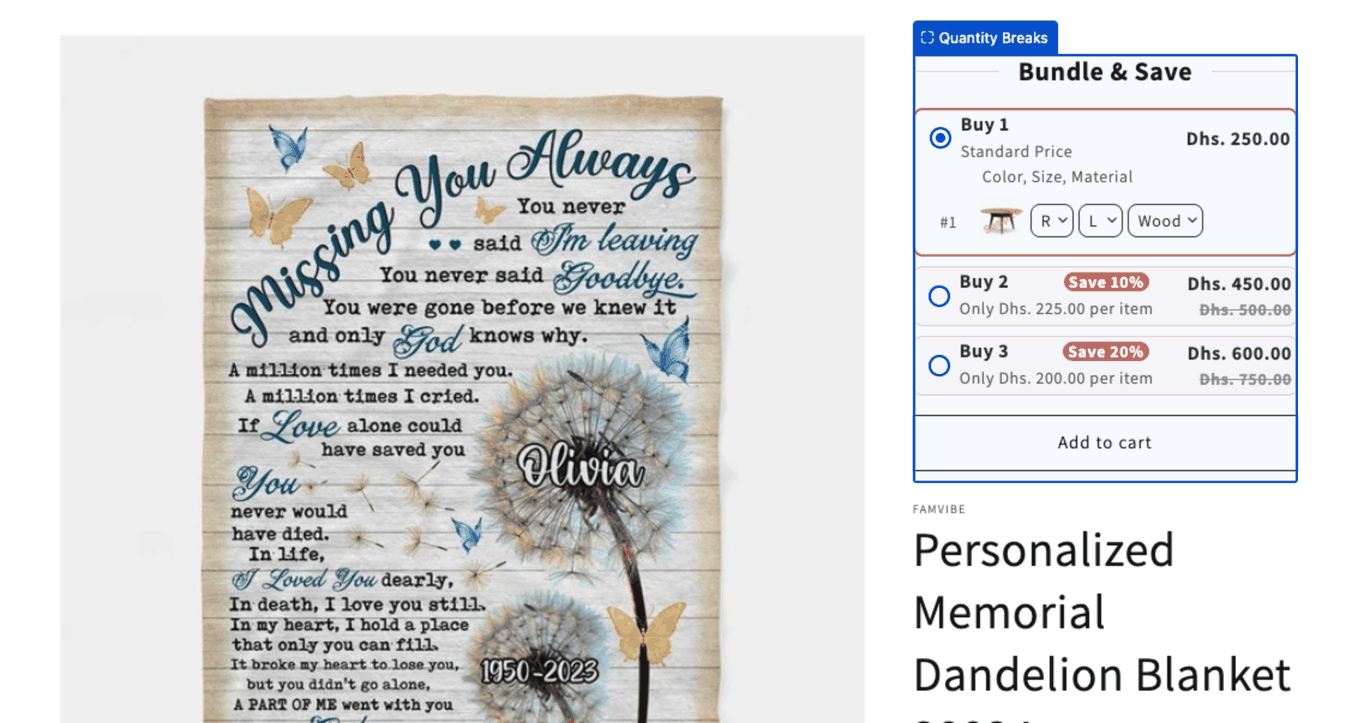
The widget shows where you placed the block. In this example the Quantity Breaks block is above the product title, and the theme editor shows the sample offer: