
How to customize the sticky add to cart bar
Overview
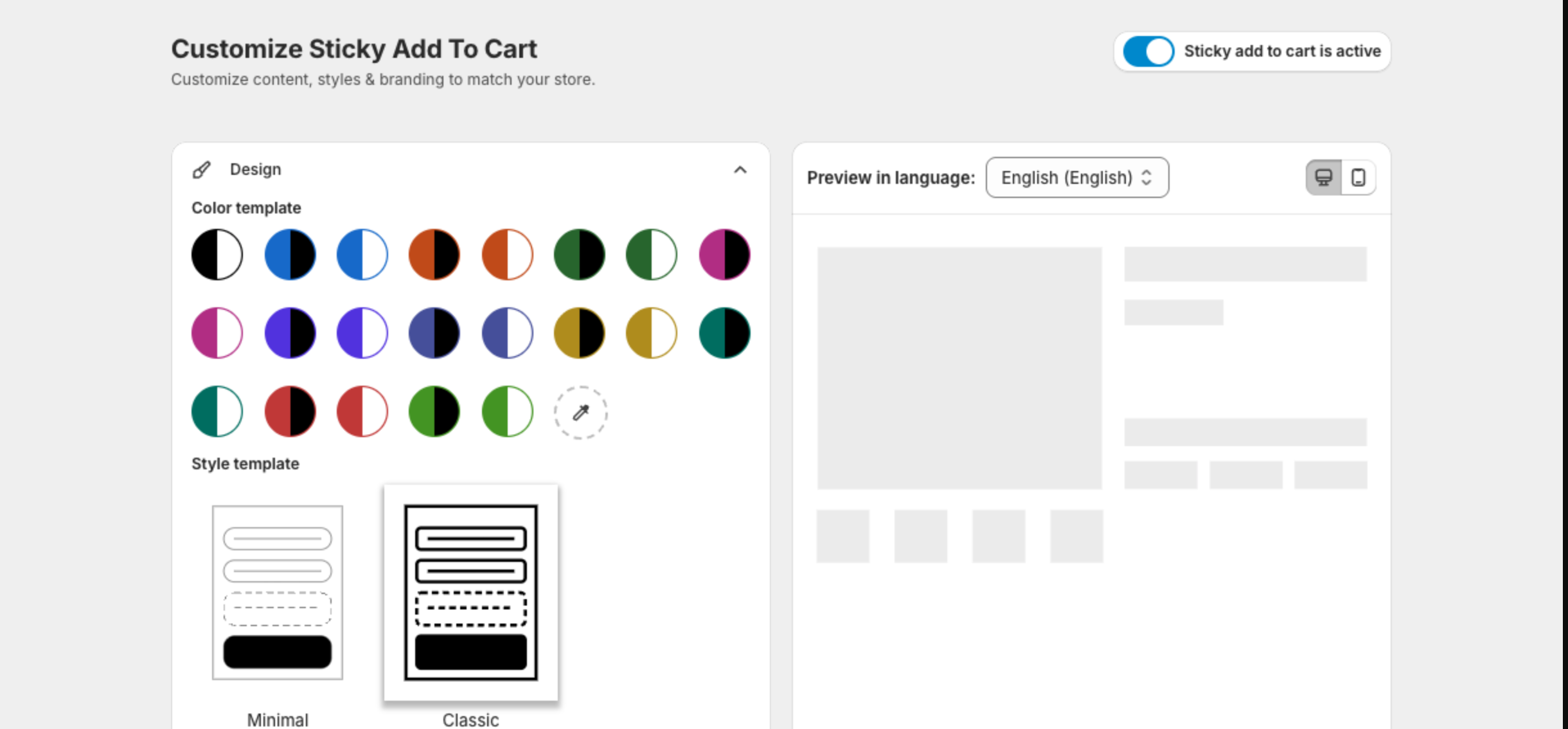
The Sticky Add To Cart page sets how the bar looks, what it shows and how it works. The page has four sections. Click a section name to open it:
| Section | What you set | Guide |
|---|---|---|
| Design | Colors, style, layout for mobile and desktop, custom CSS | This article and How to set the bar layout for mobile and desktop |
| Announcement | Countdown message and the message shown after a product is added | How to add a countdown timer to the bar |
| Body | Corner radius, button and label texts, text sizes, colors | How to change the bar texts, sizes and colors |
| Settings | Devices, pages, what Add to cart does, when the bar appears | How to choose what the Add to cart button does and How to choose when and where the bar shows |
The preview on the right updates as you change settings.
Steps
1. Open the page
In the app menu, click Sticky Add To Cart. Make sure the switch at the top right reads Sticky add to cart is active.
2. Pick colors
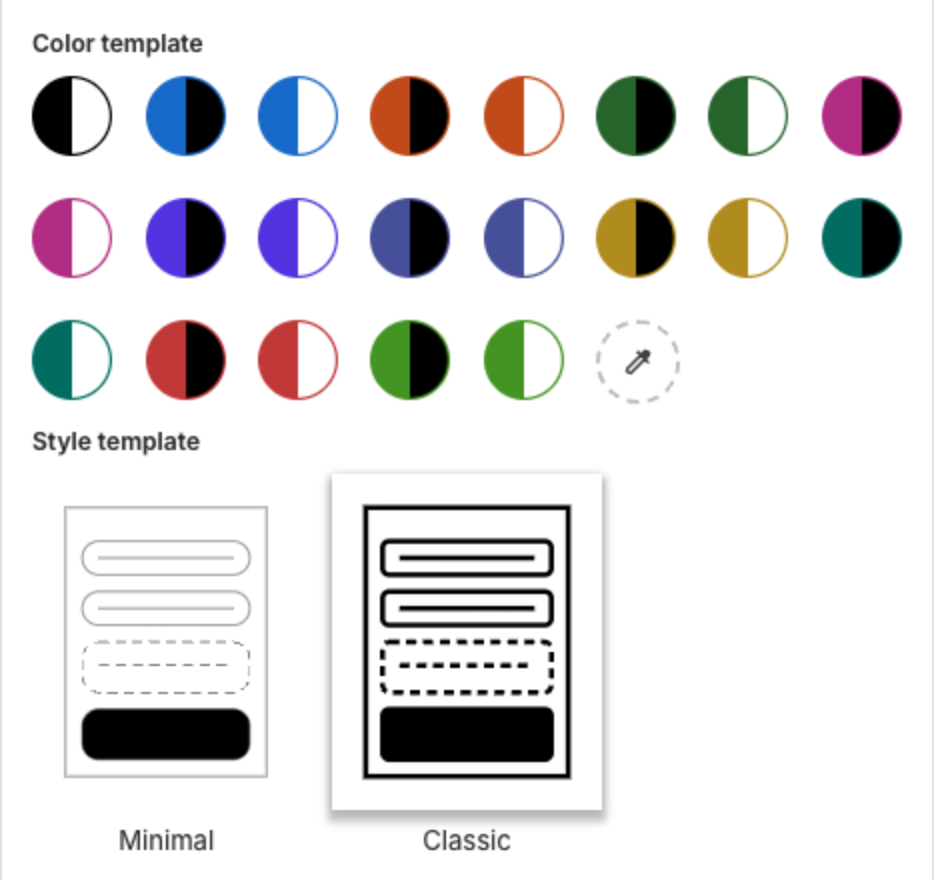
Under Design > Color template, click a color pair, or click the eyedropper to pick your own colors. To change one color at a time, use Colors in Announcement and Body.
3. Pick a style
Under Style template, click Minimal or Classic.
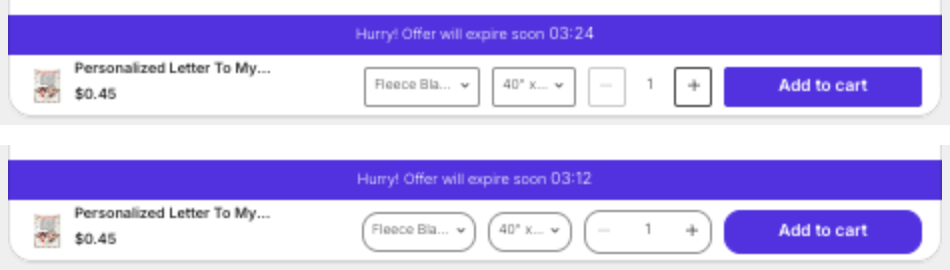
The style changes the shape of the selectors. Classic (top) has square variant boxes and separate quantity buttons. Minimal (bottom) has rounded variant boxes and one rounded quantity box:
4. Set up the rest of the bar
Use the guides in the table above to set the layout, the countdown, the texts and the Add to cart behavior.
5. Check the preview and save
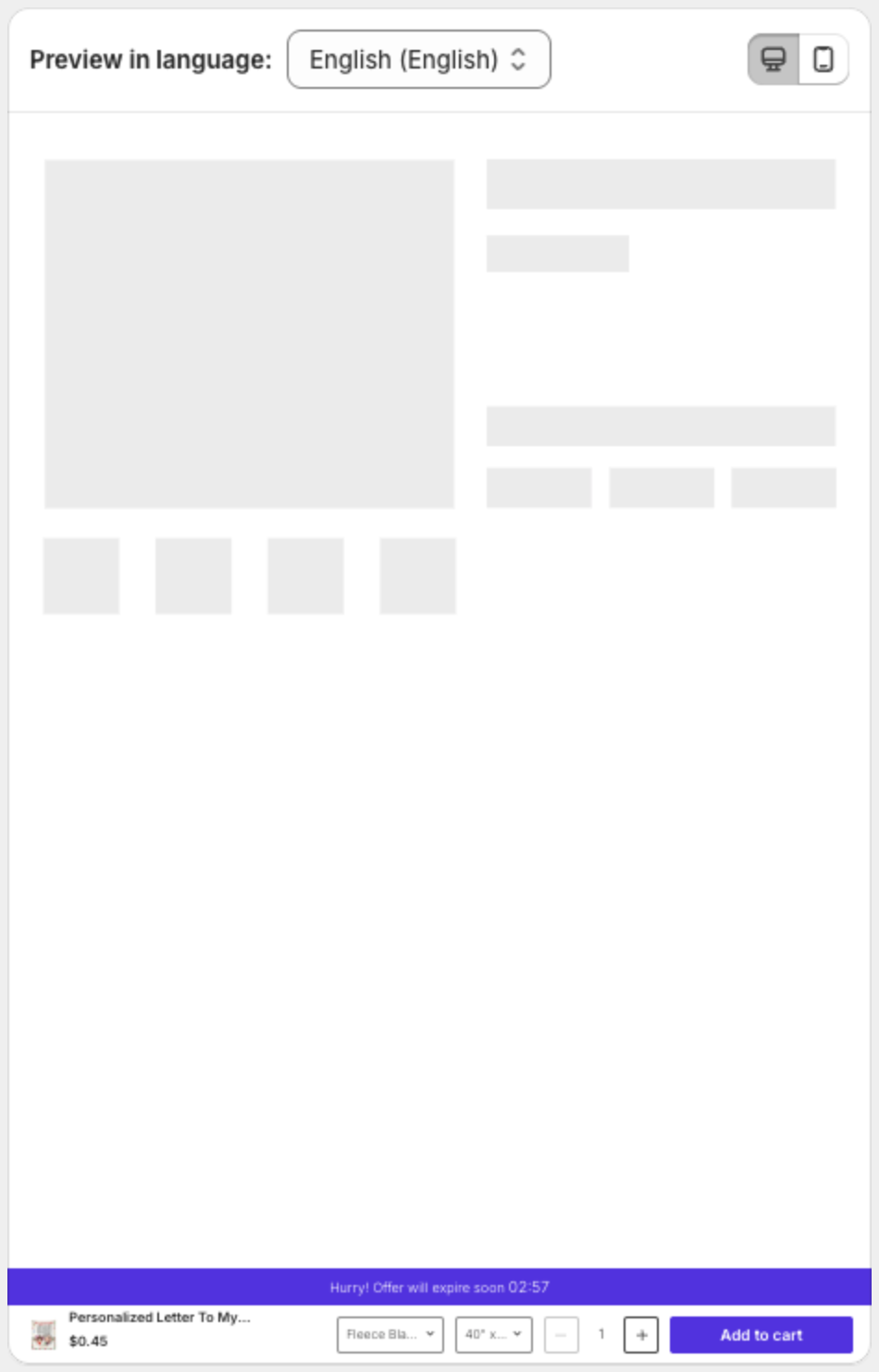
- Above the preview, use the desktop and mobile icons to switch the preview device. Use Preview in language to check another language of your store.
- Click Save in the bar at the top of the page.
Each section has a Reset to default link that restores the default settings of that section.
Change the font or other styles
The bar uses your theme's font. To change the font or any other style, add CSS in Custom CSS at the end of the Design section. See How do I change the font of the sticky add to cart bar?.