
How to change the bar texts, sizes and colors
Overview
The Body section sets the shape of the bar, the texts on it, the text sizes and the colors. The countdown and success message have their own settings in Announcement. See How to add a countdown timer to the bar.
Steps
1. Open Body
In the app menu, click Sticky Add To Cart, then click Body.
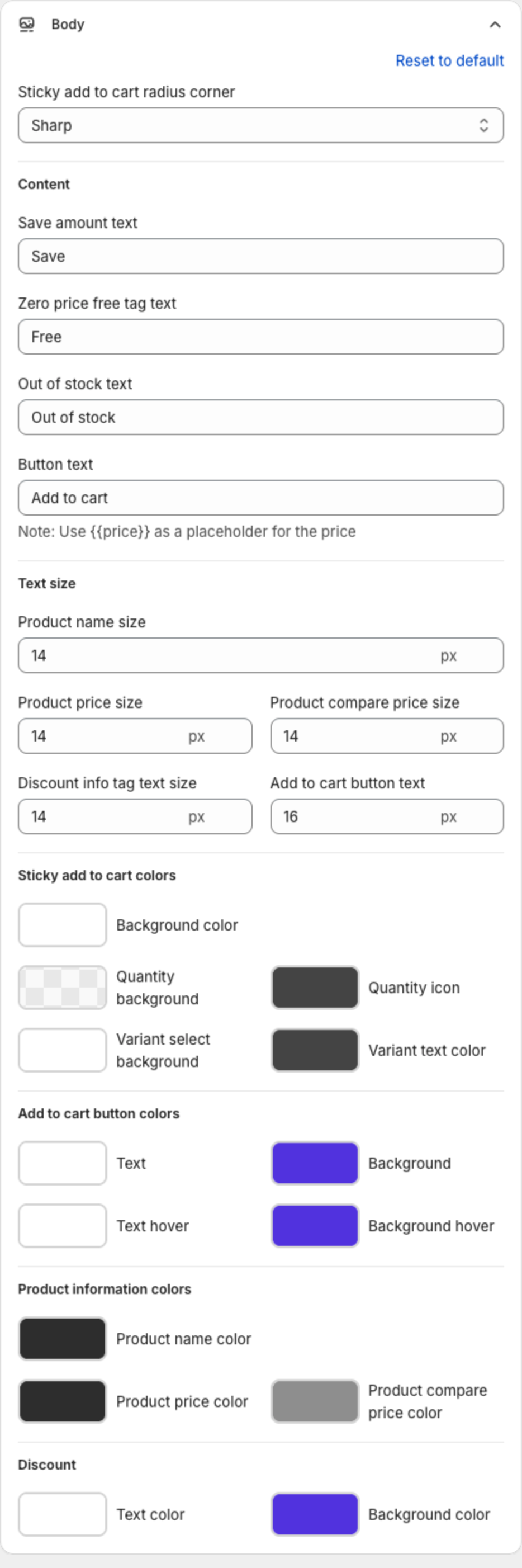
2. Choose the corner radius
Sticky add to cart radius corner sets how rounded the corners in the bar are: Sharp, Slightly Rounded, Rounded or Extra Rounded.
3. Change the texts
Under Content:
| Setting | What it does | Example |
|---|---|---|
| Save amount text | Text of the discount tag. Shown when Discount tag is on in the layout. | Save |
| Zero price free tag text | Text shown instead of the price when the price is zero. | Free |
| Out of stock text | Text shown when the selected variant is sold out. | Out of stock |
| Button text | Text on the Add to cart button. Use {{price}} to show the price on the button, for example "Add to cart - {{price}}". | Add to cart |
4. Change the text sizes
Under Text size, set the size in px of Product name size, Product price size, Product compare price size, Discount info tag text size and Add to cart button text.
5. Change the colors
| Group | Colors |
|---|---|
| Sticky add to cart colors | Background color, Quantity background, Quantity icon, Variant select background, Variant text color |
| Add to cart button colors | Text, Background, Text hover, Background hover |
| Product information colors | Product name color, Product price color, Product compare price color |
| Discount | Text color, Background color |
6. Save
Check the preview, then click Save in the bar at the top of the page. To restore the default Body settings, click Reset to default.