
How do I change the price format?
Overview
XB: Sticky Add To Cart Button shows prices in your store's currency format, the same format your theme uses. This applies to the prices in the sticky add to cart bar. The app has no price format setting.
To show prices another way, for example $10 instead of $10.00, change the currency format of your store in Shopify. The app then uses the new format.
Steps
- From your Shopify admin, go to Settings > General.
- In Store defaults, click the three-dot menu next to Currency display, then click Change currency formatting.
- In HTML with currency and HTML without currency, change the format. For example, replace
{{amount}}with{{amount_no_decimals}}to hide the decimals. Email with currency and Email without currency are only for email notifications. - Click Save.
- Reload a page of your store to see the new format.
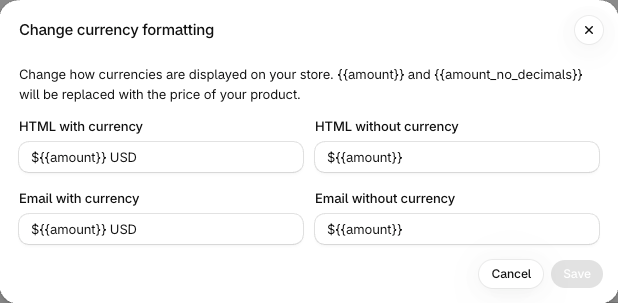
For all format options, see Currency formatting in the Shopify Help Center.
Good to know
- You can change the format of your store currency only. If you sell in other currencies with Shopify Markets, Shopify sets the format of those currencies.