
How to customize the cart drawer design
Overview
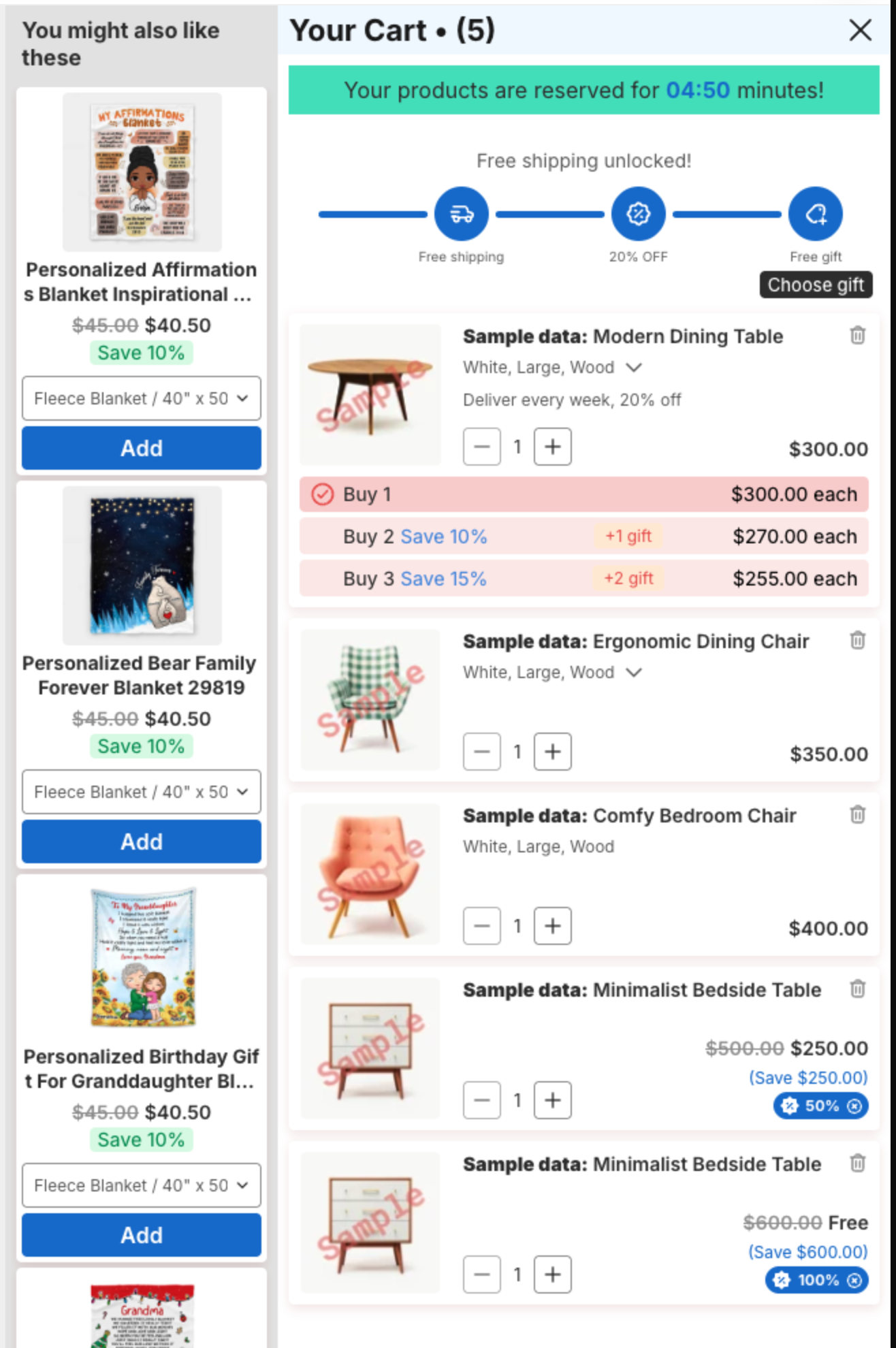
All cart drawer settings of XB: AI Cart Upsell Cart Drawer are on one page: Cart Drawer in the app menu. The left side lists the parts of the drawer (Design, Header, Empty cart, Body, Footer), and the right side shows a live preview. This guide covers the look of the drawer. Each feature has its own guide, listed at the end.
Before you start
- Turn on the app embed and the cart drawer. See Getting started with XB: AI Cart Upsell Cart Drawer.
Steps
1. Set up the preview
At the top of the page, Preview Settings controls what the preview shows:
- Cart Mode: Items in cart or Empty cart. The Empty cart settings can be edited only in Empty cart mode.
- Preview Language and Preview Market: see the text and prices in another language or market of your store.
- Preview items: click Change products to preview with your own products.
- Preview in store opens a product page of your store in a new tab with the cart drawer open.
2. Pick a template (Design)
Click Design.
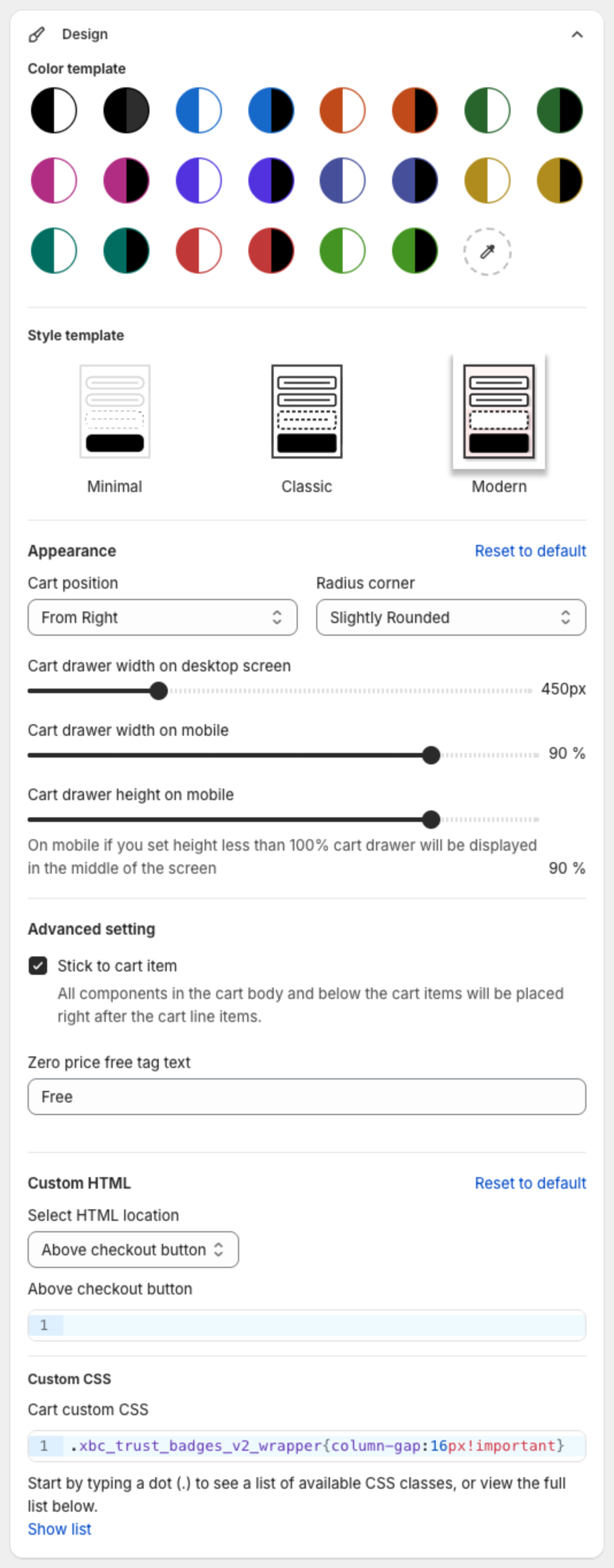
- Under Color template, click a color set.
- Under Style template, pick Minimal, Classic or Modern.
- Under Appearance, set:
- Cart position: From Right or From Left.
- Radius corner: Sharp, Slightly Rounded, Rounded or Extra Rounded.
- Cart drawer width on desktop screen (px), Cart drawer width on mobile (%) and Cart drawer height on mobile (%). On mobile, a height below 100% shows the drawer in the middle of the screen.
- Under Advanced setting:
- Stick to cart item: places all parts of the cart body and footer right after the cart items.
- Zero price free tag text: the text shown instead of a $0 price, for example "Free".
3. Change the header
Click Header:
- Header background color.
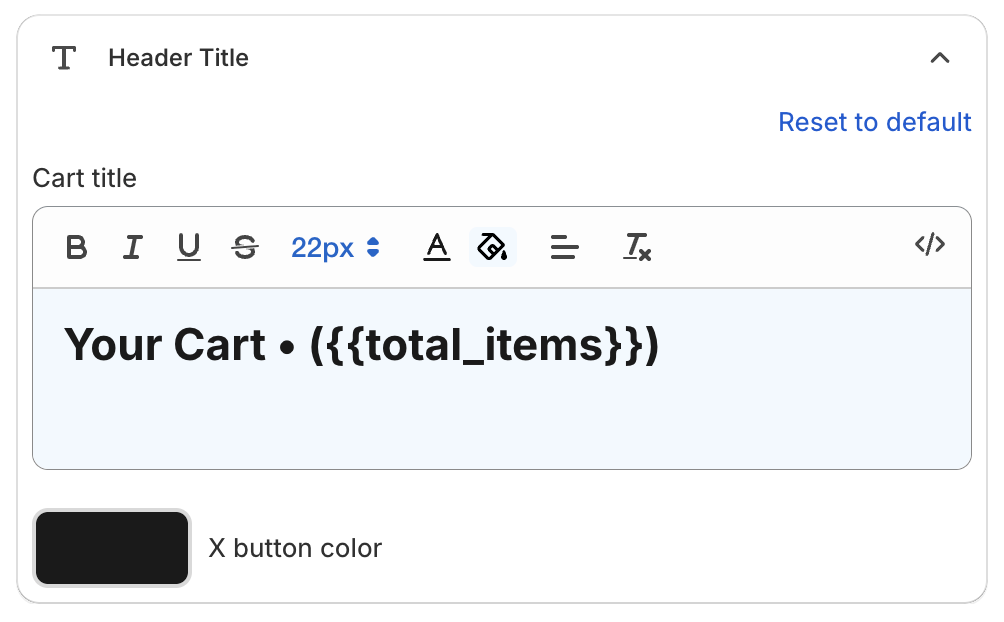
- Header Title: the Cart title, by default
Your Cart • ({{total_items}}), where{{total_items}}is the number of items. You can also set the X button color.

4. Change the cart items (Body)
Click Body, then Cart Line Item. For all options, see How to customize cart items.
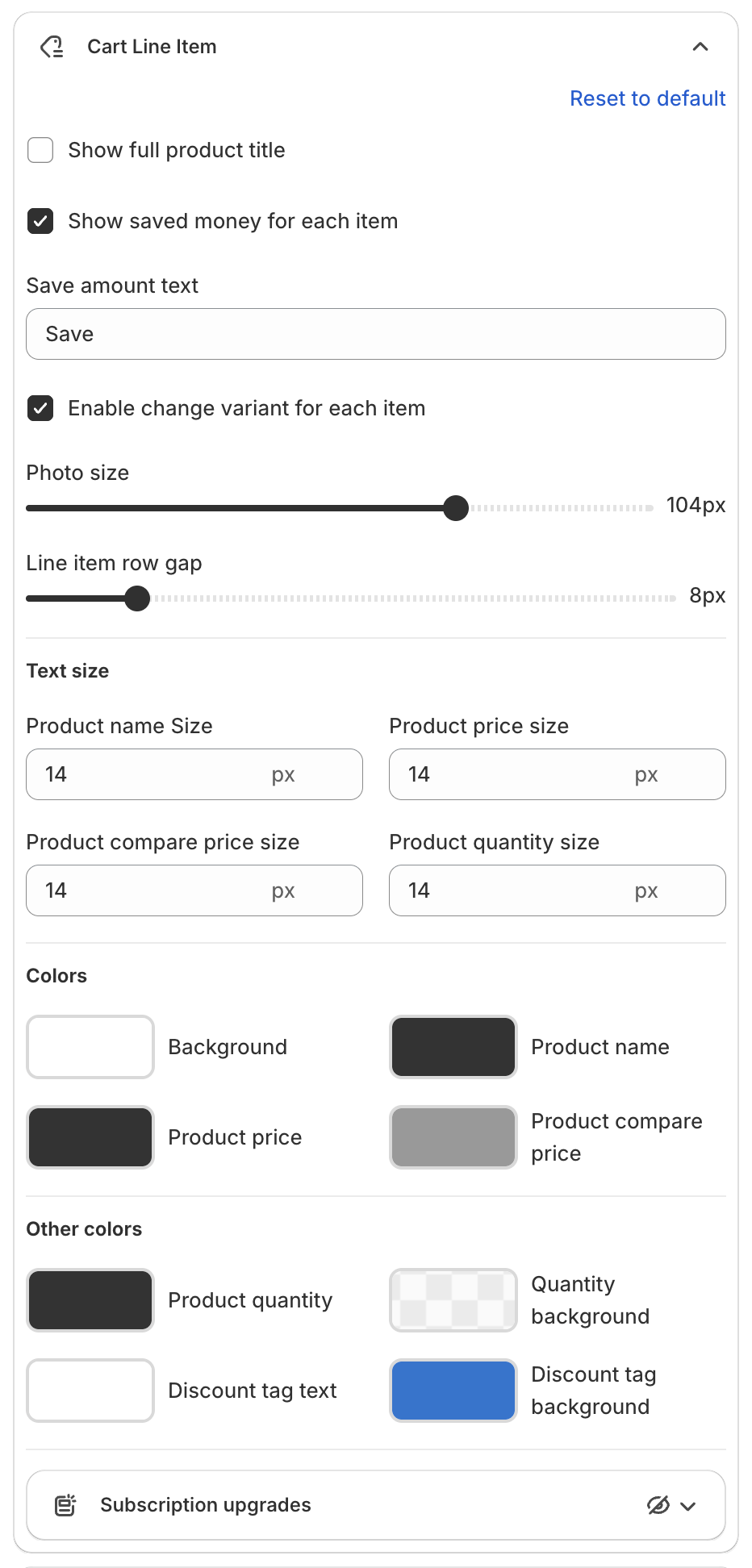
- Show full product title, Show saved money for each item and its Save amount text.
- Enable change variant for each item: shoppers can change the variant in the cart.
- Photo size and Line item row gap.
- Text size and Colors for name, price, compare price, quantity and the discount tag.
Body General sets the Body background color.
5. Add a countdown announcement (optional)
In Body, click Announcement and tick Enable Announcement. See How to add a countdown announcement to the cart.
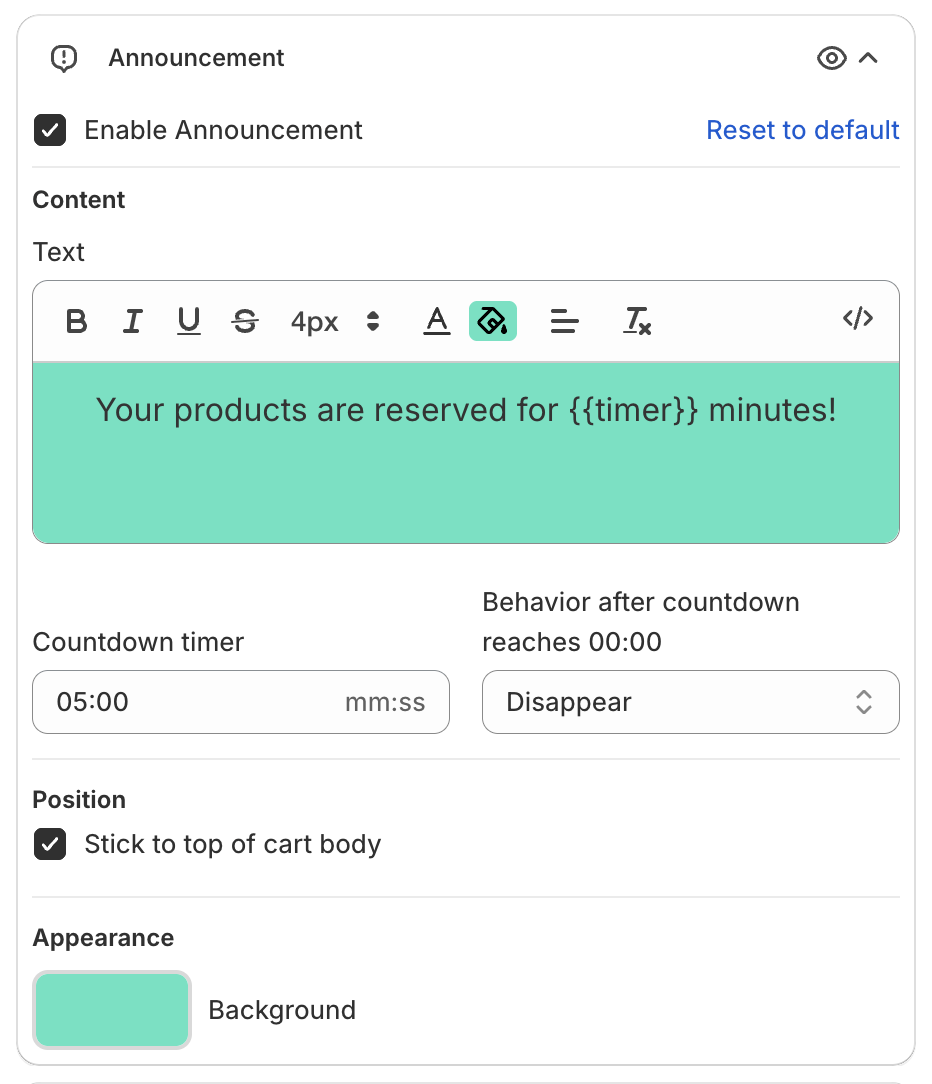
- Text: for example "Your products are reserved for {{timer}} minutes!".
{{timer}}shows the countdown. - Countdown timer (mm:ss) and Behavior after countdown reaches 00:00.
- Position: tick Stick to top of cart body to keep it at the top.
- Background color.
6. Arrange the footer
Click Footer. Footer general sets the Footer background color. Below it, each footer block can be turned on or off and moved: drag a block by the handle on its left to change the order in the drawer.
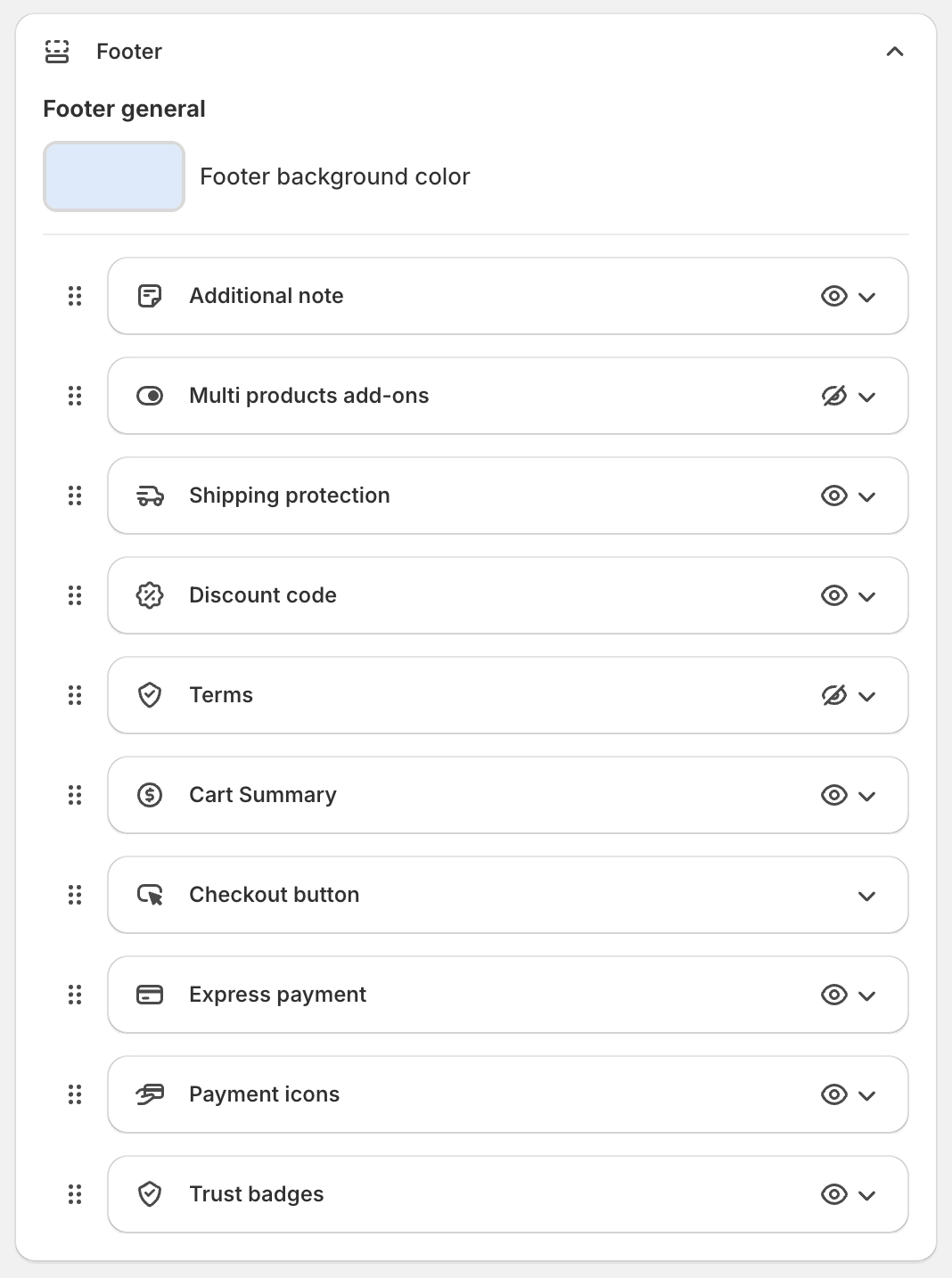
On the store, the footer shows the blocks in this order:
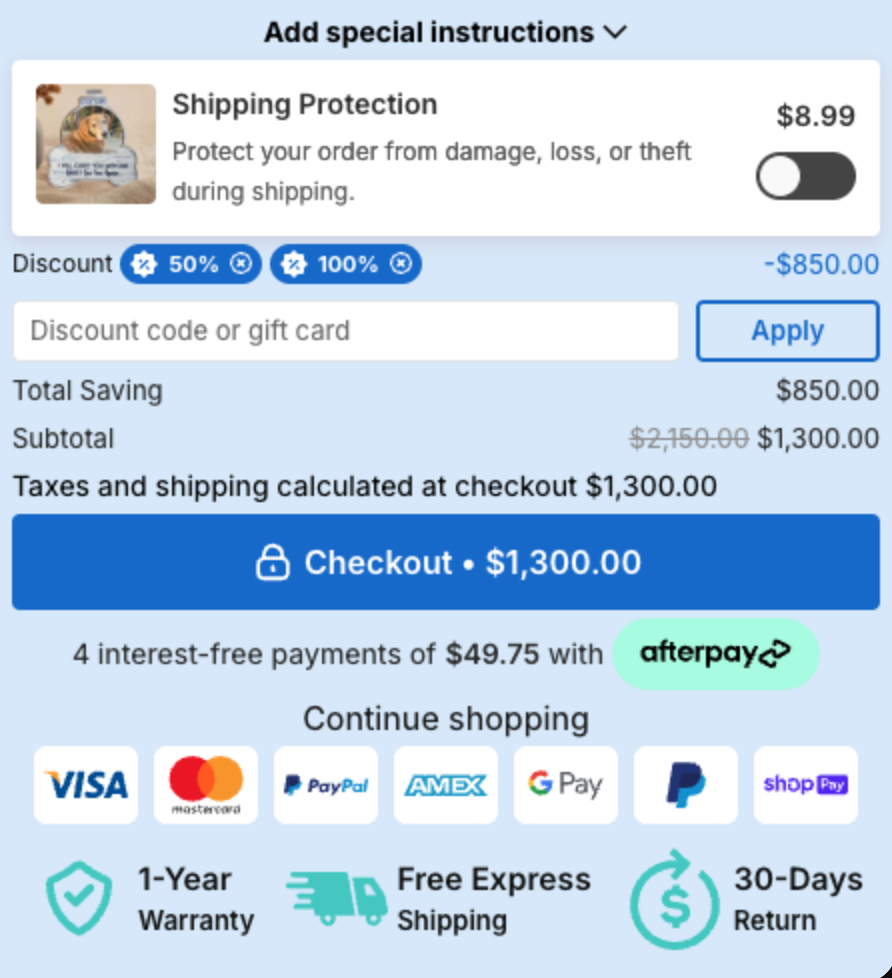
| Block | What it does |
|---|---|
| Additional note | A field for order notes. See How to add an order note field to the cart. |
| Multi products add-ons | Products the shopper can add with a toggle. See Product add-ons in the cart. |
| Shipping protection | An optional shipping protection item. See How to use Shipping protection. |
| Discount code | A discount code field. See How to use Discount code function. |
| Terms | A terms and conditions checkbox. See How to add a terms and conditions checkbox. |
| Cart Summary | Total saving, subtotal and checkout message. See How to change the cart summary and checkout button. |
| Checkout button | The checkout button and the Continue shopping link. See How to change the cart summary and checkout button. |
| Express payment | Accelerated checkout buttons. See How to use Express Payment. |
| Payment icons | Payment method icons. See How to show payment icons and trust badges. |
| Trust badges | Badges such as warranty or free shipping. See How to show payment icons and trust badges. |
7. Save
Click Save in the bar at the top of the page.
Make the drawer smaller
- Lower Cart drawer width on desktop screen and Cart drawer width on mobile under Design.
- In Cart Line Item, lower Photo size and Line item row gap.
- Turn off footer blocks you do not need.
See How to make the cart drawer smaller.
Change the font
The drawer uses your theme's font. To use another font, add CSS in Design > Custom CSS (Cart custom CSS). Type a dot (.) in the editor to see the drawer's class names, or click Show list. See How to change the cart drawer font.
Custom HTML and CSS
Design > Custom HTML and Custom CSS add your own HTML and CSS to the drawer. See How to add custom HTML and CSS to the cart.