
How to set up cart upsell
Overview
Cart upsell shows suggested products in the cart drawer, under a title such as "You might also like these". Shoppers add them with one click. The app can pick the products for you, or you can set them yourself with Cart Page Upsell offers.
Before you start
- Turn on the cart drawer. See Getting started with XB: AI Cart Upsell Cart Drawer.
Steps
1. Turn on Up-sell
- Click Cart Drawer in the app menu.
- Click Body, then Up-sell.
- Tick Enable Cart Upsell.
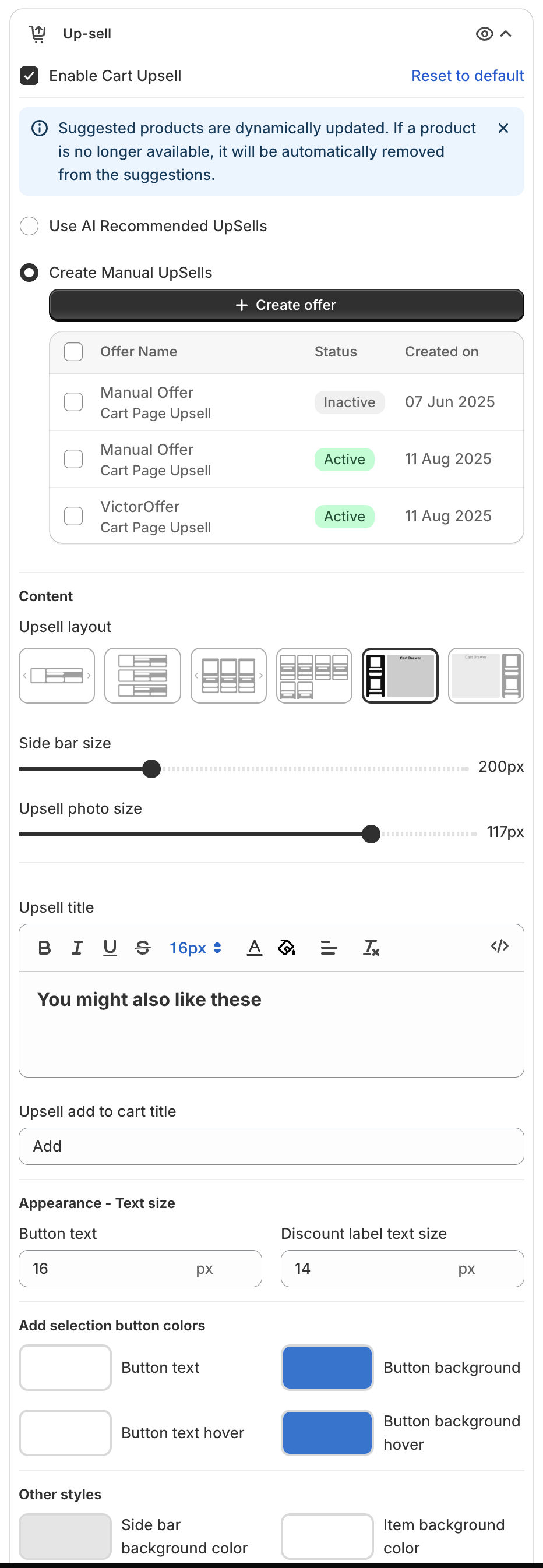
Suggested products are updated automatically. If a product is no longer available, it is removed from the suggestions.
2. Choose how products are picked
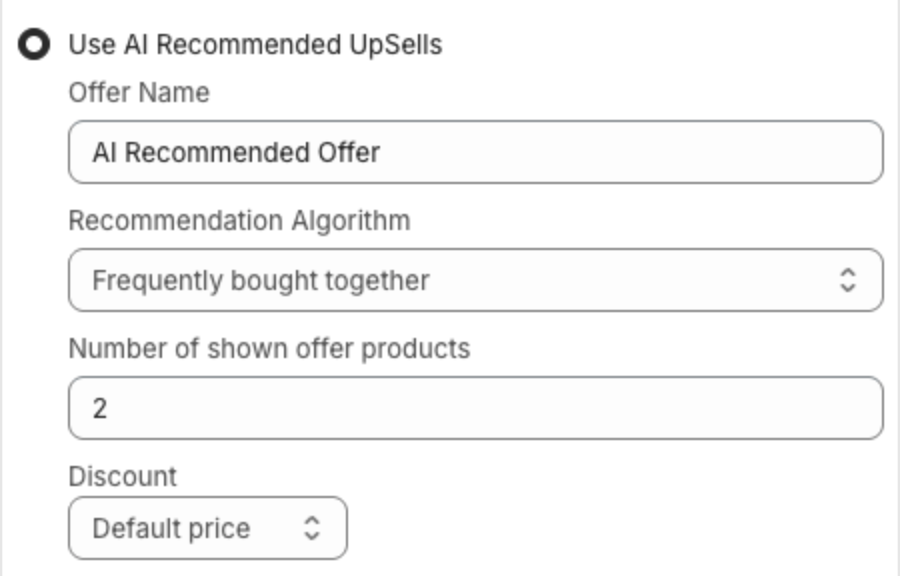
- Use AI Recommended UpSells: the app picks the products automatically. Set:
- Recommendation Algorithm: Shopify related products, Related items or Frequently bought together.
- Number of shown offer products.
- Discount: Default price, Fixed price ($), Bundle discount (%) or Bundle discount ($), and a Discount label. Use
{{amount}}for the discount amount and{{percentage}}for the percentage.
- Create Manual UpSells: you set the products with offers. The list shows your Cart Page Upsell offers with their Status.
AI and Automatic suggestions follow the cart. When the shopper adds or removes a product, the cart drawer loads new suggestions. A quantity change alone keeps the same suggestions.
To keep a product out of the AI recommendations, add the tag xboost-no to it. See How do I exclude a product from cart upsell recommendations?.
3. Create a manual offer (optional)
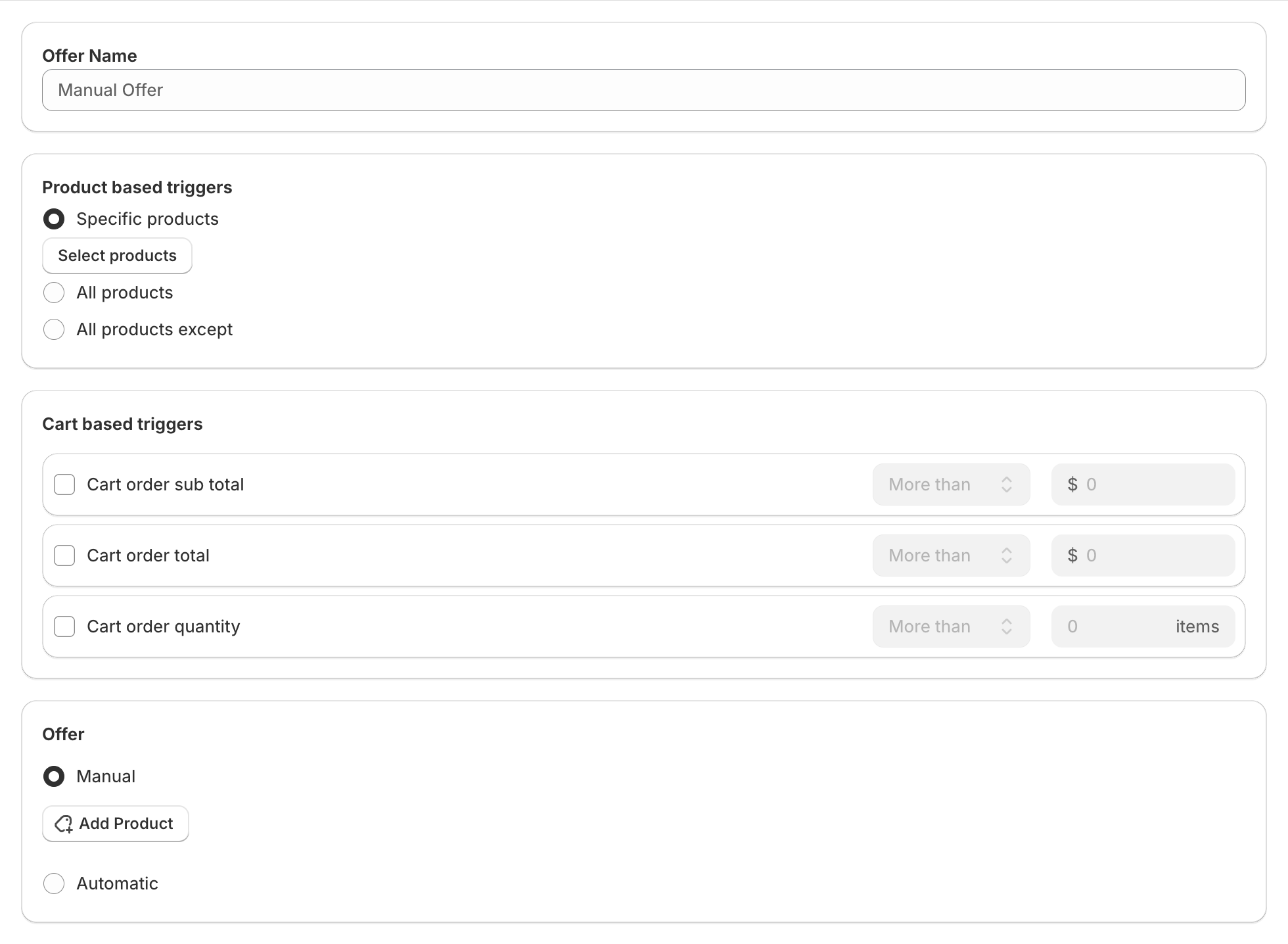
- Select Create Manual UpSells and click Create offer.
- Type an Offer Name.
- Under Product based triggers, choose which cart products show the offer:
- Specific products: click Select products and pick the products. The offer shows when one of them is in the cart.
- All products: the offer shows for any product in the cart.
- All products except products: the offer shows unless the cart has one of the products you pick.
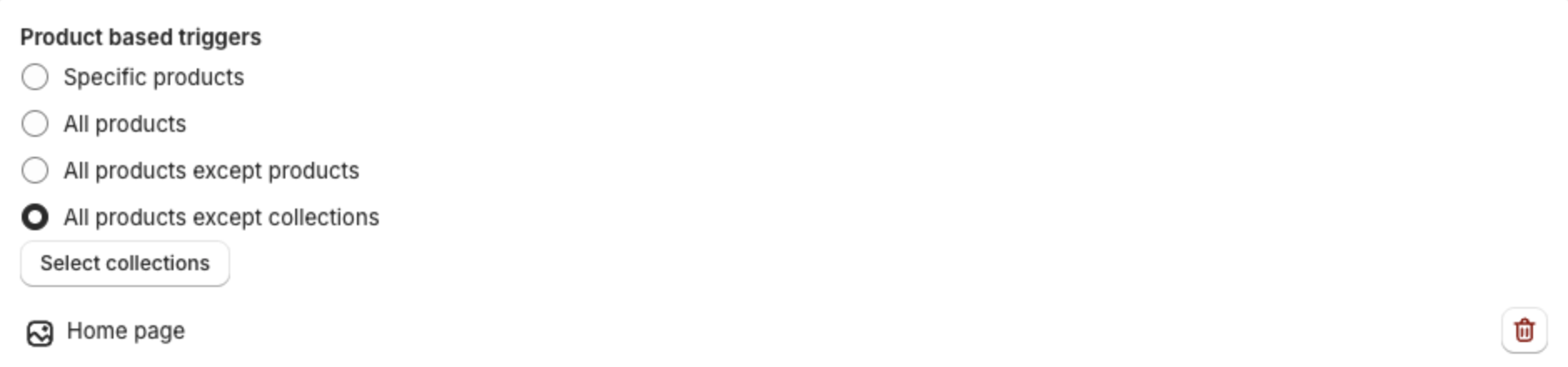
- All products except collections: click Select collections and pick the collections. The offer shows unless the cart has a product from one of them.
- Optional: under Cart based triggers, add conditions on Cart order sub total, Cart order total or Cart order quantity (More than, Less than, Equal to or Not equal to a value).
- Under Offer, choose Manual and click Add Product, or choose Automatic.
- Optional: set a Discount label. Use
{{amount}}for the discount amount and{{percentage}}for the discount percentage. - Click Save.
With All products except collections, the collections you picked show under the button. Click the trash icon to remove one:
Product add-ons in the cart don't count as trigger products.
Offer only some variants of a product
When you click Add Product, the product picker lists each product with its variants. Tick a product to offer all its variants, or tick only the variants you want to offer:
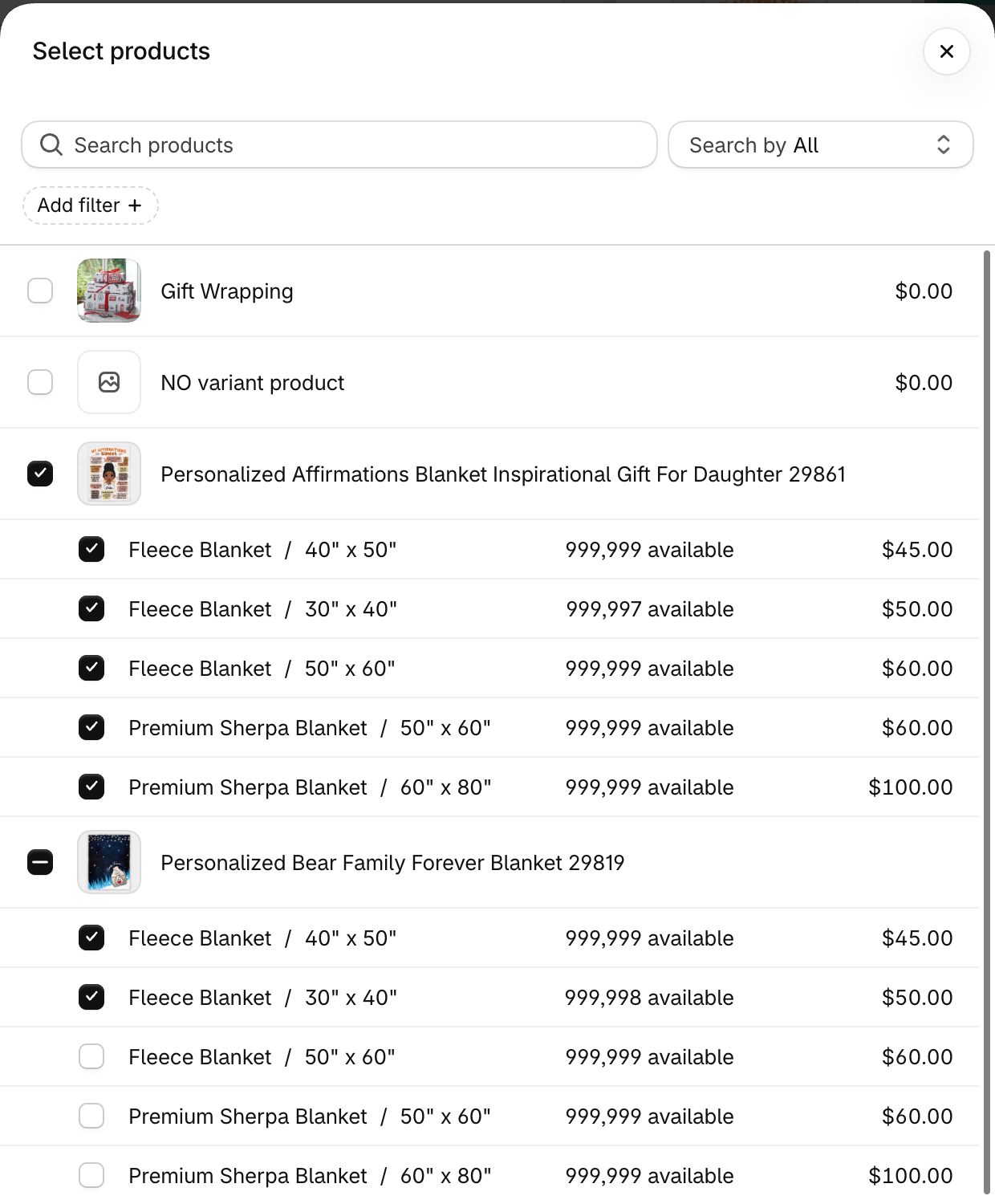
A product with only some variants ticked shows 2 variants selected (the number you picked) under its name. Click the pencil icon to change the variants:
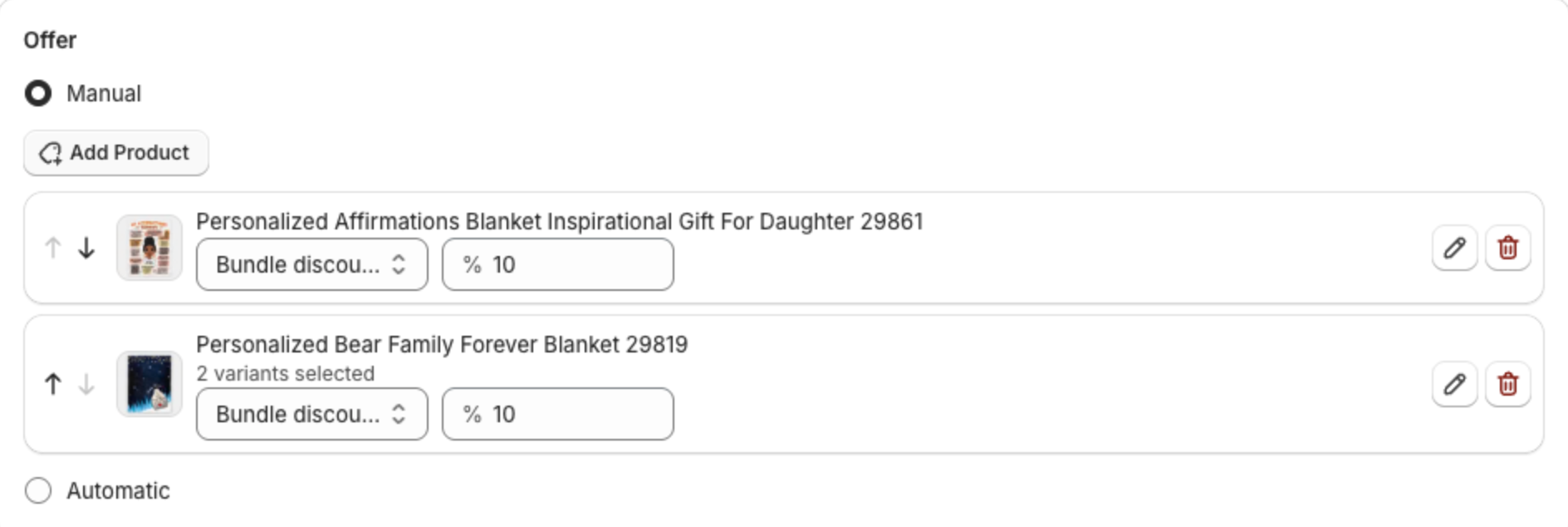
In the cart drawer, the variant selector of that product lists only the variants you picked. The preview in the app still lists every variant. Products where you ticked every variant, and offers created before this option, offer all variants.
4. Choose which offer shows
The cart drawer shows one upsell offer at a time. When several offers match the cart, it shows the offer with the highest Priority.
Set it in the Priority column of the offer list under Create Manual UpSells. Scroll the list to the right if you don't see the column. Type a number and press Enter, or click outside the box. The change is saved right away. The list is sorted by Priority, highest first.
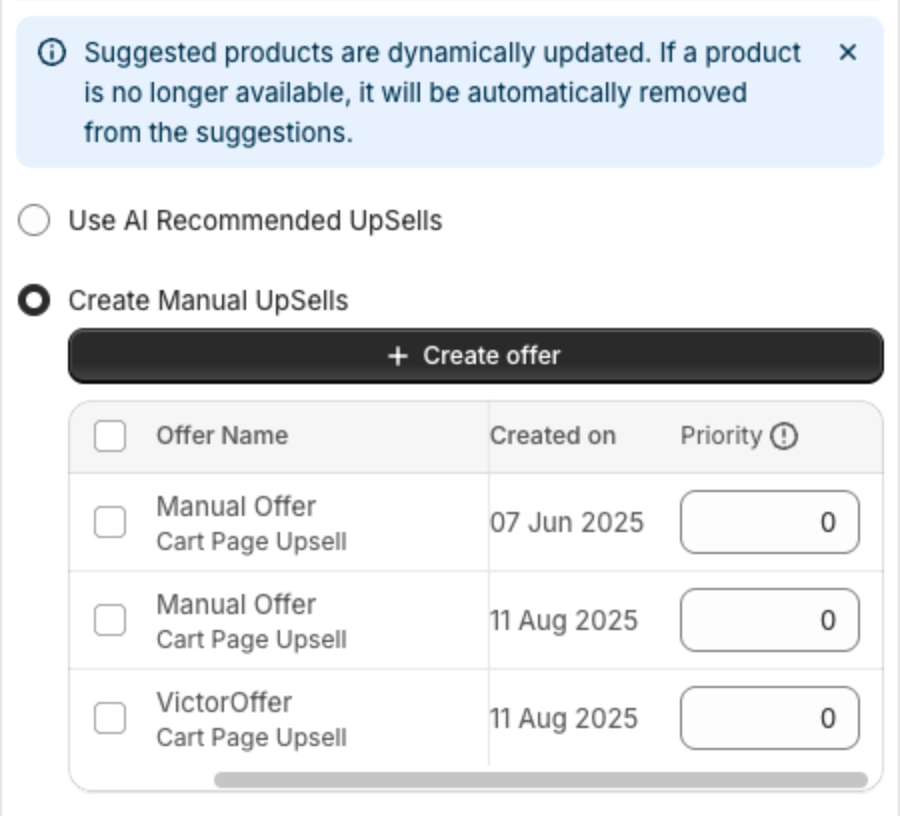
When matching offers have the same Priority, an offer with Specific products comes first.
5. Change the look
Under Content:
- Upsell layout: pick one of the layouts, for example a list in the cart or a side bar next to the drawer.
- Side bar size (side bar layouts) and Upsell photo size.
- Variant selector: how shoppers pick a variant of a product with several variants. See Choose the variant selector.
- Upsell title, for example "You might also like these", and Upsell add to cart title, for example "Add".
Under Appearance - Text size and the color settings, change the button text, discount label and button colors.
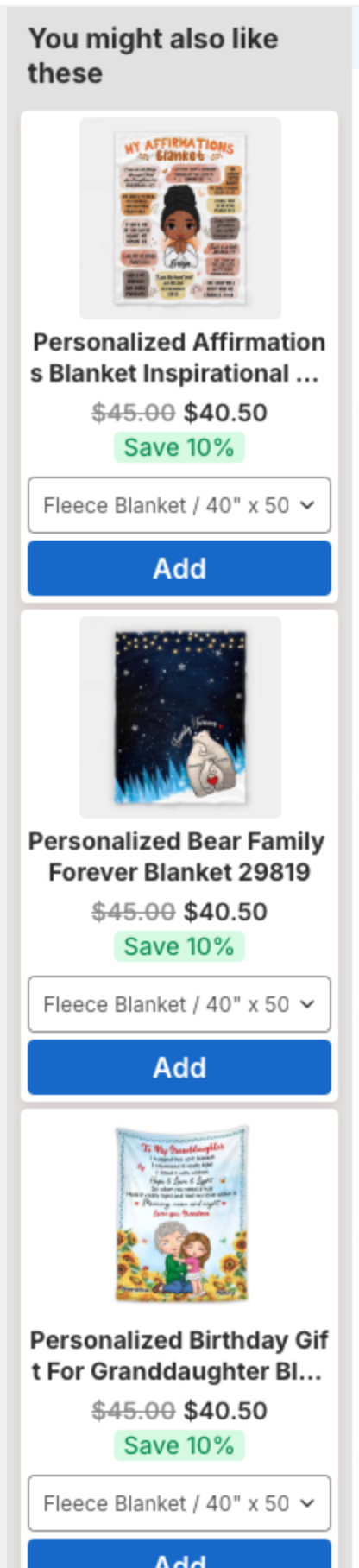
With a side bar layout, the suggestions show next to the cart drawer:
Set up the carousel
The first and third layouts show the products in a carousel that shoppers scroll with the arrows. Each layout has its own settings:
| Layout | Setting | What it does | Options |
|---|---|---|---|
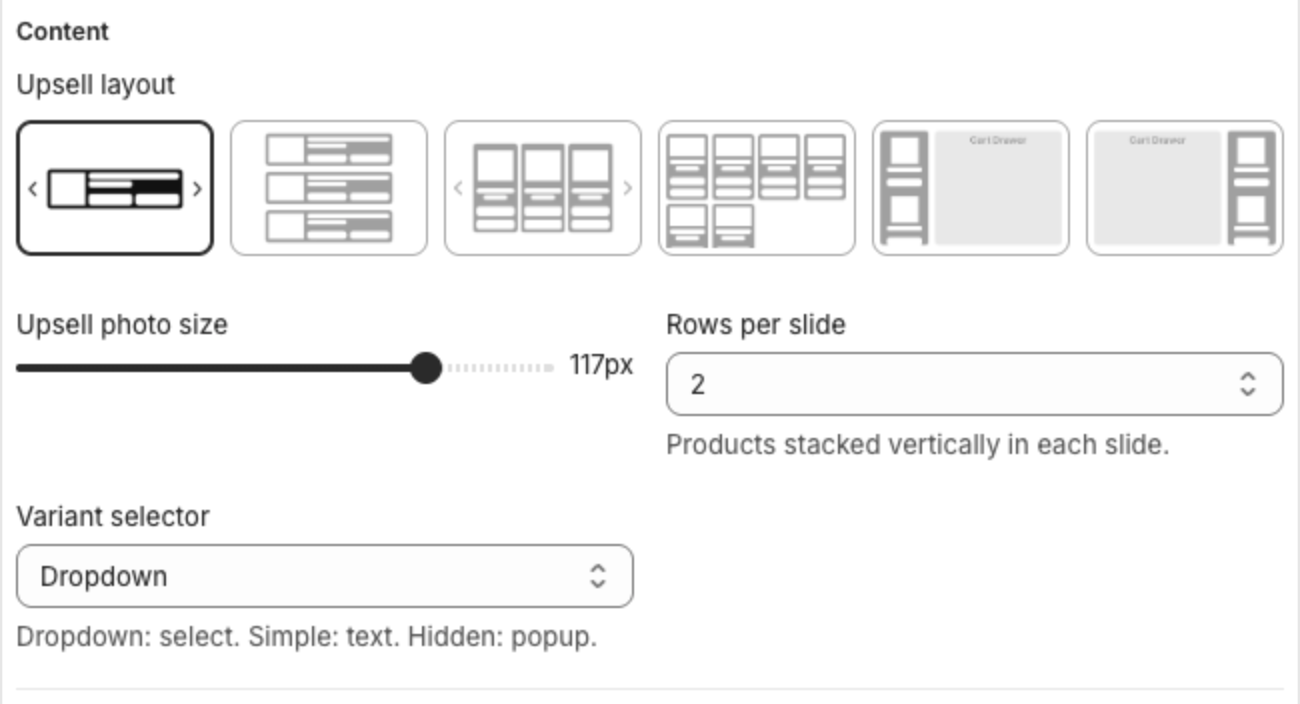
| First: one product per row | Rows per slide | How many products are stacked in each slide. | 1 to 6 (default 1) |
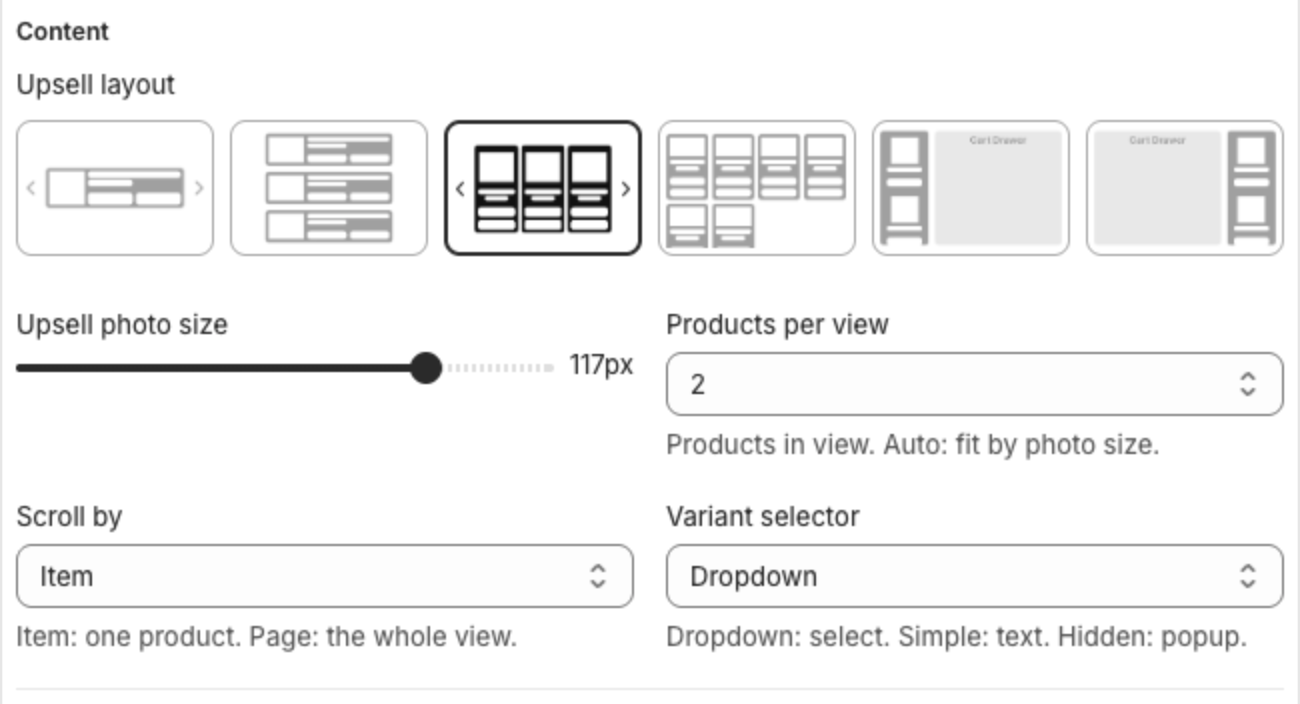
| Third: product cards side by side | Products per view | How many products show at a time. Auto fits as many as the Upsell photo size allows. | Auto (default), 2 to 5 |
| Third: product cards side by side | Scroll by | Item moves one product per arrow click. Page moves the whole view. Shown when Products per view is not Auto. | Item (default), Page |
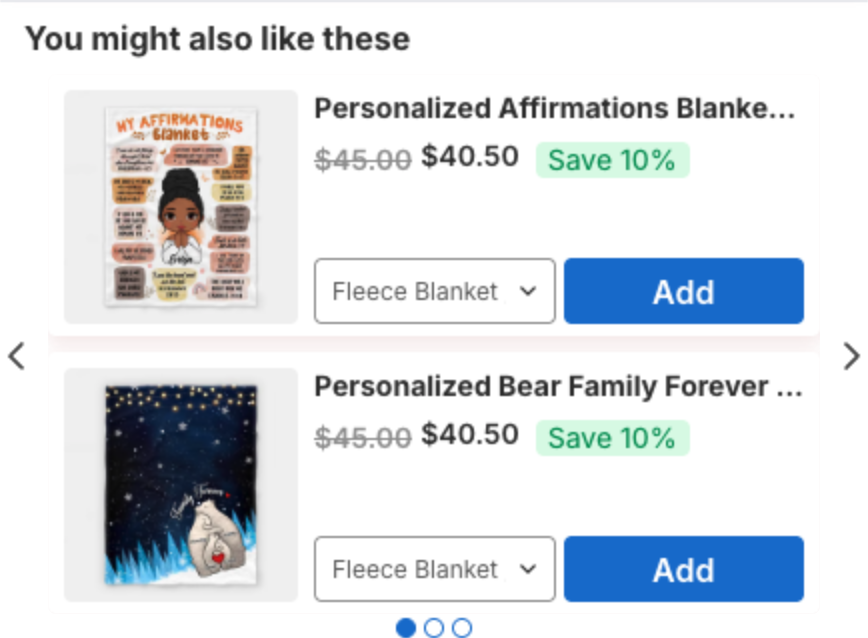
With the first layout and Rows per slide set to 2, each slide shows two products:
With the third layout, Products per view 2 and Scroll by Item:
Choose the variant selector
| Option | What shoppers see |
|---|---|
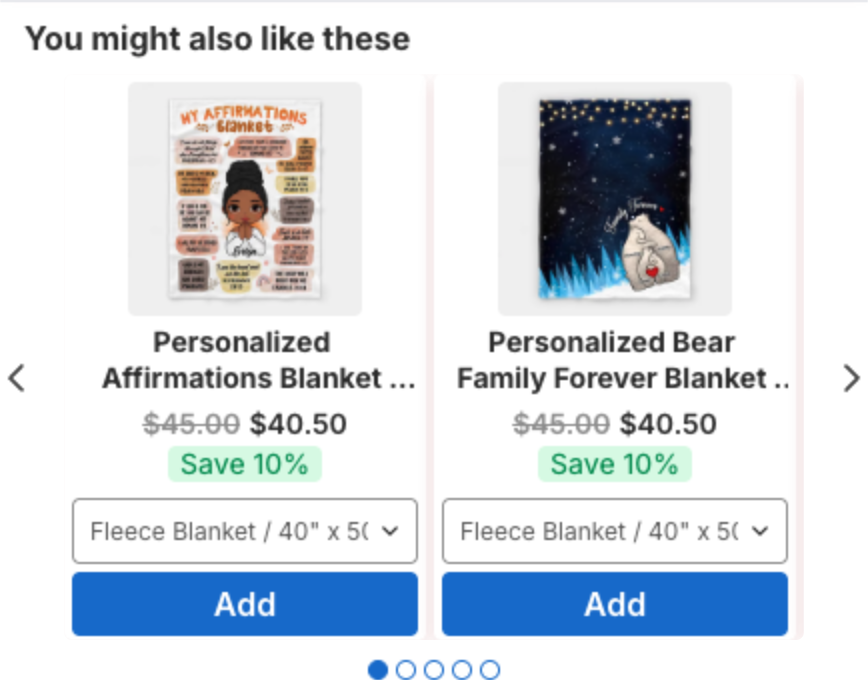
| Dropdown (default) | A drop-down list of variants under the product. |
| Simple | The selected variant as plain text with an arrow. Shoppers click it to pick another variant. |
| Hidden | No variant selector. When shoppers click the add button, a popup opens at the bottom of the cart drawer with the product, a drop-down list of variants and a large add button. |
Dropdown:
Simple:
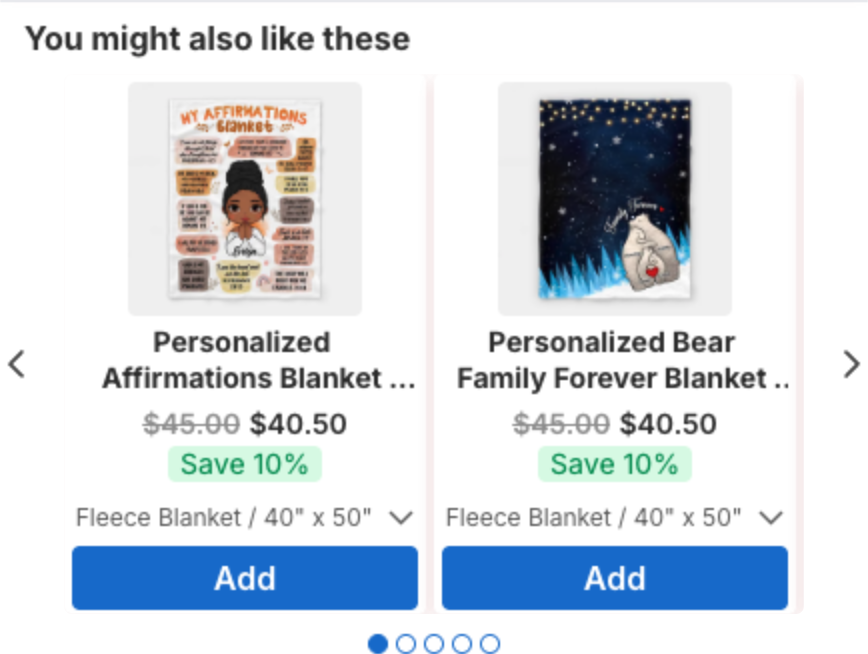
Hidden, after the shopper clicks Add:
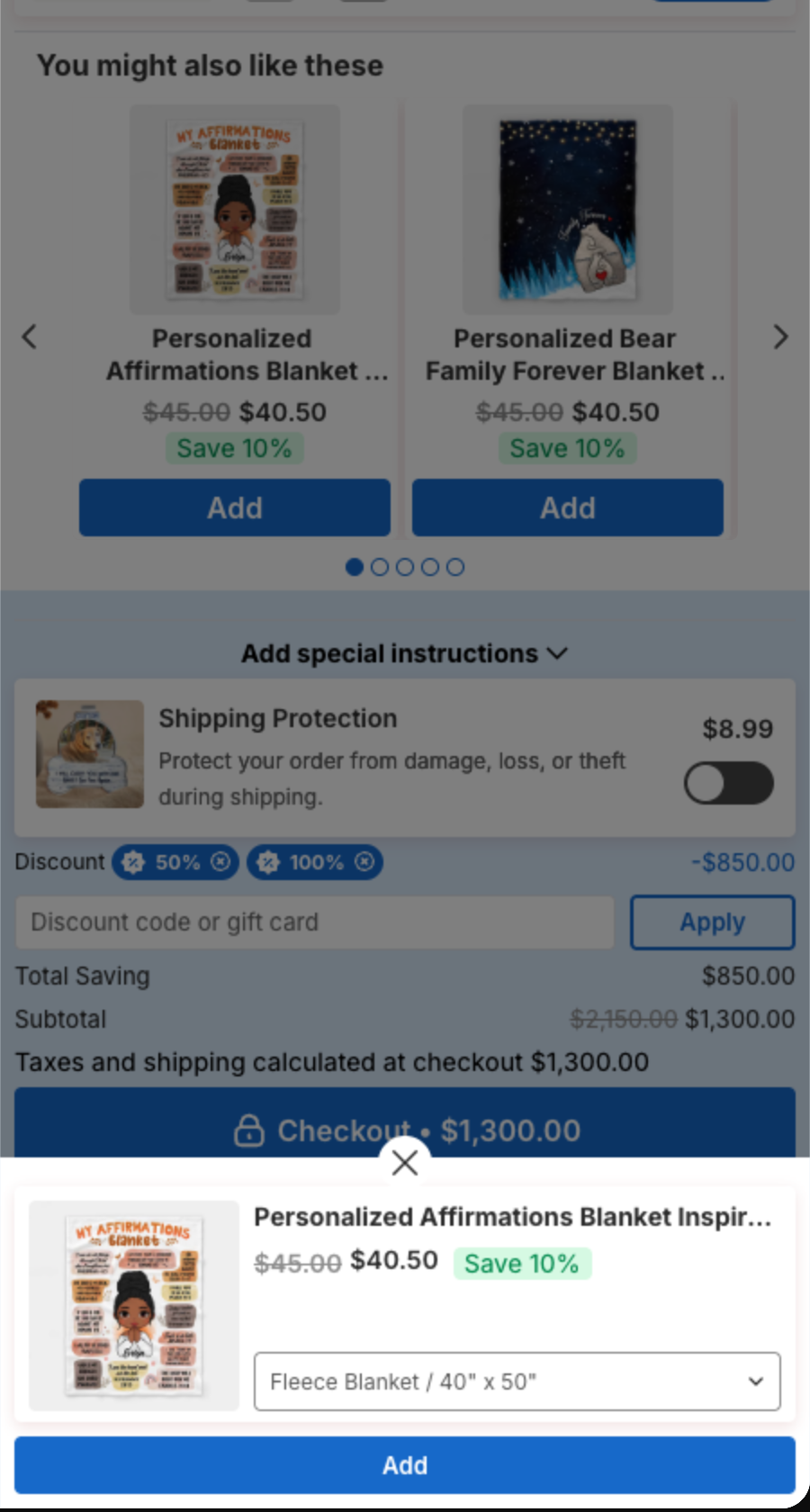
6. Save
Click Save in the bar at the top of the page.
Show bundle offers in the cart
If you also use XB: Bundles Quantity Breaks, its quantity breaks, bundles and add-ons can show under the cart items. See How to show bundle offers in the cart.
Products already in the cart
Cart upsell shows only products that are not in the cart yet. See Why is an upsell product not showing in the cart drawer?.
Upsell in an empty cart
To suggest products when the cart is empty, see How to customize the empty cart.