
How to show bundle offers in the cart (Integrate - Buy more & Save more)
Overview
Integrate - Buy more & Save more shows offers from XB: Bundles Quantity Breaks inside the cart drawer, right under the matching cart item. The shopper can upgrade the item to a bigger quantity, a bundle or add-ons without going back to the product page.
There are three integrations. Each one uses a different kind of Bundles offer:
| Integration | Bundles offers it shows | What the shopper sees under the cart item |
|---|---|---|
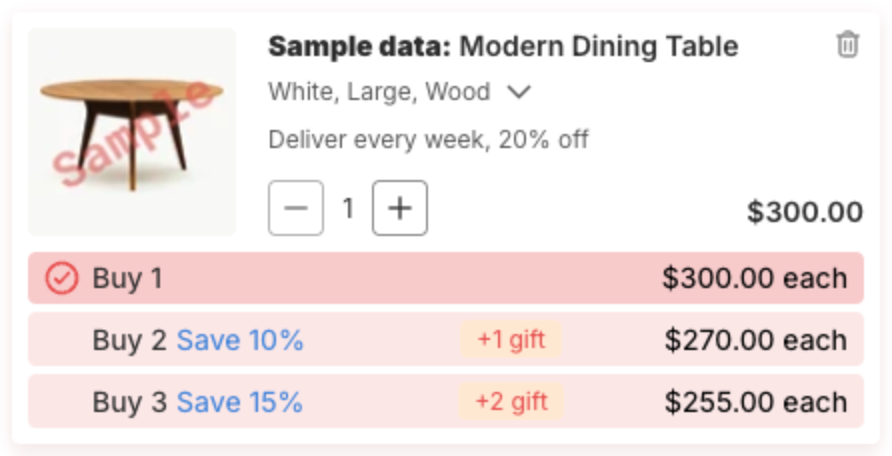
| Quantity Break | Quantity Discounts | The tiers, for example "Buy 2 Save 10%", or a one-line tip. Clicking opens the Buy More & Save More window. |
| Product Bundle | Fixed bundle, AI Frequently Bought Together and Buy X Get Y (BOGO) | The bundle with a Claim offer button, or a one-line tip such as "Buy more & Save more Save up to 22.26%". |
| Product Add-on | Product Add-Ons | The add-ons with a Claim offer button, or a one-line tip such as "Buy more & Save more Save up to 13.55%". |
Before you start
- Install XB: Bundles Quantity Breaks. The section shows Xboost Bundles Quantity Breaks as a Required app; click Config offer to open it. The integrations do not work without it.
- In XB: Bundles Quantity Breaks, create the offers and make sure they are active. In each offer, on the Offer step under Integrations, tick Show this offer for trigger product on cart drawer. The Bundles Offers page then shows Shown in the Show on Xboost cart column. See How to create a Quantity Discounts offer.
- The integrations need a paid plan of XB: AI Cart Upsell Cart Drawer. On the Free plan they are turned off.
Steps
1. Open the section
- Click Cart Drawer in the app menu.
- Click Integrate - Buy more & Save more.
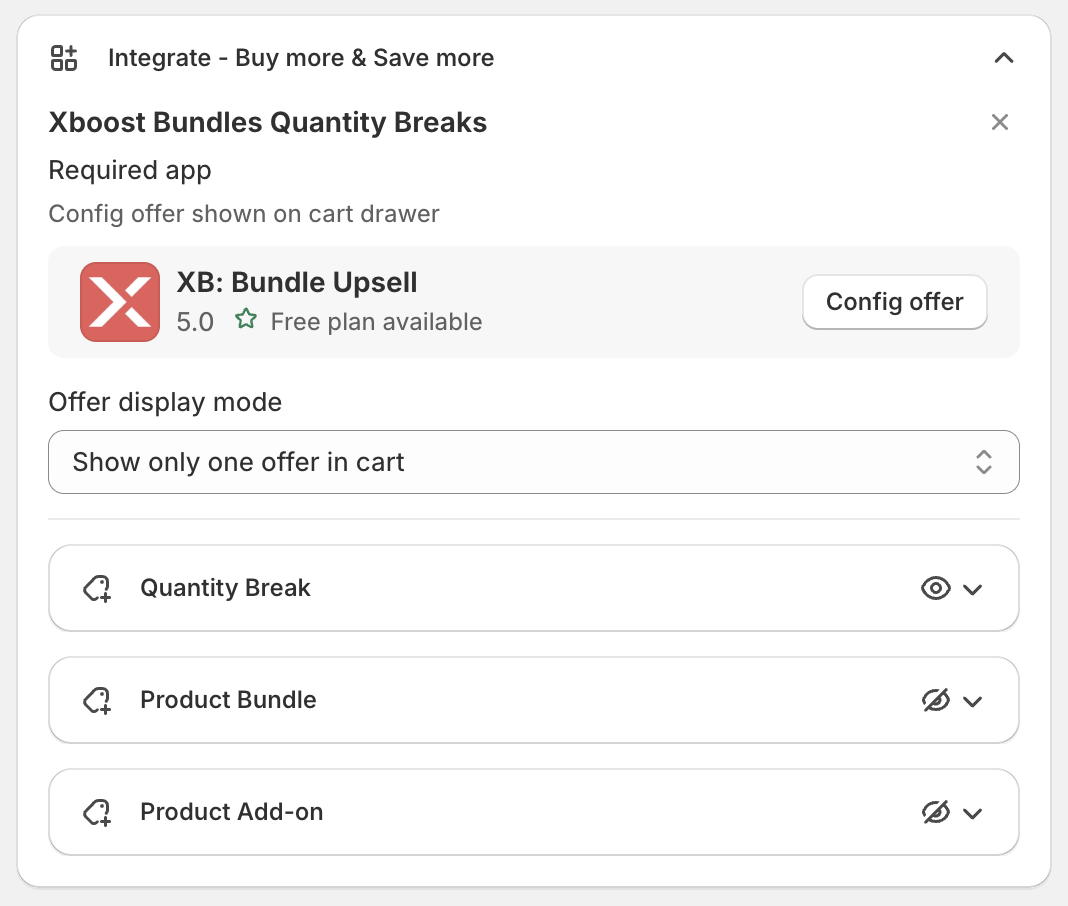
2. Choose how many offers show
Offer display mode:
- Show only one offer in cart: one offer for the whole cart.
- Show offer for every line item: each cart item that matches an offer shows its own offer.
If a cart item matches more than one integration, the app uses the first one in this order: Quantity Break, Product Bundle, Product Add-on.
Cart items that already have a discount on the line, or that cost $0, do not show an offer.
3. Set up Quantity Break
Click Quantity Break to open its settings. The eye icon on the right shows whether it is on.
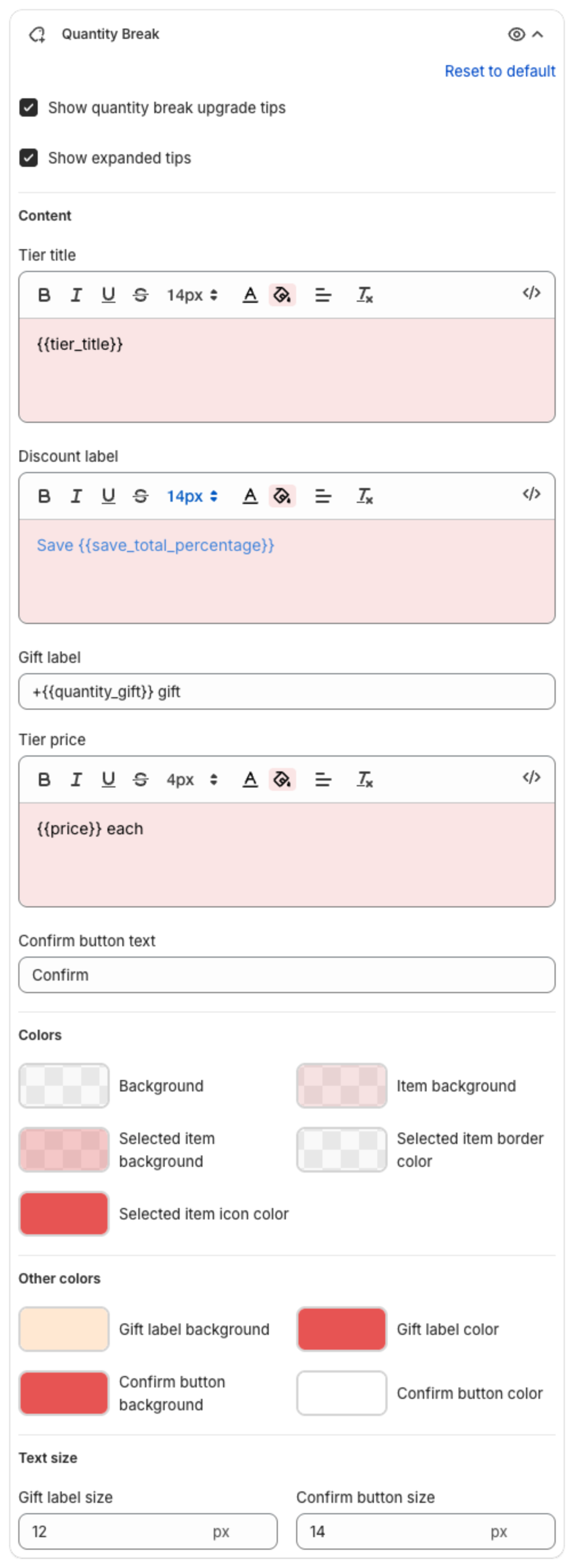
- Show quantity break upgrade tips: turns the integration on.
- Show expanded tips: shows the tiers directly under the cart item instead of a one-line tip.
- Content:
- Tier title (default
{{tier_title}}, the tier title from the Bundles offer). - Discount label (default
Save {{save_total_percentage}}). - Gift label, shown when the tier includes free gifts, for example "+1 gift".
- Tier price (default
{{price}} each). - Confirm button text.
- Tier title (default
- Colors and Text size: backgrounds, the selected item, the gift label and the confirm button.
On the store, the offer shows under the cart item in one of two ways:
| Show expanded tips on | Show expanded tips off |
|---|---|
| The tiers show directly under the item. | A one-line tip shows instead. |
With Show expanded tips on:
With Show expanded tips off:
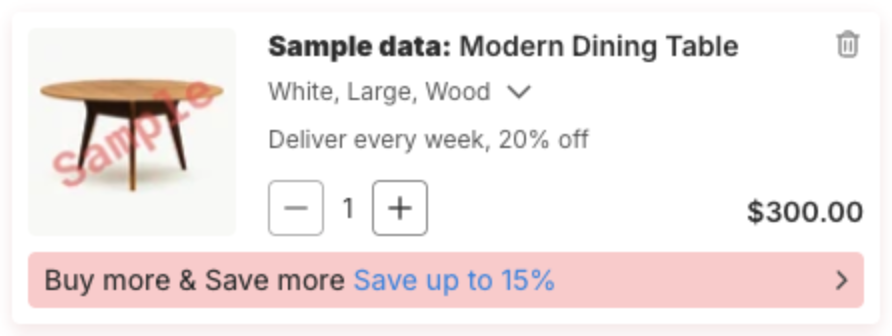
When the shopper clicks a tier or the tip, the Buy More & Save More window opens. The shopper picks the variant for each item and clicks Confirm. The app updates the item in the cart to the new quantity.
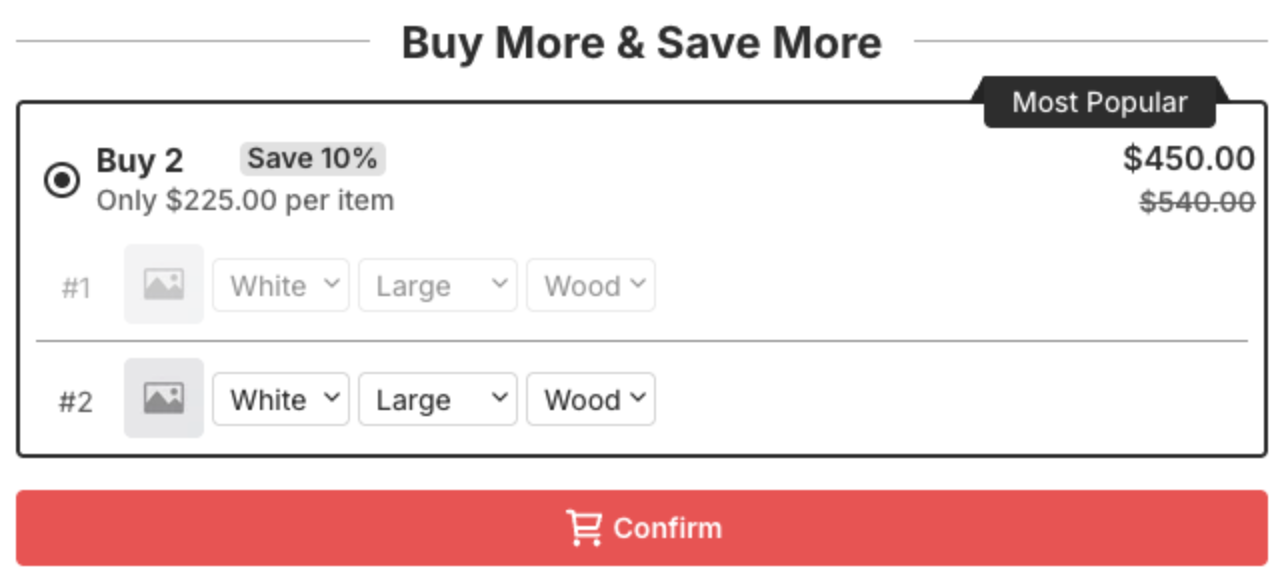
4. Set up Product Bundle
Click Product Bundle.
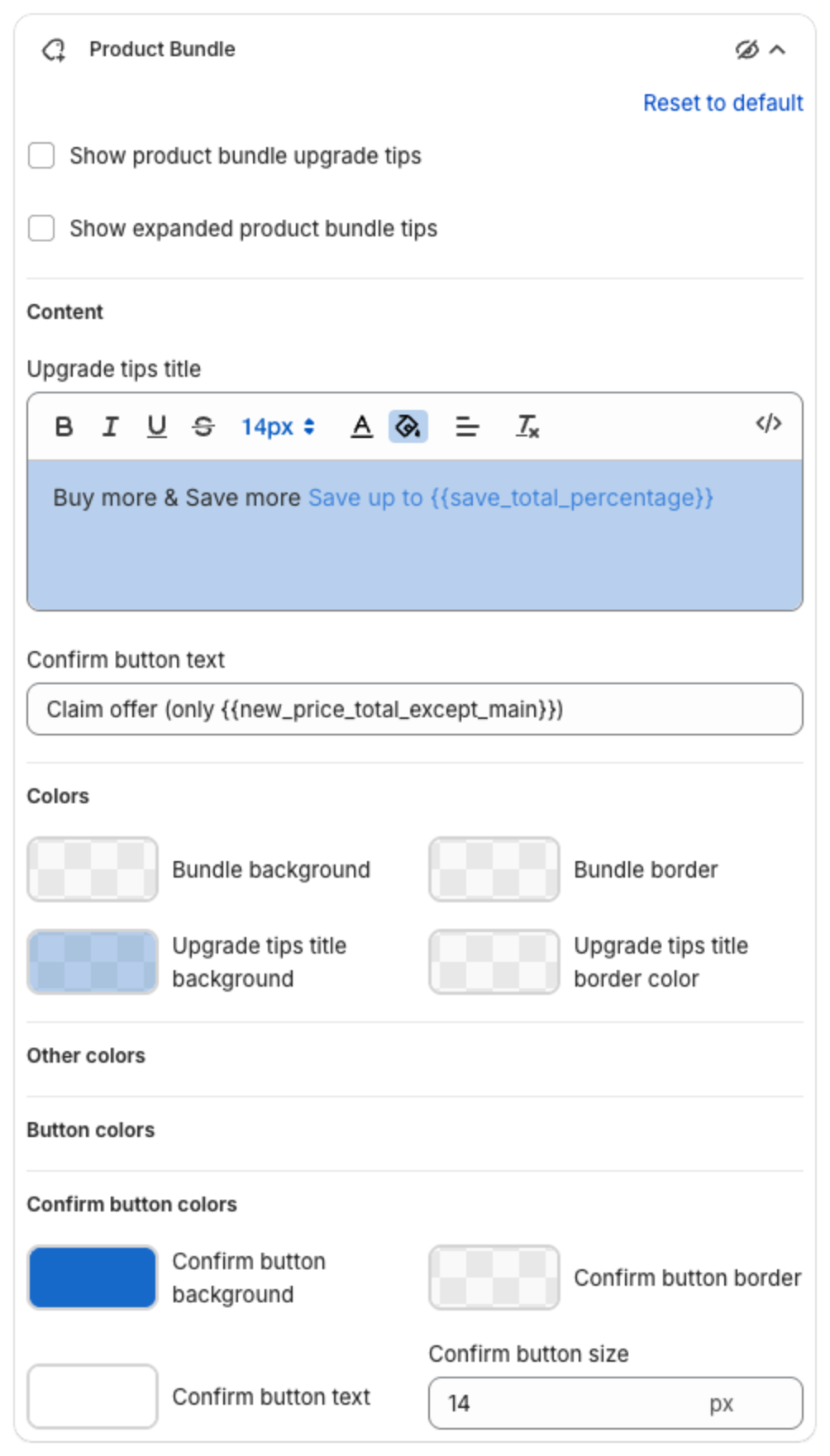
- Show product bundle upgrade tips: turns the integration on.
- Show expanded product bundle tips: shows the bundle directly under the cart item instead of a one-line tip.
- Upgrade tips title: default "Buy more & Save more" with "Save up to {{save_total_percentage}}".
- Confirm button text, and the Bundle background, Bundle border, tip and button colors.
On the store, the offer shows under the cart item in one of two ways.
With Show expanded product bundle tips on, the bundle shows directly under the item: the bundle products in a slider and the Claim offer button with the bundle price.
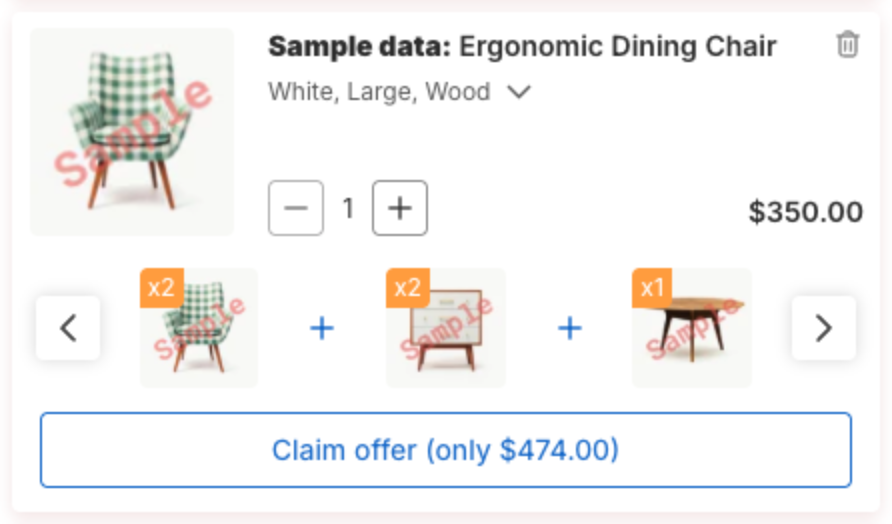
With Show expanded product bundle tips off, a one-line tip shows instead:
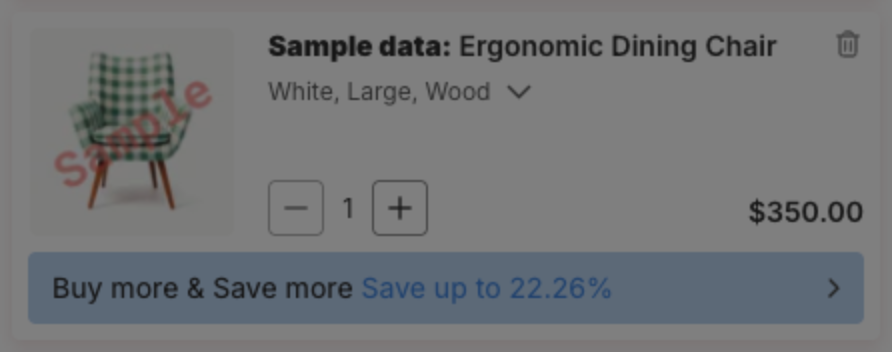
When the shopper clicks the tip, the bundle opens with its products, variant pickers and a Claim offer button with the bundle price. Claim offer adds the bundle products to the cart.
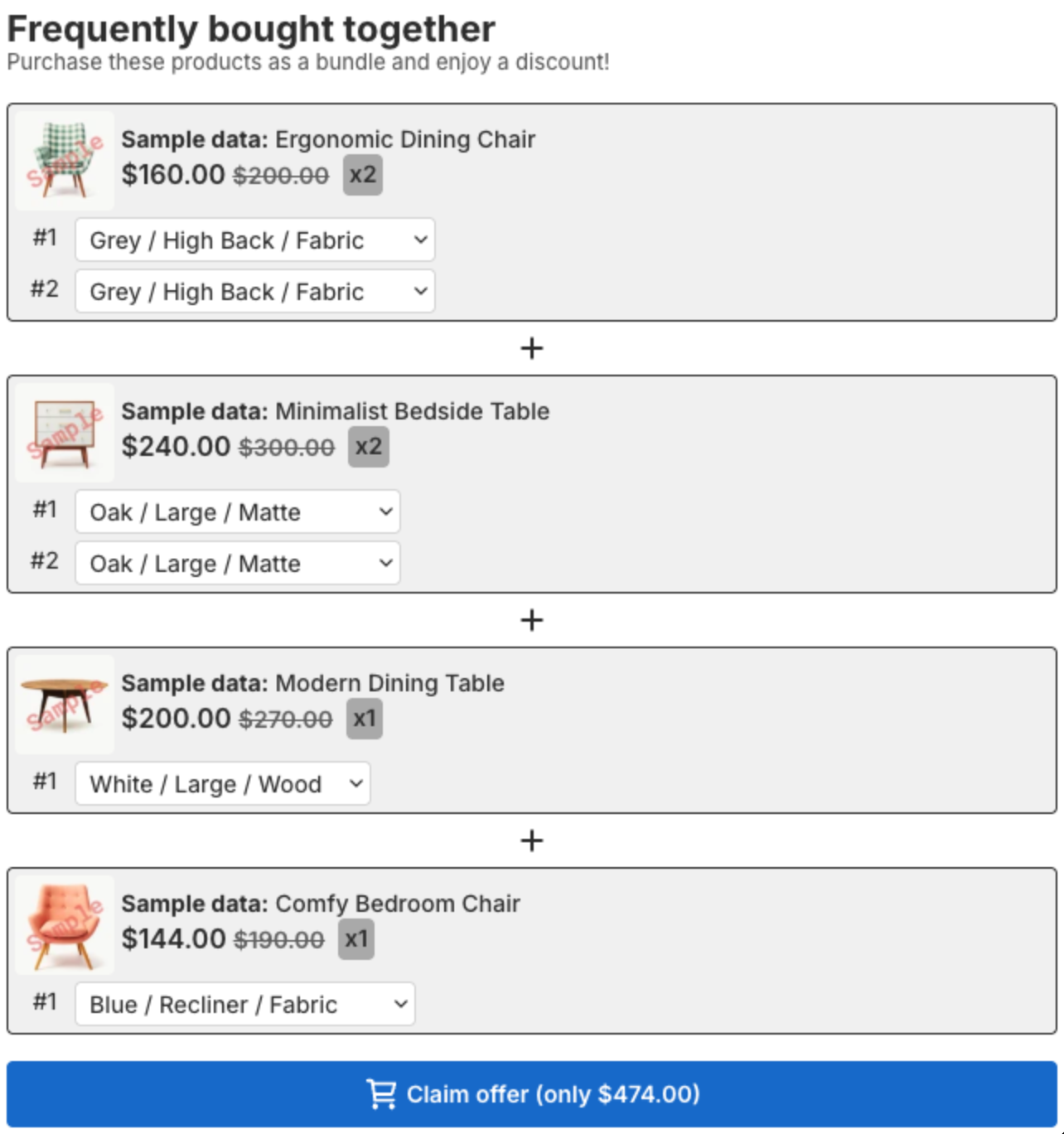
5. Set up Product Add-on
Click Product Add-on.
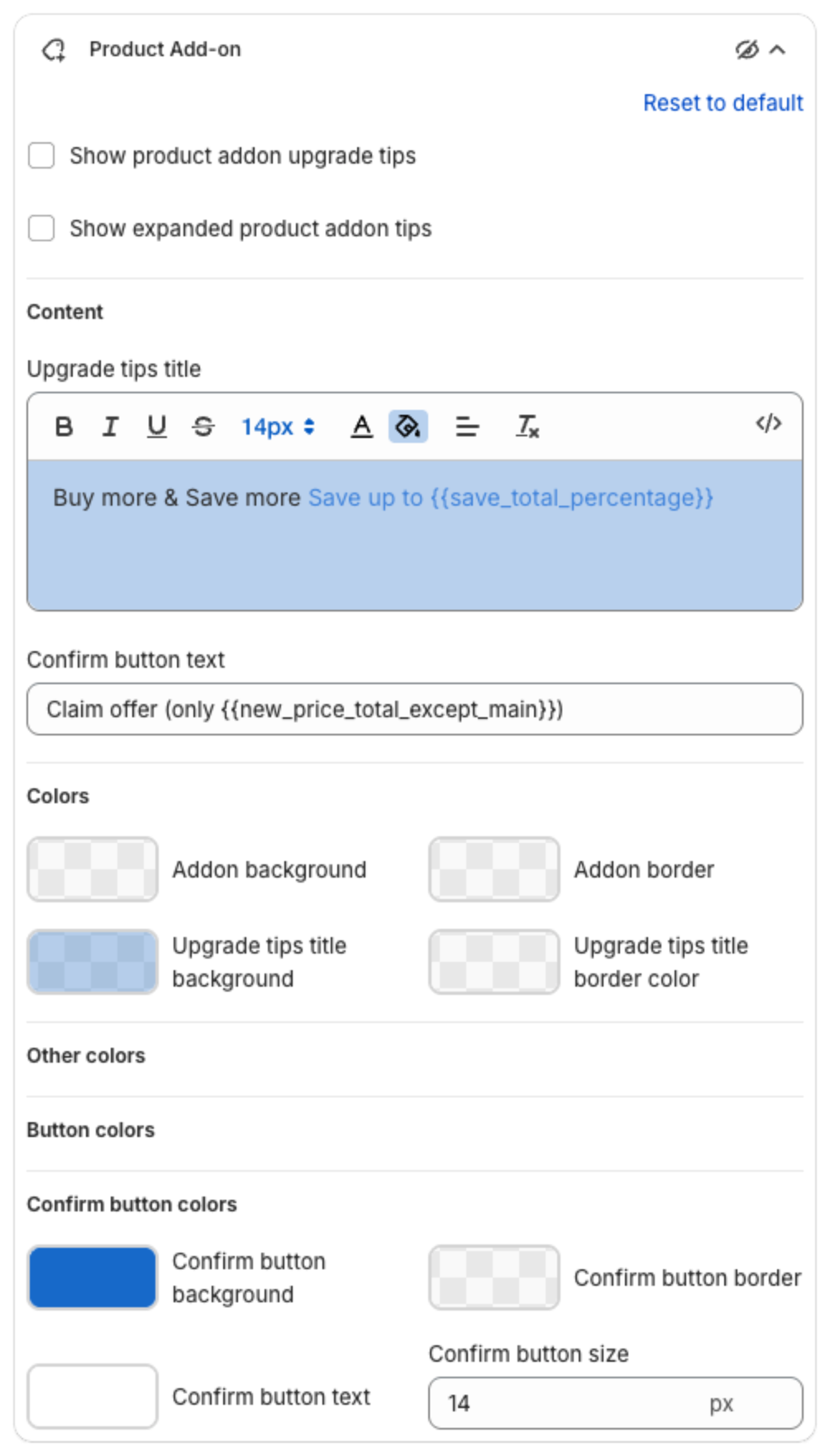
- Show product addon upgrade tips: turns the integration on.
- Show expanded product addon tips: shows the add-ons directly under the cart item instead of a one-line tip.
- Upgrade tips title, Confirm button text, and the Addon background, Addon border, tip and button colors.
On the store, the offer shows under the cart item in one of two ways.
With Show expanded product addon tips on, the add-ons show directly under the item in a slider, with the Claim offer button.
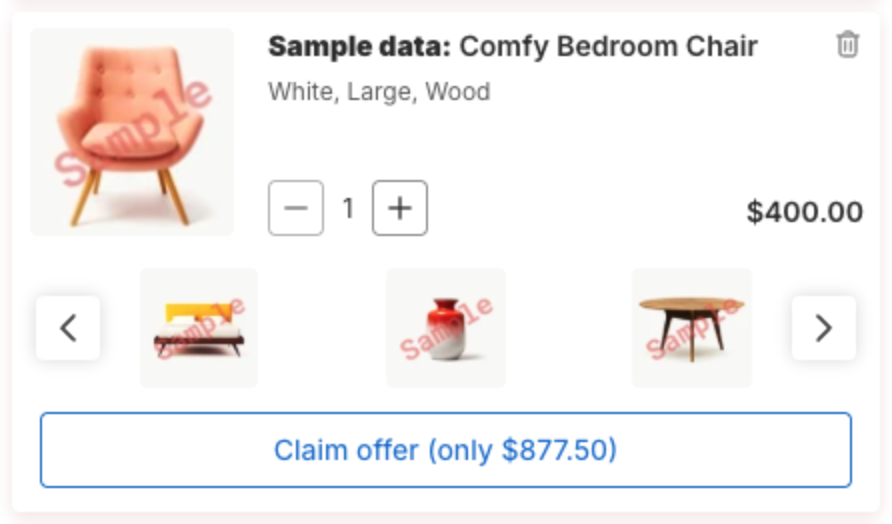
With Show expanded product addon tips off, a one-line tip shows instead:
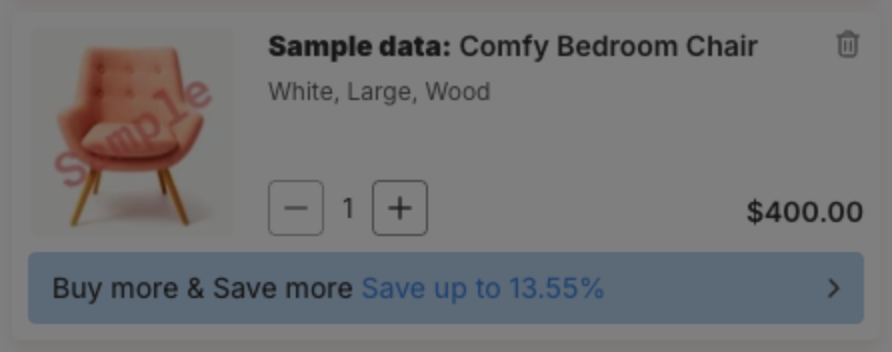
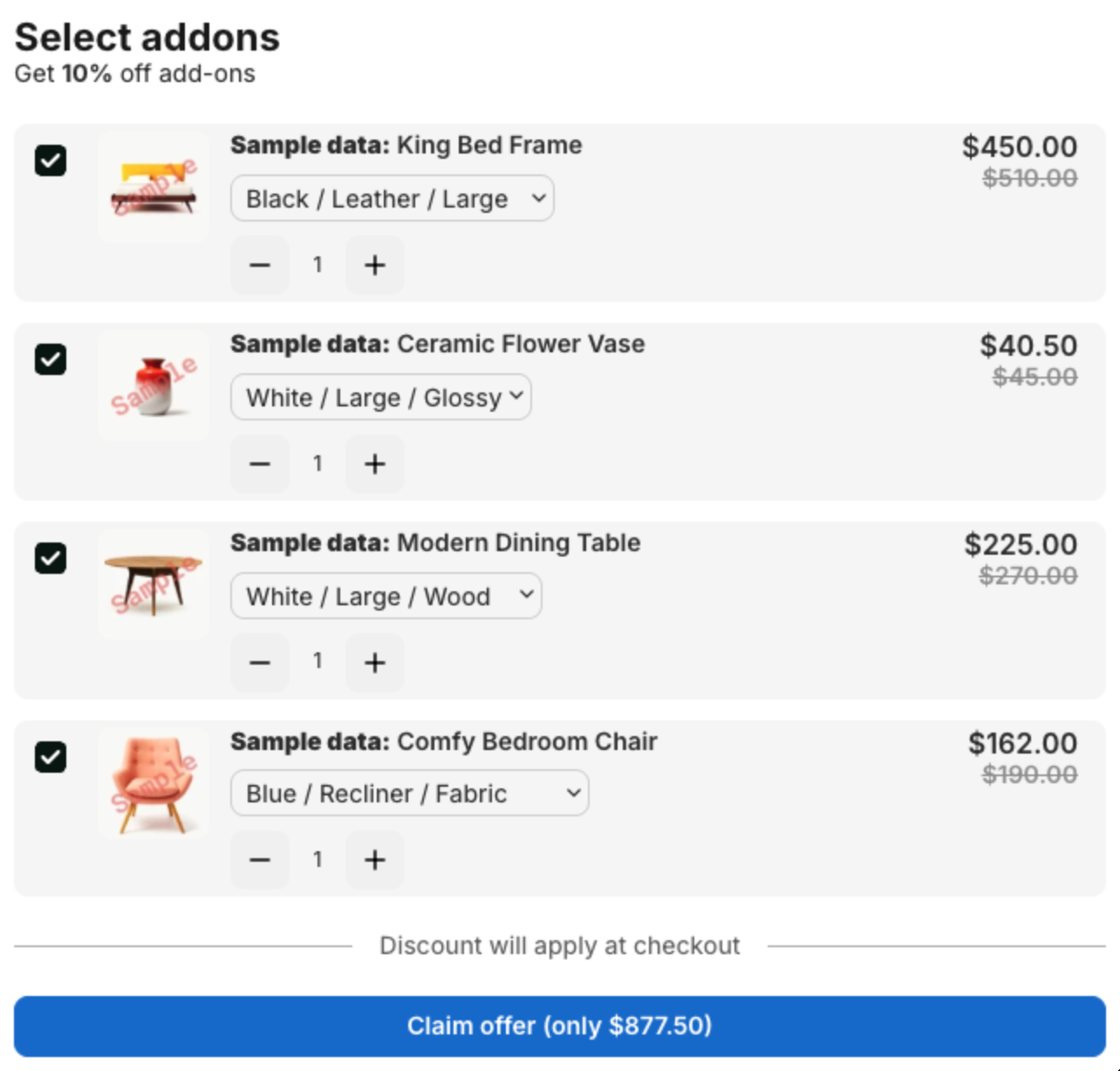
When the shopper clicks the tip, Select addons opens. The shopper ticks the add-ons, picks variants and quantities, and clicks Claim offer. "Discount will apply at checkout" shows above the button.
6. Save
Click Save in the bar at the top of the page. Use the preview on the right to try each integration: click a tier or a tip in the preview.