
How to use Rewards function in your cart
Overview
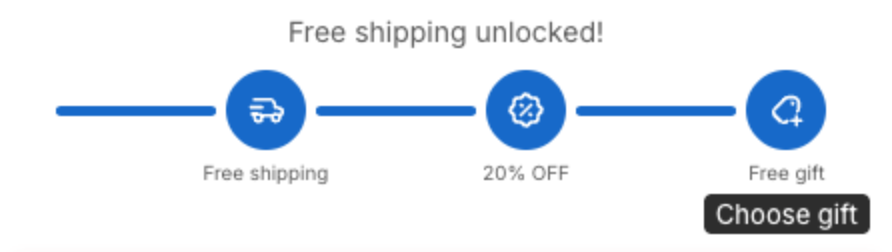
The rewards bar in the cart drawer shows shoppers how close they are to the next reward, for example free shipping at 2 items, 20% off at 3 items and a free gift at 4 items. Each reward is a tier. A tier unlocks when the cart reaches its minimum amount or item count.
Before you start
- Turn on the cart drawer. See Getting started with XB: AI Cart Upsell Cart Drawer.
Steps
1. Open Rewards
- Click Cart Drawer in the app menu.
- Click Body, then Rewards.
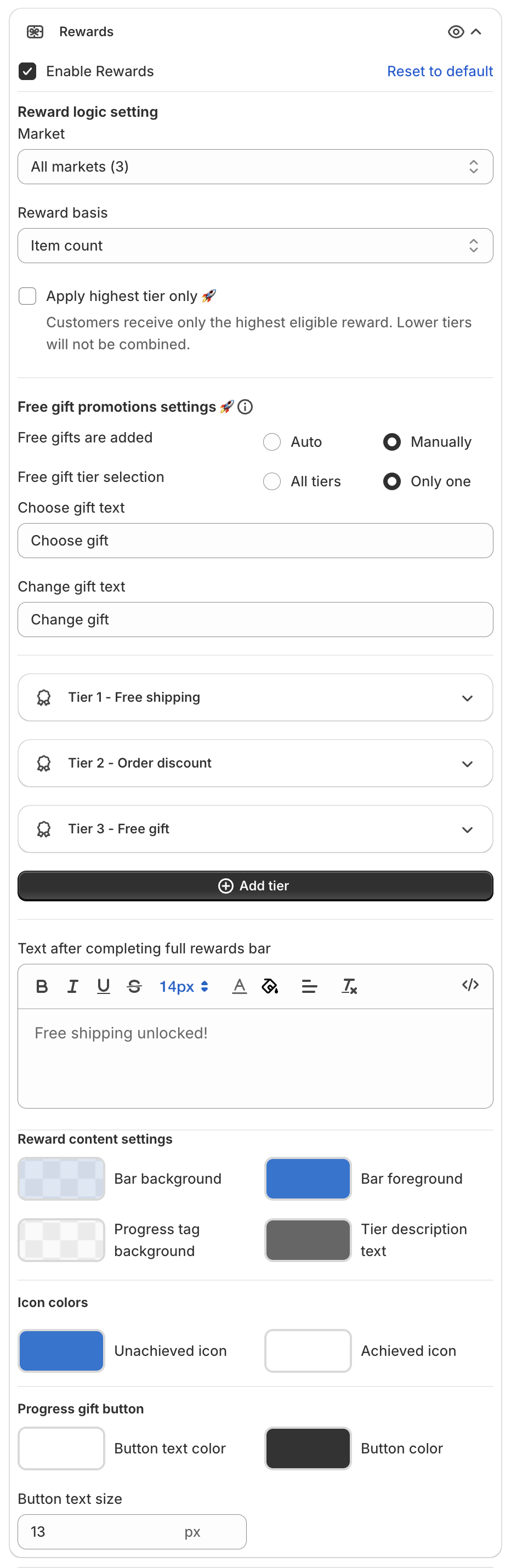
- Tick Enable Rewards.
2. Set the reward logic
Under Reward logic setting:
- Market: pick All markets or one of your Shopify Markets. Each market can have its own tiers. The number in brackets is the number of tiers set for that market. The market is the one the shopper picks in your store's country selector, not a location from their IP address.
- Reward basis: Cart amount (cart value) or Item count (number of items).
- Apply highest tier only: "Customers receive only the highest eligible reward. Lower tiers will not be combined."
For Cart amount tiers, the drawer converts the amounts to the shopper's currency.
3. Set up each tier
Click a tier, for example Tier 1 - Free shipping, to open it:
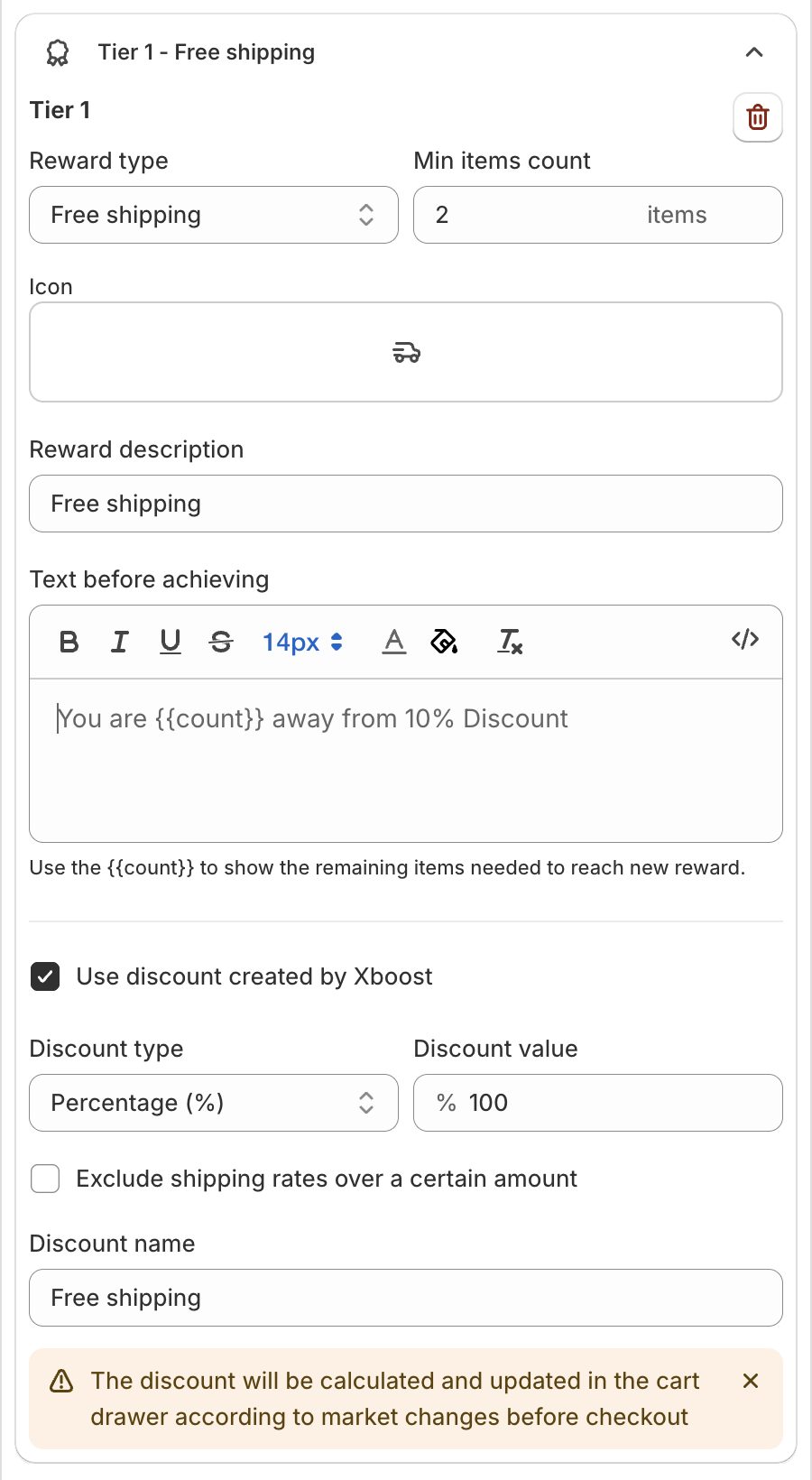
- Pick the Reward type: Free shipping, Order discount or Free gift.
- Set the minimum (Min items count, or the minimum amount when Reward basis is Cart amount).
- Optional: change the Icon. See Change the tier icon.
- Type the Reward description, shown under the tier icon, for example "Free shipping".
- Type the Text before achieving, for example "You are {{count}} away from 10% Discount".
{{count}}shows what is left to reach the tier. - Choose who gives the discount:
- Tick Use discount created by Xboost to let the app apply the discount. Set the Discount type (Percentage (%) or Amount ($)), the Discount value and the Discount name that shoppers see. For free shipping, you can also tick Exclude shipping rates over a certain amount.
- Clear it if you want to use your own discount from Discounts in your Shopify admin. The app then shows a link to create it. The rewards bar only shows progress, so the discount must match the tier.
The app recalculates the discount in the cart drawer for the shopper's market before checkout.
For a Free gift tier, including the gift picker that lets shoppers choose their gifts, see How to set up products for free.
To add a tier, click Add tier. To remove one, click the trash icon in the tier.
4. Change the tier icon
Each tier shows an icon on the rewards bar. By default, the icon matches the Reward type: a truck for Free shipping, a discount badge for Order discount and a tag with a plus sign for Free gift. To use another icon:
-
Open the tier.
-
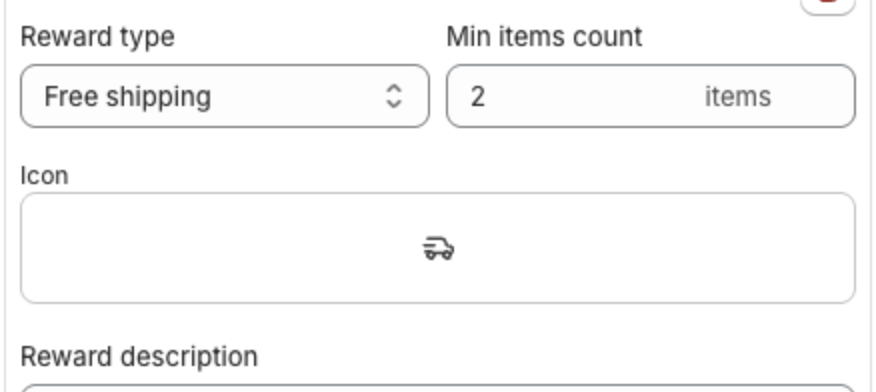
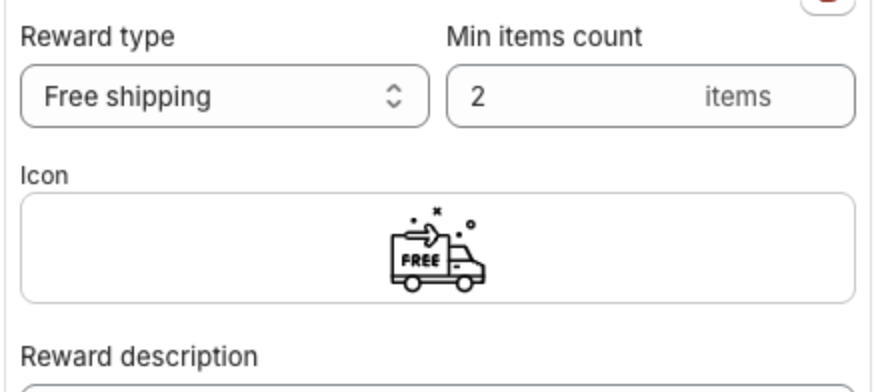
Click the box under Icon. It shows the current icon:
-
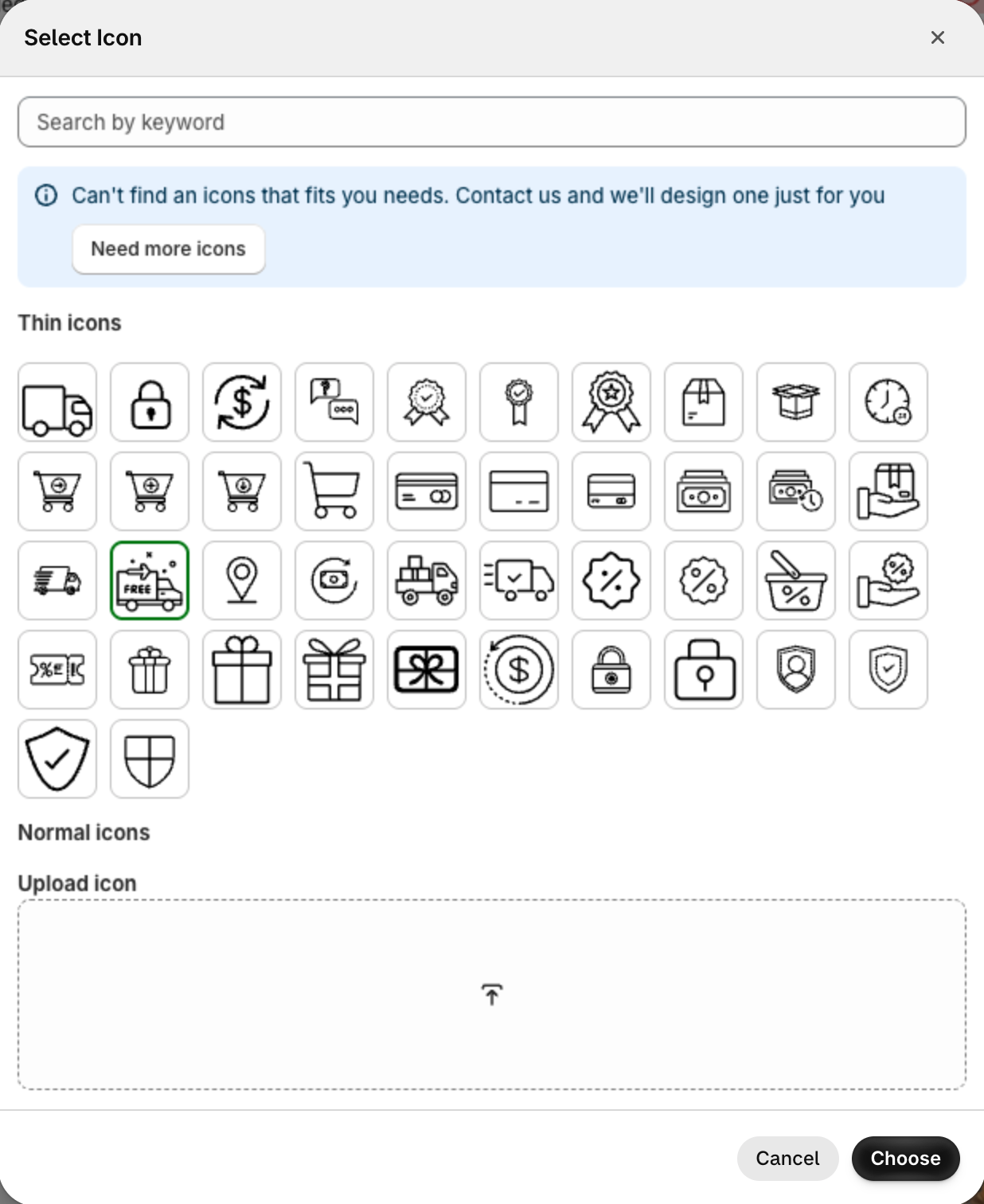
In the Select Icon window, click an icon. The selected icon has a green border.
- Type in Search by keyword to filter the icons, for example "gift" or "truck".
- Scroll the list to see both groups: Thin icons and Normal icons.
- To use your own icon, add an image under Upload icon: JPG, PNG, WEBP, BMP, GIF or SVG, up to 1 MB. Your icons show in the Uploaded icons group at the top of the list.
- Can't find a fitting icon? Click Need more icons to message our support team.
-
Click Choose. The Icon box shows the new icon:
-
Repeat for the other tiers, then click Save.
The preview on the right shows the new icons. Here Tier 1 uses the free shipping truck and Tier 3 the gift box. Tier 3 is not reached yet, so it uses the Unachieved icon color:
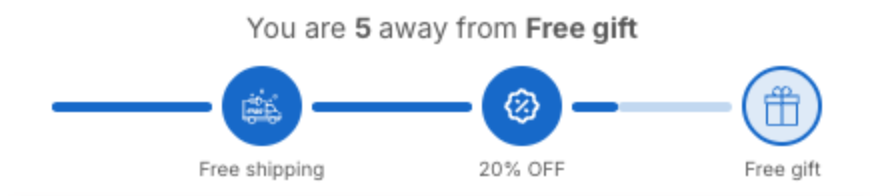
To change the icon colors, go to Reward content settings > Icon colors. Unachieved icon colors the icons of tiers the cart has not reached yet. Achieved icon colors the icons of reached tiers. The icons from the list follow these colors.

Only one tier
With a single tier and Free gifts are added set to Auto, the tier shows a Show reward icon checkbox. Tick it to show the icon at the end of the bar, under which the Reward description shows. The Icon box shows only while it is ticked.
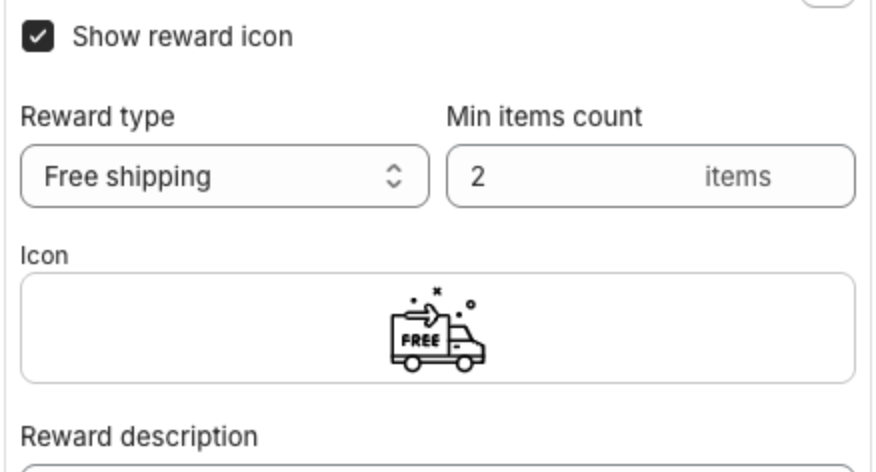
With Show reward icon ticked:
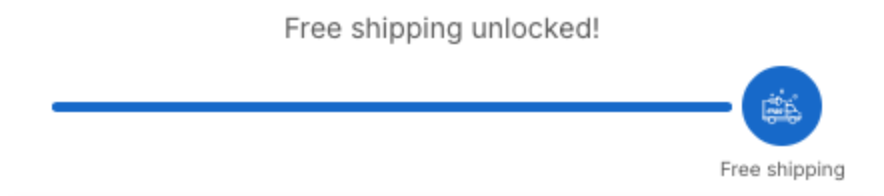
With Show reward icon cleared, the bar has no icon:

With two or more tiers, every tier has an icon and the Icon box always shows.
5. Set the texts and colors
- Text after completing full rewards bar: shown when the shopper reaches the last tier, for example "Free shipping unlocked!".
- Reward content settings: Bar background, Bar foreground, Progress tag background, Tier description text, Icon colors and the gift button (Progress gift button).
6. Save
Click Save in the bar at the top of the page. The preview on the right shows the bar:
Show rewards on an empty cart
Set Cart Mode to Empty cart under Preview Settings, then open Empty cart > Reward bar to show the bar when the cart is empty.