How to set up products for free
Overview
A Free gift tier in the rewards bar gives the shopper free products when the cart reaches the tier, for example a free blanket for orders over $200. You choose up to three gift products per tier and how they get into the cart:
- Auto: the app adds the gift to the cart when the tier unlocks.
- Manually: the shopper picks the gifts in a popup, the gift picker. They can pick up to the number you set in Max selectable gifts and choose a variant of each gift.
Before you start
- Turn on Rewards. See How to use Rewards function in your cart.
Steps
1. Add a free gift tier
- In Cart Drawer, click Body, then Rewards.
- Open a tier, or click Add tier.
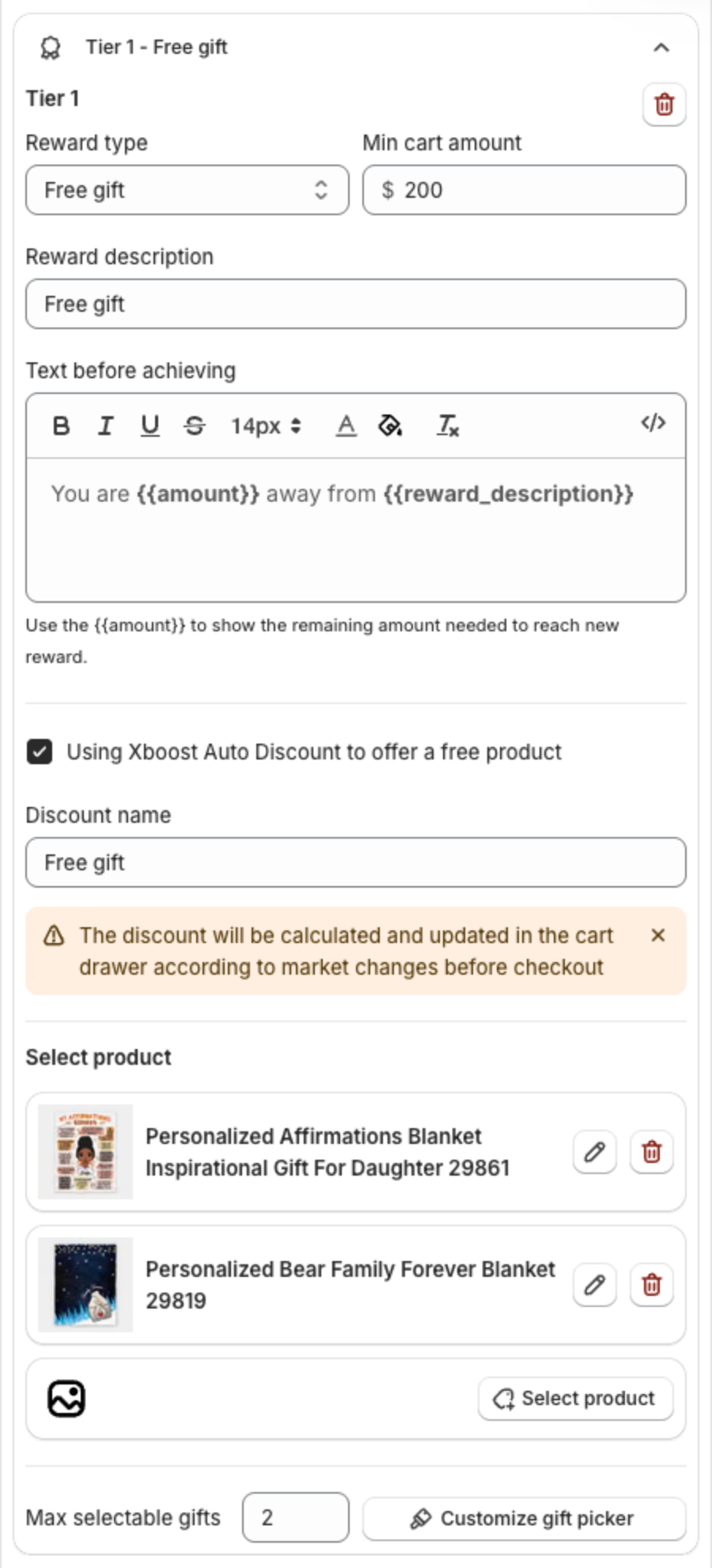
- Set Reward type to Free gift.
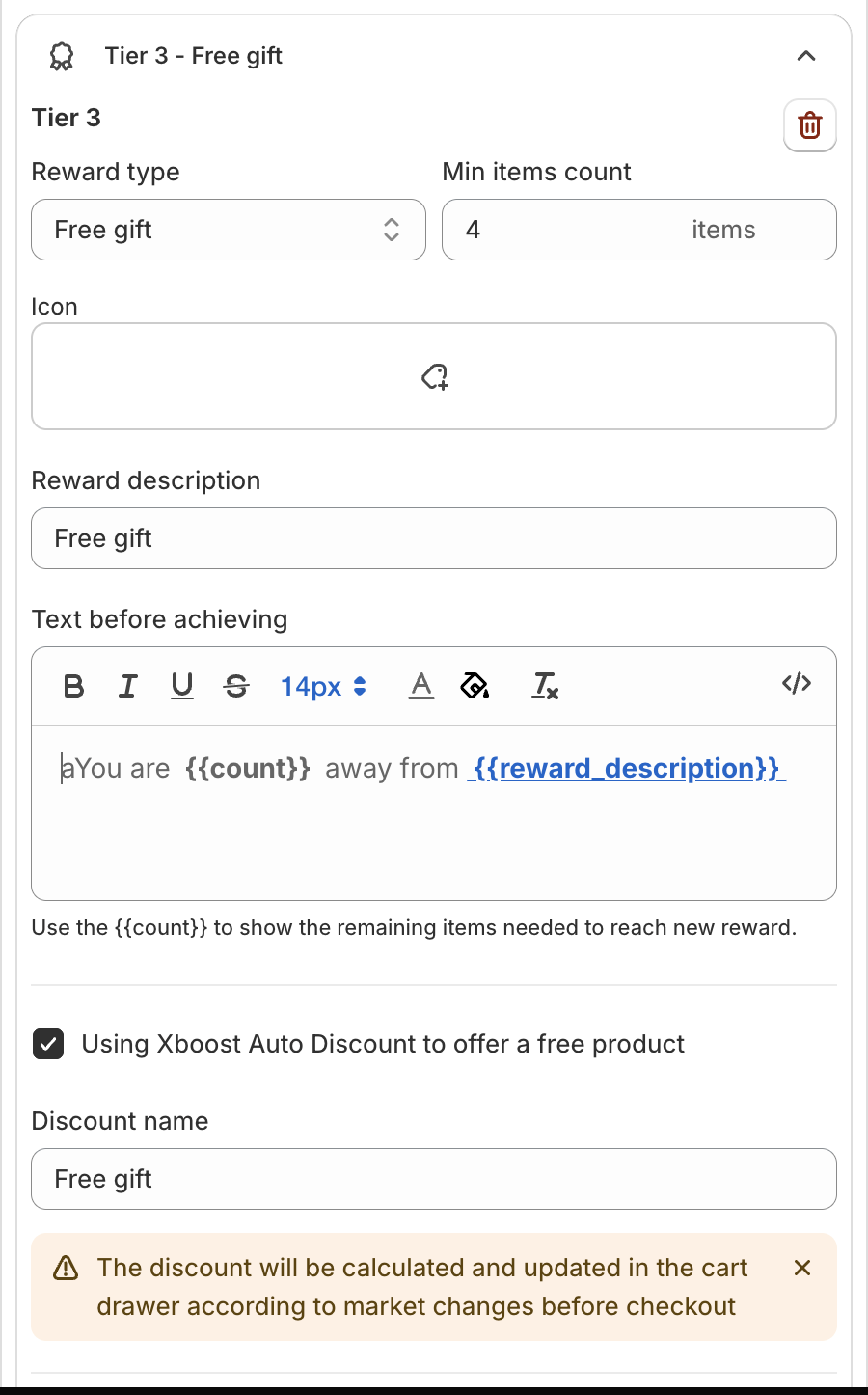
- Set the minimum, for example Min cart amount $200 (or Min items count when Reward basis is Item count).
2. Set the texts
- Reward description: shown under the tier icon, for example "Free gift".
- Text before achieving: shown before the tier unlocks, for example "You are {{amount}} away from {{reward_description}}".
{{amount}}(or{{count}}for Item count) shows what is left to reach the tier.
3. Choose the gift products
- Keep Using Xboost Auto Discount to offer a free product ticked so the app makes the gifts free, and type the Discount name. If you clear it, click Create discount in the note that appears and create a matching discount in Shopify yourself.
- Under Select product, click Select product and pick a gift product. In the product picker you can tick the whole product or only some of its variants. You can add up to three gift products. Click the pencil icon to change a product, or the trash icon to remove it.
- In Max selectable gifts, type how many gifts the shopper can pick in this tier, from 1 to 3.
4. Choose how gifts are added
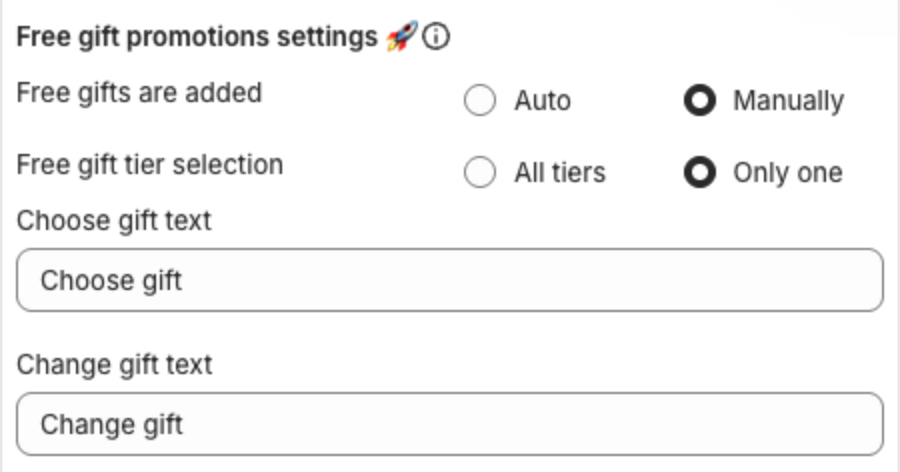
Under Free gift promotions settings in Rewards:
| Setting | Options |
|---|---|
| Free gifts are added | Auto: the app adds the gift when the tier unlocks. Manually: the shopper picks the gifts in the gift picker. |
| Free gift tier selection | All tiers: the shopper gets gifts from every free gift tier they unlock. Only one: the shopper gets gifts from one tier only. If they pick gifts from another tier, their earlier gifts are removed. This setting is hidden when Apply highest tier only is on. |
| Choose gift text | Label of the button under the tier icon, for example "Choose gift". Shown with Manually. |
| Change gift text | Label of the same button after the shopper has picked gifts, for example "Change gift". Shown with Manually. |
To style the Choose gift button, use Progress gift button under Reward content settings: Button text color, Button color and Button text size.
5. Customize the gift picker (Manually only)
In the free gift tier, click Customize gift picker. The window shows the settings on the left and a live preview of the popup on the right.
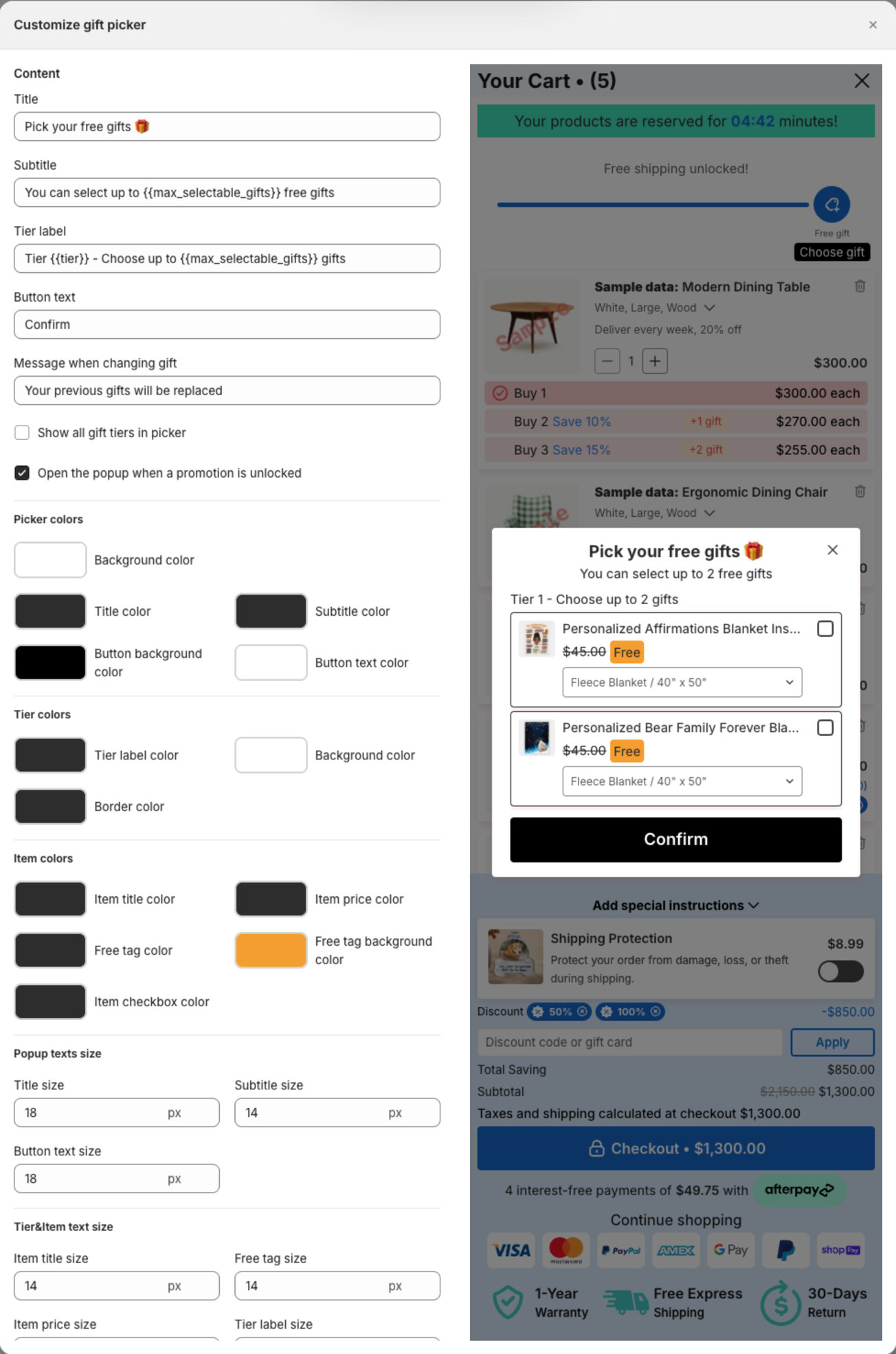
Under Content:
| Setting | What it does | Example |
|---|---|---|
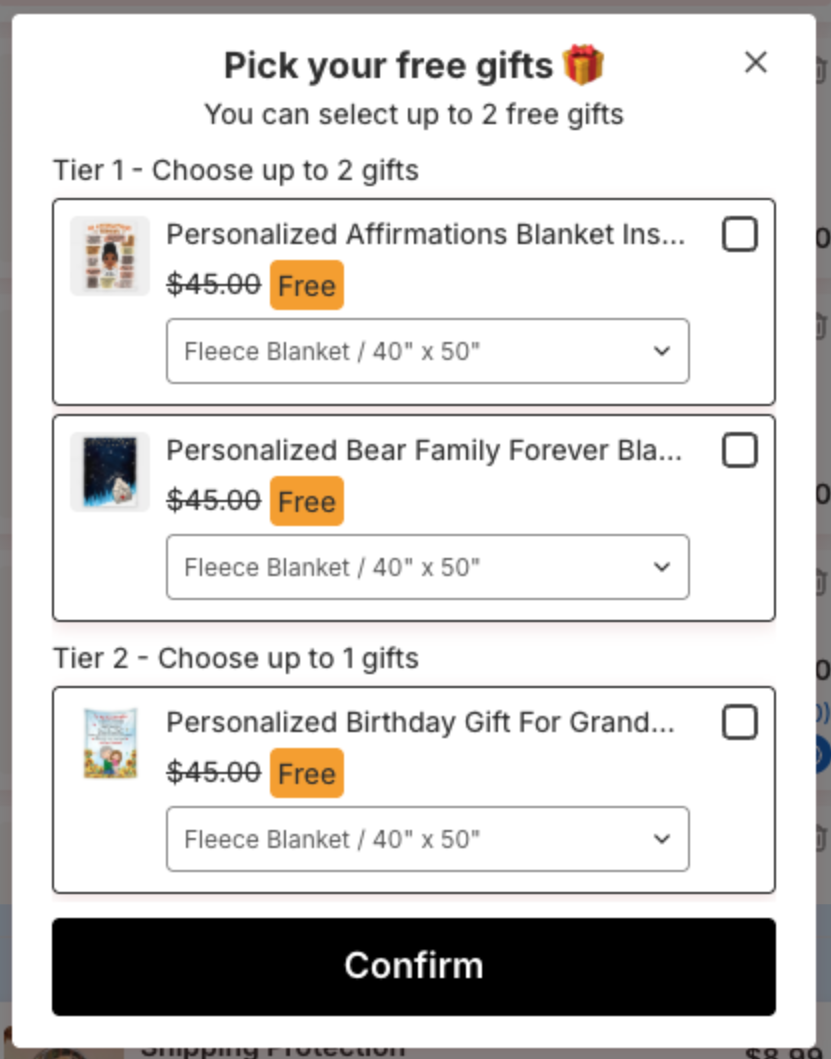
| Title | Title of the popup. | Pick your free gifts 🎁 |
| Subtitle | Text under the title. {{max_selectable_gifts}} shows the Max selectable gifts of the tier. | You can select up to {{max_selectable_gifts}} free gifts |
| Tier label | Heading above the gifts of each tier. {{tier}} shows the tier number. | Tier {{tier}} - Choose up to {{max_selectable_gifts}} gifts |
| Button text | Text of the button that adds the selected gifts. | Confirm |
| Message when changing gift | Message shown when the shopper changes gifts they already picked. | Your previous gifts will be replaced |
| Show all gift tiers in picker | Shows the gifts of every free gift tier in the popup, each under its own Tier label. When cleared, the popup shows only the tier the shopper opened. | |
| Open the popup when a promotion is unlocked | Opens the popup by itself when the cart reaches a free gift tier. When cleared, the shopper opens it with the Choose gift button. |
The other groups set the look of the popup:
- Picker colors: Background color, Title color, Subtitle color, Button background color, Button text color.
- Tier colors: Tier label color, Background color, Border color.
- Item colors: Item title color, Item price color, Free tag color, Free tag background color, Item checkbox color.
- Popup texts size: Title size, Subtitle size, Button text size.
- Tier&Item text size: Item title size, Free tag size, Item price size, Tier label size.
- Item image size: the size of the product images.
Close the window when you are done. Your changes stay on the page until you save.
6. Save
Click Save in the bar at the top of the page.
How shoppers pick their gifts (Manually)
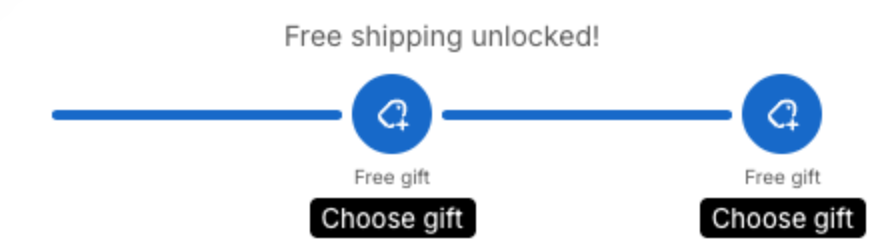
- When the cart reaches a free gift tier, the gift picker opens if Open the popup when a promotion is unlocked is ticked. The shopper can also click Choose gift under the tier icon at any time:
- The popup lists the gift products of the tier, with the original price crossed out and a Free tag. The shopper ticks the gifts they want, up to the Max selectable gifts of the tier. For a gift with several variants, they pick the variant in the dropdown.
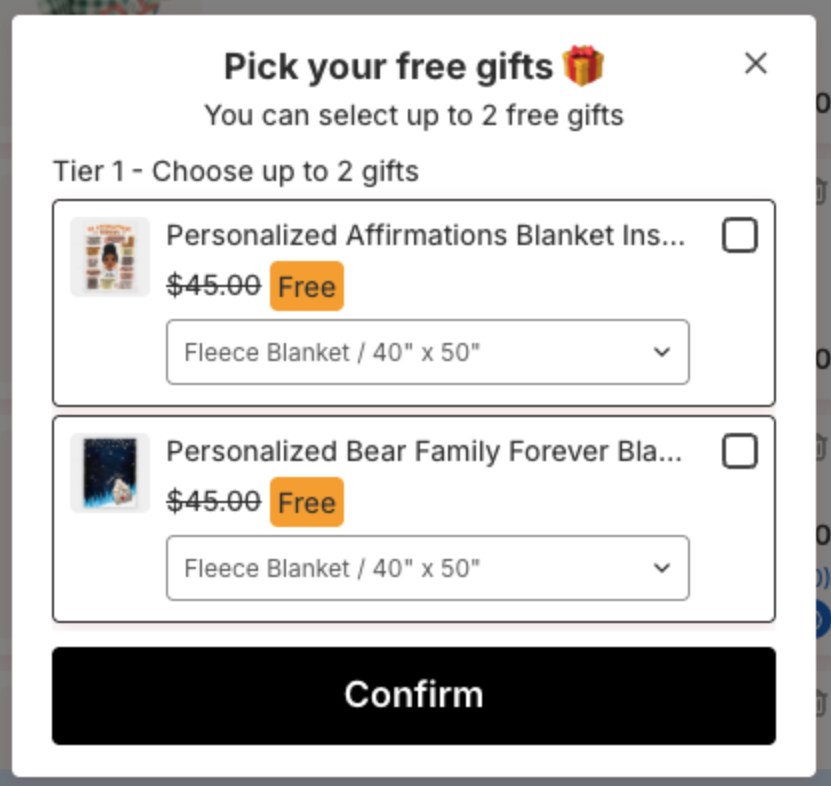
- The shopper clicks Confirm. The app adds one of each selected gift, in the selected variant, to the cart. Gifts the shopper unticked are removed from the cart.
- To pick other gifts later, the shopper clicks Change gift under the tier icon.
With Show all gift tiers in picker, the popup lists every free gift tier, each with its own limit: