
How to use Express Payment
Overview
Express payment shows your store's accelerated checkout buttons, such as Shop Pay, Apple Pay or Google Pay, in the cart drawer. Shoppers can pay without going through the regular checkout steps.
The buttons come from your theme. If your theme does not show accelerated checkout buttons, add a small section to your theme first. See Shopify's guide to accelerated checkouts and dynamic checkout buttons.
Steps
1. Turn on Express payment
- Click Cart Drawer in the app menu.
- Click Footer, then Express payment.
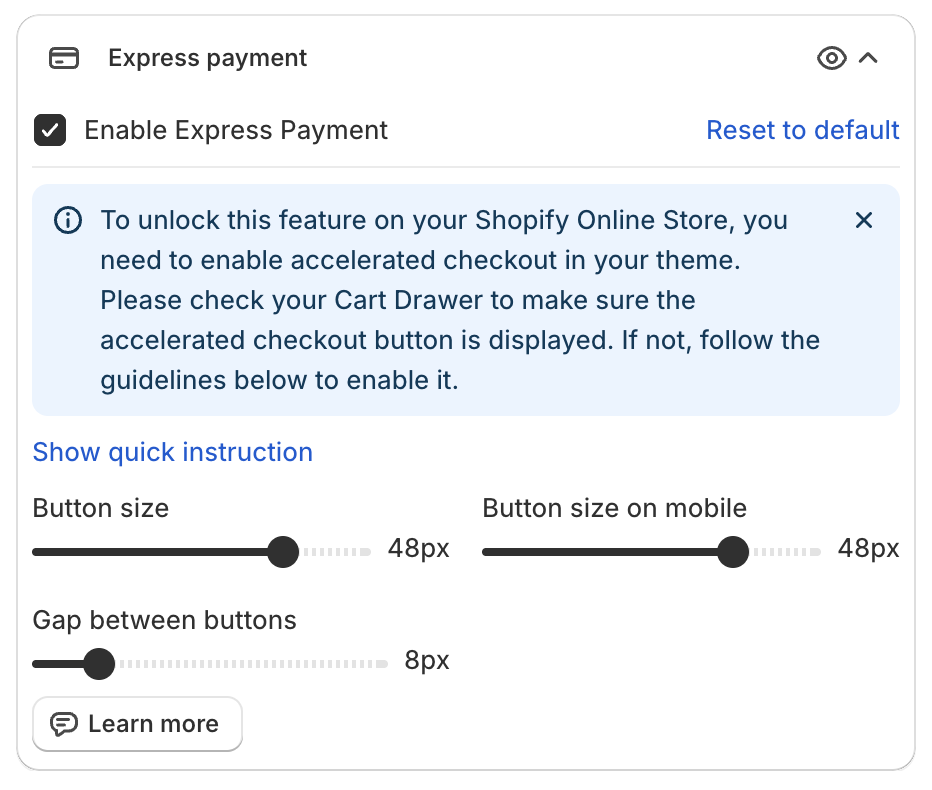
- Tick Enable Express Payment.
- Check the preview. If the accelerated checkout buttons show in the drawer, go to step 3.
2. Add the theme section (only if the buttons do not show)
Click Show quick instruction in the app to see these steps with copy buttons:
- In your Shopify admin, go to Online Store > Themes, click ... on your theme and choose Edit code.
- In the sections folder, create a new file named
xb-express-payment.liquidand replace its content with this code:
{% if additional_checkout_buttons %}
<div style="display: none !important">
{{ content_for_additional_checkout_buttons }}
</div>
{% endif %}
{% schema %}
{
"name": "xb-express-payment",
"tag": "section",
"class": "section"
}
{% endschema %}
- Click Save.
- Open
theme.liquid, add a new line below the line with<body>and paste:
{% section "xb-express-payment" %}
- Click Save.
Before you edit theme code, read Shopify's guide to editing theme code. Make a copy of your theme first.
3. Set the button size
- Button size and Button size on mobile (px).
- Gap between buttons (px).
4. Save
Click Save in the bar at the top of the page. Then check the buttons in the cart drawer on your store.
Show the buttons side by side (horizontal layout)
To show the express payment buttons next to each other in one row, use the xb-express-payment section with this code. It wraps the buttons in an additional-checkout-buttons--horizontal container.
When your theme has the xb-express-payment section, the cart drawer takes the buttons from it. So add the section even if the buttons already show without it.
- In your Shopify admin, go to Online Store > Themes, click ... on your theme and choose Edit code.
- In the sections folder, open
xb-express-payment.liquid. If the file does not exist, create a new file with that name. - Replace its content with this code:
{% if additional_checkout_buttons %}
<div style="display: none !important">
  <div class="additional-checkout-buttons--horizontal">
    {{ content_for_additional_checkout_buttons }}
  </div>
</div>
{% endif %}
{% schema %}
{
"name": "xb-express-payment",
"tag": "section",
"class": "section"
}
{% endschema %}
- Click Save.
- If
theme.liquiddoes not have the section yet, add it as in step 2: paste{% section "xb-express-payment" %}on a new line below<body>, then click Save. - Open the cart drawer on your store and check the buttons.
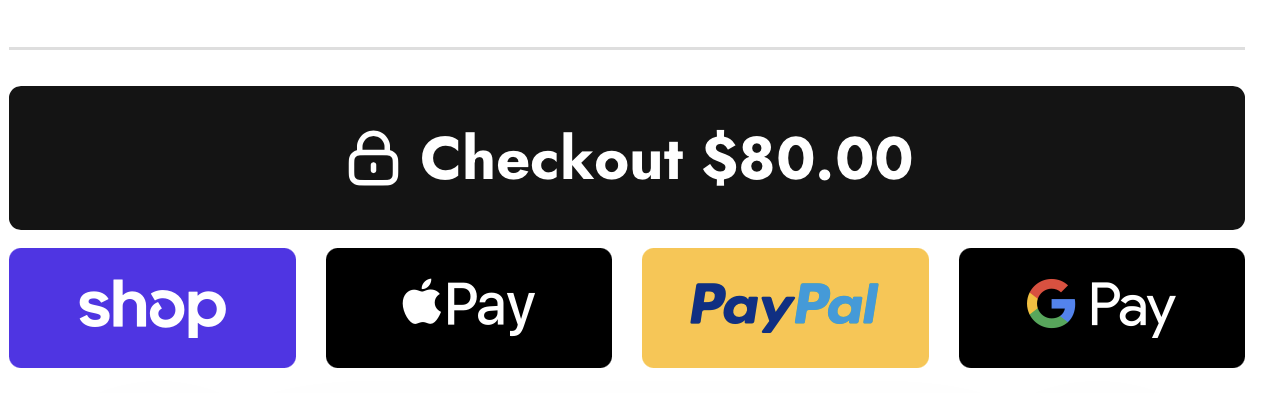
The buttons show next to each other below the checkout button:
To go back to the default layout, replace the content of xb-express-payment.liquid with the code from step 2.