
How to add custom HTML and CSS to the cart
Overview
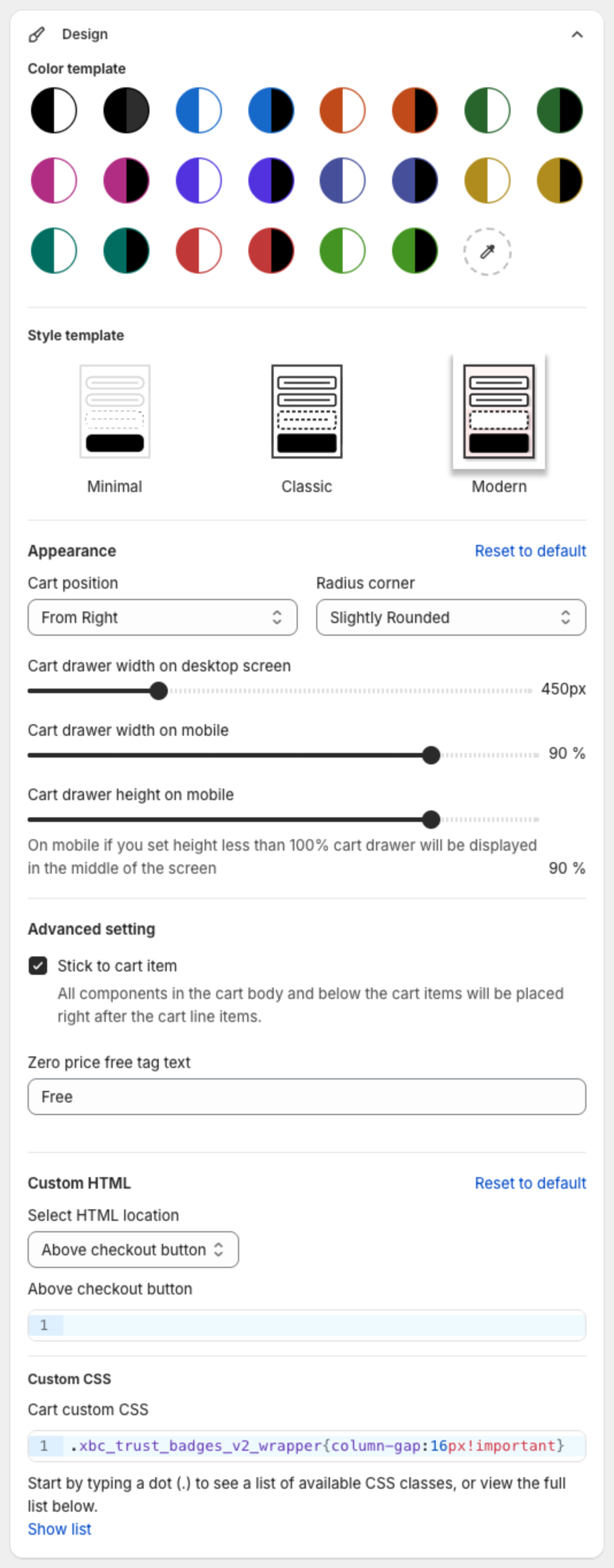
When the settings are not enough, you can add your own HTML (for example a banner or a message) at fixed places in the cart drawer, and your own CSS to change the style. Both are in the Design section.
Before you start
- Custom HTML needs a paid plan. On the Free plan the custom HTML is not shown.
Custom HTML
- Click Cart Drawer in the app menu, then click Design.
- Under Custom HTML, pick the place in Select HTML location:
- Above announcements
- Below header/announcements(Sticky at the top of the cart body)
- Between each line item
- Above footer/add-ons
- Above checkout button
- Below checkout button
- Bottom of cart
- Custom html on empty cart screen
- Scripts (Before Load): a script that runs before the cart loads.
- Type the HTML in the editor below. Each location has its own content.
- Click Save in the bar at the top of the page.
Custom CSS
- In Design, find Custom CSS > Cart custom CSS.
- Type your CSS. Type a dot (
.) to see the cart class names, or click Show list. The main class of the drawer is.xb_slidecart. - Click Save.
The CSS applies to the whole cart drawer on your store. For examples, see How to change the cart drawer font.