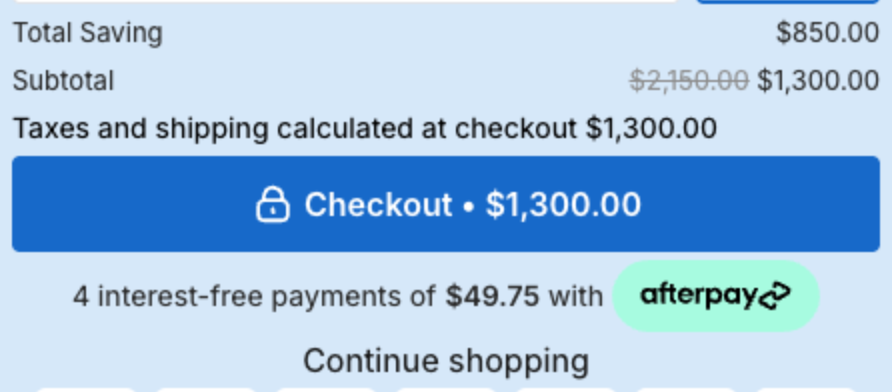
How to change the cart summary and checkout button
Overview
The bottom of the cart drawer shows the totals (Cart Summary) and the Checkout button. You can change their texts and colors, and add a Continue shopping link.
Steps
1. Cart Summary
- Click Cart Drawer in the app menu.
- Click Footer, then Cart Summary.
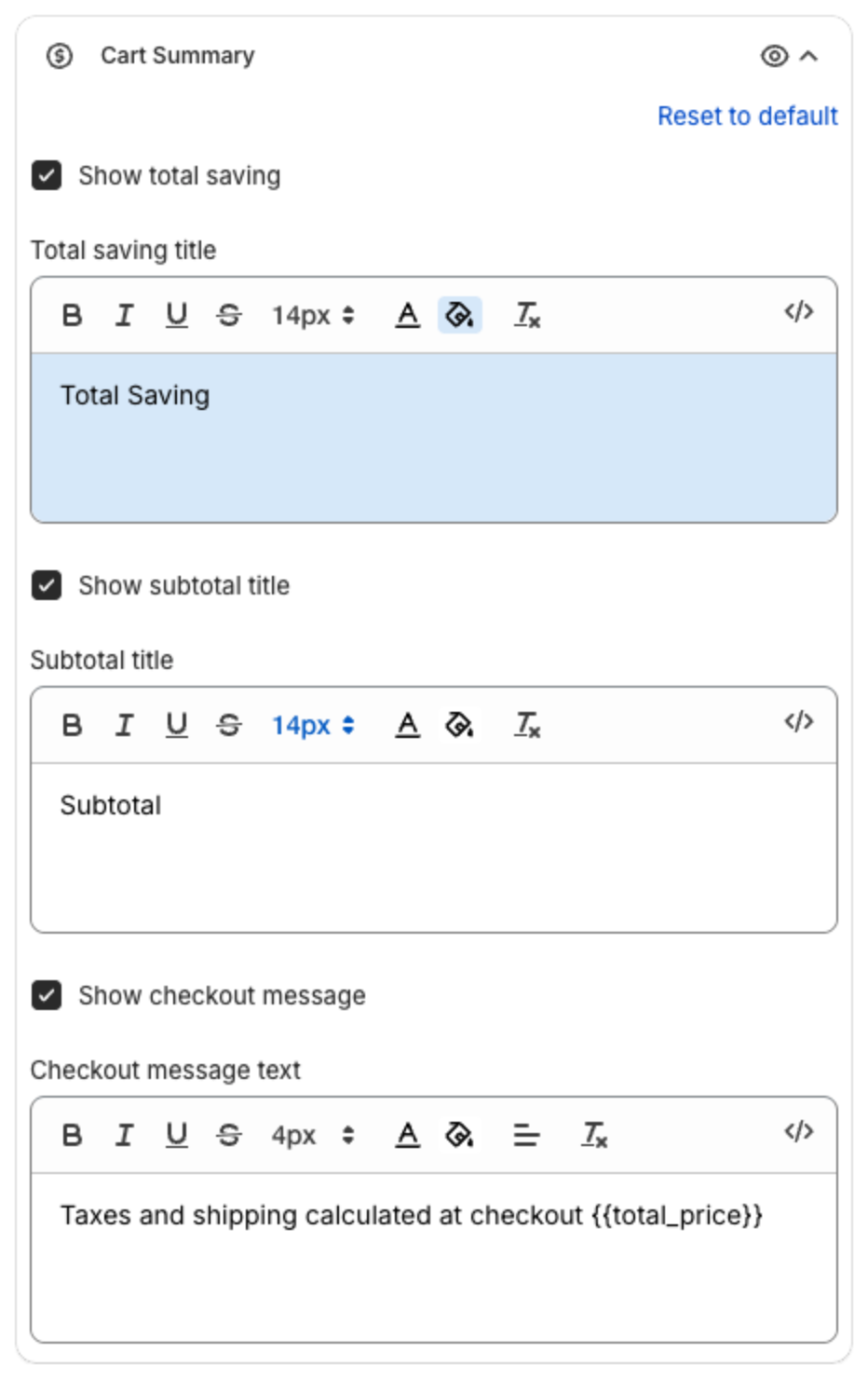
- Show total saving and Total saving title (default "Total Saving"): the total discount in the cart.
- Show subtotal title and Subtotal title (default "Subtotal").
- Show checkout message and Checkout message text, for example "Taxes and shipping calculated at checkout {{total_price}}".
{{total_price}}shows the cart total.
2. Checkout button
Click Checkout button:
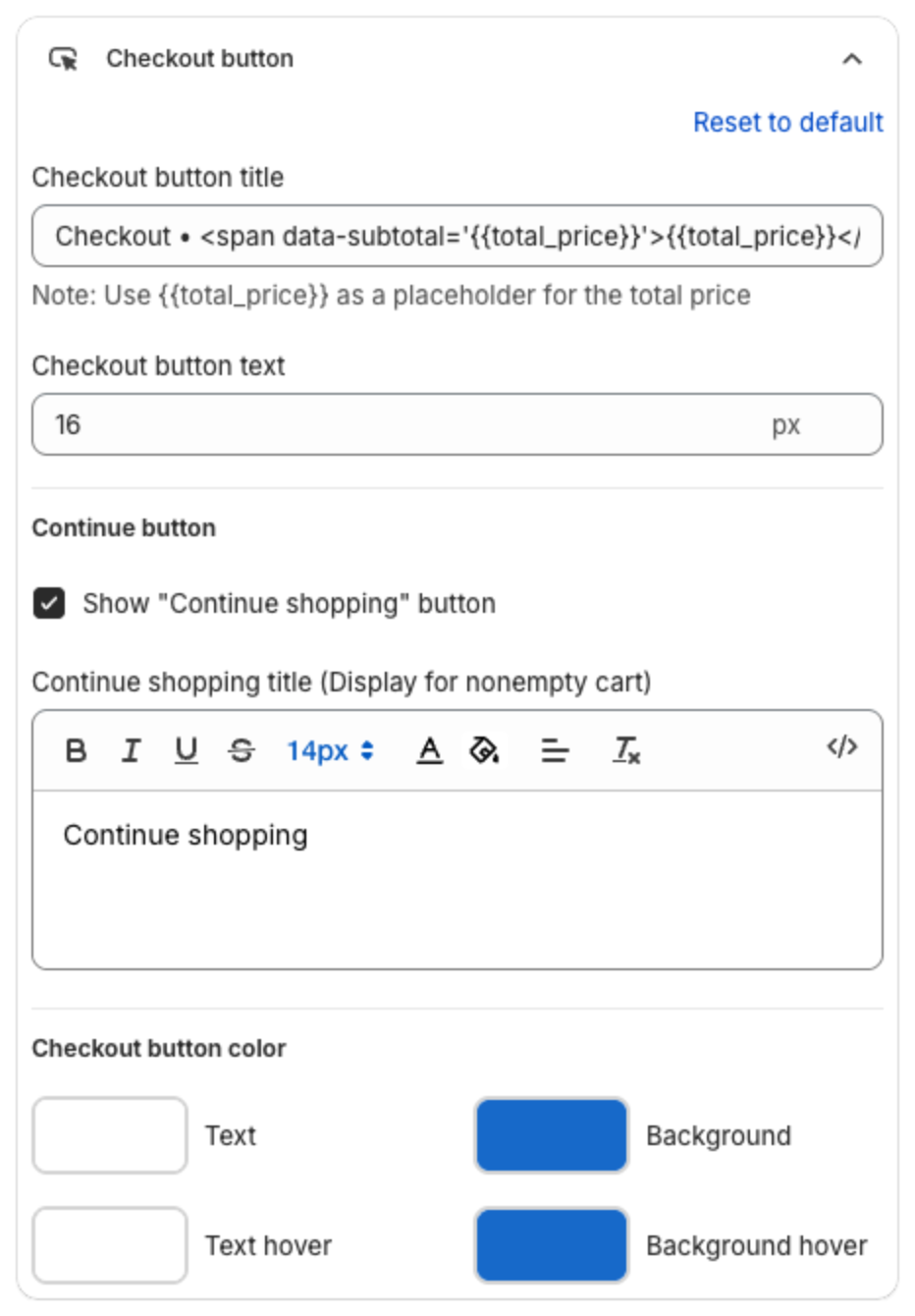
- Checkout button title, for example "Checkout • {{total_price}}". Use
{{total_price}}for the total. Set its text size. - Show "Continue shopping" button and Continue shopping title (Display for nonempty cart): a link under the button that lets shoppers go back to the store.
- Checkout button color: Text, Background, Text hover and Background hover.
3. Save
Click Save in the bar at the top of the page. The preview shows the result: