
How to customize cart items
Overview
Cart Line Item controls how each product in the cart drawer looks: title, photo, saved money, variant change and subscription upgrades.
Steps
1. Open Cart Line Item
- Click Cart Drawer in the app menu.
- Click Body, then Cart Line Item.
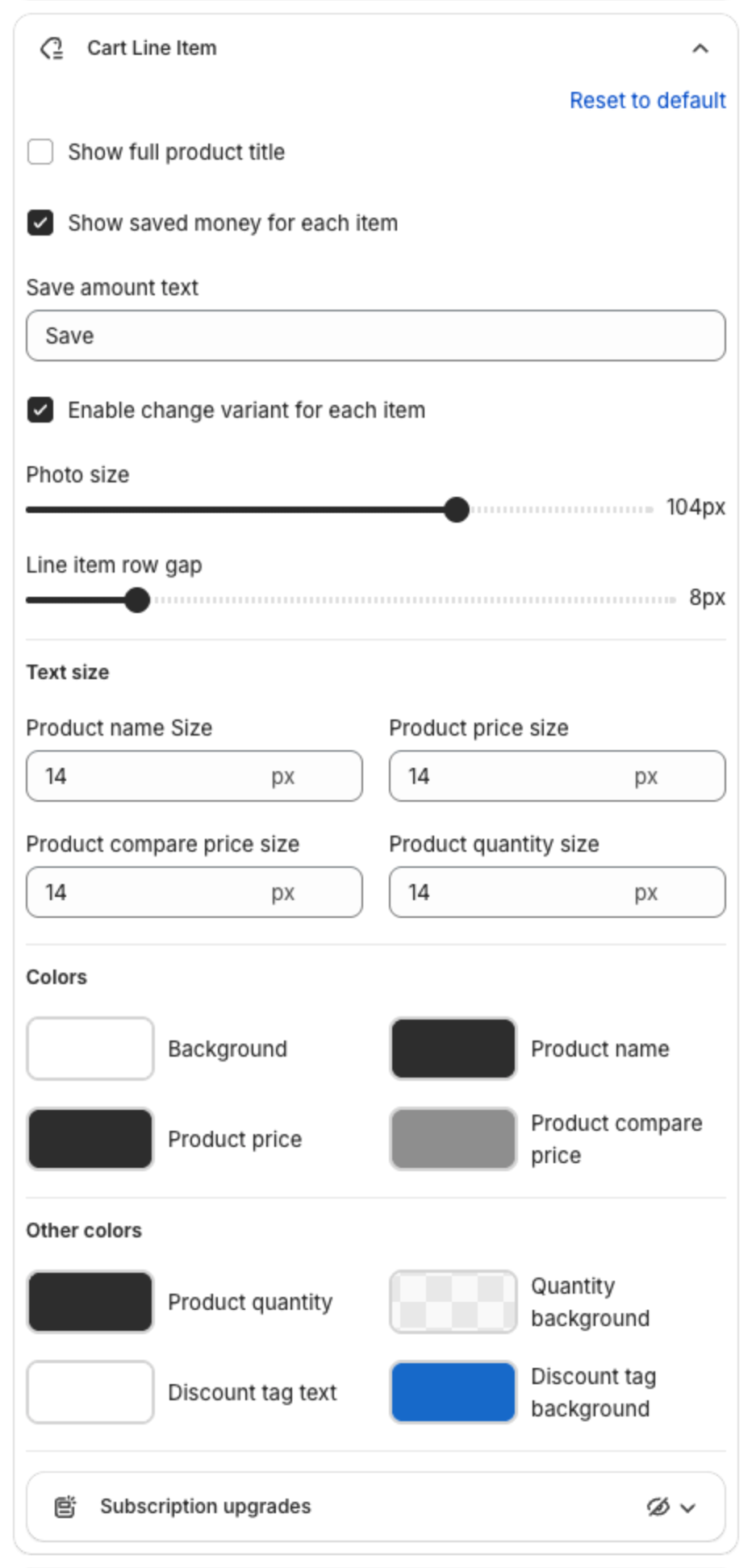
2. Choose what each item shows
- Show full product title: shows the whole title instead of one line.
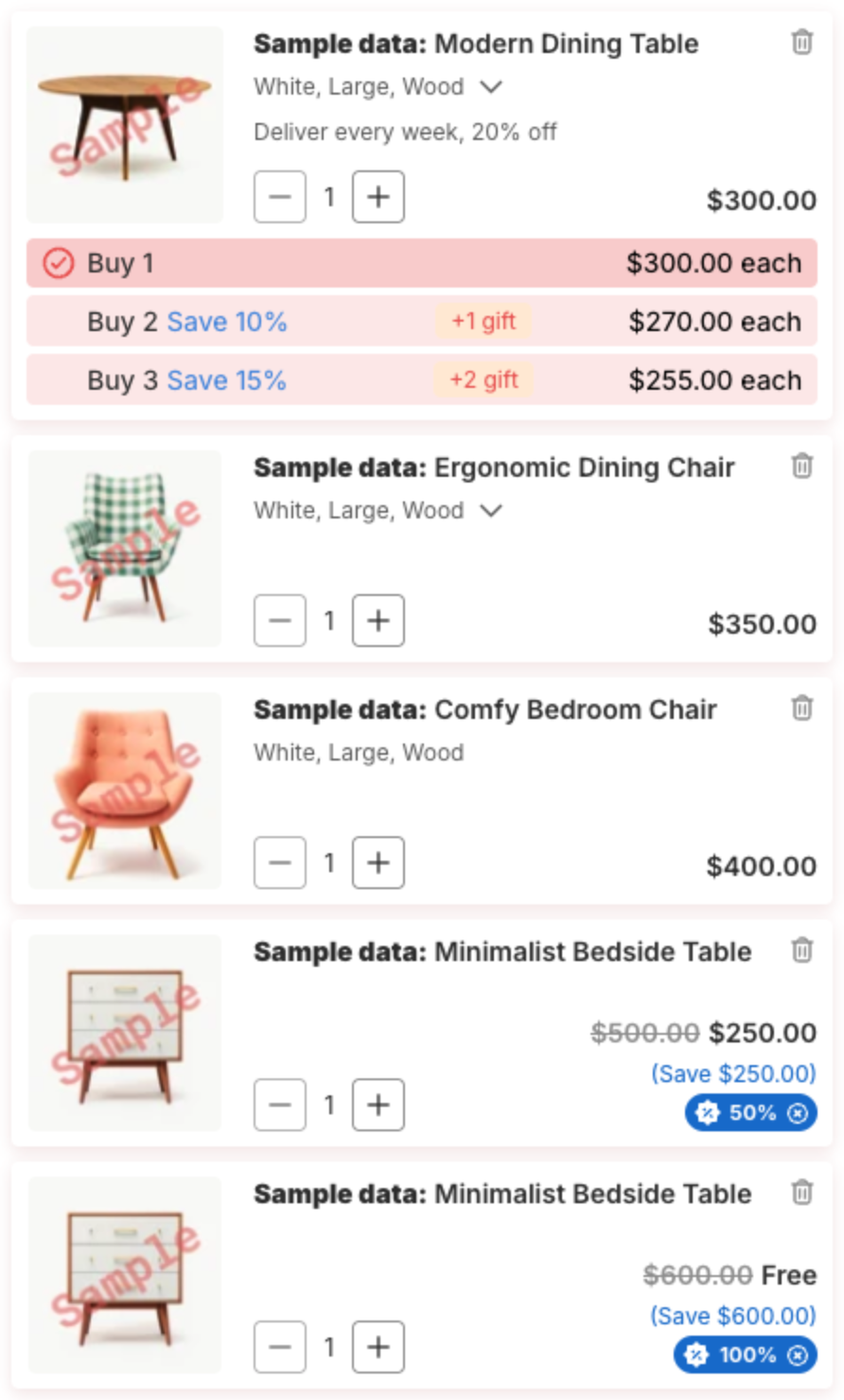
- Show saved money for each item, with the Save amount text: shows how much the shopper saves on a discounted item, for example "(Save $250.00)".
- Enable change variant for each item: shoppers can change the variant, for example size or color, from a drop-down in the cart.
3. Change the size and colors
- Photo size and Line item row gap (the space between items).
- Text size: product name, price, compare price and quantity.
- Colors: background, product name, price, compare price, quantity, and the discount tag text and background.
The preview shows the items:
4. Subscription upgrades (optional)
If you sell products with subscriptions (selling plans), shoppers can switch a one-time purchase to a subscription in the cart. Click Subscription upgrades inside Cart Line Item:
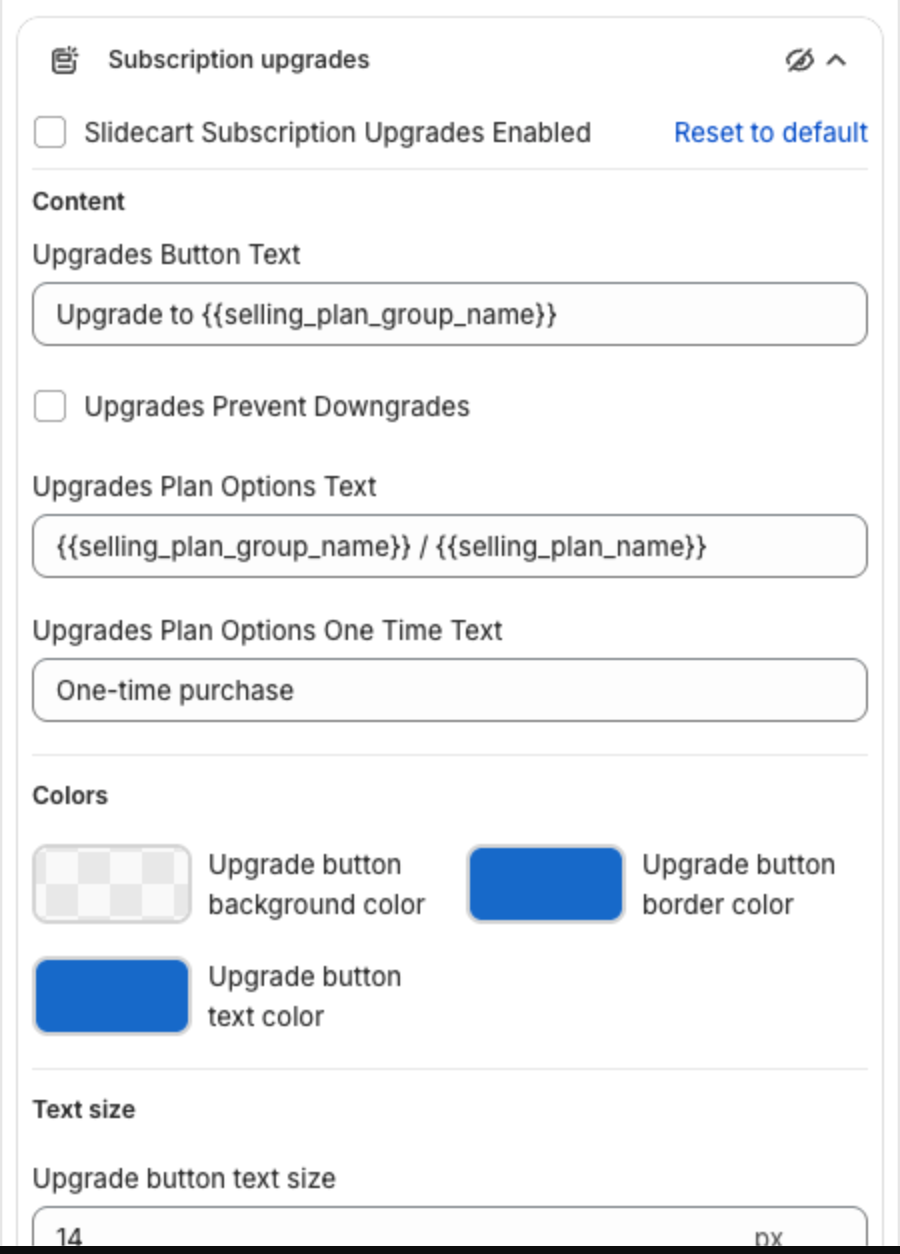
- Slidecart Subscription Upgrades Enabled: turns it on.
- Upgrades Button Text: the label of the upgrade button.
- Upgrades Prevent Downgrades: stops shoppers from switching a subscription back to a one-time purchase.
- Upgrades Plan Options Text and Upgrades Plan Options One Time Text: the texts of the plan options.
- Button colors and Upgrade button text size.
When the shopper picks a plan, the app changes the selling plan of that cart item.
5. Save
Click Save in the bar at the top of the page.