
How to customize a Frequently Bought Together widget (updated)
Overview
Customizing a product bundle widget can be a great way to tailor the shopping experience for your customers. You can design your widget with your styling and this can make your interactions more efficient and enjoyable.
User Guide
To customize a Frequently Bought Together widget follow these detailed steps:
1. Go to Appearance step
- Open/Create the offer and click on Appearance step.

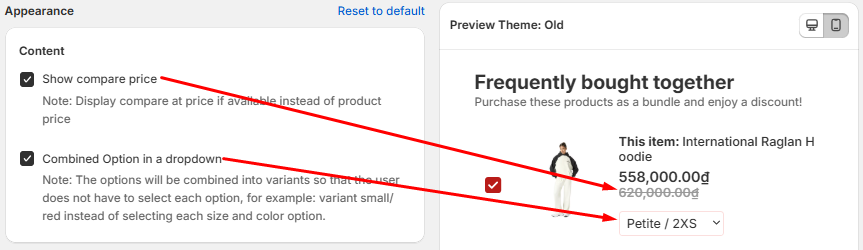
2. Customize the content
- Show compare price: Enable to show compare price that set in product information.
- Combined Option in a dropdown: Enable to combine option instead of selecting each option.
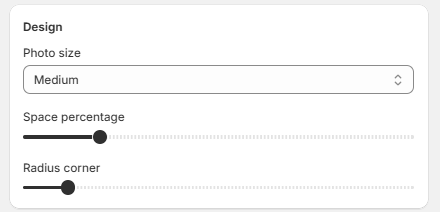
3. Customize the Appearance
- Photo size: Configure photo to size as you want.
- Space percentage: Allow you can set space percentage as you want.
- Radius corner: Allow you can set radius corner as you want.
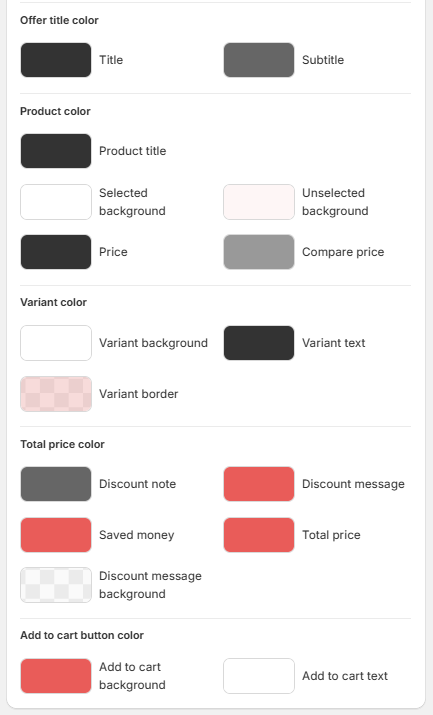
4. Customize the Colors
Customize colors as you want and check your changes in preview.
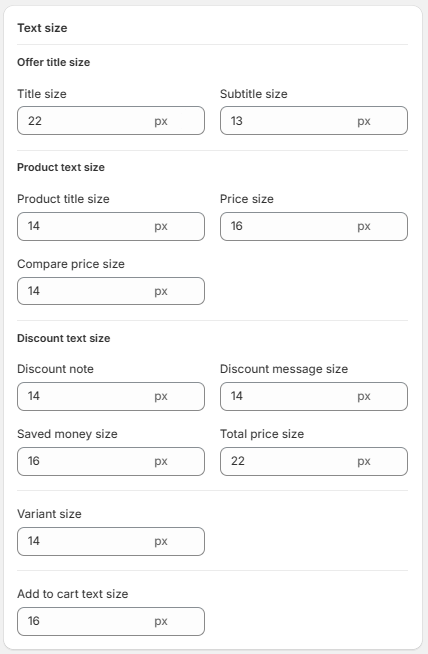
5. Text size
- Enter the value for text size what you want to customize.
6. Save your changes
Once your design is complete, please click Save to finalize your changes.
Visit your store’s product page or the page where you added the widget to ensure everything appears as expected.
