
Getting started with the Xboost: AI Upsell & Bundles
Welcome to Xboost: AI Upsell & Bundles 🥳
Overview
If you’re eager to supercharge your e-commerce sales and provide a seamless shopping experience for your customers, you’re in the right place. In this guide, we’ll walk you through the basics of getting started with Xboost: AI Upsell & Bundles, helping you set up and maximize your store’s potential.
If you decide to skip the onboarding process or wish to add more widgets later, you can easily follow our detailed installation guides to customize your store further. Follow this step-by-step guide to ensure successful integration.
User Guide
Let’s get started.
1. Select language
Once you’ve clicked Install the app, this will start the onboarding process. Select admin language and storefront language and click Next to Enable Xboost: AI Upsell & Bundles:
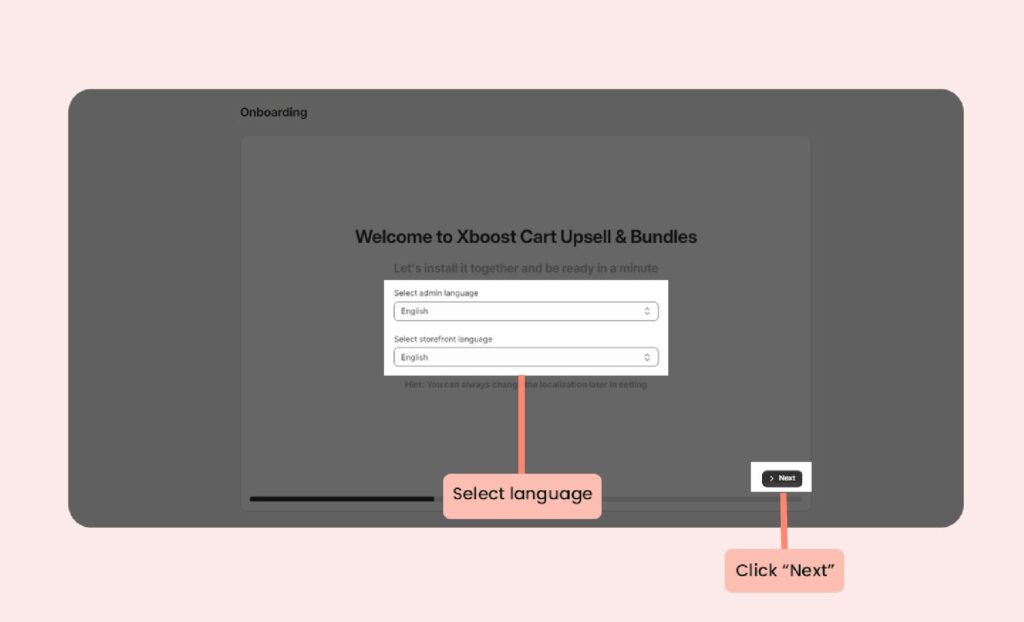
Hint: You can always change the localization later in setting.
2. Add Xboost to your theme
Click Add Xboost to your theme.
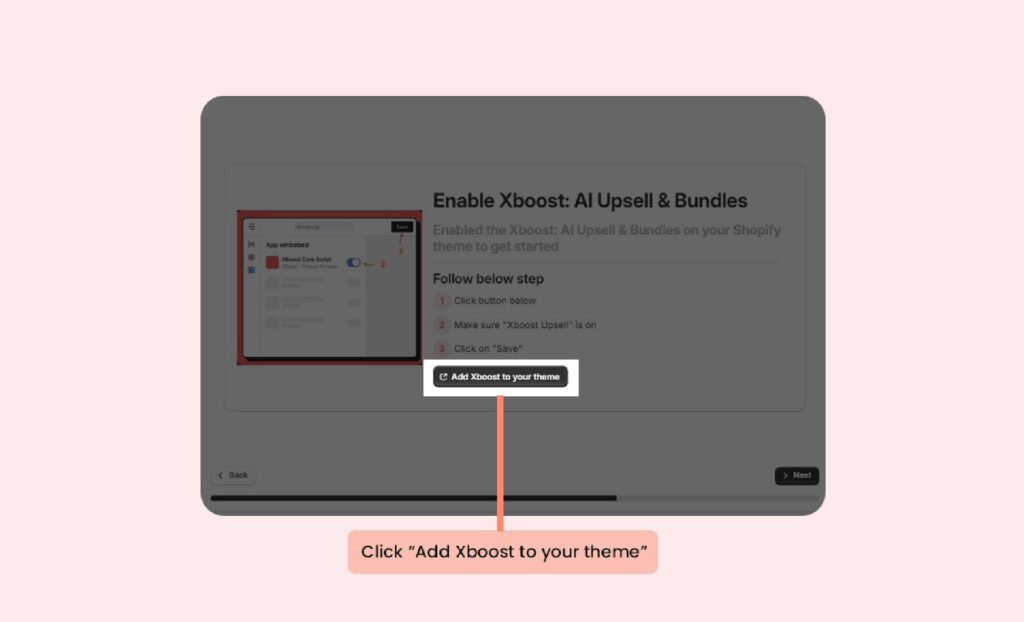
3. Activate core script
You can refer a article Activating the Xboost Reviews Core Script on Your Theme to enable Xboost: AI Upsell & Bundles.
After complete Activate Xboost core script, now you can back to Onboarding screen and click Next to proceed.
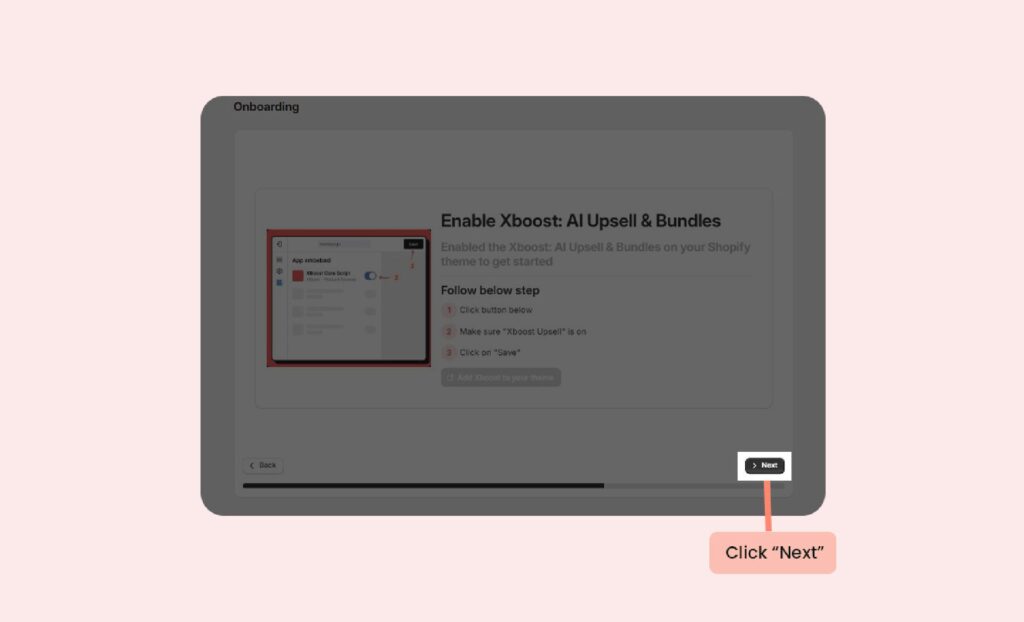
Click Next to proceed.
4. Your app is ready
Click Create Offer to use the app.
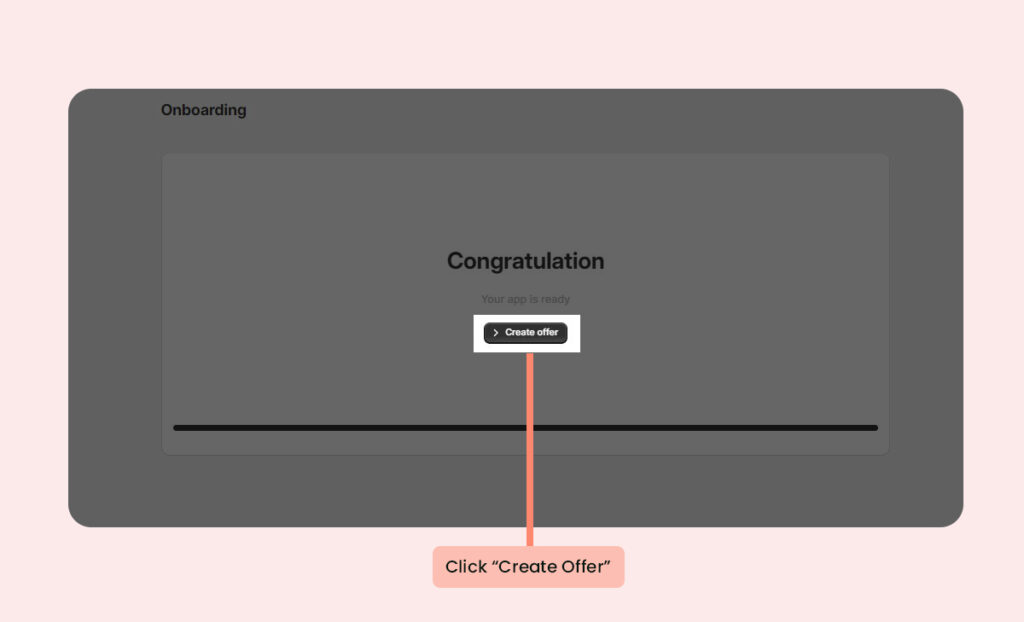
Now you can select offer type to begin using the Xboost: AI Upsell & Bundles for your store.
