
Template Cart Drawer
Overview
Xboost offers a cart drawer template that you can select to apply to your cart. The template will help you set up your cart more easily and professionally.
User Guide
1. Select template.
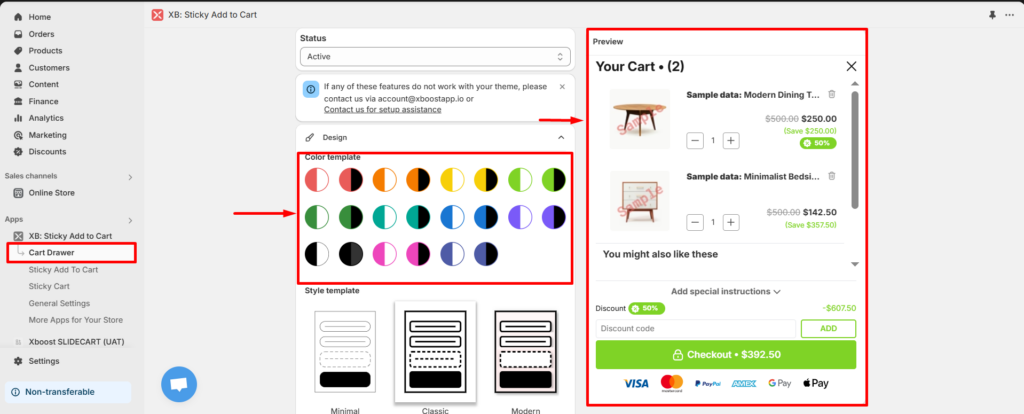
- Open cart drawer and select color template.
- Check color template in preview field.
2. Style template
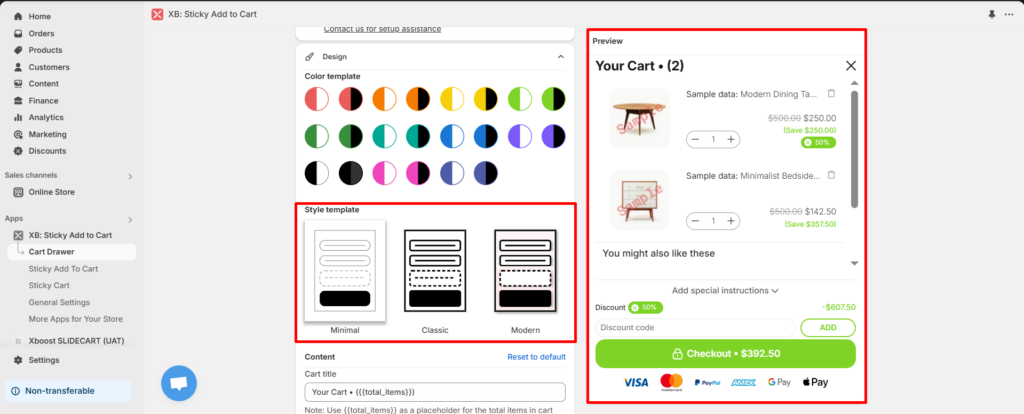
- Select style template (minimal, classic, modern).
- Check selected style in preview field.
3. Content.
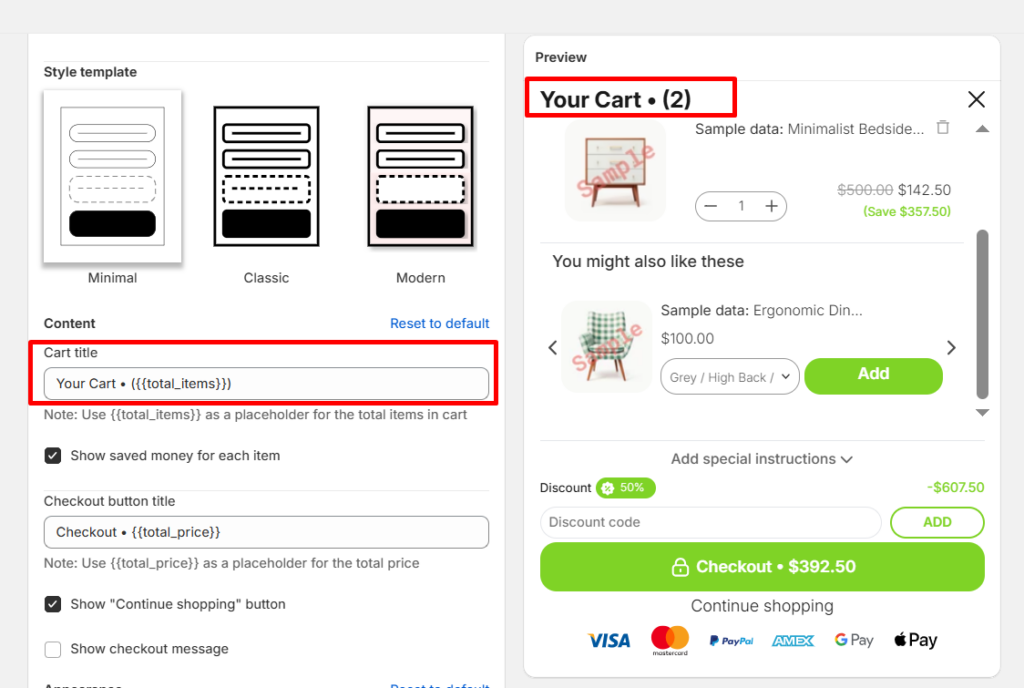
- Cart title: Enter title of cart.
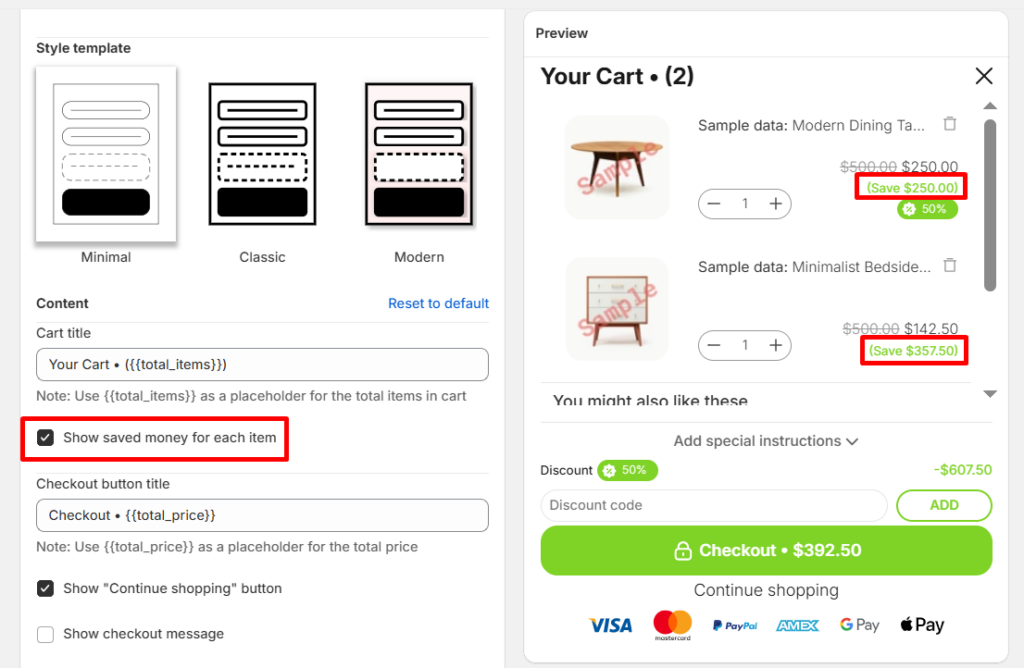
- Show saved money for each item: If it is enable, Saved money for each item will be shown.
- Check out button title: Enter check out button title.
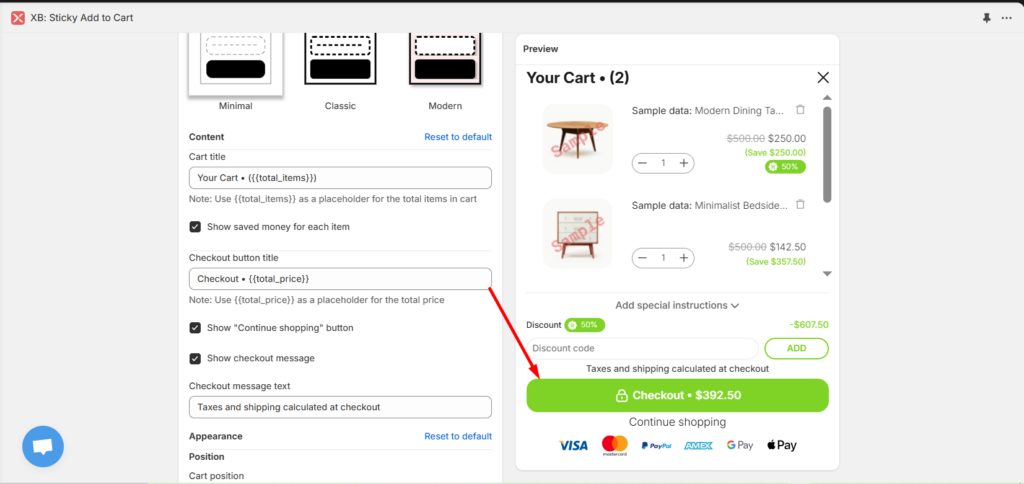
- Show “Continue shopping” button: If it is enable, “Continue shopping” will be shown.
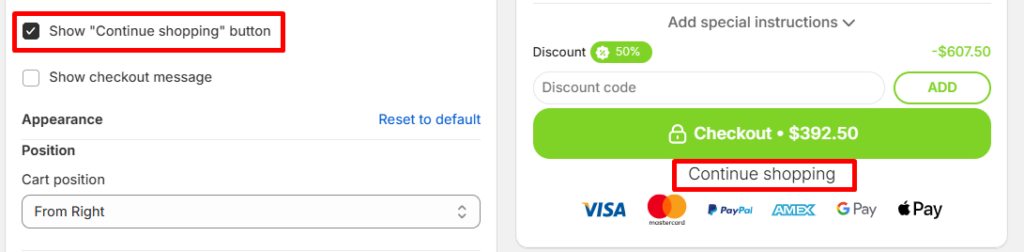
- Show checkout message: If it is enable, checkout message will be shown.
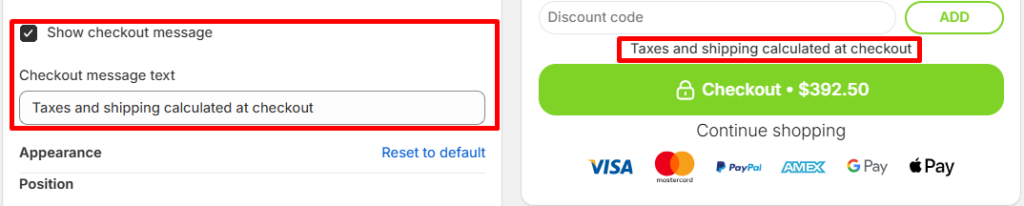
4. Appearrance.
- Cart position: Select position of cart. It can be from right or left.
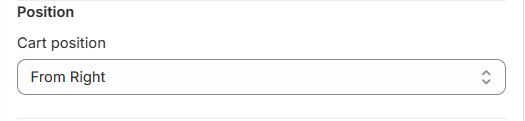
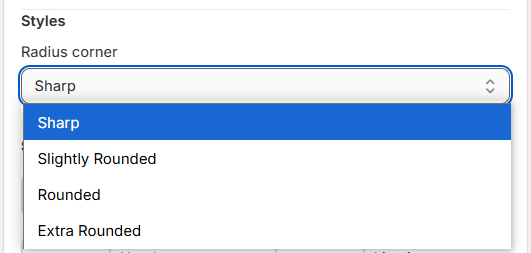
- Radius corner: It can be sharp, slightly rounded, rounded or extra rounded.
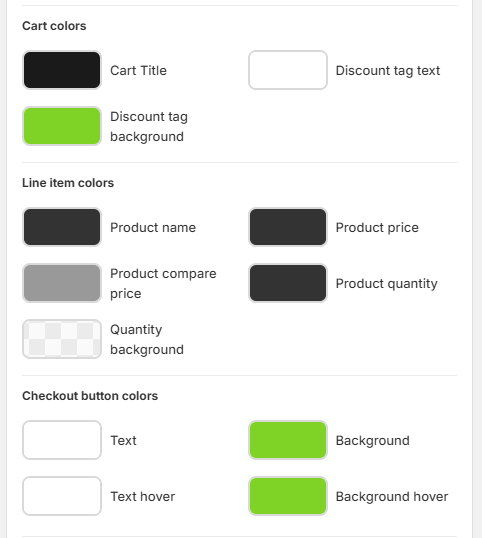
- Color: Setting Section background colors, Cart colors, Line item colors, Checkout button colors.
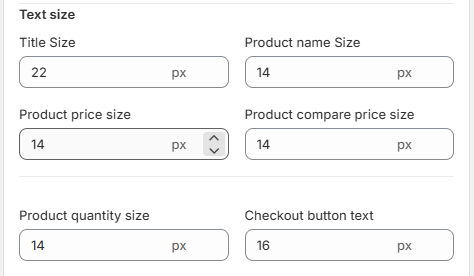
- Text size: Setting text size in your cart.
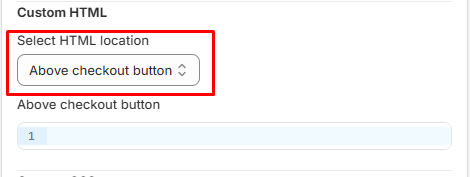
5. Custom HTML.
- Select HTML location: where HTML will be applied.
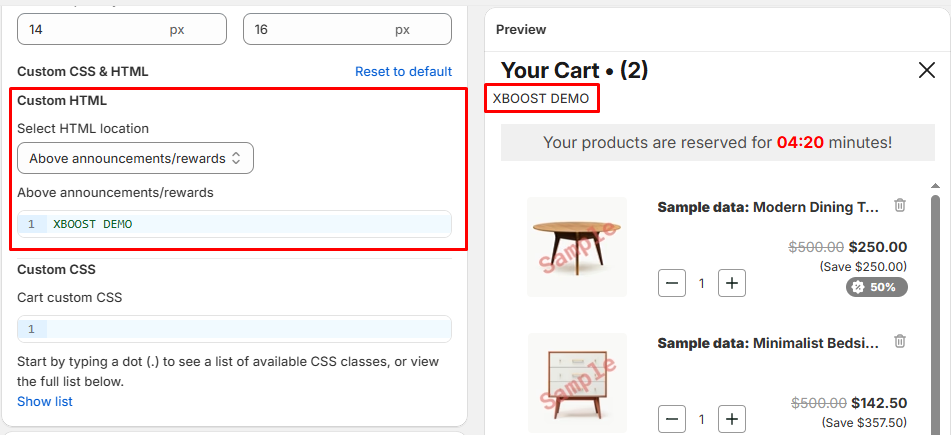
- Above announcements/rewards: Enter the content that will be shown above announcements/rewards.
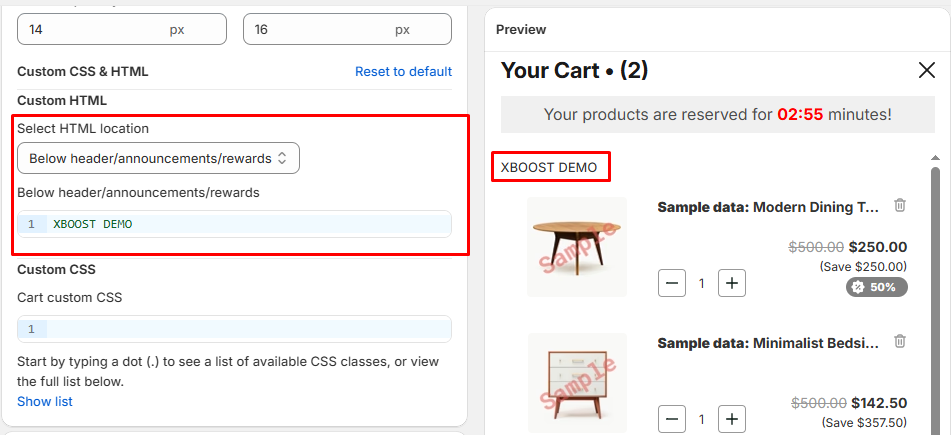
- Below header/announcements/rewards: Enter the content that will be shown below header/announcements/rewards.
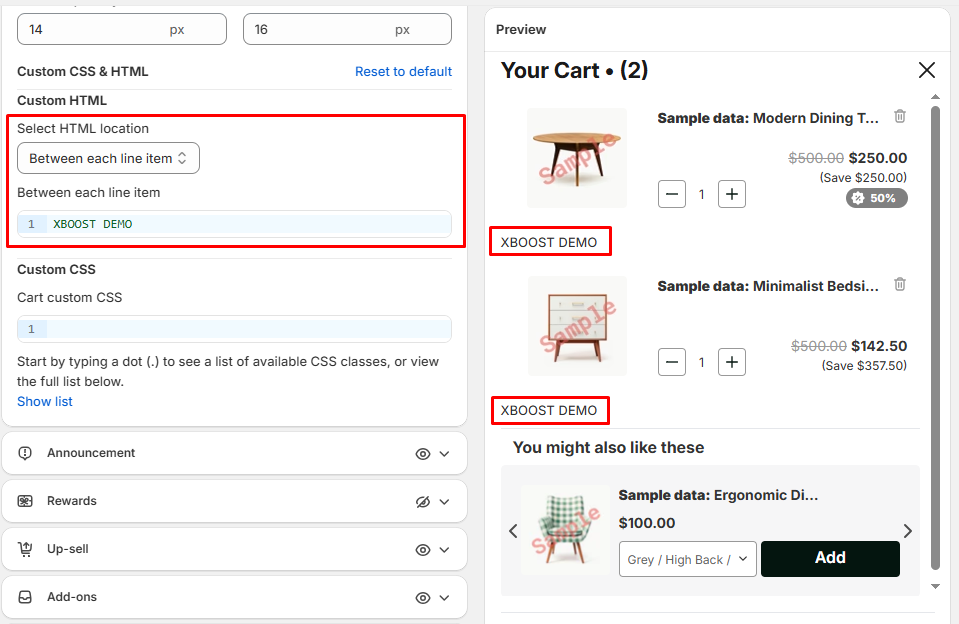
- Between each line item: Enter the content that will be shown between each line item.
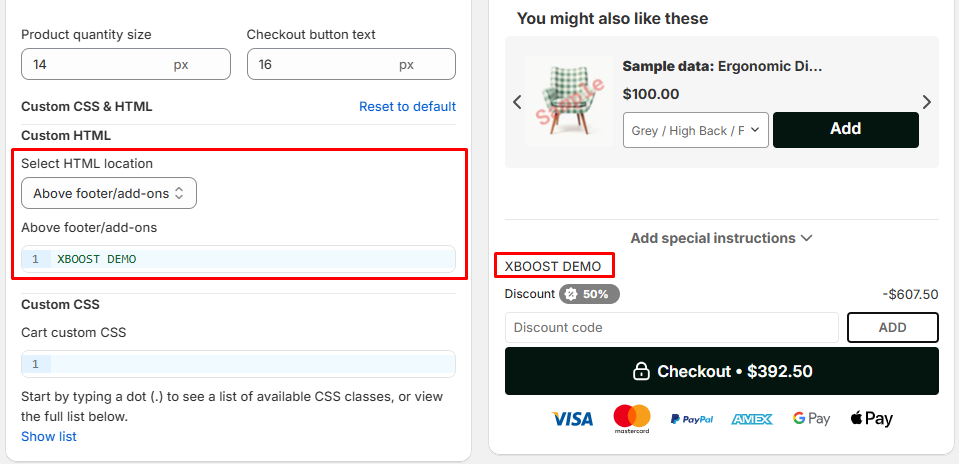
- Above footer/add-ons: Enter the content that will be shown above footer/add-ons.
- Above checkout button: Enter the content that will be shown above checkout button.
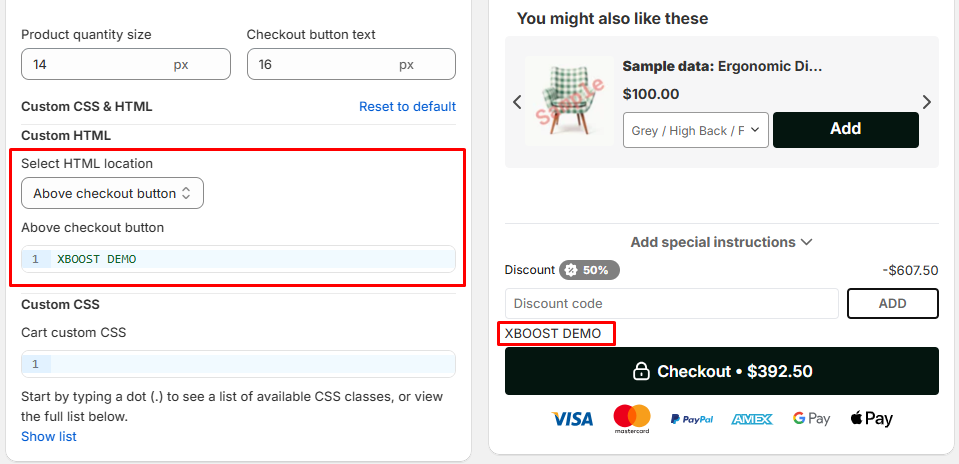
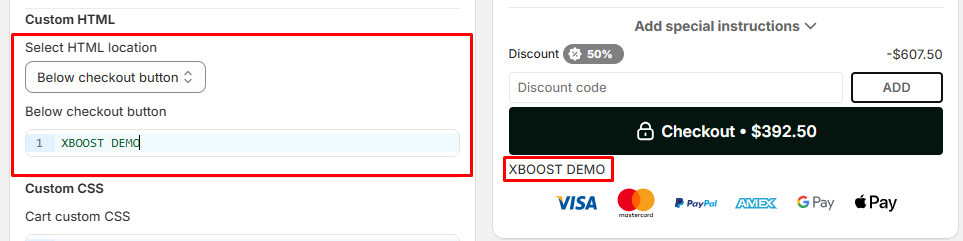
- Below checkout button: Enter the content that will be shown below checkout button.
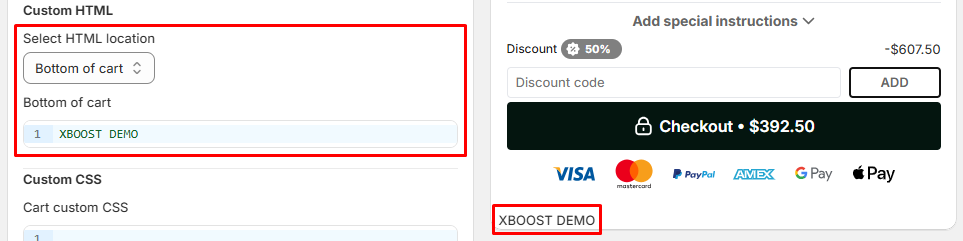
- Bottom of cart: Enter the content that will be shown bottom of cart.
- On empty cart screen: Enter the content that will be shown on empty cart screen.
- Scripts (Before Load): Enter the script for cart before load.
- Click Save to finalize your changes.
