
How to use Discount code function
Overview
Discount code function allow customer to use their code in the cart, instead of using code in the checkout step. Customers can see how the price changes when a discount code is applied. This enhances the shopping experience and makes using discounts more convenient.
User Guide
1. Enable Discount code
- Open Cart Drawer and scroll down to Discount code field.
- Tick to checkbox “Enable Discount code” to enable the function.
- Check preview to see.
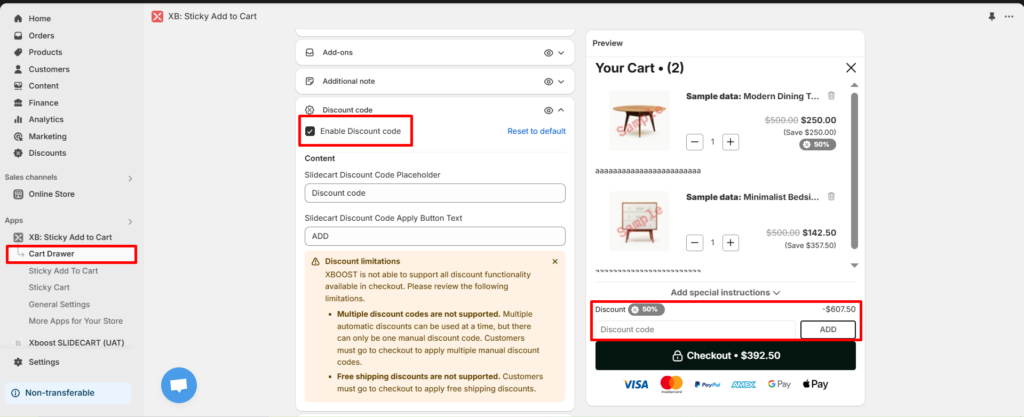
When the discount code function is enabled, the discount on products in the cart will be applied either automatically or manually. The customer can see how the discount affects the order.
Discount limittations:
XBOOST is not able to support all discount functionality available in checkout. Please review the following limitations.
- Multiple discount codes are not supported. Multiple automatic discounts can be used at a time, but there can only be one manual discount code. Customers must go to checkout to apply multiple manual discount codes.
- Free shipping discounts are not supported. Customers must go to checkout to apply free shipping discounts.
2. Content.
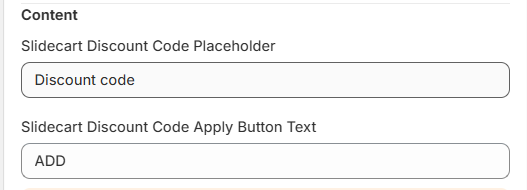
- Slidecart Discount Code Placeholder: A hidden text is used to guide customers on how to input information in this field. The text will be removed once the code is entered.
- Slidecart Discount Code Apply Button Text: A clickable text to officially apply the discount to the order after entering the code.
Click “Save” to complete your setting. Please check again discount code function in your cart.
