How to create a Buy X Get Y offer (updated)
What is the Buy X Get Y offer?
The “Buy X Get Y” offer is a type of promotional deal commonly used by retailers and businesses to encourage customers to make a purchase. It involves purchasing a certain number of items (X) and receiving another set of items (Y) for free or at a discounted price. The specifics can vary, but here’s the general format:
- Buy X: The customer must buy a certain quantity or type of product.
- Get Y: In return, the customer gets additional products (usually of the same or a different kind), either for free or at a discounted rate.
Example:
- Buy X, Get Y Free: Buy X items and get another Y of the same (or similar) item for free.
- Buy X, Get Y at a Discount: For example, buy one shirt and get a second shirt for 50% off.
These promotions can apply to specific products, categories, or storewide, and are typically used to boost sales or clear out inventory.
User Guide
Here’s a detailed guide on how to create a product bundle offer using Xboost: AI Upsell & Bundles in Shopify:
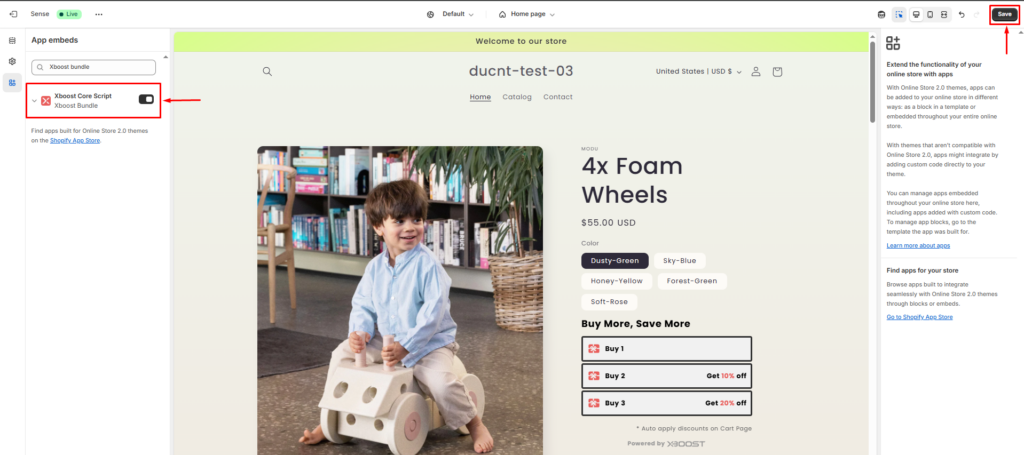
First of all, please activate the core script of Xboost: AI Upsell & Bundles to use the app.
- Go to Online Store > Themes, then click Customize.
- Click on App Embeds, toggle on the app, and click Save.
1. Start creating the offer
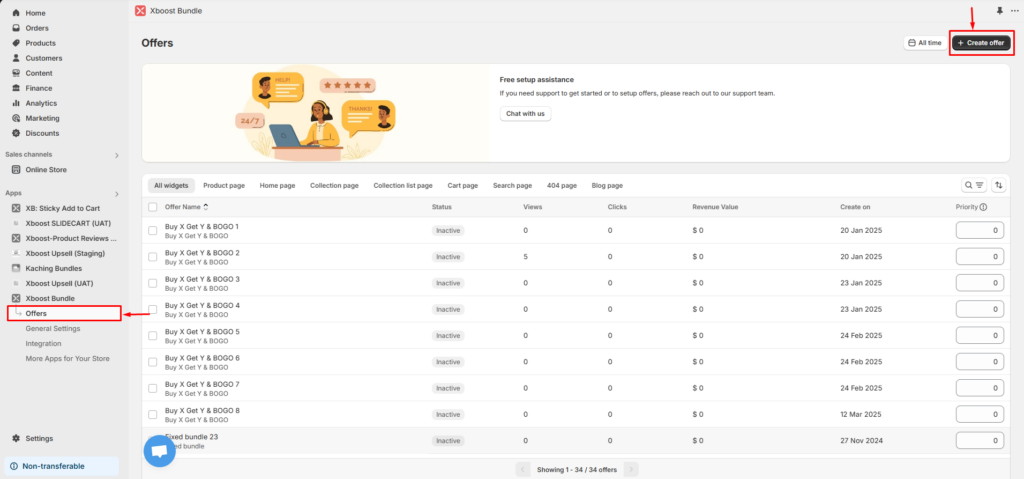
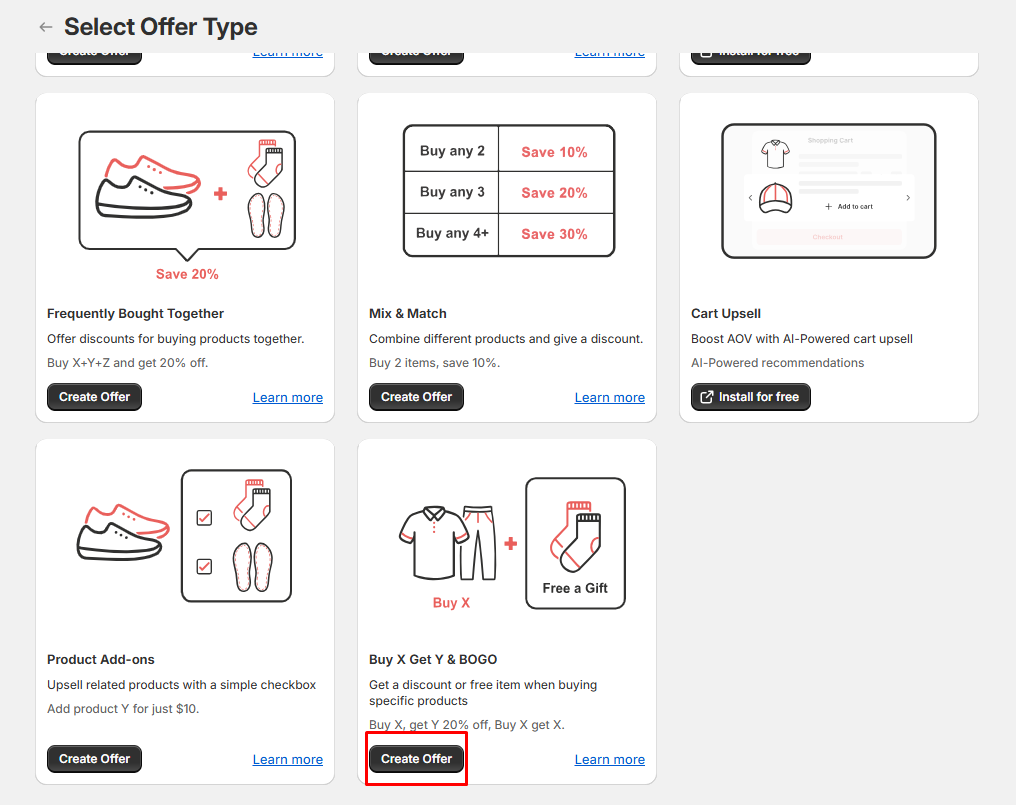
Click Create offer from the Xboost: AI Upsell & Bundles app’s offers page.
2. Select offer type
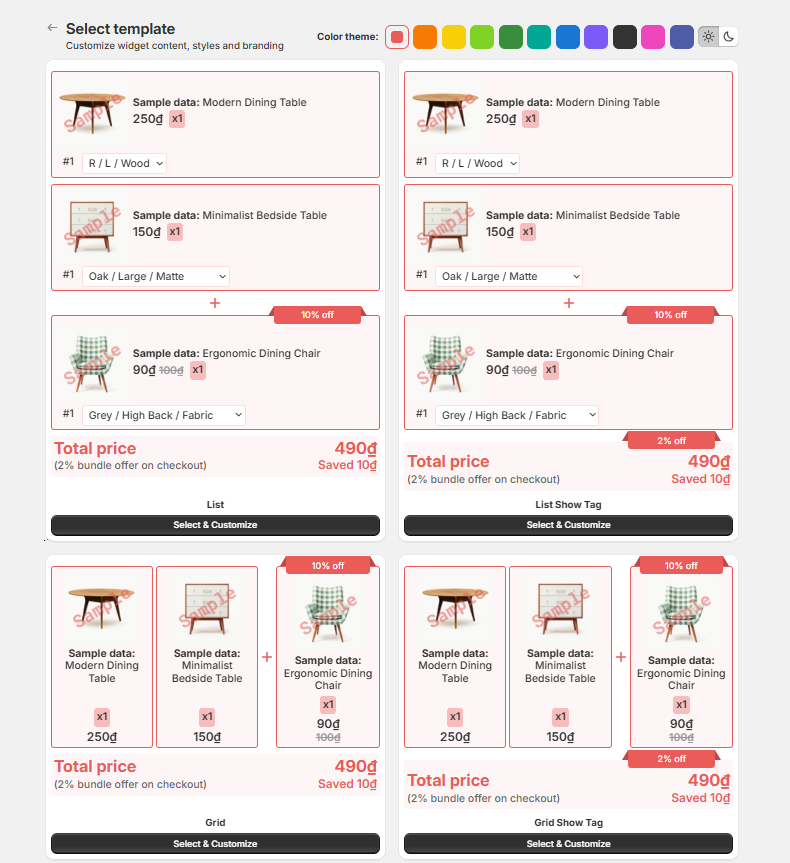
3. Select template
- Select the template and color as you want.
4. Name the offer (optional)
Click button Edit title on toolbar to change title.
5. Setting Trigger Products
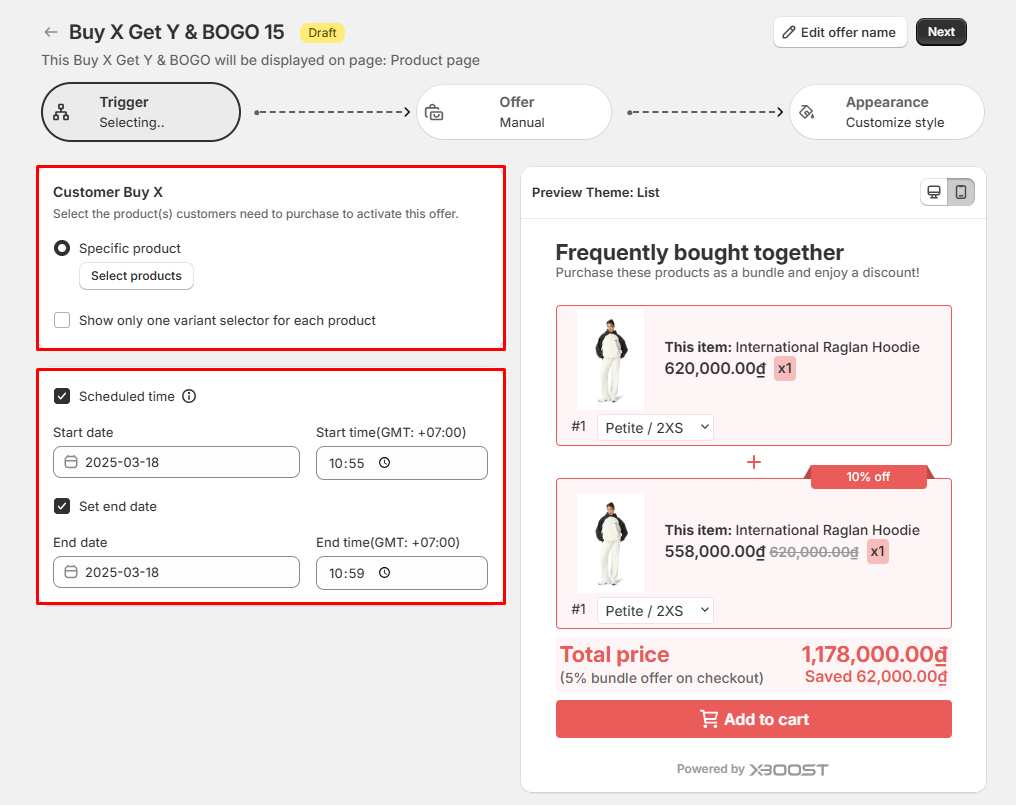
You need to select the product(s) to “Buy X” step. You also can configure quantity products for X. Example, you can configure X to include two units of product A and one unit of product B to get Y.
Show only one variant selector for each product: Display only one variant for each product instead of showing all variants.
Scheduled time allows you to configure the time to activate offers for products.
If you don’t select Scheduled time, the offer will be applied immediately when the offer is added successfully and will remain until it is removed.
If you select Scheduled time, you can config start and end time to the offer.
Note: The start time must be before the end time.
- Click Next to proceed.
6. Setting the offer
In this step you can define the offer products (get Y) and the discount applied to the offer. If Y=X, this will be a Buy One Get One (BOGO) deal.
You can configure the quantity of products and the discount details.
Show only one variant selector for each product: Display only one variant for each product instead of showing all variants.
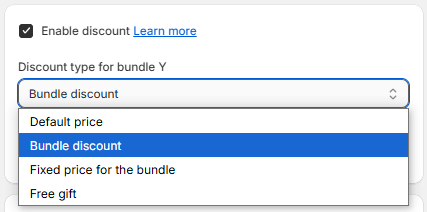
- Select discount types:
– Default price: The price is the default price. There is no discount for the offer.
– Bundle discount: The discount will be applied to selected products when customer buy all products of the offer. Example: Buy X and Y and 20% discount is applied.
– Fixed price for the bundle: The customer will buy the combo at a fixed price that has been set. Example: Buy X and Y for 30$.
– Free gift: The customer will receive Y as a free gift if they purchase X products.
You can refer Buy X Get Y & BOGO discount types for more information.
Additionally, you can customize the discount title and content using the customization feature.
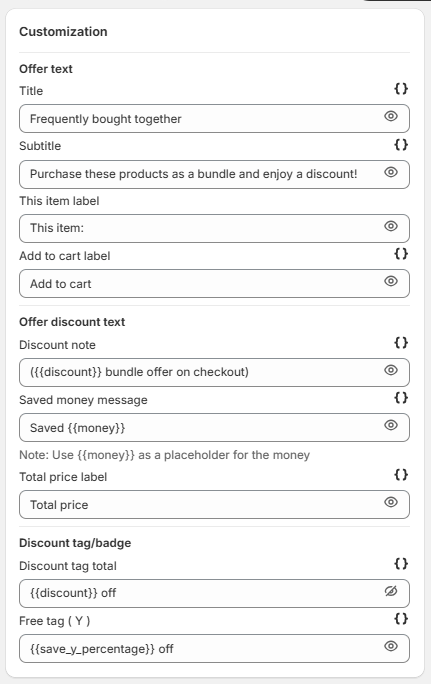
- Click Hide icon to visible/invisible text.
- Click Next to proceed.
After configuring the offer, you can preview it on the Preview site.
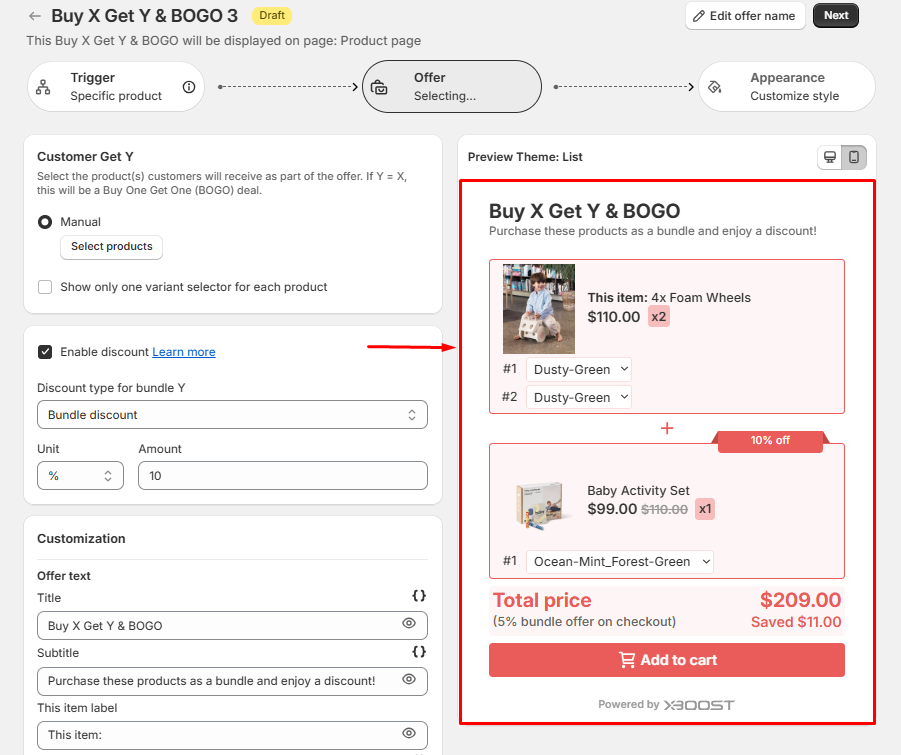
7. Behavior after add to cart (optional)
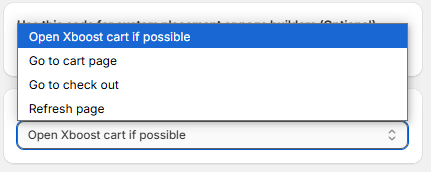
- Select behavior after add to cart:
– Open Xboost cart if possible: Try to open Xboost cart if your store is using Xboost cart.
– Go to cart page: After adding product to cart, you will be directed to the cart page.
– Go to check out: After adding product to cart, you will be directed to the checkout page.
– Refresh page: After adding product to cart, the page will refresh.
8. Appearance setting (optional)
Please refer How to customize a Buy X Get Y widget to customize a widget.
9. Finish creating the offer
- Click Publish to complete creating a Buy X Get Y offer.

10. Test on storefront
You can preview how your offers, products, or promotions will appear to customers in your online store by using Test on storefront feature. Please refer How to use Test on storefront function to more information about the feature.
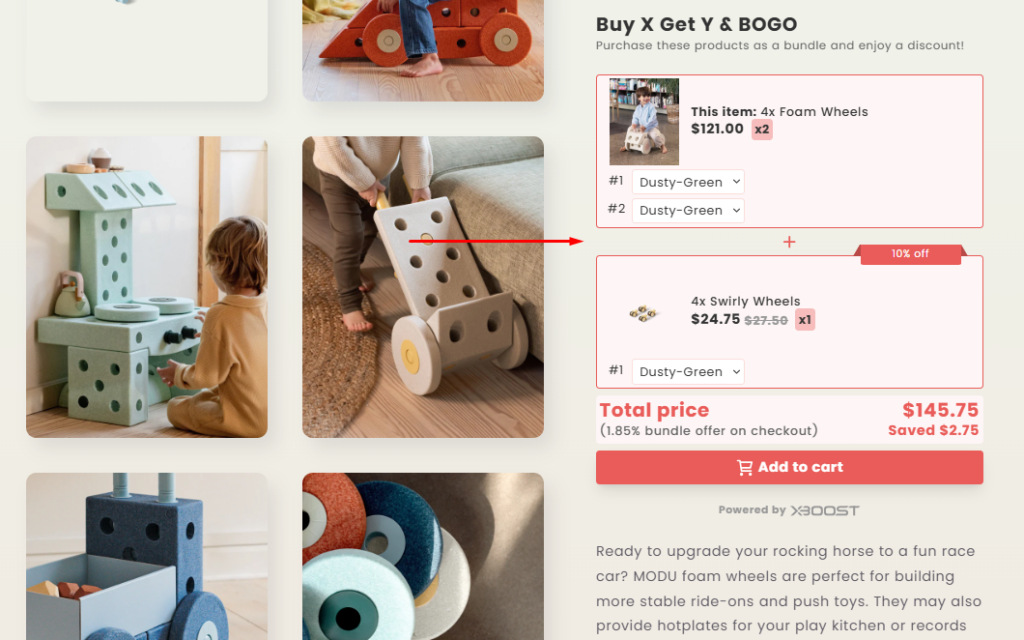
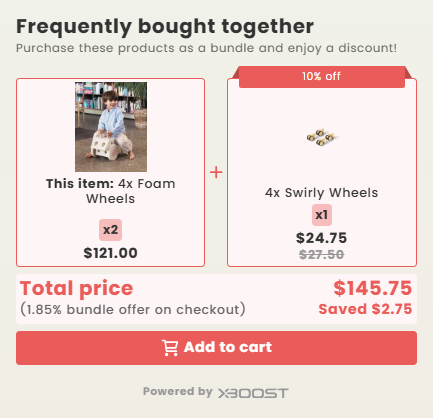
Now you can see the displayed product bundle offer widget: