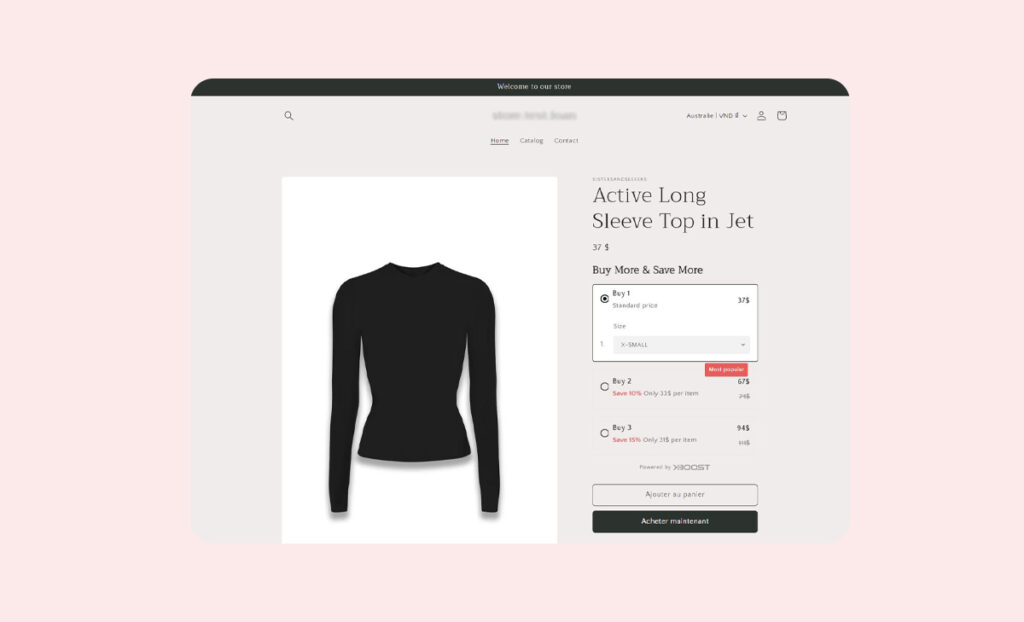
How to add a quantity break offer when using featured product on the home page
Overview
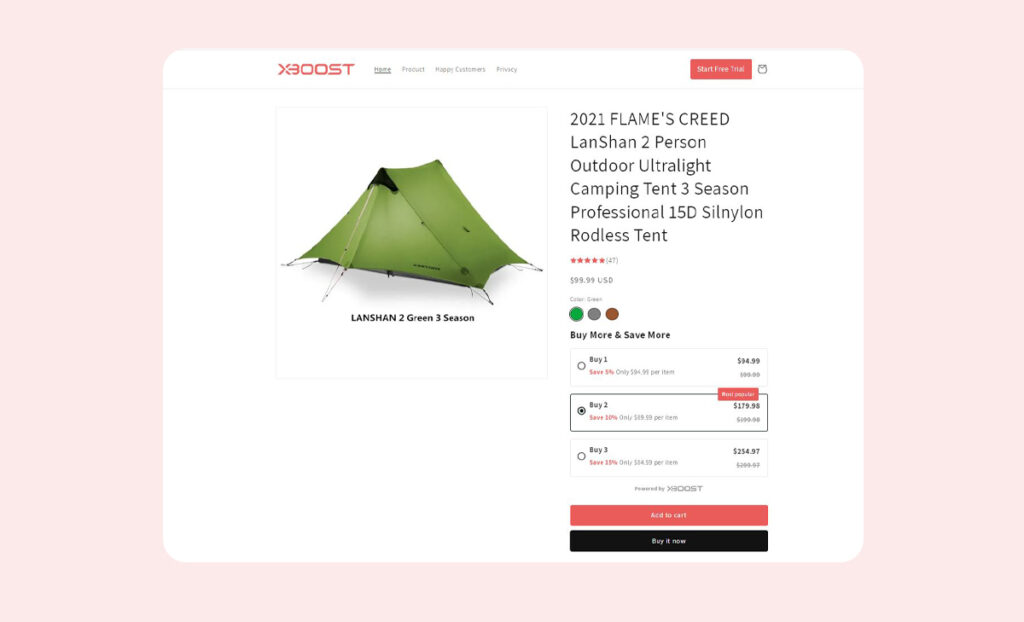
Xboost: AI Cart Upsell Bundles allow you to add a quantity break offer on the homepage when using featured products. This feature helps customers take advantage of discounts directly on the homepage, making it convenient for them and potentially boosting your average order value.
User Guide
1. Start customizing theme
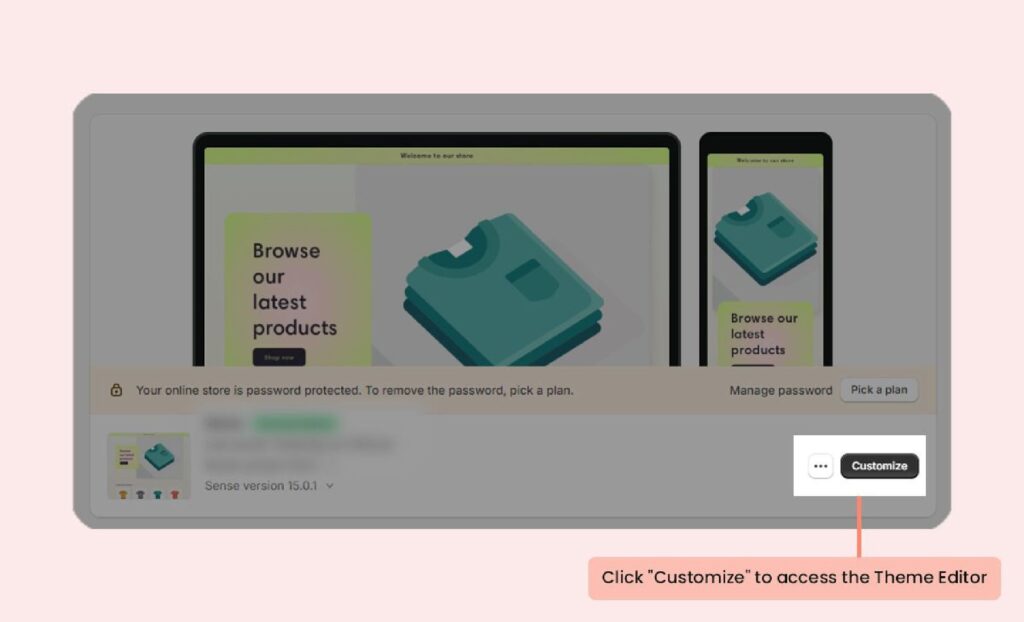
In your Shopify admin, navigate to the Themes section and click on Customize to open the Theme Editor.
2. Add Feature product
If you already added Featured product, please skip step 2 and 3.
Select the home page template to display Featured product.
Click Add section and select Featured product.
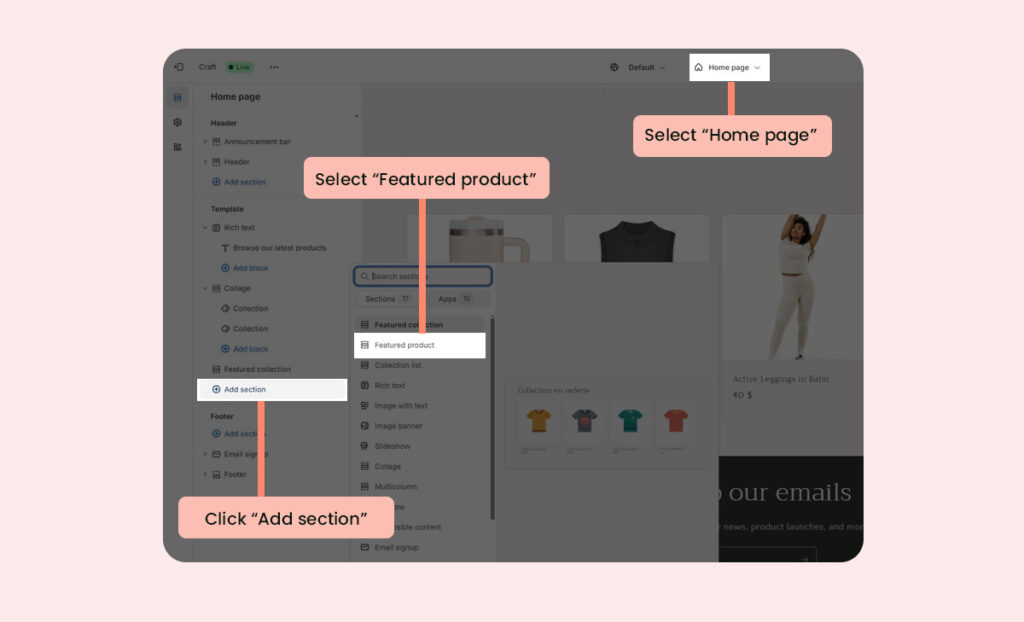
Drag and drop the widget block to your desired location on the page.
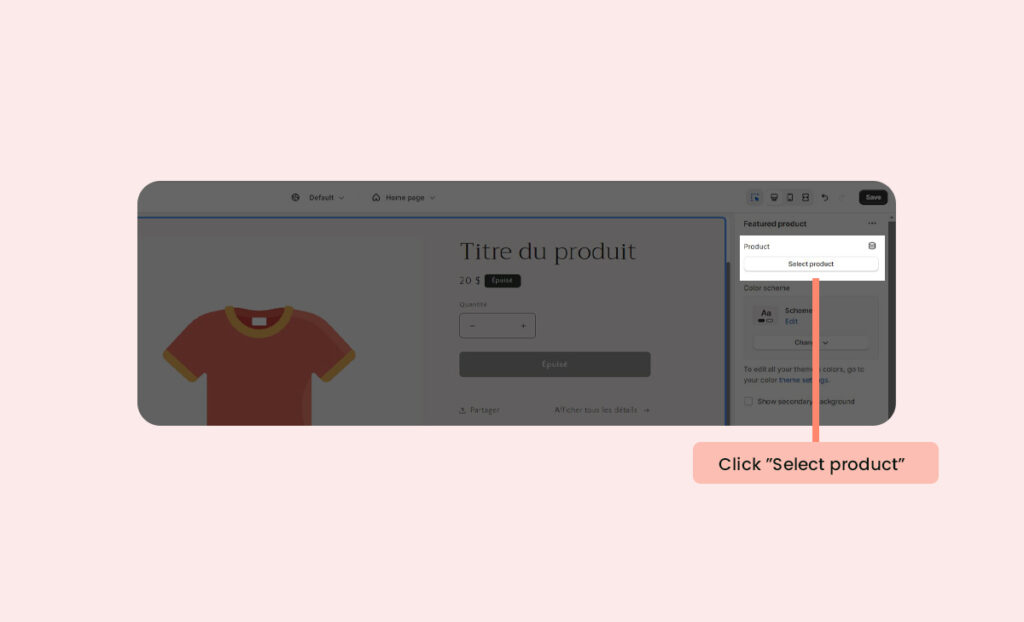
3. Select product
Select product you want to display on your store.
4. Add block
Click Add block on the featured product section, select Apps and then select Quantity Breaks cart to add the cart.
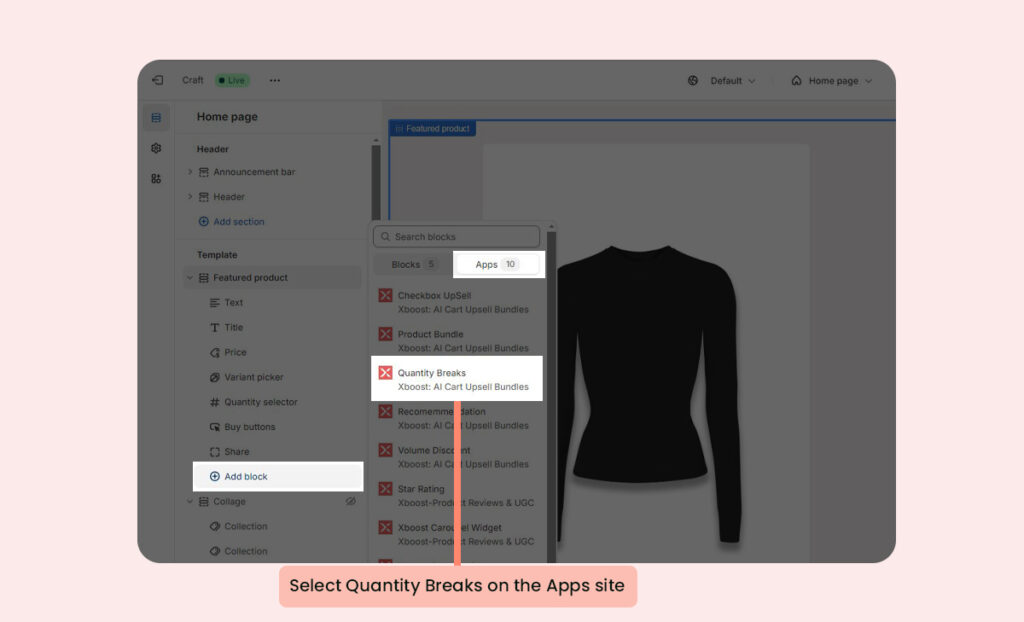
Drag and drop the widget block to your desired location on the page. We recommend placing the widget above the Buy buttons.
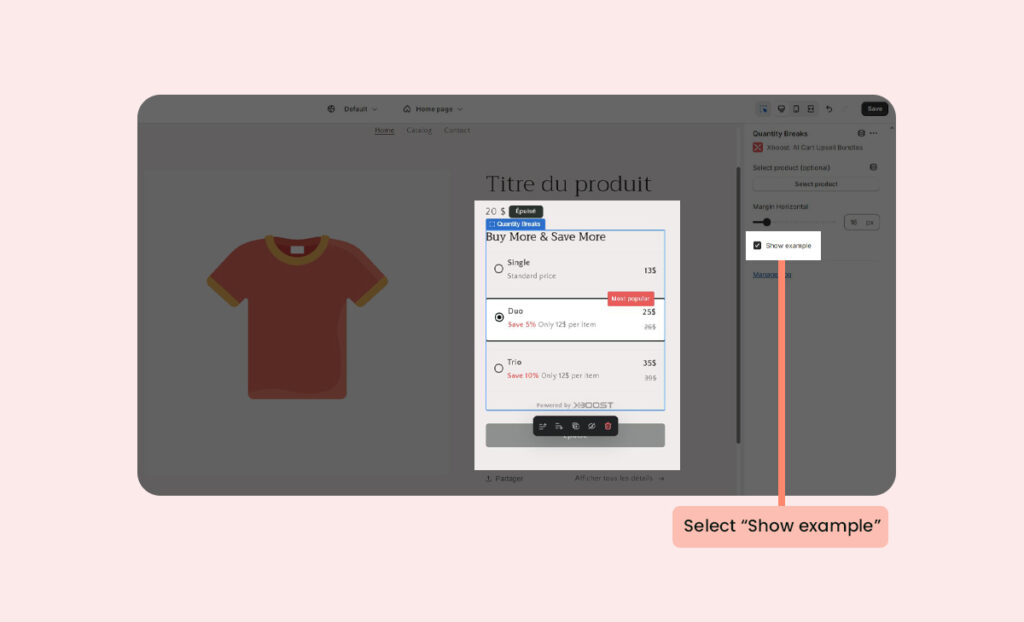
5. Show example
Click Show example to preview your configuration.
6. Connect dynamic source
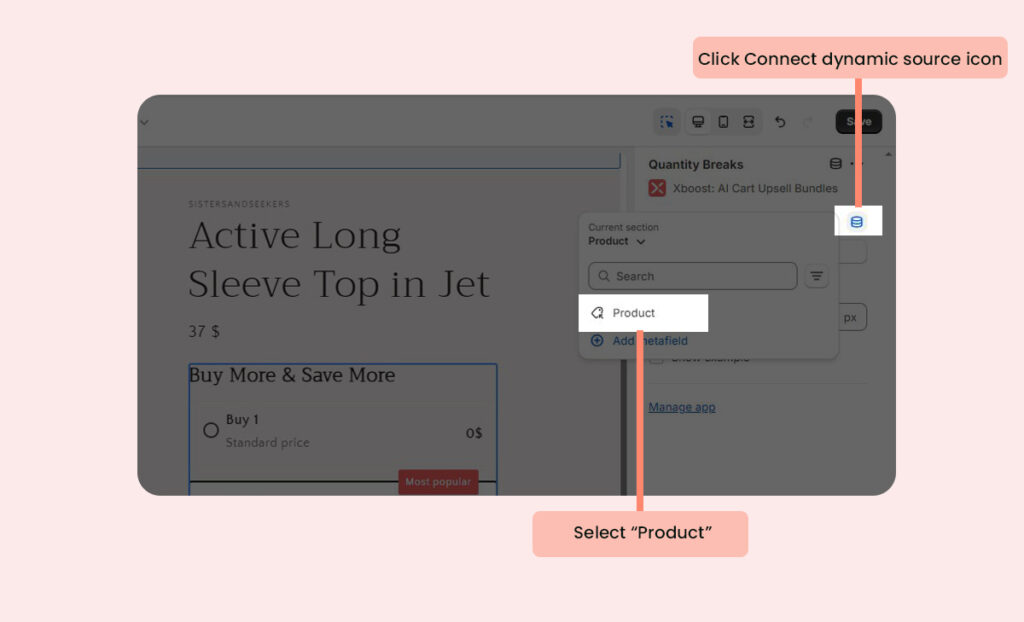
Click Connect dynamic source icon then select Product
7. Link the widget to current section.
Click current section to add dynamic source. The discount will be changed according your product of featured product you select.
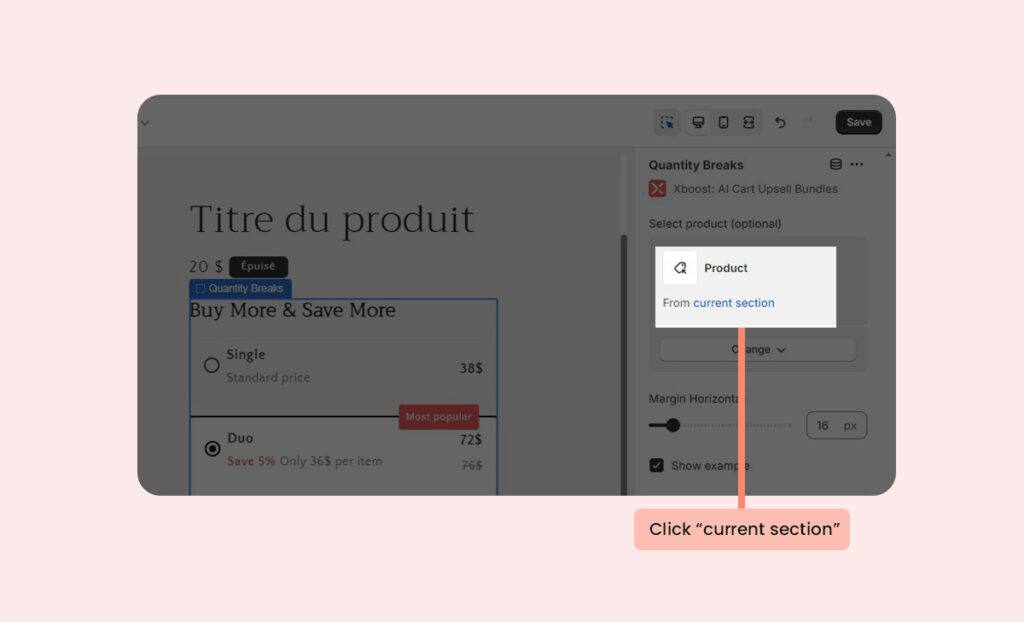
You can see a preview with your current featured product. Click Save on the upper right corner to apply your settings.
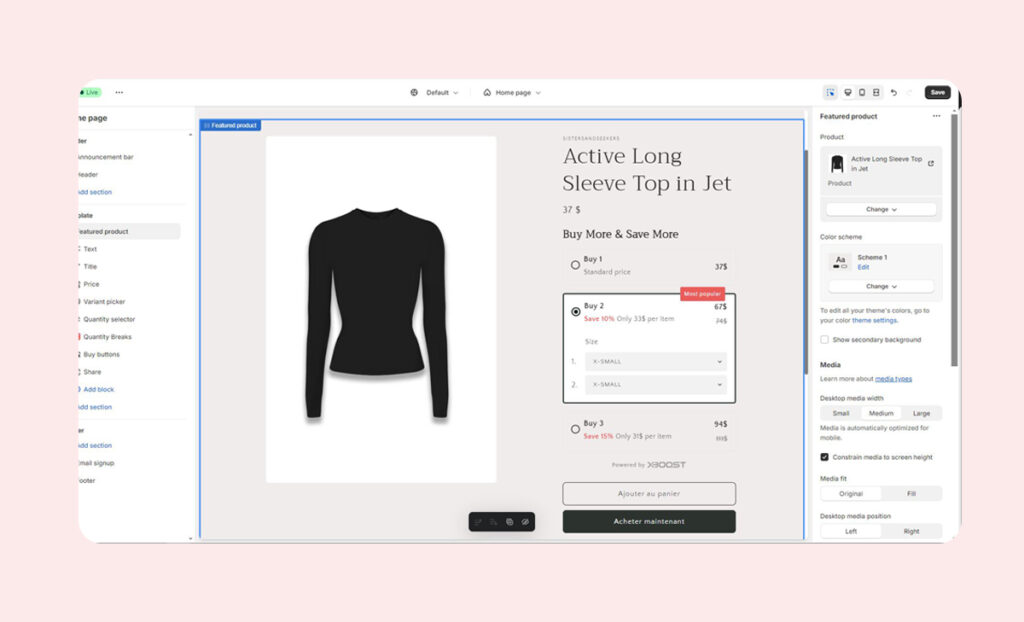
8. View the widget on the storefront
The widget will now display on the home page with featured product.