How to use Test on storefront function (updated)
Overview
The “Test the storefront” function allows you to preview how your offers, products, or promotions will appear to customers in your online store. It helps ensure everything looks and functions correctly before going live. You can simulate the shopping experience to see if the offers meet your expectations and make any necessary adjustments.
User Guide
1. Complete configuring your offer
To use Test on storefront, please complete configuration of your offer. The Trigger step and Offer step should be completed.
- Click Publish button and Test offer in the online store will be displayed:
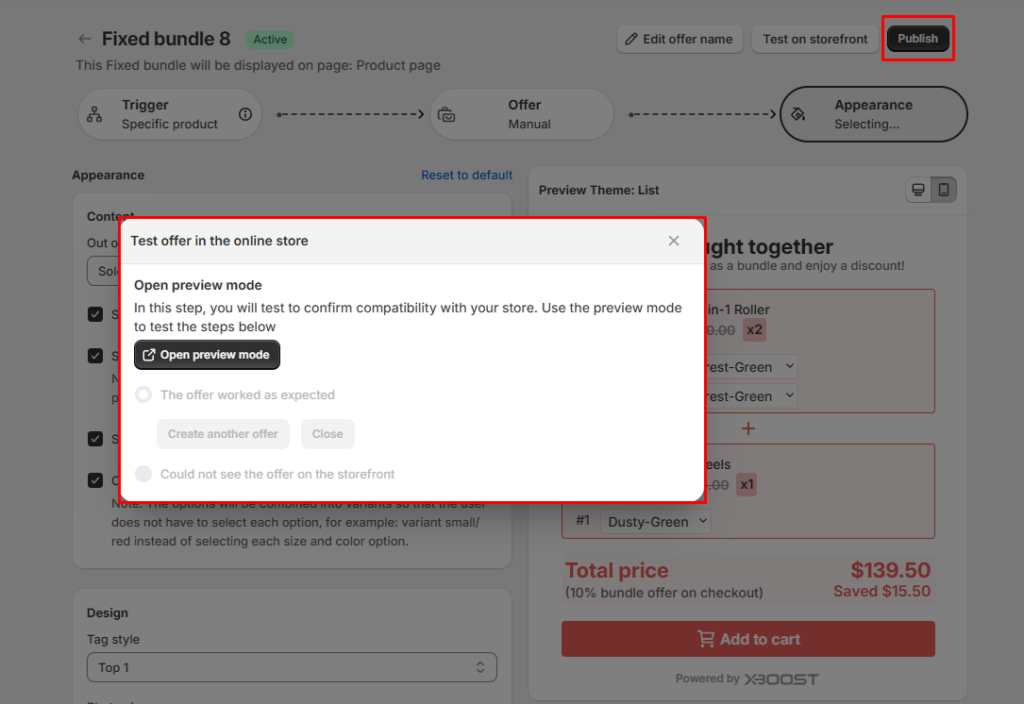
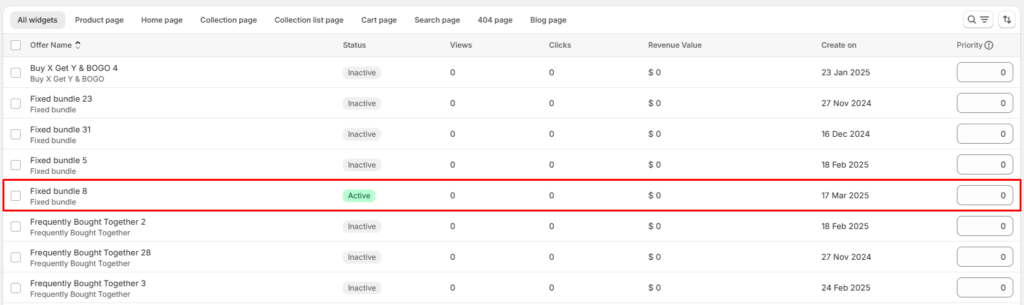
- Alternatively, you can select the offer from the offer list and click Test on storefront
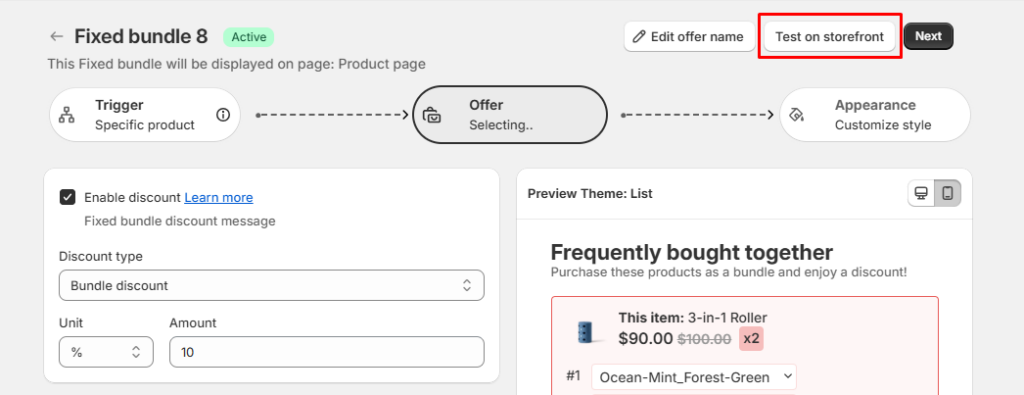
- Click Test on storefront
2. Add Xboost to your theme (optional)
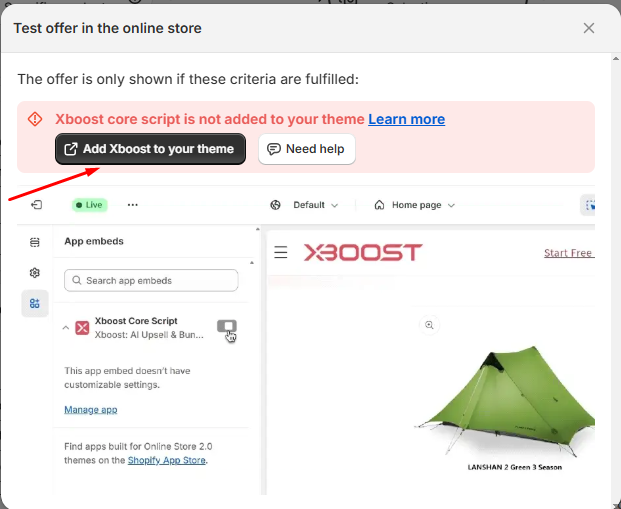
If you do not add Xboost to your theme, a warning will be displayed “Xboost core script is not added to your theme”. Please click Add Xboost to your theme to proceed.
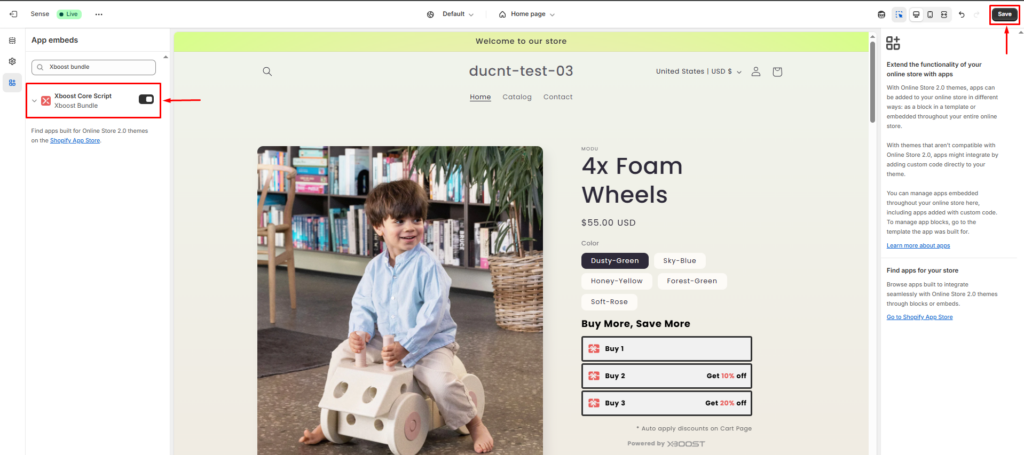
The screen settings will be displayed, please click Save to active the core script.
3. Open preview mode
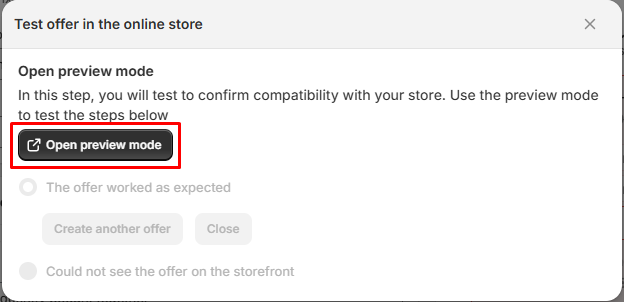
In this step, you can preview how your offers, products, or promotions will appear to customers in your online store.
- Click Open preview mode to test.
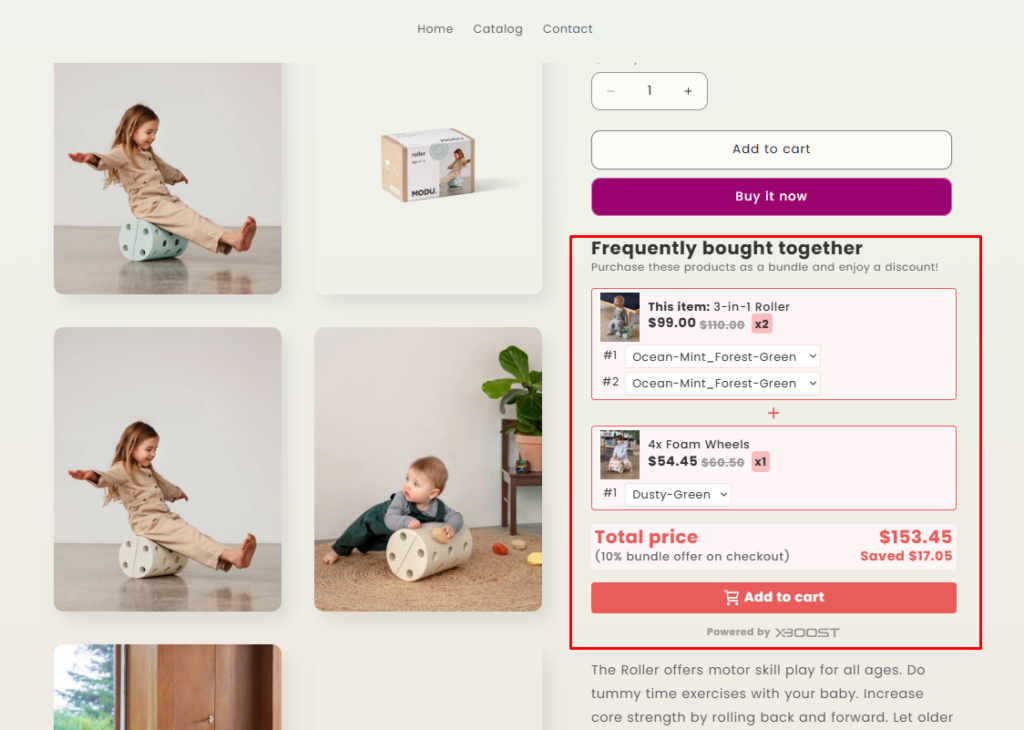
The storefront screen will display according to your configuration.
4. Create another offer
If the offer worked as your expected, you can click on Create another offer button to create new offer.
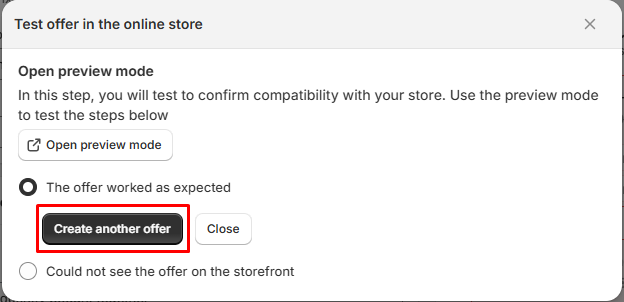
If no further action is needed with test on storefront, you can click close to exit the feature.
5. Contact us
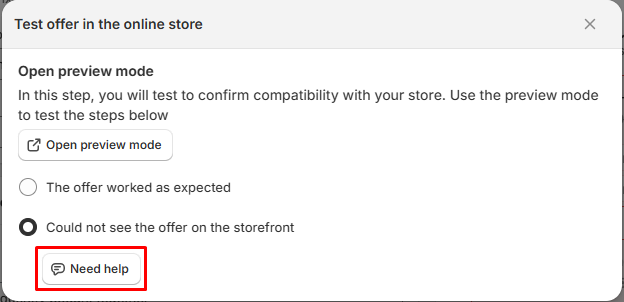
If you encounter any problems with your offer or the test on storefront feature such as you can’t see the offer, the offer is not worked… please click Need help for assistance. We are always here to help you.