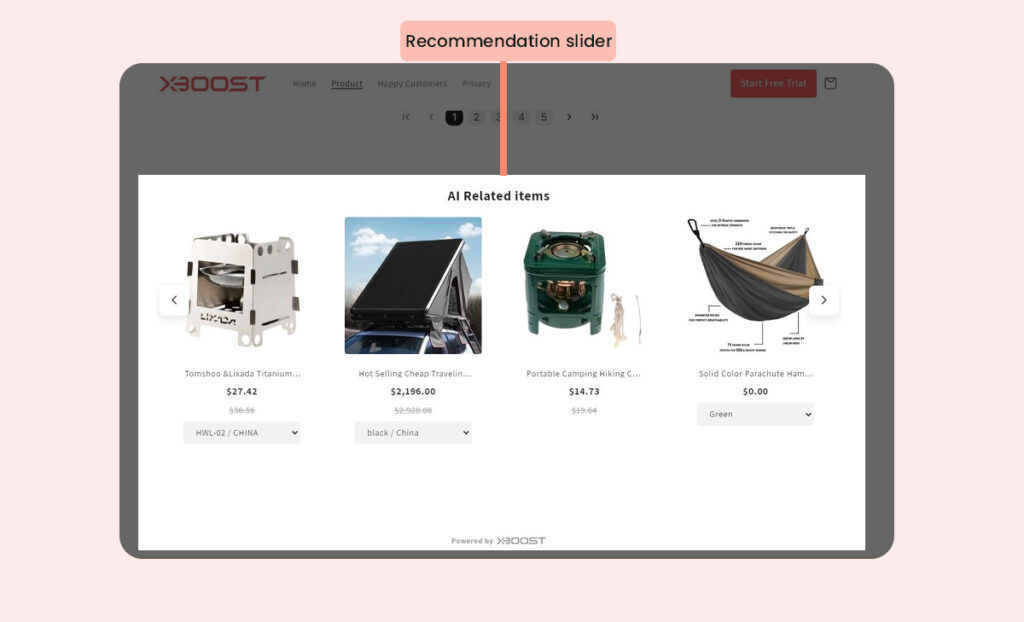
How to create a recommendation slider
Overview
Creating a recommendation slider is a great way to increase your average order value by encouraging customers to buy related products together.
Example of a recommendation slider:
– Frequently bought together: Product X and Product Y suggested by AI based on customer behavior.
Recommendation features are designed to enhance the shopping experience by suggesting products that customers are likely to purchase based on their browsing and purchasing behavior. These recommendations help increase engagement, average order value, and overall sales.
User Guide
Here’s a detailed guide on how to create a product bundle offer using Xboost: AI Upsell & Bundles in Shopify:
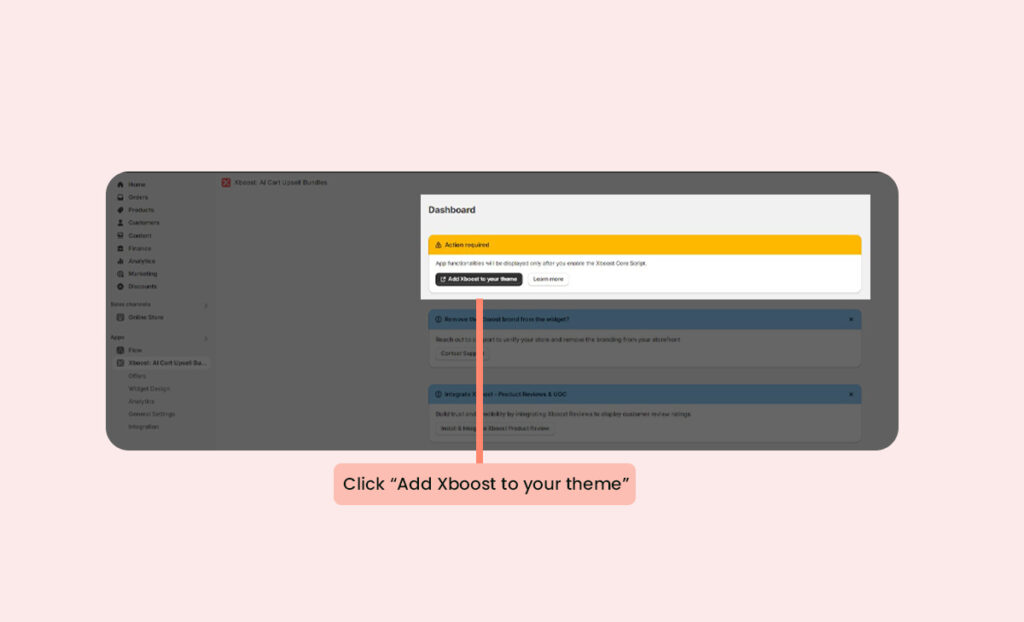
First of all, please activate the core script of Xboost: AI Upsell & Bundles to use the app.
Click “Add Xboost to your theme” in Dashboard and then click Save button:
1. Start creating the offer
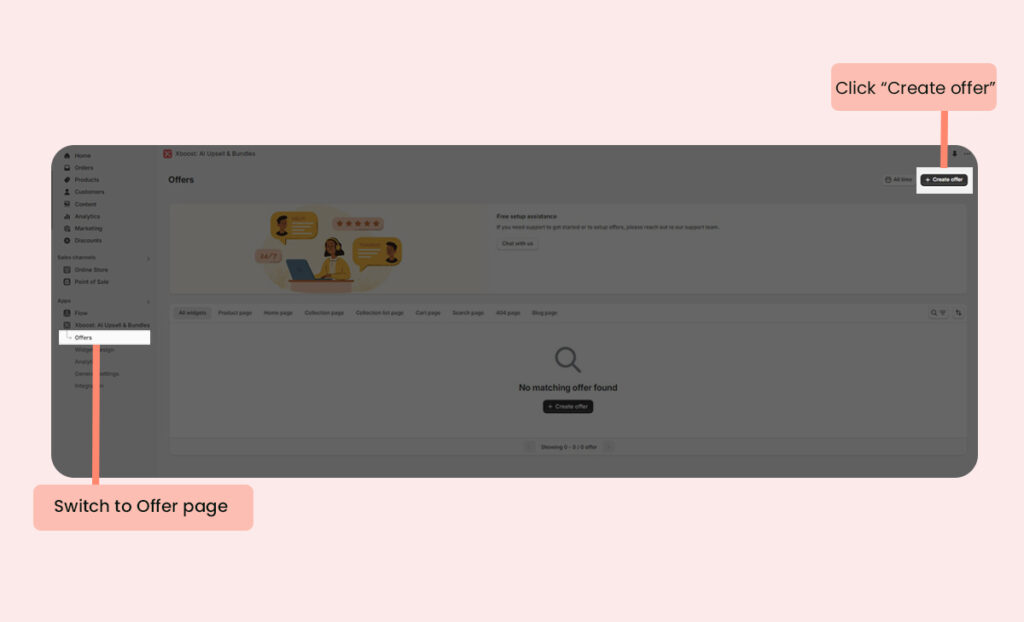
Click Create offer from the Xboost: AI Upsell & Bundles app’s offers page.
2. Select offer type
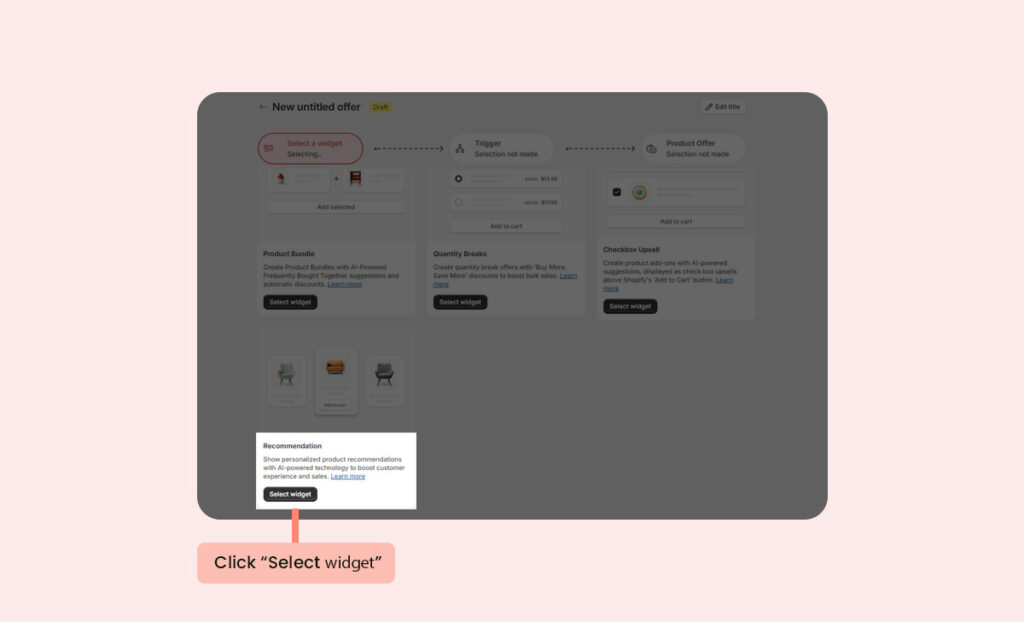
Click Create a Recommendation in recommendation option.
3. Select pages
Select pages you want to show recommendation slider. Click Save and next to proceed.
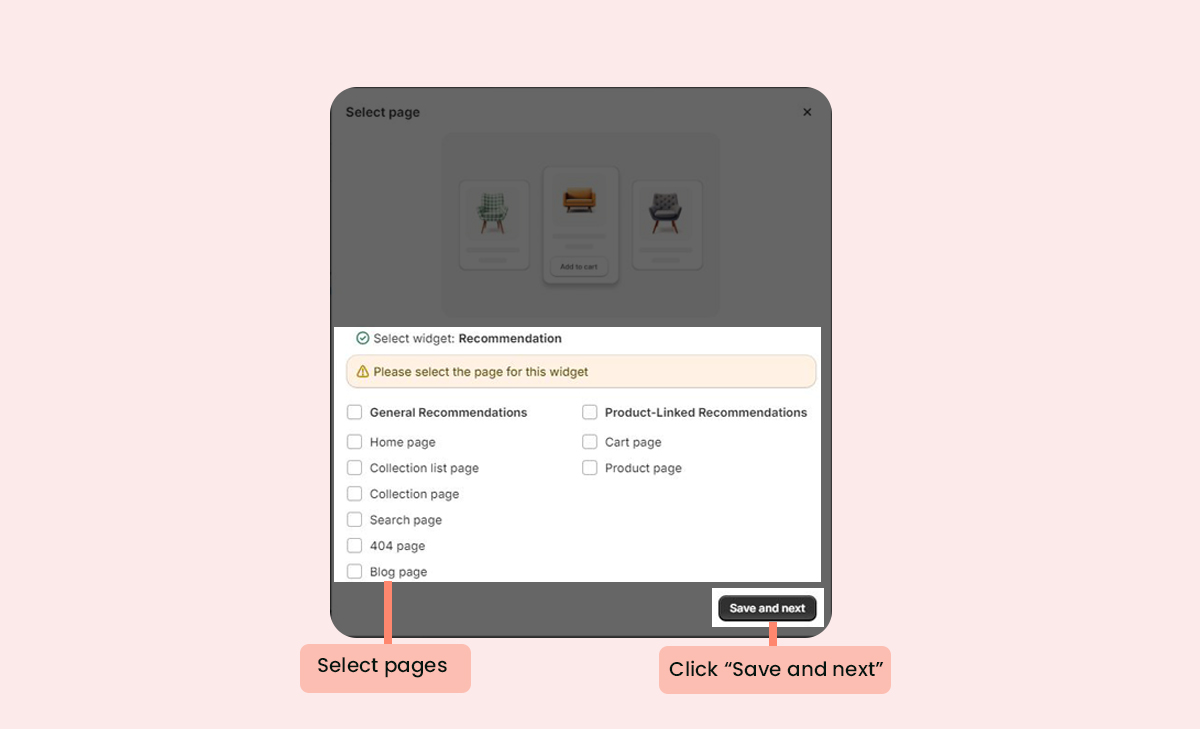
4. Name the offer
Click button Edit title to change title.
5. Setting Trigger Products
The recommendation allows you to choose ‘Trigger’ products and ‘Offer’ products.
- The trigger product is the primary product that the customer intends to buy.
- Offer products are the upsells you wish to promote along with the trigger product.
We have 3 options for trigger product:
- Specific product: You can view and select products. The offer will be displayed and triggered only for the specific products you selected.
- Automated: You can view and select collections. The offer will be displayed and triggered only for the products in collections you selected.
- All products: All products are selected. The offer will be displayed and triggered only for the products in your store.
Scheduled time allows you to configure the time to activate offers for products.
If you don’t select Scheduled time, the offer will be applied immediately when the offer is added successfully and will remain until it is removed.
If you select Scheduled time, you can config start and end time to the offer.
Note: The start time must be before the end time.
Let’s select products type and active date to create the offer.
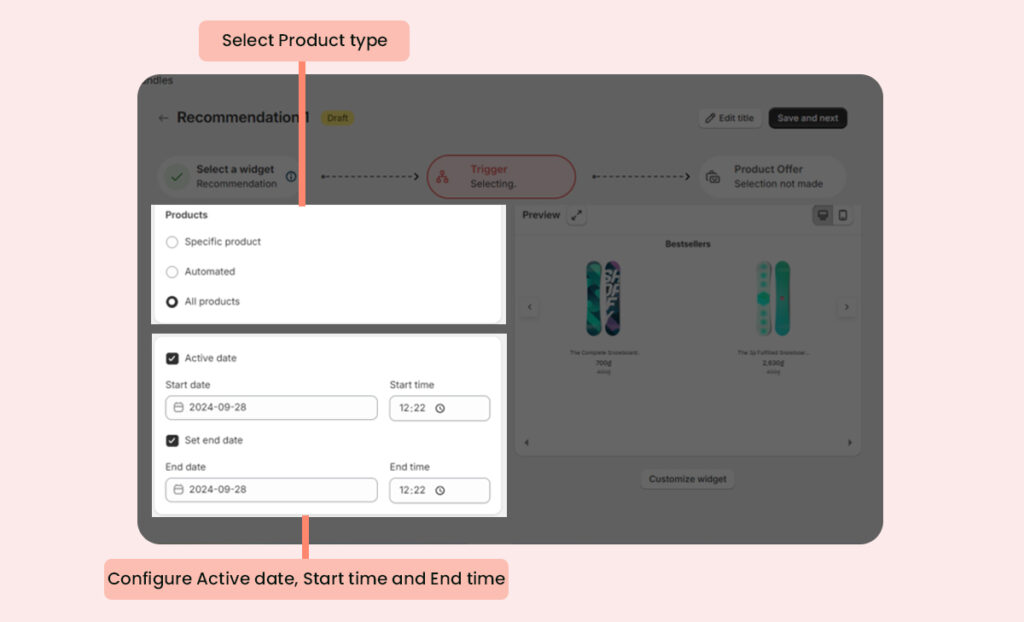
Click Save and next to proceed.
6. Setting the recommendation
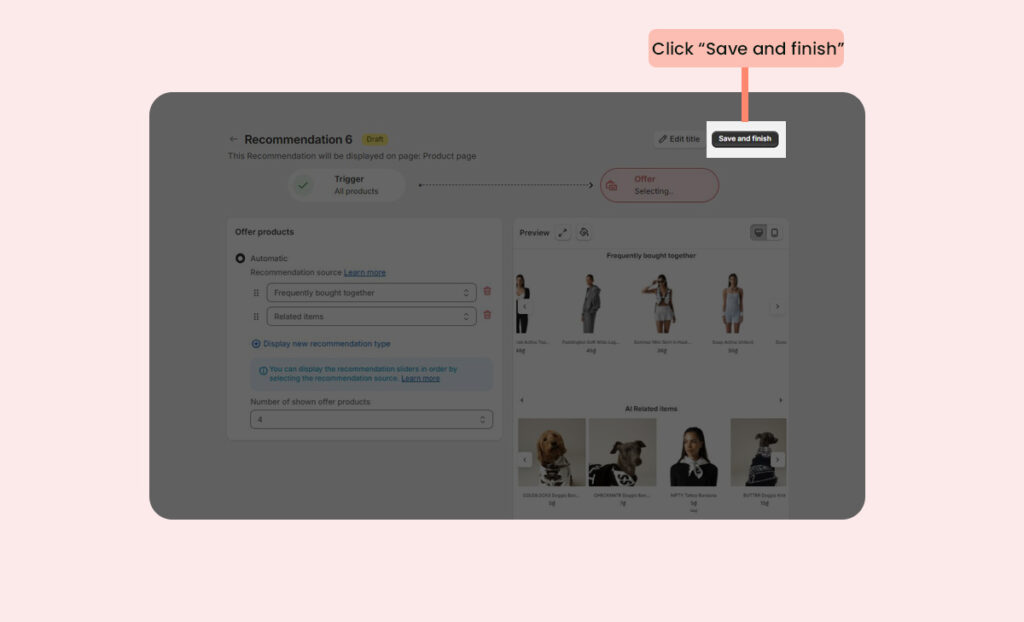
In this step, you can select recommendation source type and number of shown offer products. The recommendation slider will be shown with chosen recommendation source.
We’ve provided 11 options for recommendation source:
- New arrivals
- Best sellers
- Most viewed
- Recent views
- Trending Related items
- Frequently bought together
- Also viewed
- AI-powered frequently bought together
- AI-powered related items
- AI-powered also viewed
- AI-personalized recommendation
You can select Number of shown offer products (4, 6, 8, 10) for each slider.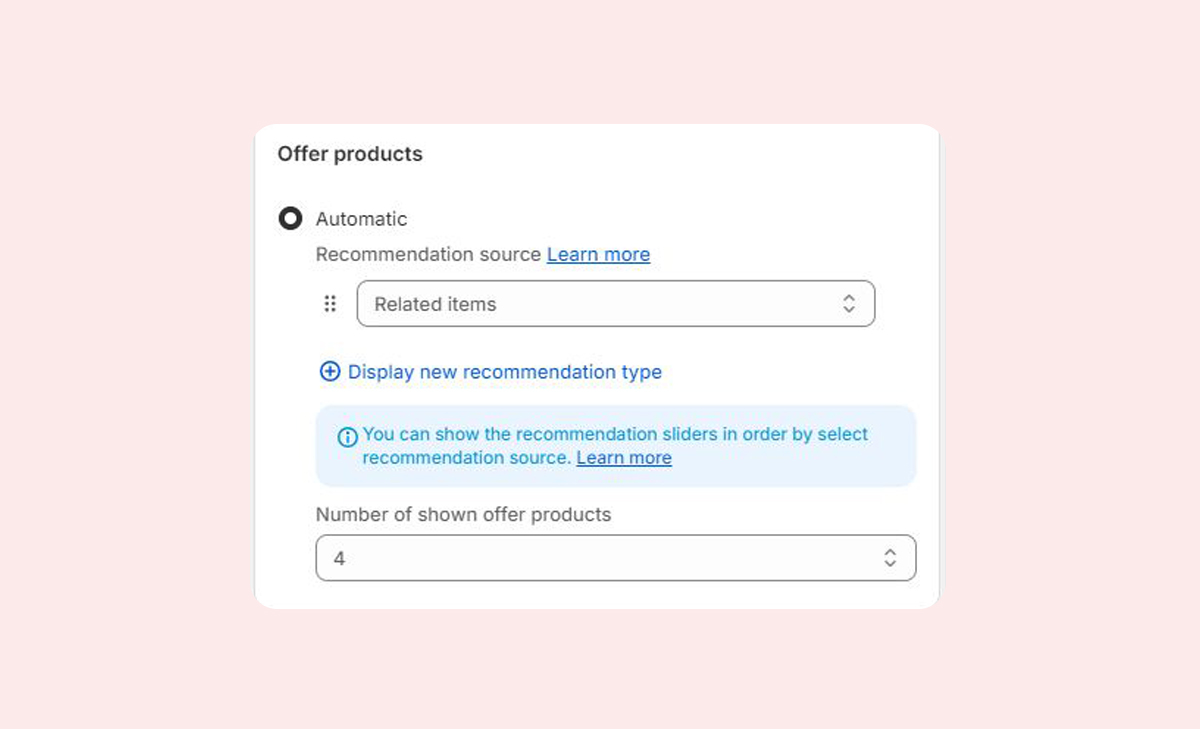
After configuring the offer, you can preview it on the Preview site.
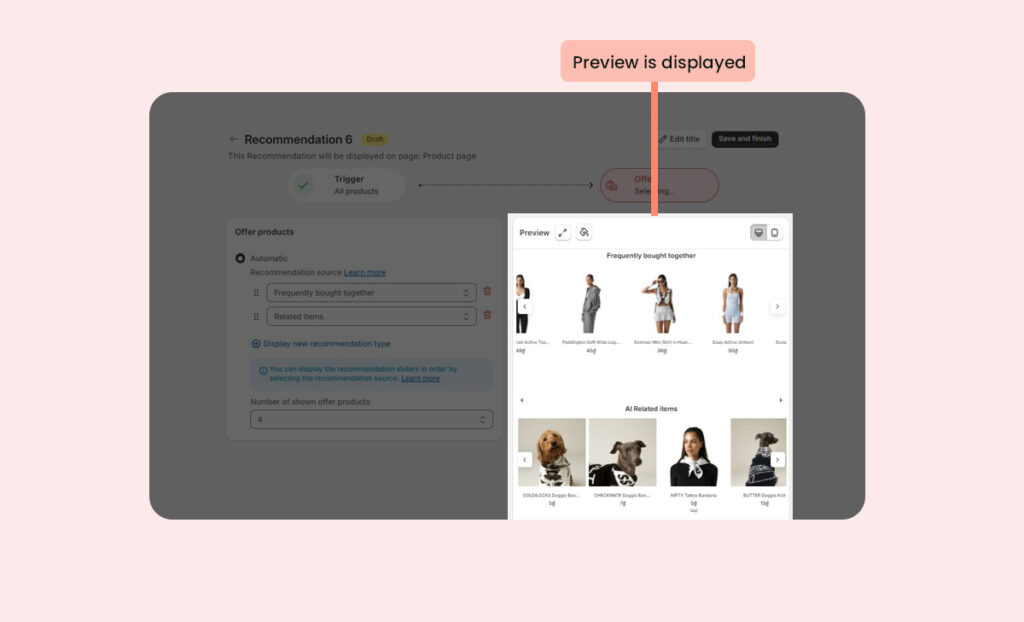
7. Finish creating the offer
Click Save and finish to complete creating a recommendation slider.
8. Test on storefront
You can preview how your offers, products, or promotions will appear to customers in your online store by using Test on storefront feature. Please refer How to use Test on storefront function to more information about the feature.
Now you can see the displayed recommendation widget: