
How to create an offer (updated)
Overview
In today’s competitive marketplace, crafting an attractive offer is crucial for boosting sales and enhancing customer satisfaction. With Xboost: AI Upsell & Bundles capabilities, you can create offers that not only captivate your audience but also drive conversions.
User Guide
Here’s a step-by-step guide to help you develop compelling offers using Xboost: AI Upsell & Bundles.
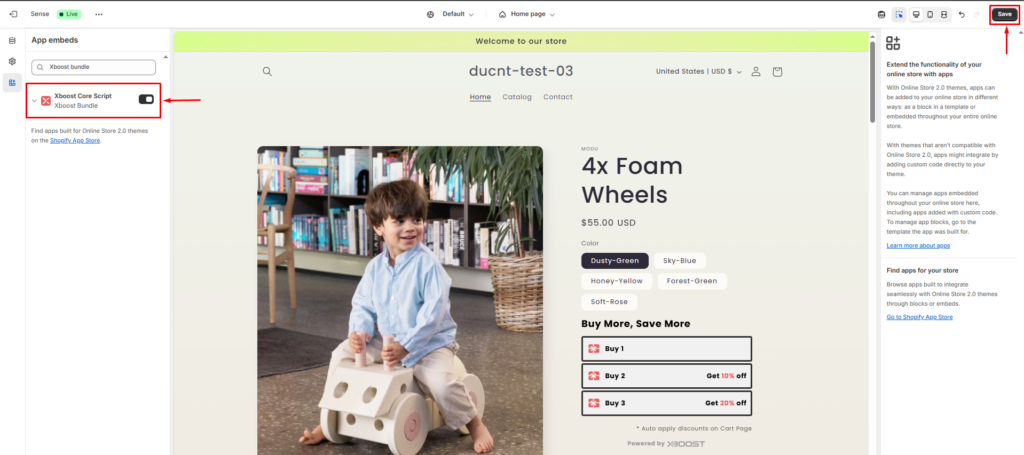
First of all, please activate the core script of Xboost: AI Upsell & Bundles to use the app.
- Go to Online Store > Themes, then click Customize.
- Click on App Embeds, toggle on the app, and click Save.
1. Start creating the offer
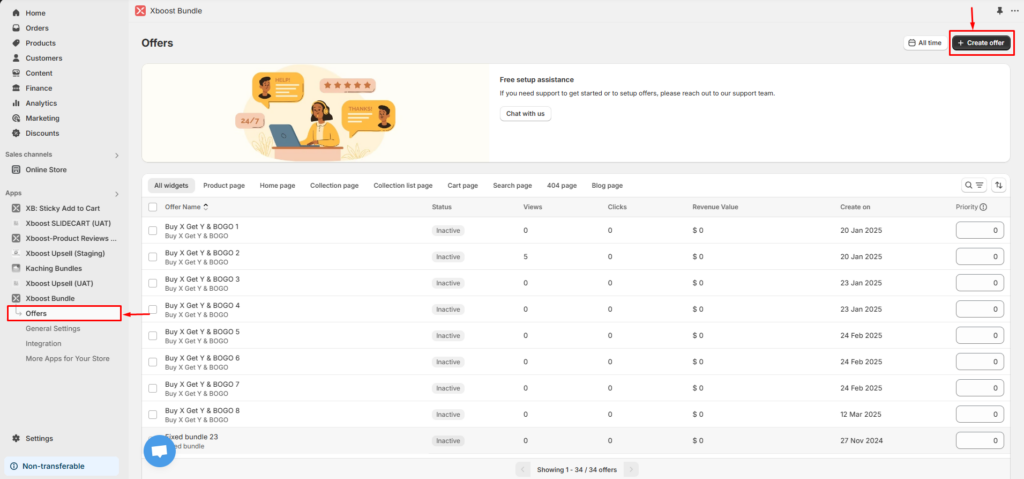
- Click Create offer from the Xboost: AI Upsell & Bundles app’s offers page.
2. Select offer type
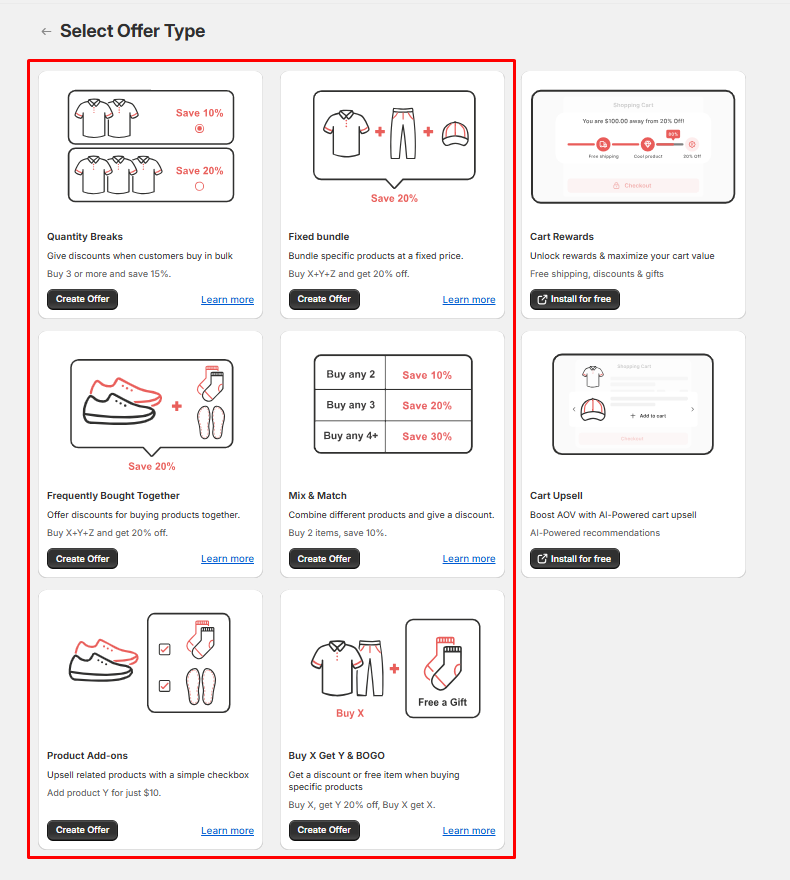
We have 6 offer types available:
– Frequently Bought Together: Offer discounts for buying products together.
– Quantity Breaks: Give discounts when customers buy in bulk.
– Fixed Bundle: Bundle specific products at a fixed price.
– Product Add-ons: Upsell related products with a simple checkbox.
– Mix & Match: Combine different products and give a discount.
– Buy X Get Y & BOGO: Get a discount or free item when buying specific products.
3. Set up your offer.
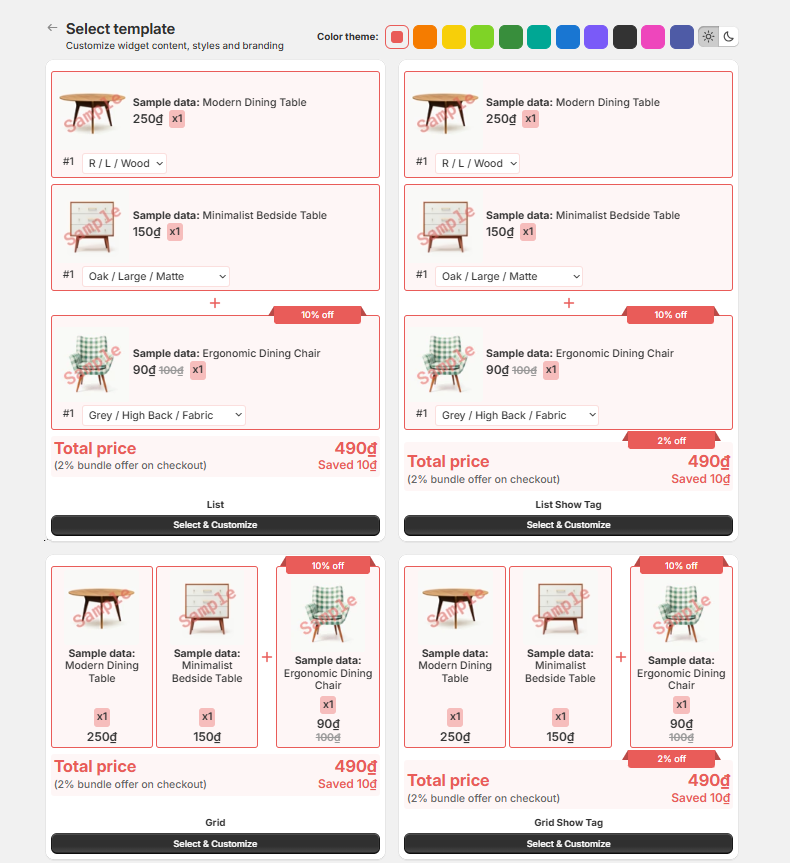
- Select a template for your offer.
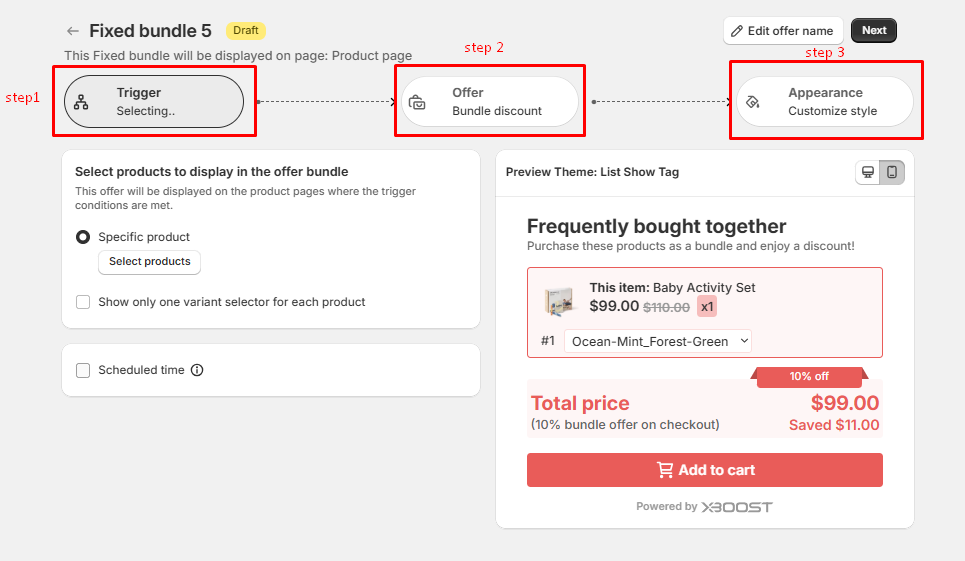
XBoost: AI Upsell & Bundles allows you to choose ‘Trigger’ products and ‘Offer’ products.
– Step 1: The trigger product is the primary product that the customer intends to buy.
– Step 2: Offer products are the upsells you wish to promote along with the trigger product.
– Step 3: Appearance (optional) allows you to customize your offer.
Set up your offer as you normally would. Complete Trigger and Product Offer steps. You can refer detail steps for each offer type in help site.
4. Finish creating the offer
- Click Save and Publish. Offers will be listed on Offers page, you can manage, view and edit offers.
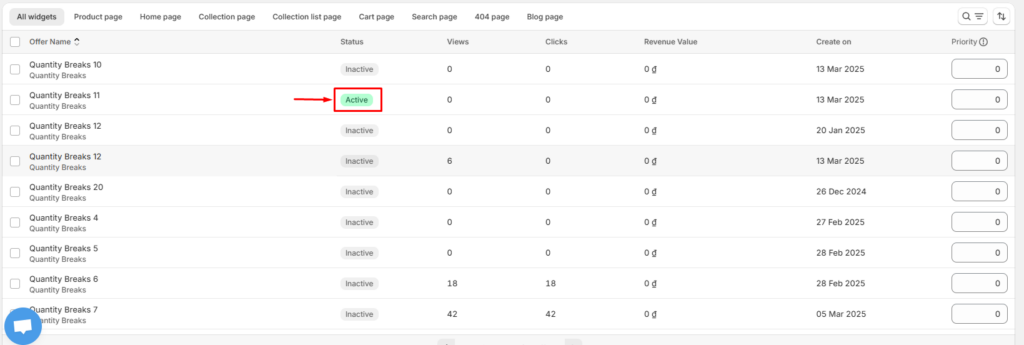
Status
– Change status by clicking to Active/Inactive site or you can change multiple offers by select checkbox and click to Active/Deactivate button.
Priority
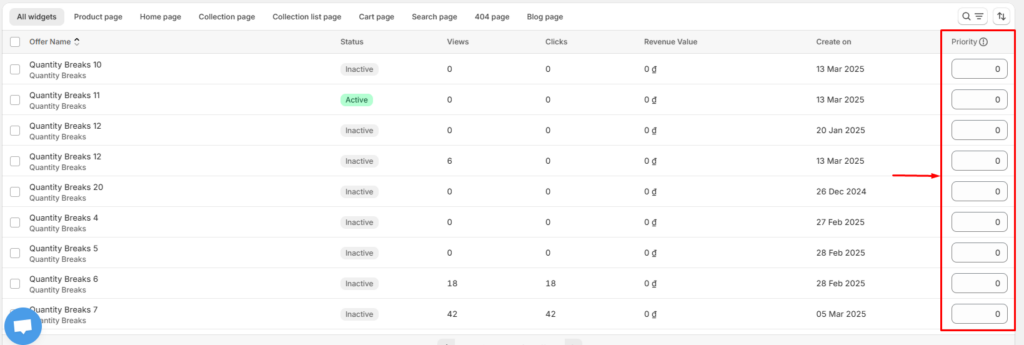
– You can set priority for each offer. We define priority for offers, where priority indicates the level of importance assigned to each offer. The higher the priority, the more prominently the offer will be displayed. In cases where multiple offers for the same product are triggered at the same time, priority ensures that only the offer with the highest priority is shown. This allows you to effectively manage which offers apply to your product.
5. Test on storefront
You can preview how your offers, products, or promotions will appear to customers in your online store by using Test on storefront feature. Please refer How to use Test on storefront function to more information about the feature.
