
How to customize a Frequently Bought Together widget
Overview
Customizing a product bundle widget can be a great way to tailor the shopping experience for your customers. You can design your widget with your styling and this can make your interactions more efficient and enjoyable.
User Guide
To customize a Frequently Bought Together widget follow these detailed steps:
1. Go to Appearance step
- Open/Create the offer and click on Appearance step.

2. Customize the content
- Show compare price: Enable to show compare price that set in product information.
- Combined Option in a dropdown: Enable to combine option instead of selecting each option.
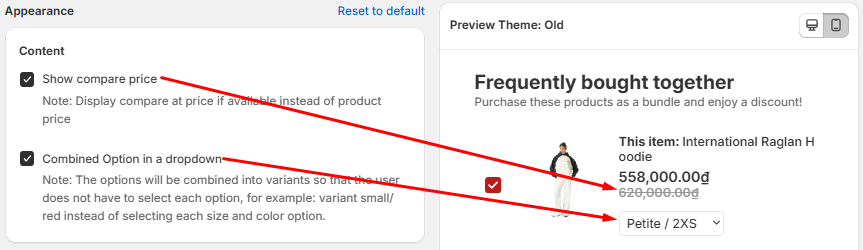
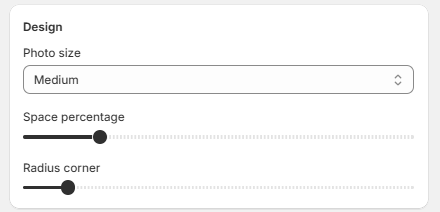
3. Customize the Appearance
- Photo size: Configure photo to size as you want.
- Space percentage: Allow you can set space percentage as you want.
- Radius corner: Allow you can set radius corner as you want.
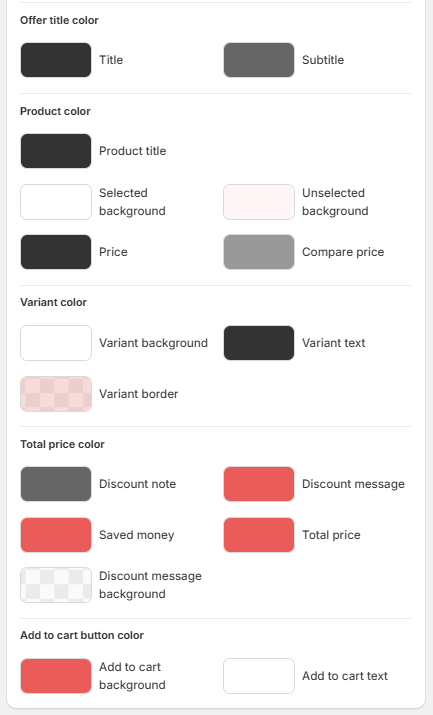
4. Customize the Colors
Customize colors as you want and check your changes in preview.
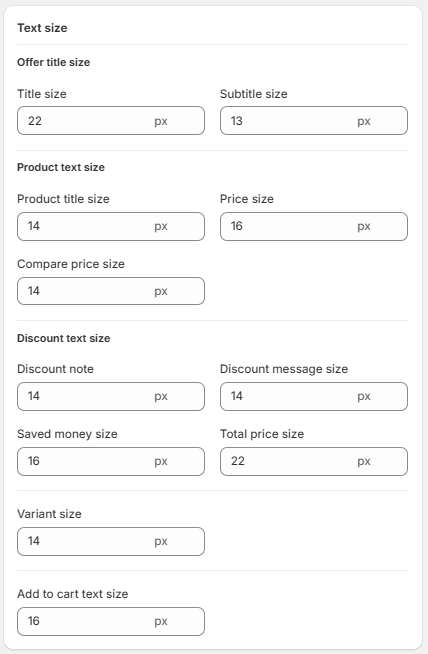
5. Text size
- Enter the value for text size what you want to customize.
6. Save your changes
Once your design is complete, please click Save to finalize your changes.Visit your store’s product page or the page where you added the widget to ensure everything appears as expected.
Make the widget shorter
On the Appearance step, lower Space percentage and the photo size under Design, and lower the sizes under Text size. See How to make a bundle offer shorter.
Change the font
The widget uses your theme's font. To use another font, add a rule for .xb_bundle in Custom CSS on the Appearance step:
.xb_bundle,
.xb_bundle * {
  font-family: Georgia, serif;
}
Replace Georgia, serif with a font that is already available on your store. See How to change the font of a bundle offer.