
How to set default variants and color swatches
Overview
Variant Setting in a Quantity Discounts offer controls how shoppers pick variants in the widget: which variant each tier starts with, and whether options show as a drop-down or as color swatches.
Steps
1. Open Variant Setting
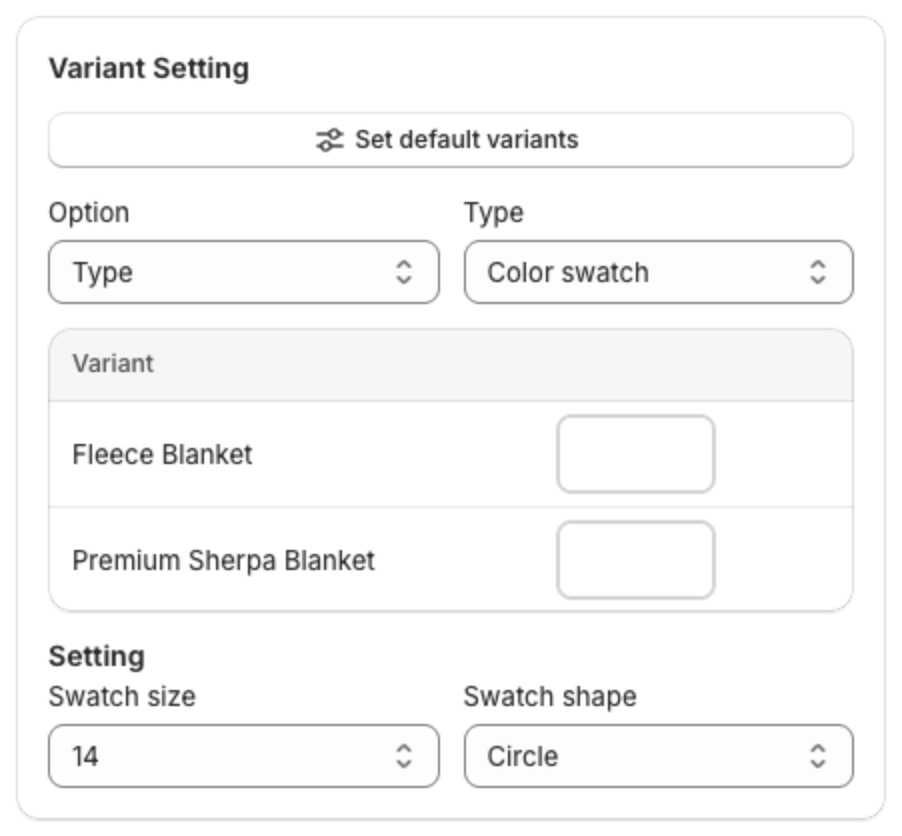
Open a Quantity Discounts offer, click Offer and scroll to Settings > Variant Setting.
2. Set the default variants (optional)
- Click Set default variants.
- Click Select products and pick the products to set.
- Click a tier in the preview ("Select tier to set its default variants") and choose the variants that tier starts with.
- Click Apply.
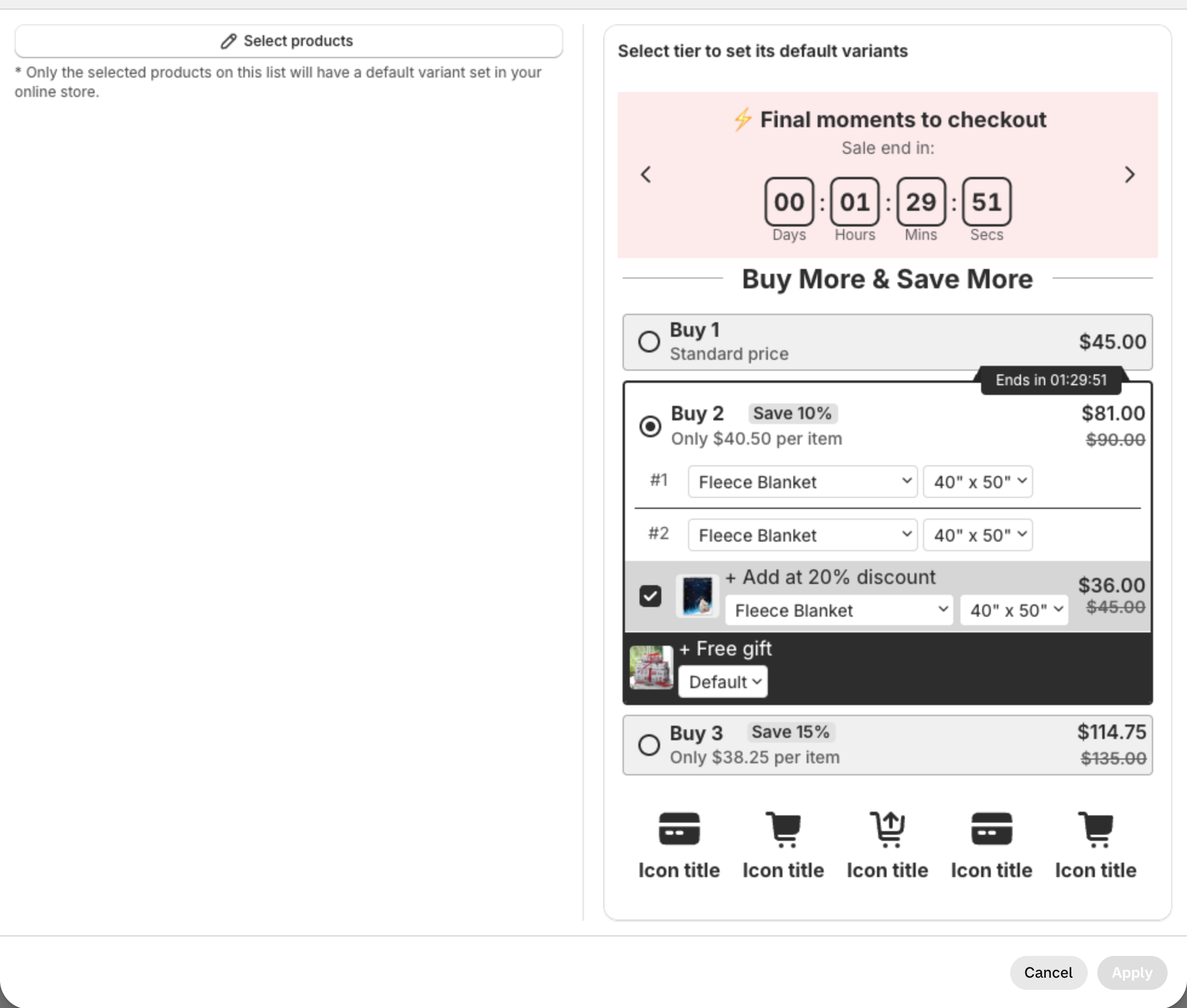
Only the products in this list get a default variant on your store.
3. Show an option as swatches (optional)
- Under Option, pick a product option, for example Type or Size.
- Under Type, pick how it shows: Default dropdown, Color swatch dropdown or Color swatch.
- For swatches, the Variant table lists each option value. Pick a color for each one.
- Under Setting, set the Swatch size and Swatch shape (Circle, Rounded or Square).
4. Save
Click Next, then Publish (or Save for an existing offer).