
How to add an upsell or a free gift to a tier
Overview
In a Quantity Discounts offer, each tier can include extra products:
- An upsell: another product at a discount, for example "+ Add at 20% discount". The shopper can tick or untick it.
- A free gift: a product the shopper gets for free with that tier, for example "+ Free gift".
Steps
1. Open the tier
- Open a Quantity Discounts offer and click Offer.
- Click the tier, for example #2 Buy 2.
2. Add an upsell
- Click Add upsell.
- Click Select product and pick the product. Set the Quantity.
- Edit the Display text. Use
{{discount}}for the discount, for example "+ Add at {{discount}} discount". - Set the Discount type (Default price, Bundle discount or Fixed price), Unit and Amount. New upsells start at a 20% bundle discount.
- Optional:
- Selected by default: the upsell is ticked when the shopper picks the tier.
- Visible only when bar is selected: the upsell shows only on the selected tier.
3. Add a free gift
- Click Add free gift.
- Click Select product and pick the gift. Set the Quantity.
- Edit the Display text, for example "+ Free gift".
- Optional: Show free gift's original price.
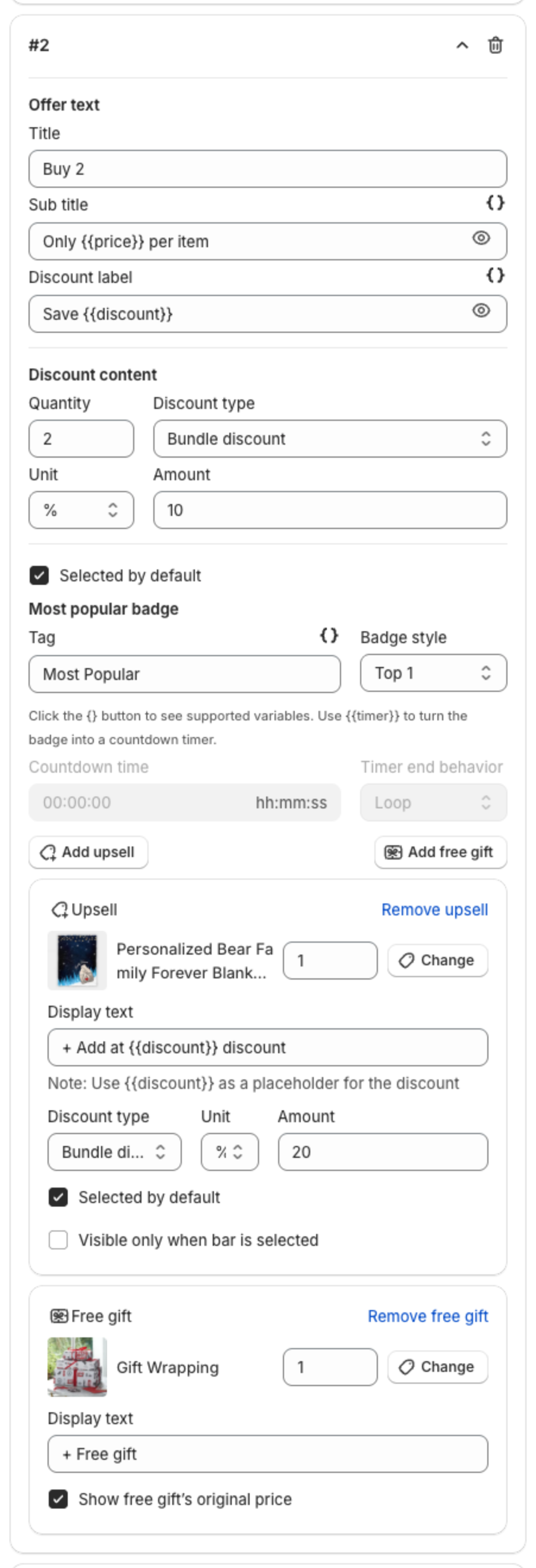
To remove one, click Remove upsell or Remove free gift.
4. Check the preview and publish
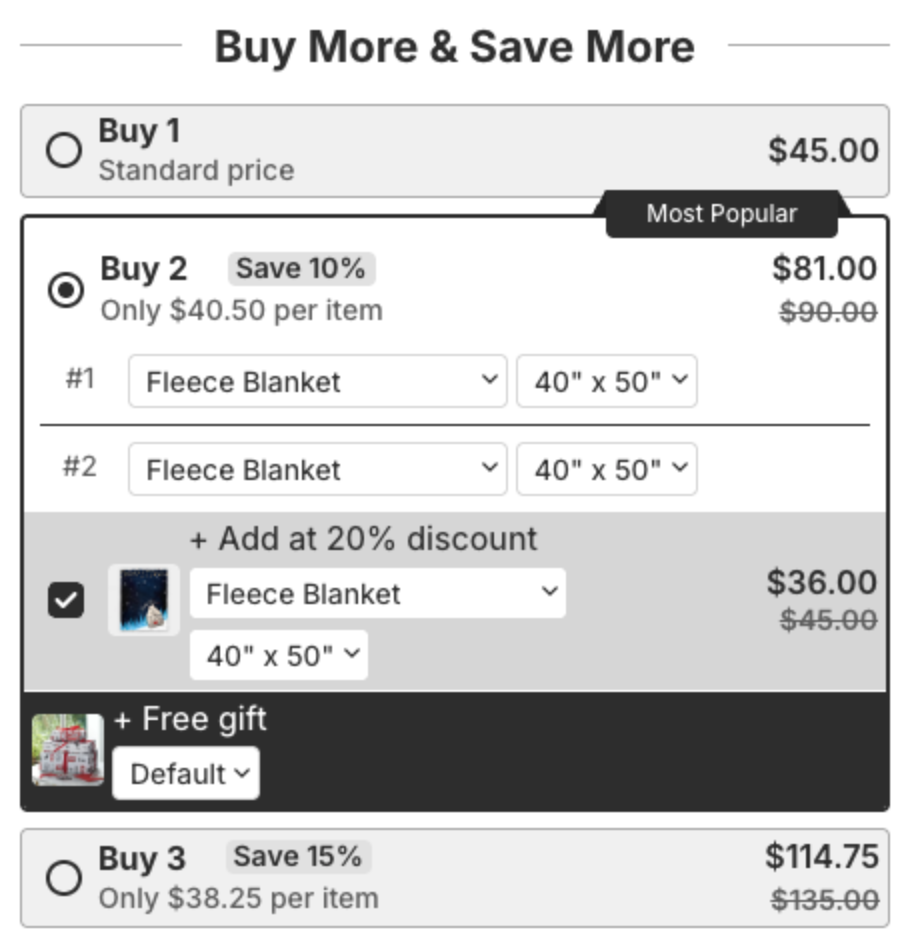
Click Next, then Publish. When the shopper adds the tier to the cart, the ticked upsell and the free gift are added with it. The upsell discount is applied in the cart and at checkout.