
How to add progressive gifts to a Quantity Discounts offer
Overview
Progressive gifts add free or discounted gifts under the tiers of a Quantity Discounts offer. Each gift unlocks when the shopper picks a tier you choose, for example a free gift wrap from "Buy 2". Locked gifts show as Locked until the shopper picks a higher tier, which encourages bigger orders.
Steps
1. Turn on Progressive gifts
- Open a Quantity Discounts offer and click Offer.
- Turn on the Progressive gifts switch below the tiers.
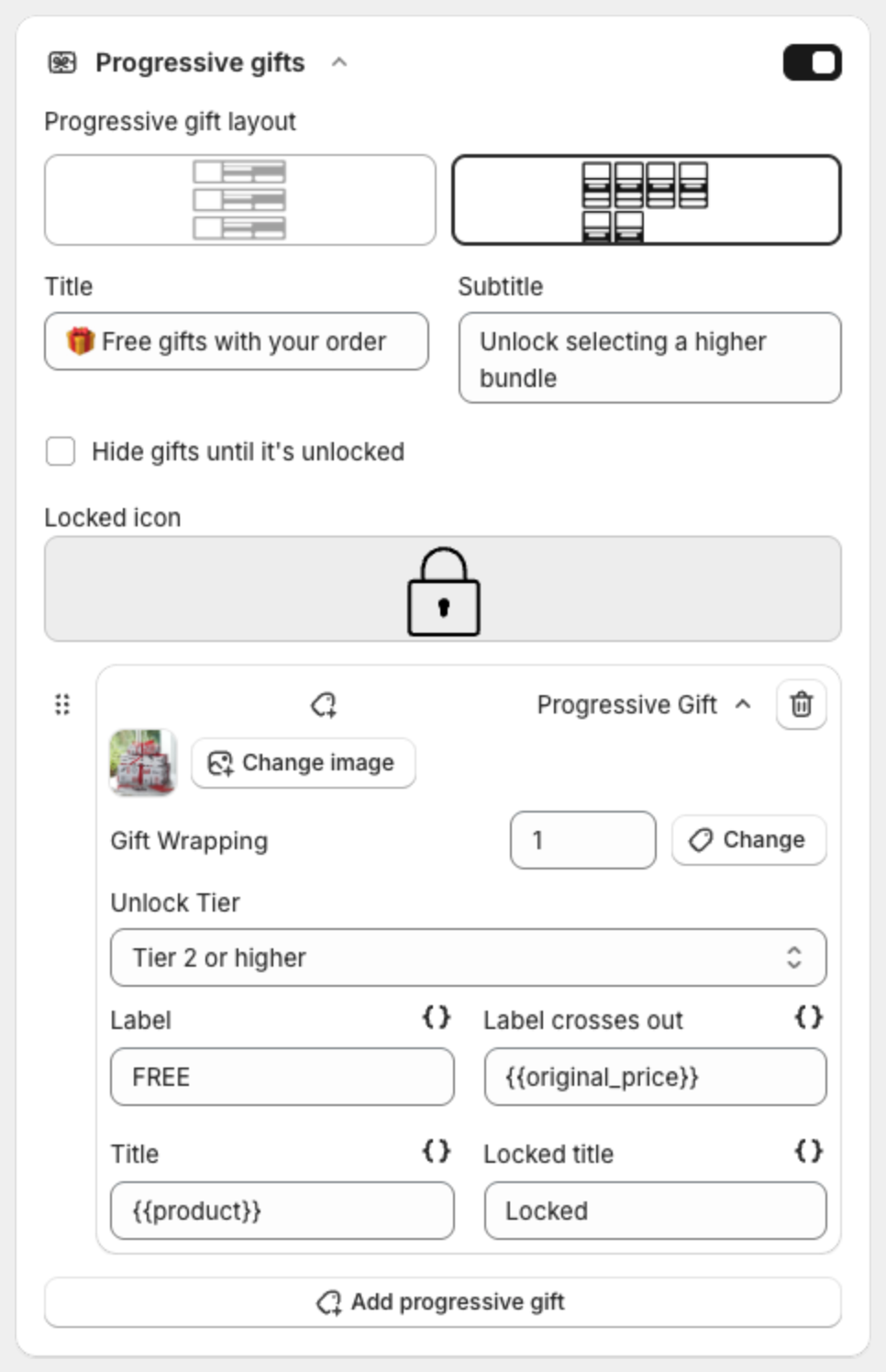
2. Set the section texts
- Progressive gift layout: pick one of the two layouts.
- Title and Subtitle, for example "🎁 Free gifts with your order" and "Unlock selecting a higher bundle".
- Hide gifts until it's unlocked: hides locked gifts instead of showing them as locked.
- Locked icon: the icon on locked gifts.
3. Add a gift
- Click Add progressive gift.
- Click Select product and pick the gift. Set the Quantity.
- Pick the Unlock Tier: Tier N (only that tier), Tier N or higher or Tier N or lower.
- Edit the texts. Click the {} button to insert a variable:
{{product}},{{price}},{{original_price}}or{{discount}}.- Label, for example "FREE".
- Label crosses out: the crossed-out price, default
{{original_price}}. - Title: default
{{product}}. - Locked title: default "Locked".
Add more gifts the same way. Drag a gift by its handle to change the order, or click the trash icon to remove it.
4. Check the preview and publish
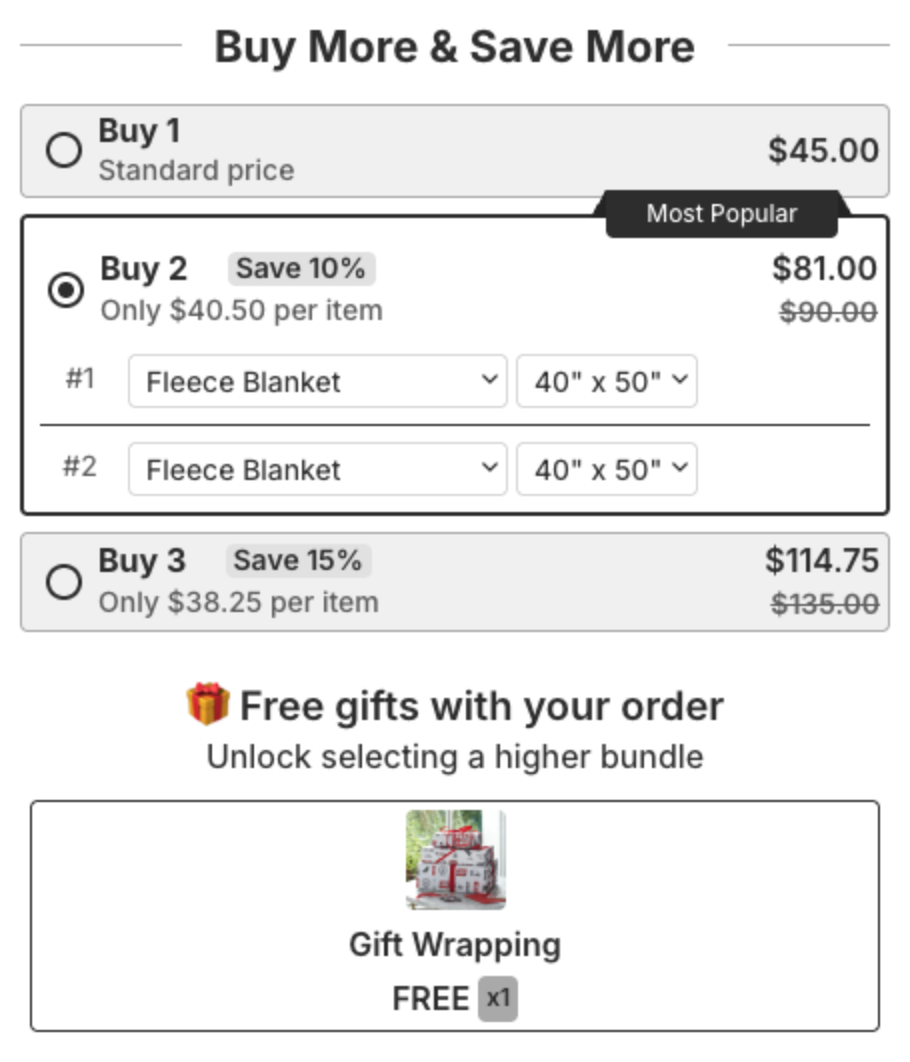
The preview shows the gift under the tiers. When the shopper picks a tier that unlocks the gift, it shows as free:
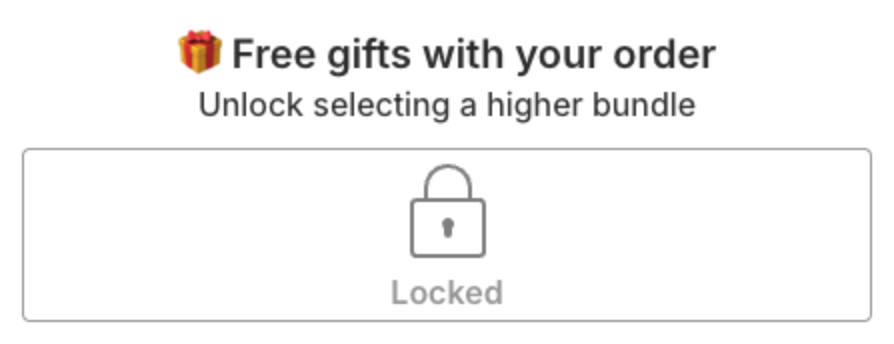
With a lower tier selected, the gift shows as locked:
Click Next, then Publish. When the shopper adds the tier to the cart, the unlocked gifts are added with it.