
How to add a badge or a countdown to a tier
Overview
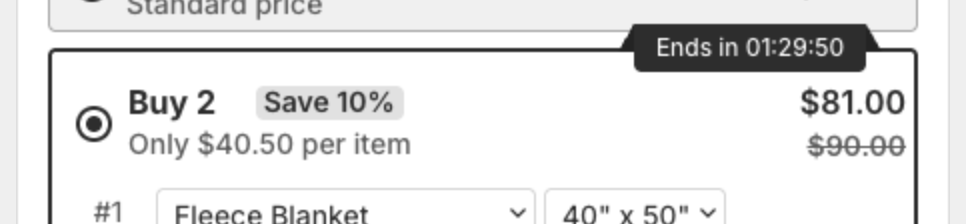
Each tier of a Quantity Discounts offer can show a badge, for example "Most Popular". The badge can also be a countdown, for example "Ends in 01:29:50", to add urgency.
Steps
- Open a Quantity Discounts offer, click Offer and click the tier.
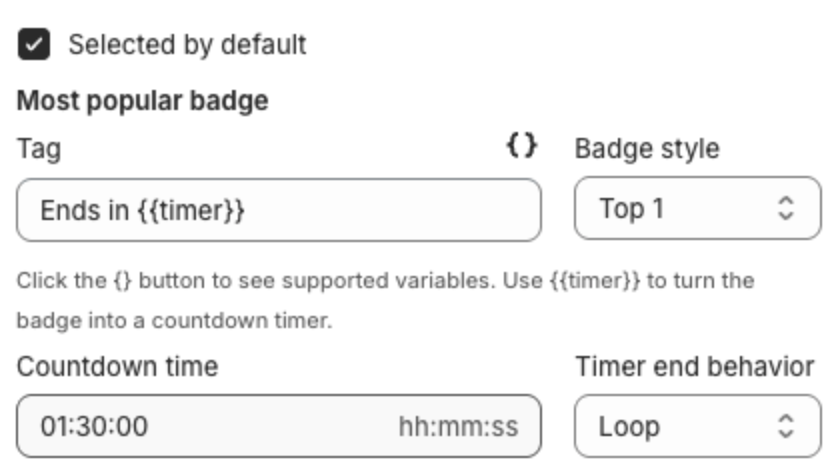
- Under Most popular badge, type the Tag, for example "Most Popular". Click the {} button to see the variables you can use.
- Pick the Badge style, for example Top 1, Bottom 1, In Line or Hide.
- To show a countdown, put
{{timer}}in the tag, for example "Ends in {{timer}}". Then set:- Countdown time (hh:mm:ss), for example 01:30:00.
- Timer end behavior: Loop (start again), Stop or Disappear.
- Optional: tick Selected by default above the badge to pre-select this tier. Only one tier can be selected by default.
- Click Next, then Publish.
The badge shows on the tier with the countdown running:
Countdown time and Timer end behavior can be set only when the tag contains {{timer}}.