How to integrate Xboost with GemPages
Overview
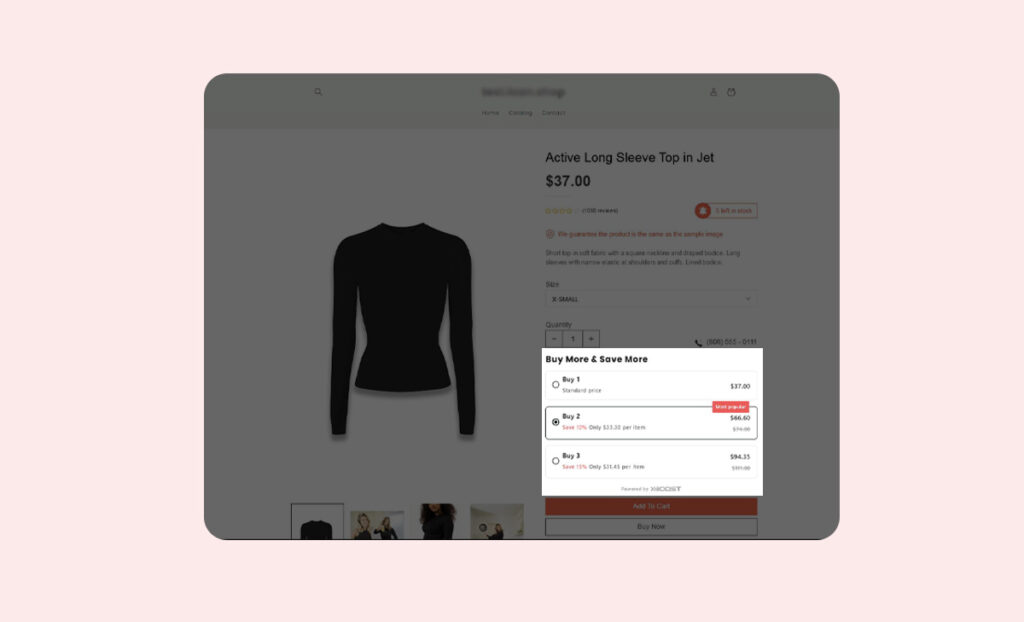
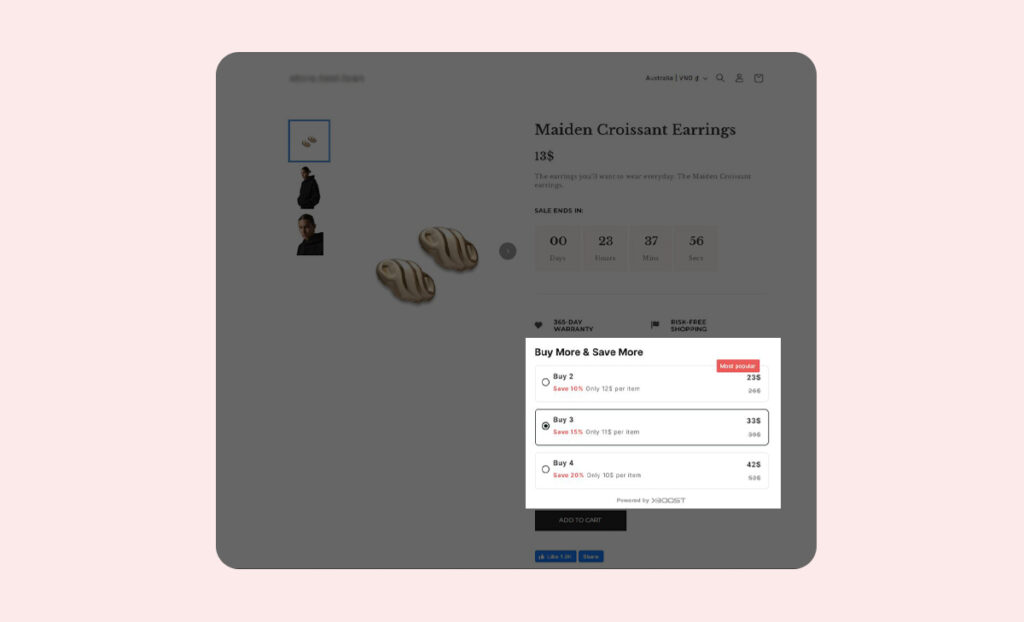
If you build pages with GemPages, you can show XB: Bundles Quantity Breaks offers on them with a small piece of code:
User Guide
1. Copy the code for your offer type
Copy the code for your offer type below. You also find it in the app: open the offer, go to the Offer step, and copy the code under Use this code for custom placement or page builders (Optional) in Settings.
- Quantity Discounts offer:
<div id="xb-quantity-breaks-root"></div>
- Product Add-Ons offer:
<div id="xb-product-add-ons-root"></div>
- Fixed bundle offer:
<div id="xb-fixed-bundle-root"></div>
- AI Frequently Bought Together offer:
<div id="xb-product-bundle-root"></div>
- Recommendation slider:
<div id="xboost-recommendation-root"></div>
- Mix & match offer:
<div id="xb-mix-and-match-root"></div>
- Buy X Get Y (BOGO) offer:
<div id="xb-buy-x-get-y-root"></div>
2. Search custom code and select the offer location in GemPages.
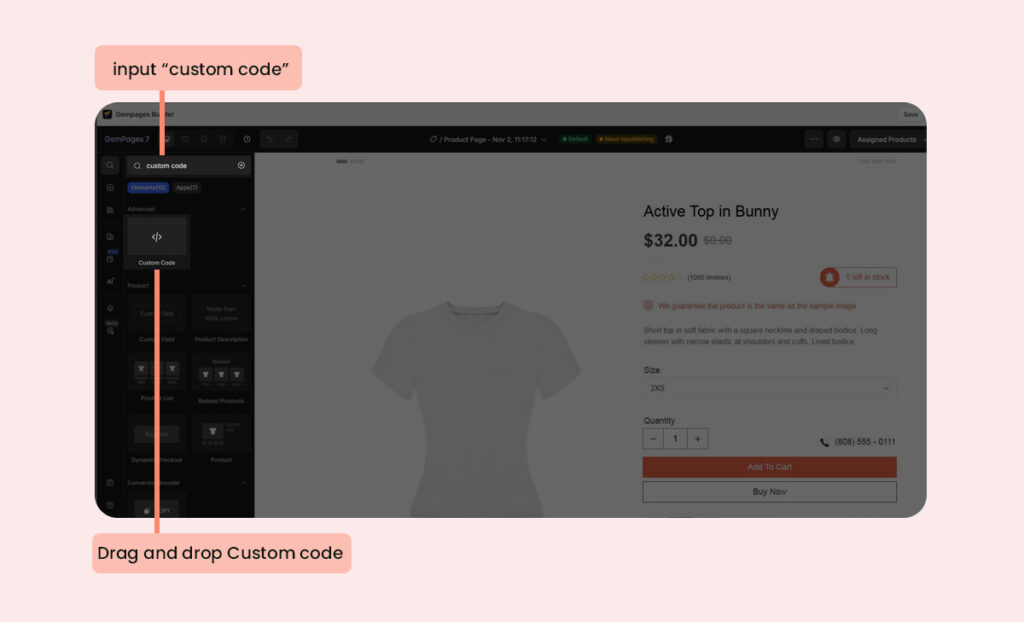
Open the page where you want to display your product. Click on Search icon and input custom code to search field. Drag and drop custom code to the desired location for your offer.
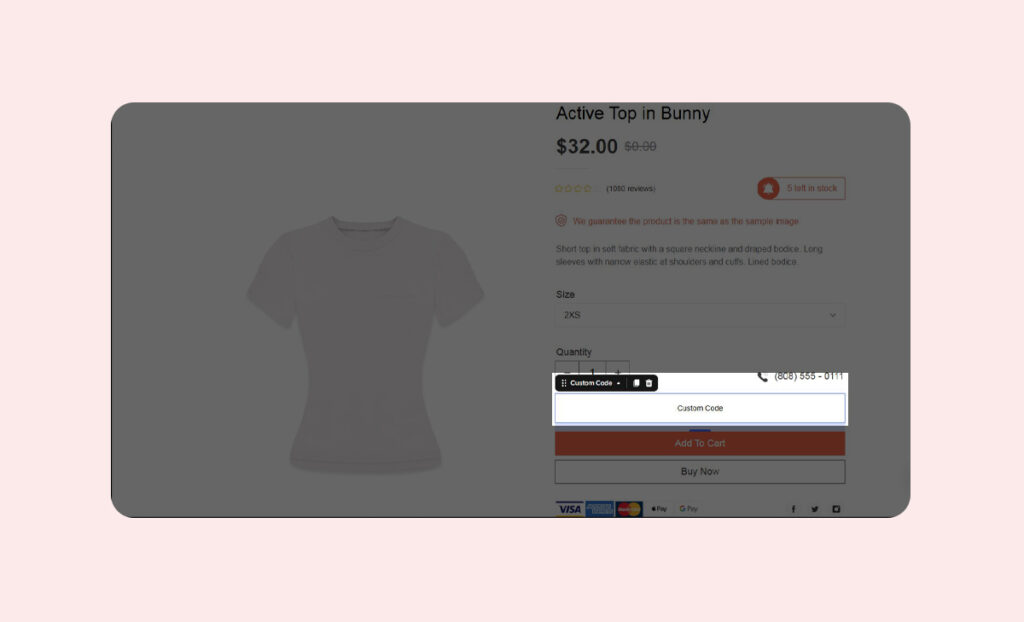
Here’s an example we suggest:
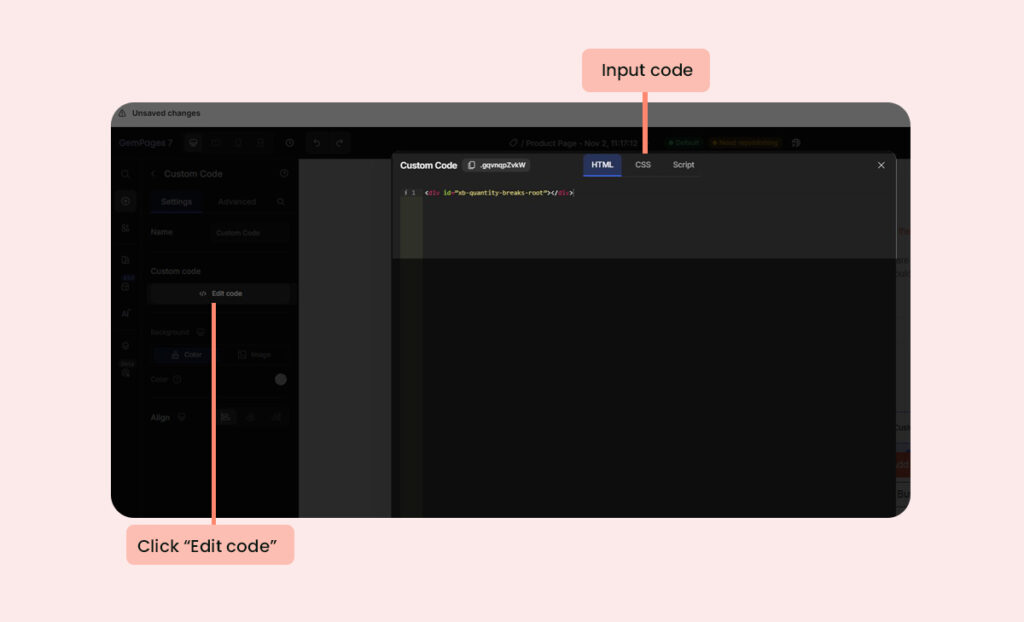
3. Paste your code into the code editor field.
Click on Edit code and input code.
For example, if you want to display a Quantity Discounts offer, please input the following code and click Done:
<div id="xb-quantity-breaks-root"></div>
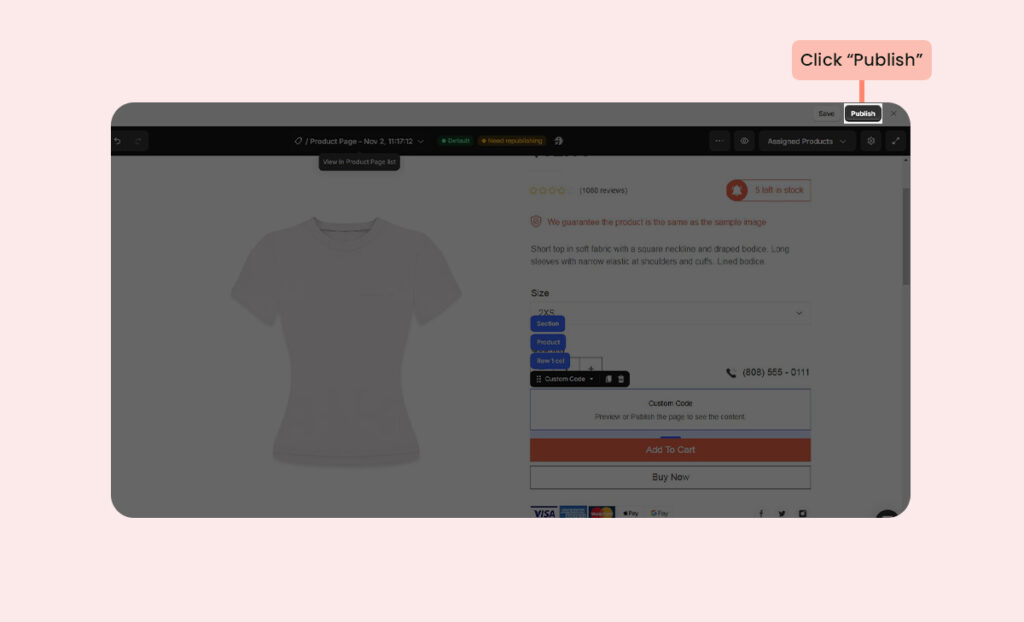
4. Save the code and publish the page.
Click Save button after input code and click on Publish to apply your code.
5. Check the offer on storefront.
Quantity Discounts offer: