
How to show trust badges, countdown timers and delivery dates in an offer
Overview
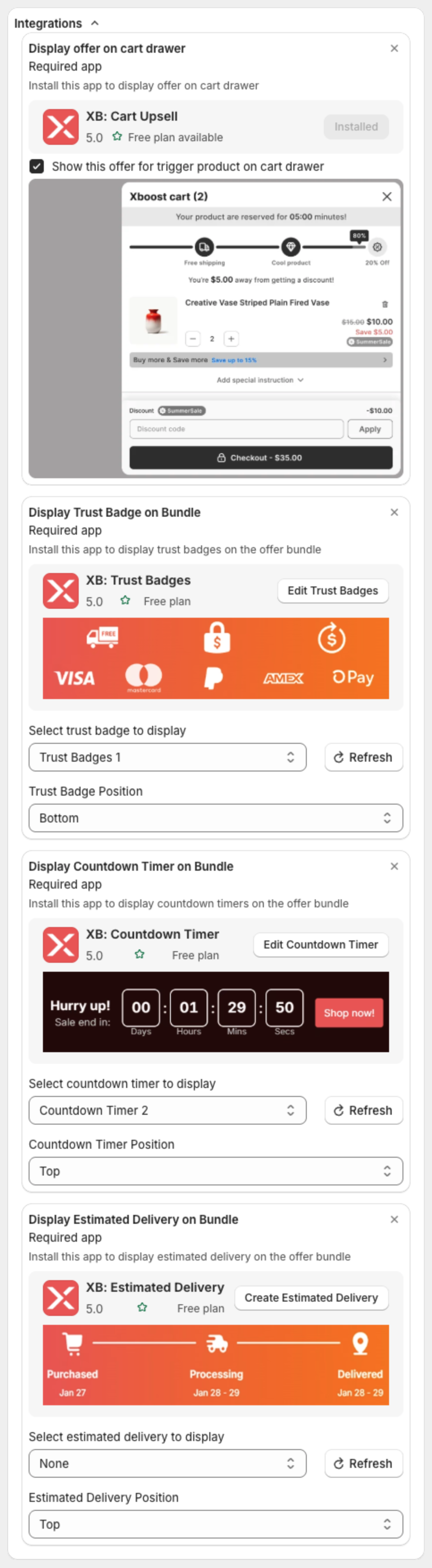
The Integrations section of an offer connects XB: Bundles Quantity Breaks with other XBoost apps:
| Integration | App | What it adds |
|---|---|---|
| Display offer on cart drawer | XB: AI Cart Upsell Cart Drawer | Shows the offer under the matching item in the cart drawer. |
| Display Trust Badge on Bundle | XB: Trust Badges & Trust Icons | Shows a trust badge design inside the offer. |
| Display Countdown Timer on Bundle | XB: Countdown Timer Bar Banner | Shows a countdown timer inside the offer. |
| Display Estimated Delivery on Bundle | XB Estimated Delivery Date EDD | Shows a delivery estimate inside the offer. |
Before you start
- Install the other app. If it is not installed, the card shows Required app with an install button.
- For trust badges, countdown timers and delivery estimates, create the design in that app first. Click Create Trust Badges, Create Countdown Timer or Create Estimated Delivery to open it.
Steps
1. Open Integrations
Open the offer, click Offer and scroll to Integrations below the discount settings.
2. Show the offer in the cart drawer
Tick Show this offer for trigger product on cart drawer. The Offers page then shows Shown in the Show on Xboost cart column. In XB: AI Cart Upsell Cart Drawer, turn on the matching integration. See How to show bundle offers in the cart.
3. Add a trust badge, countdown timer or delivery estimate
For each one:
- Pick the design in Select trust badge to display, Select countdown timer to display or Select estimated delivery to display. If you just created it, click Refresh to load it.
- Pick the position: Top, Bottom or Below offer title. Some offer types also offer Below offer subtitle, Above price block and Above add to cart block.
To remove one, set it back to None.
4. Check the preview and publish
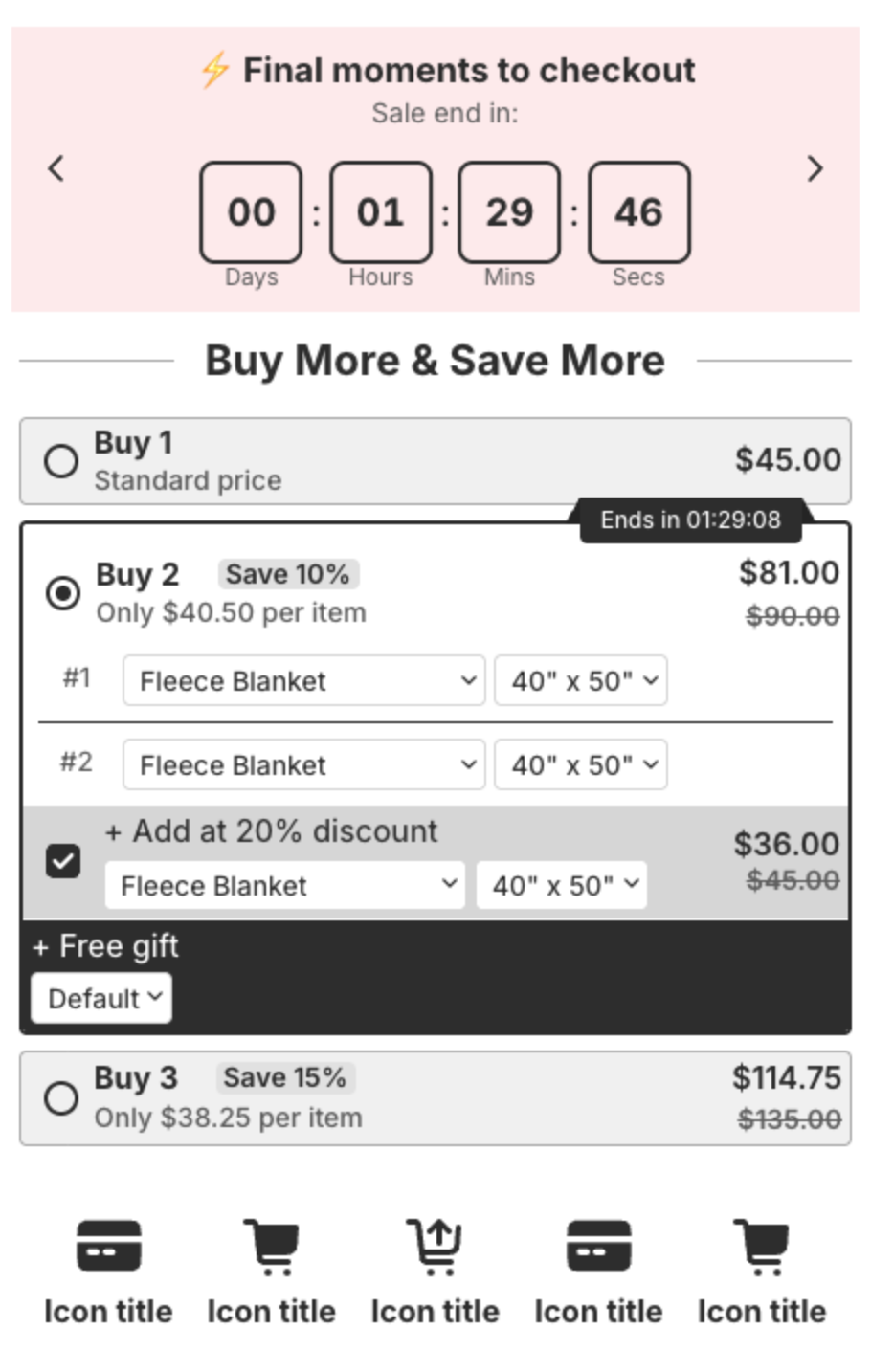
The preview shows the countdown timer at the top and the trust badges at the bottom of the offer:
Click Next, then Publish (or Save for an existing offer).