
How to show trust badges in a custom position
Overview
Use Manual Position when the built-in positions (near the buy button, top or bottom of the page) do not fit. You place the badges yourself in the theme editor with the Trust badges Block app block, or with a code snippet in your theme.
Before you start
- Turn on the app embed. See How to enable the app embed.
- Save the badges at least once. Their ID appears only after the first save.
Steps
1. Select Manual Position
- Open Trust Badges, click the name of your badges, then click Placement.
- Under Page to display, select Manual Position.
- Copy the ID with the copy icon.
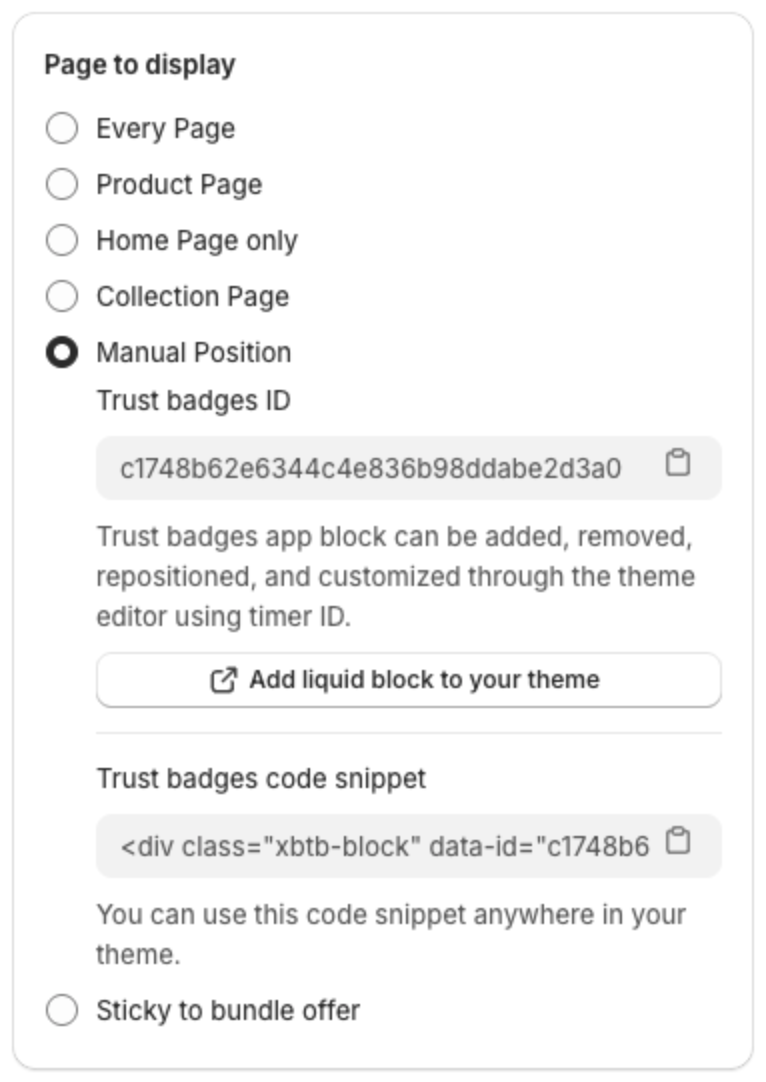
Before the first save, the ID field shows "Save or Publish to show ID". Click Save in the bar at the top of the page first.
2. Add the Trust badges Block in the theme editor
- Click Add liquid block to your theme. The theme editor opens. You can also open it from Online Store > Themes > Customize.
- Open the page where you want the badges, for example a product page.
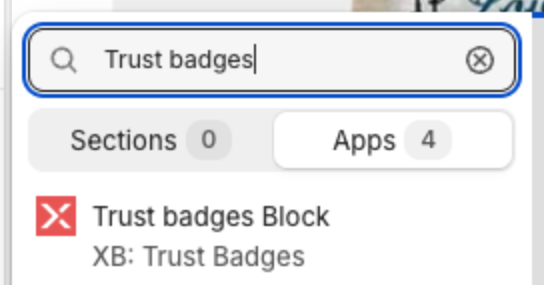
- Click Add section (or Add block inside a section), open the Apps tab, then select Trust badges Block. To find it faster, type its name in the search box.
3. Connect the block to your badges
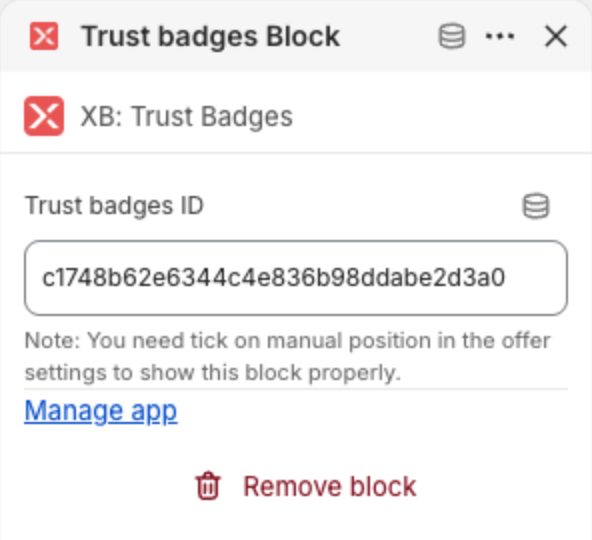
- In the block settings, paste the ID into Trust badges ID.
- Drag the block to the place you want.
- Click Save in the theme editor.
The badges show where you placed the block:
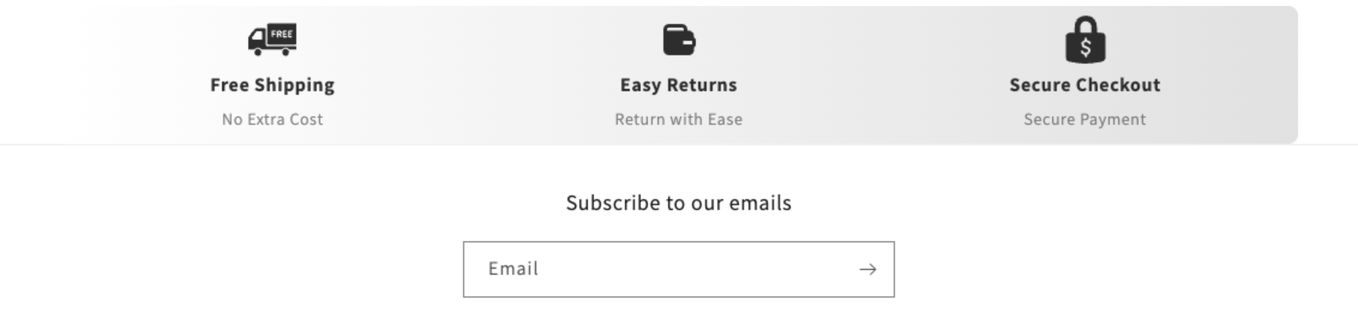
The block shows the badges only when they use Manual Position and are Active.
Use the code snippet instead
If you or your developer edit theme code, copy the code snippet from the Placement step and paste it in any theme file where you want the badges. It looks like this, with your ID in data-id:
<div class="xbtb-block" data-id="YOUR-TRUST-BADGES-ID"></div>