
How to manage your trust badges
Overview
The Trust Badges page lists all your badge sets. From here you edit them, turn them on or off, copy or delete them, and set which set shows first.
Steps
1. Open the list
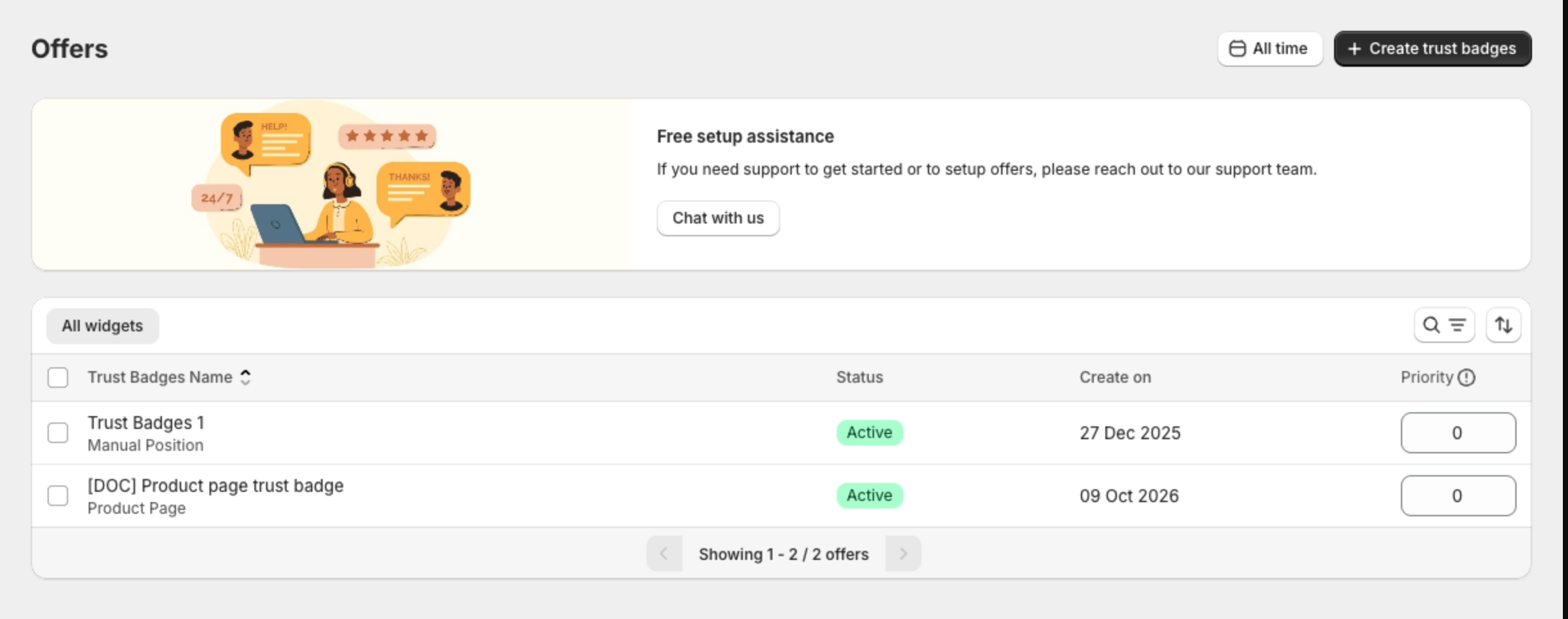
In the app menu, click Trust Badges. The page lists every set with its name, the pages it shows on, Status, Create on date and Priority.
2. Edit badges
Click the name. The editor opens. Make your changes, then click Save in the bar at the top of the page.
3. Turn badges on or off, copy or delete them
- Select the checkbox next to one or more sets.
- Click Activate or Deactivate, then confirm.
- For more actions, click the ... button: Clone makes a copy, Delete offers removes the sets.
A deactivated set keeps its settings. Activate it again at any time.
4. Set the priority
When several sets use the same position on a page, only one shows, and Priority helps decide which. See How do I show two badge sets in the same place?. Type a number in the Priority box and click outside the box. The change saves automatically.
5. Check performance on the dashboard
The Analytics card on the app dashboard shows Impressions: how many times shoppers saw your badges. Use the date button, for example Last 7 days, to change the period.
