
How to choose where trust badges show
Overview
The Placement step of the editor controls where your badges show: which pages, where on the page, for which products, in which countries, on which devices and during which dates.
Steps
1. Open the Placement step
Open Trust Badges, click the name of your badges, then click Placement at the top of the editor.
2. Choose the pages
Under Page to display, select one option:
- Every Page — all pages of your store.
- Product Page — product pages. This is the default. You then choose which products (step 4).
- Home Page only — the home page.
- Collection Page — collection pages.
- Manual Position — the place in your theme where you add the badges yourself. See How to show trust badges in a custom position.
- Sticky to bundle offer — inside an offer of the XB: Bundles Quantity Breaks app (step 5).
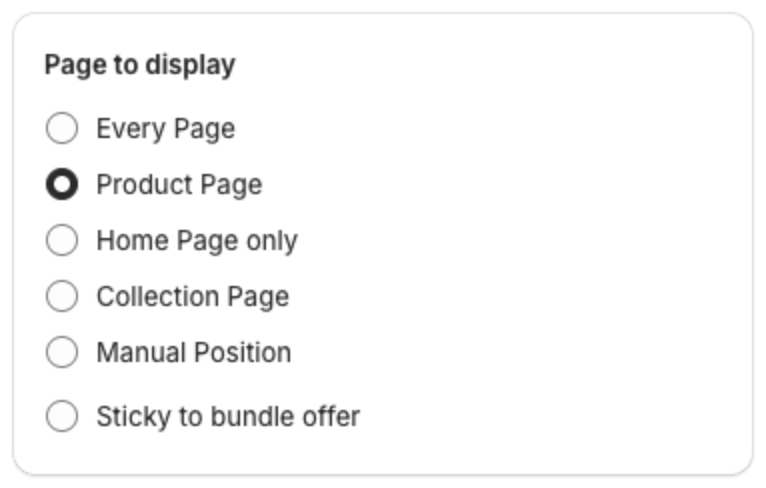
3. Choose the position on the page
Under Show trust badges on:, select where the badges sit: Below buy button, Above buy button, Top of page or Bottom of page. On product pages, Below buy button is the default.
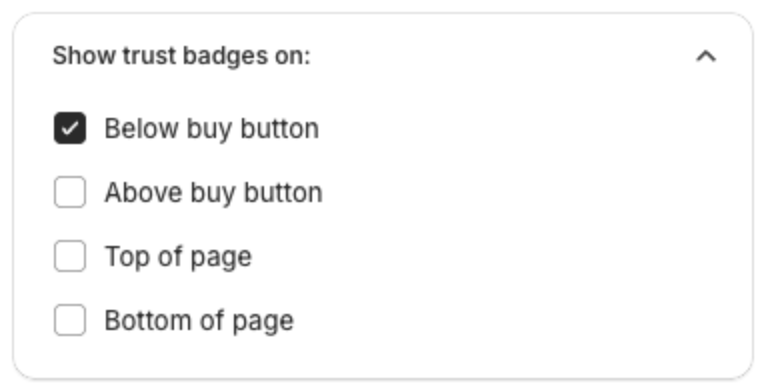
4. Choose products
For Product Page, the Display bar for card shows these options:
- Specific products — click Select products and pick the products.
- Collections — products in the collections you pick.
- All products — the default.
- All products except — all products except the ones you pick.
- Except specific collections — all products except those in the collections you pick.
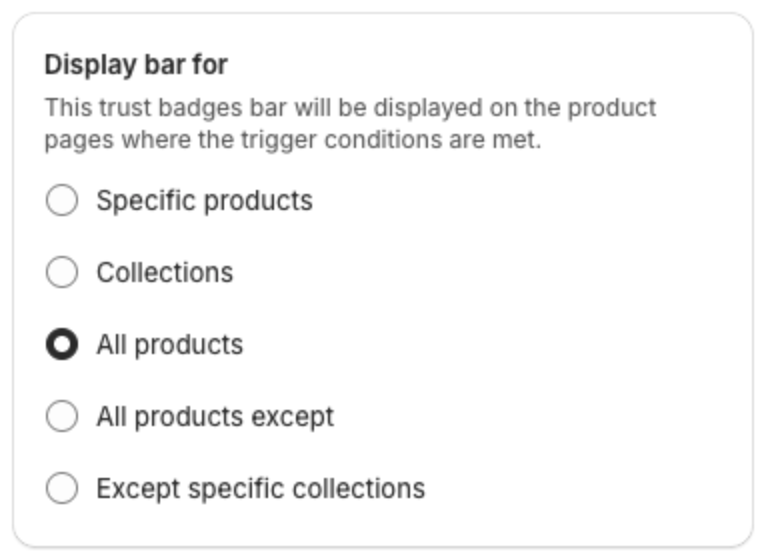
If you choose Specific products, select at least one product. Otherwise the badges cannot be saved.
5. Show the badges inside a bundle offer (optional)
If you also use XB: Bundles Quantity Breaks, you can show the badges right above or below a bundle offer:
- Under Page to display, select Sticky to bundle offer and save.
- In the bundle app, select these trust badges by name in the bundle offer.
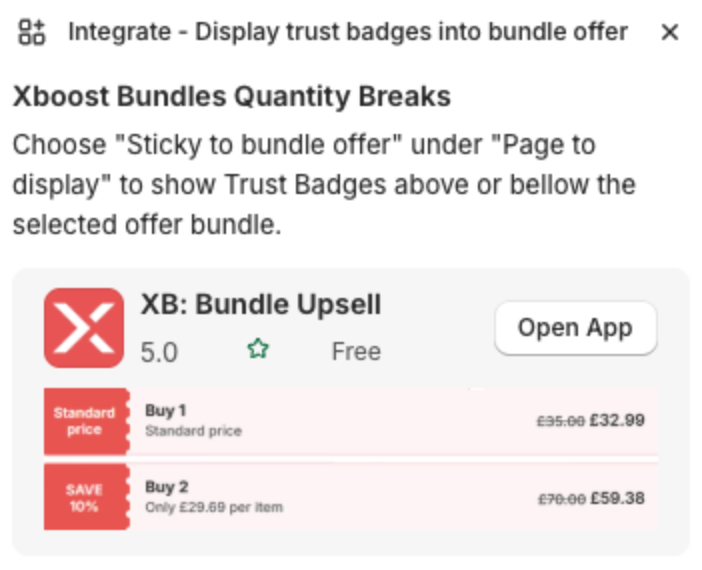
6. Choose countries, devices and dates
- Geolocation targeting Info — All countries (default) or Specific countries: click Select countries, select the countries, then click Select. The country is the one your store uses for the shopper through Shopify Markets, the same country shown in your store's country or currency selector. It is not detected from the shopper's IP address.
- Device Targeting Info — Desktop, Mobile or both. Both are selected by default.
- Scheduled time — select it to set a Start date and Start time. Select Set end date to stop the badges automatically. The time zone is shown next to each time field.
7. Save your changes
Click Next to continue to Content, or click Save in the bar at the top of the page.