
How to enable the app embed
Overview
XB: Trust Badges & Trust Icons shows your badges through an app embed called XB: Trust badges Bar in your theme. No badge appears on your store until this app embed is on. You only need to do this once per theme.
Before you start
- Install XB: Trust Badges & Trust Icons from the Shopify App Store.
- If you switch to a new theme later, turn on the app embed again in that theme.
Steps
1. Open the app dashboard
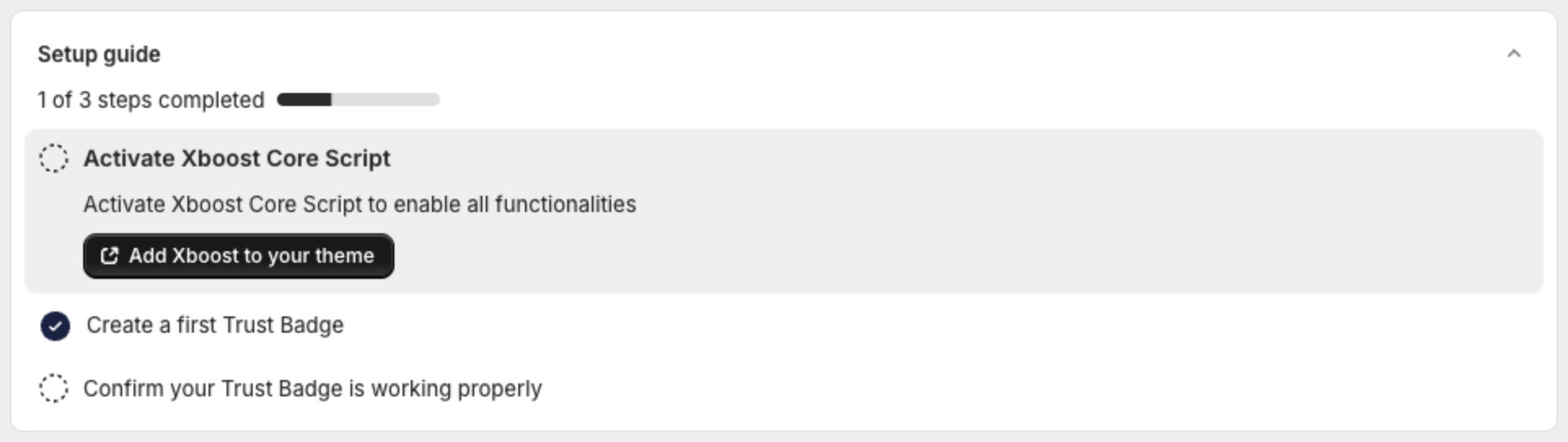
In your Shopify admin, go to Apps and open XB: Trust Badges. The Setup guide on the dashboard starts with Activate Xboost Core Script. This step is the app embed.
2. Check the App Status card
- Active with the message "Xboost app embedded successfully in the online store." means the app embed is on. You can skip to create your first trust badges.
- Disabled with the message "App functionalities will be displayed only after you enable the Xboost Core Script." means the app embed is off.

3. Open the theme editor
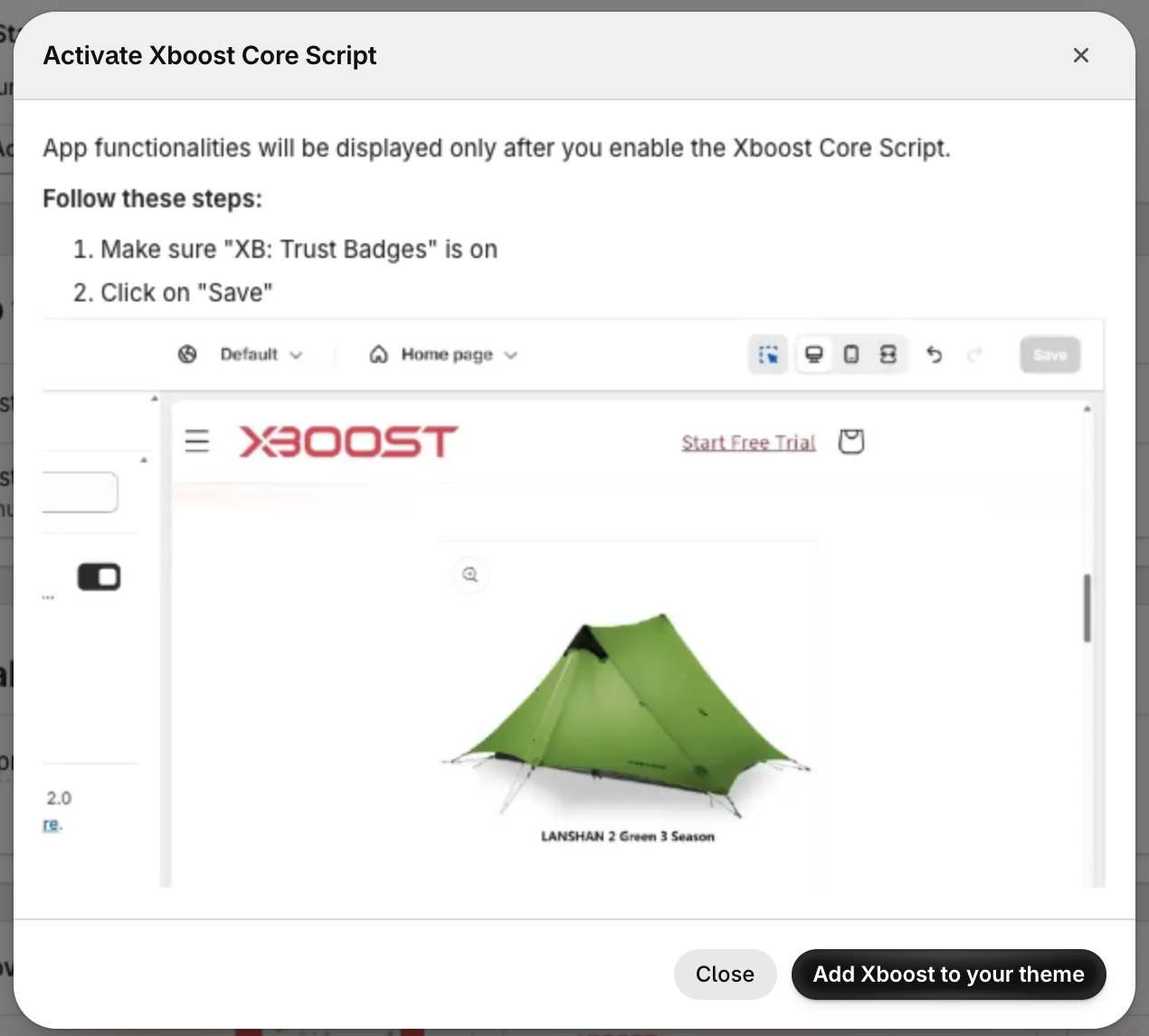
- In the Setup guide, click Add Xboost to your theme. A dialog shows the two steps to follow in the theme editor.
- Click Add Xboost to your theme in the dialog. The theme editor opens.
You can also click Active Xboost script on the App Status card.
4. Turn on the app embed
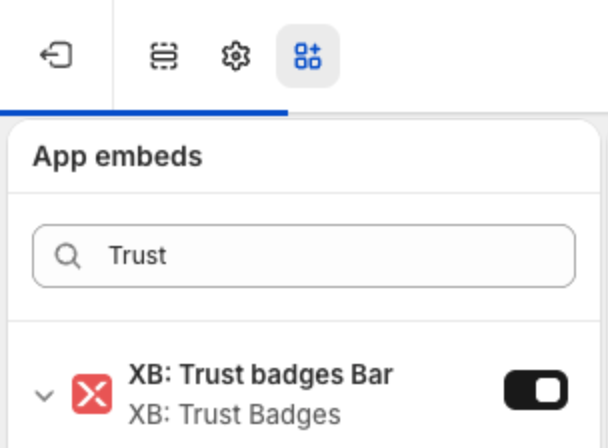
- In the theme editor, open App embeds in the left sidebar.
- Turn on XB: Trust badges Bar.
- Click Save in the top-right corner.
You can also open the theme editor yourself: go to Online Store > Themes, click Customize on your theme, then open App embeds.
5. Confirm the status
Go back to the app dashboard. The App Status card shows Active.