How to set the bar layout for mobile and desktop
Overview
The bar has a separate layout for mobile and desktop. For each device you choose where the bar sits, how it enters the screen and what it shows. The app uses the mobile layout on screens up to 767 px wide and the desktop layout on wider screens.
Steps
1. Open the layout for a device
- In the app menu, click Sticky Add To Cart.
- Under Design, click Mobile or Desktop.
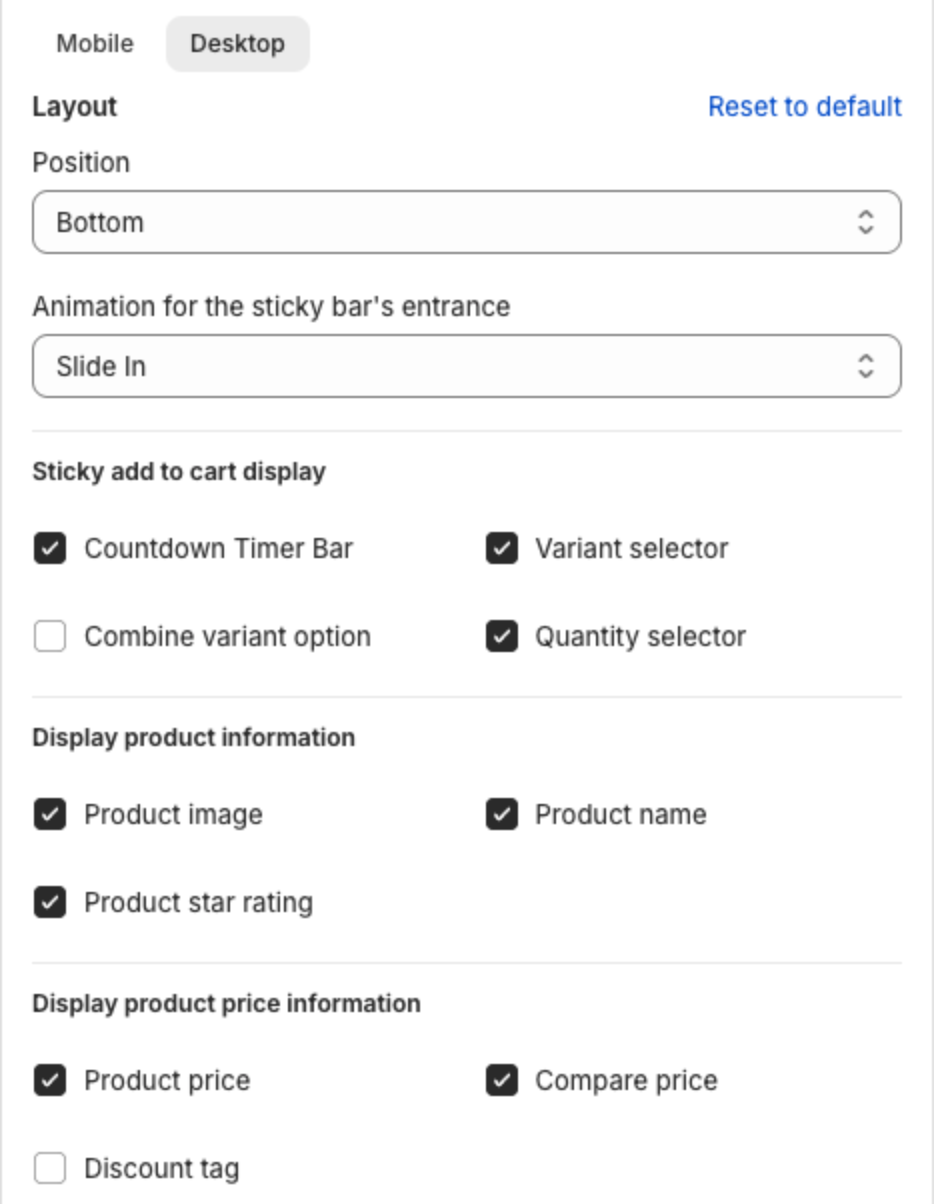
2. Choose the position and animation
- Position: Bottom or Top of the screen.
- Animation for the sticky bar's entrance: Slide In, Fade In, Scale In, Flip In or Bounce.
3. Choose what the bar shows
Under Sticky add to cart display:
| Setting | What it does |
|---|---|
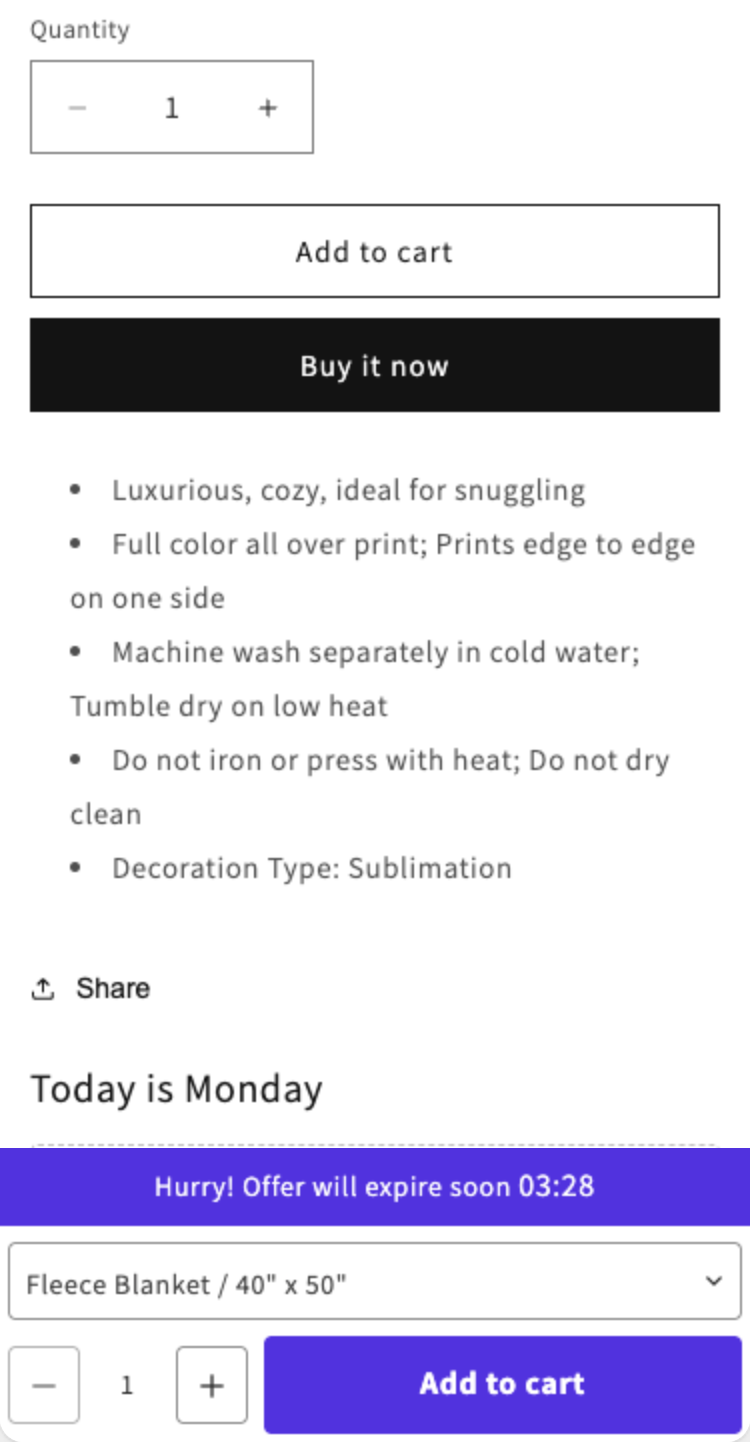
| Countdown Timer Bar | Shows the countdown message above the bar. See How to add a countdown timer to the bar. |
| Variant selector | Lets shoppers pick a variant in the bar. |
| Combine variant option | Shows one list with every variant, such as "Fleece Blanket / 40" x 50"", instead of one list per option. It saves space on mobile. |
| Quantity selector | Lets shoppers change the quantity before they add the product. |
Under Display product information:
| Setting | What it does |
|---|---|
| Product image | Shows the product image. |
| Product name | Shows the product name. |
| Product star rating | Shows the star rating of the product from Xboost: Product Reviews & UGC. |
Under Display product price information:
| Setting | What it does |
|---|---|
| Product price | Shows the product price. |
| Compare price | Shows the compare-at price. |
| Discount tag | Shows a discount tag with your Save amount text, for example "Save". Set the text in Body. |
To undo your changes for the selected device, click Reset to default.
4. Check the preview and save
Switch the preview to the same device, check the bar, then click Save in the bar at the top of the page.
This mobile layout shows the countdown, the combined variant list, the quantity selector and the Add to cart button, without the product image and name: