
How to choose when and where the bar shows
Overview
The bar shows on your product pages. In Settings you choose the devices, whether it also shows on your home page and when it appears on the page.
Steps
1. Open Settings
In the app menu, click Sticky Add To Cart, then click Settings.
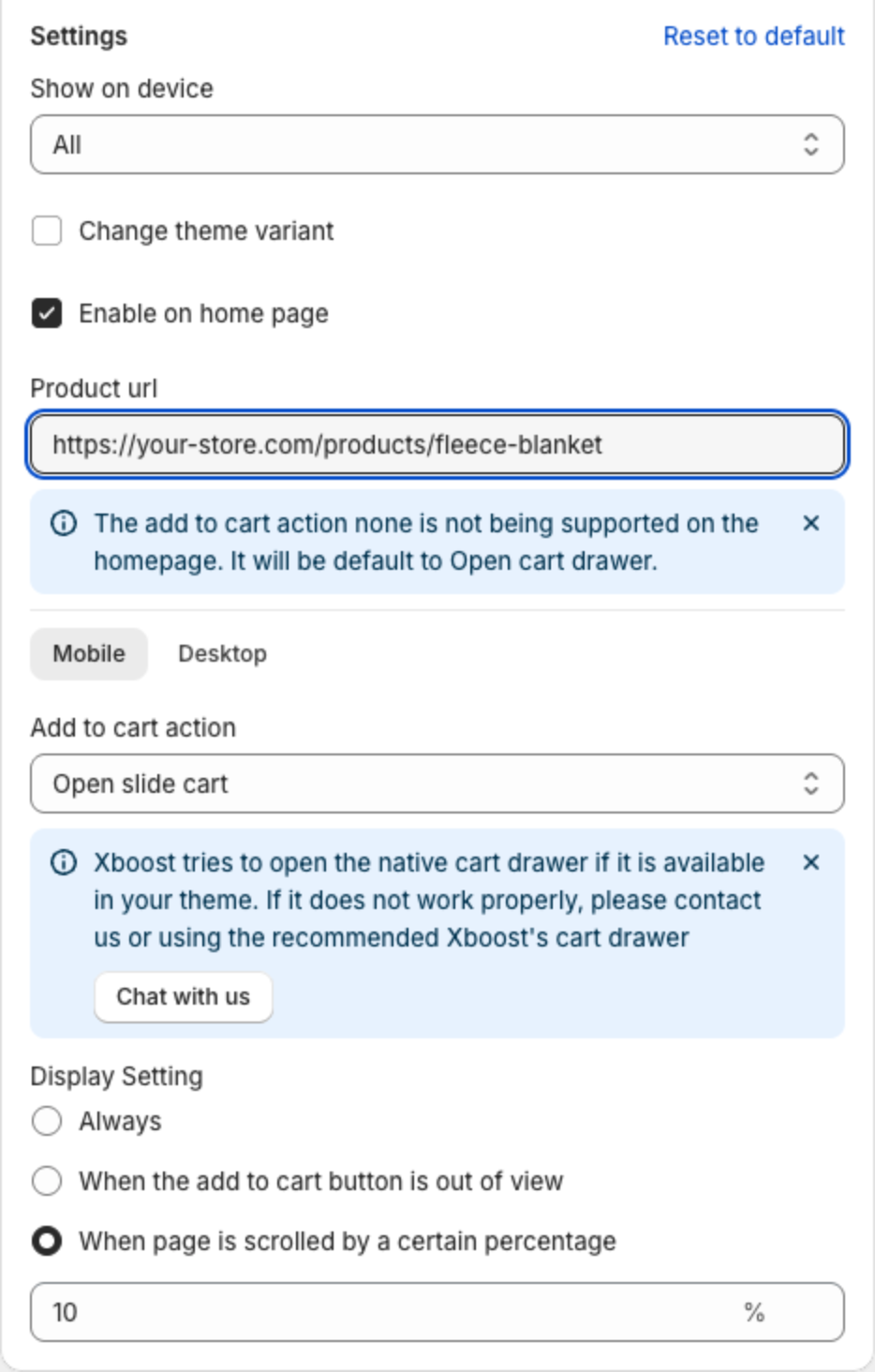
2. Choose the devices
Show on device: All, Mobile or Desktop.
3. Show the bar on your home page (optional)
- Select Enable on home page.
- In Product url, paste the link of the product the bar should show on the home page, for example
https://your-store.com/products/fleece-blanket. The link must contain/products/followed by the product handle.
The bar shows on the home page only when Product url has a product link. On the home page, the add to cart action None - Default theme behavior is not supported and works as opening the cart drawer.
4. Choose when the bar appears
Display Setting has its own value for each device. Click Mobile or Desktop above Add to cart action, then under Display Setting select:
| Option | When the bar appears |
|---|---|
| Always | As soon as the product page opens. |
| When the add to cart button is out of view | When your theme's own add to cart button is not on screen, for example after the shopper scrolls past it. If the app cannot find your theme's button, the bar always shows. |
| When page is scrolled by a certain percentage | When the shopper has scrolled the percentage of the page you enter, from 0 to 100. |
Repeat for the other device.
5. Save
Click Save in the bar at the top of the page. To restore the default Settings, click Reset to default.
Other settings in this section
- Change theme variant and Add to cart action: see How to choose what the Add to cart button does.