
How to choose what the Add to cart button does
Overview
Add to cart action sets what happens when a shopper clicks Add to cart in the sticky bar: stay on the page, open a cart drawer, or go to the cart or checkout. You can choose a different action for mobile and desktop.
Steps
1. Open the action setting
- In the app menu, click Sticky Add To Cart, then click Settings.
- Click Mobile or Desktop.
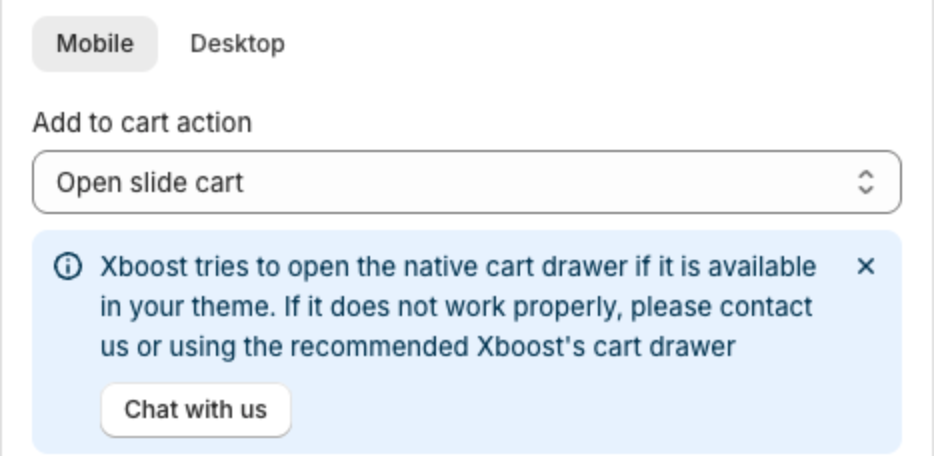
2. Choose the action
| Action | What happens |
|---|---|
| None - Default theme behavior | The bar clicks your theme's own Add to cart button, so the product is added the same way as with your theme's button. Whatever your theme does next, such as opening its cart drawer or a cart popup, happens as usual. |
| Open slide cart | The bar adds the product and opens a cart drawer. See Which cart drawer opens. |
| Only add to cart | The bar adds the product. The shopper stays on the page and sees the success message. |
| Go to cart page | The bar adds the product and opens the cart page. |
| Go to checkout | The bar adds the product and opens checkout. |
3. Repeat for the other device and save
Click the other device, choose its action, then click Save in the bar at the top of the page.
Which cart drawer opens
With Open slide cart:
- If XB: AI Cart Upsell Cart Drawer is installed and its cart drawer is on, the bar opens that cart drawer.
- Otherwise, the bar tries to open your theme's cart drawer, as the note under the setting says. If your theme has no cart drawer or it does not open, choose Go to cart page, or click Chat with us in the note so our team can check your theme.
On the home page
When the bar shows on your home page, None - Default theme behavior is not supported and works as opening the cart drawer. See How to choose when and where the bar shows.
Keep the theme's variant in sync
In Settings, select Change theme variant to update your theme's product form when a shopper picks a variant in the bar. Your product page then shows the same variant as the bar.
If the product cannot be added
If Shopify cannot add the product, for example because not enough stock is left, the bar shows Shopify's error message.
Related articles
- How to add a countdown timer to the bar (includes the success message)
- Can I use the sticky bar with XB: AI Cart Upsell Cart Drawer?