
How to add a countdown timer to the bar
Overview
The countdown timer bar is a line above the sticky bar with a message and a countdown, for example "Hurry! Offer will expire soon 04:14". It adds urgency to the product page.

Steps
1. Turn on the countdown for each device
- In the app menu, click Sticky Add To Cart.
- Under Design, click Mobile, then select Countdown Timer Bar.
- Click Desktop and select Countdown Timer Bar again if you want it on desktop too.
2. Write the message
- Open Announcement.
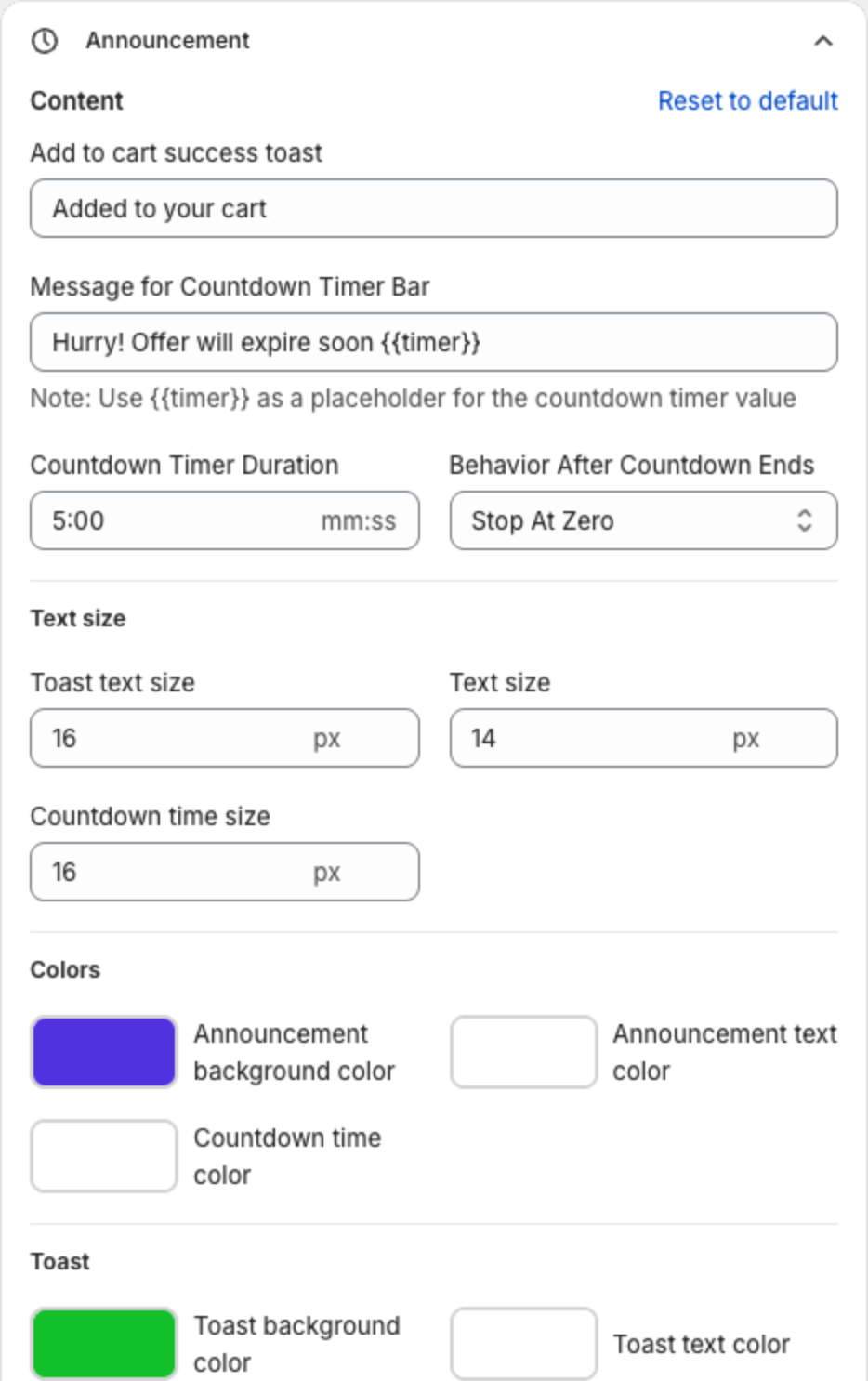
- In Message for Countdown Timer Bar, type your message. Put
{{timer}}where the countdown should appear, for example "Hurry! Offer will expire soon {{timer}}".
3. Set the duration and what happens at zero
- Countdown Timer Duration: the length of the countdown in minutes and seconds (mm:ss), for example
5:00. - Behavior After Countdown Ends:
- Stop At Zero: the countdown stops at zero.
- Loop: the countdown starts again.
- Disappear: the countdown bar disappears.
4. Set the sizes and colors
- Under Text size, set Text size for the message and Countdown time size for the countdown.
- Under Colors, set Announcement background color, Announcement text color and Countdown time color.
5. Save
Check the preview, then click Save in the bar at the top of the page.
Set the success message
The Announcement section also sets the message shoppers see after the bar adds a product to the cart:
- Add to cart success toast: the message, for example "Added to your cart".
- Toast text size, Toast background color and Toast text color: how the message looks.