
How to use the dashboard
Overview
The dashboard is the first page of XB: Sticky Add To Cart. It shows your setup progress, how the bar performs and whether the app embed is on.
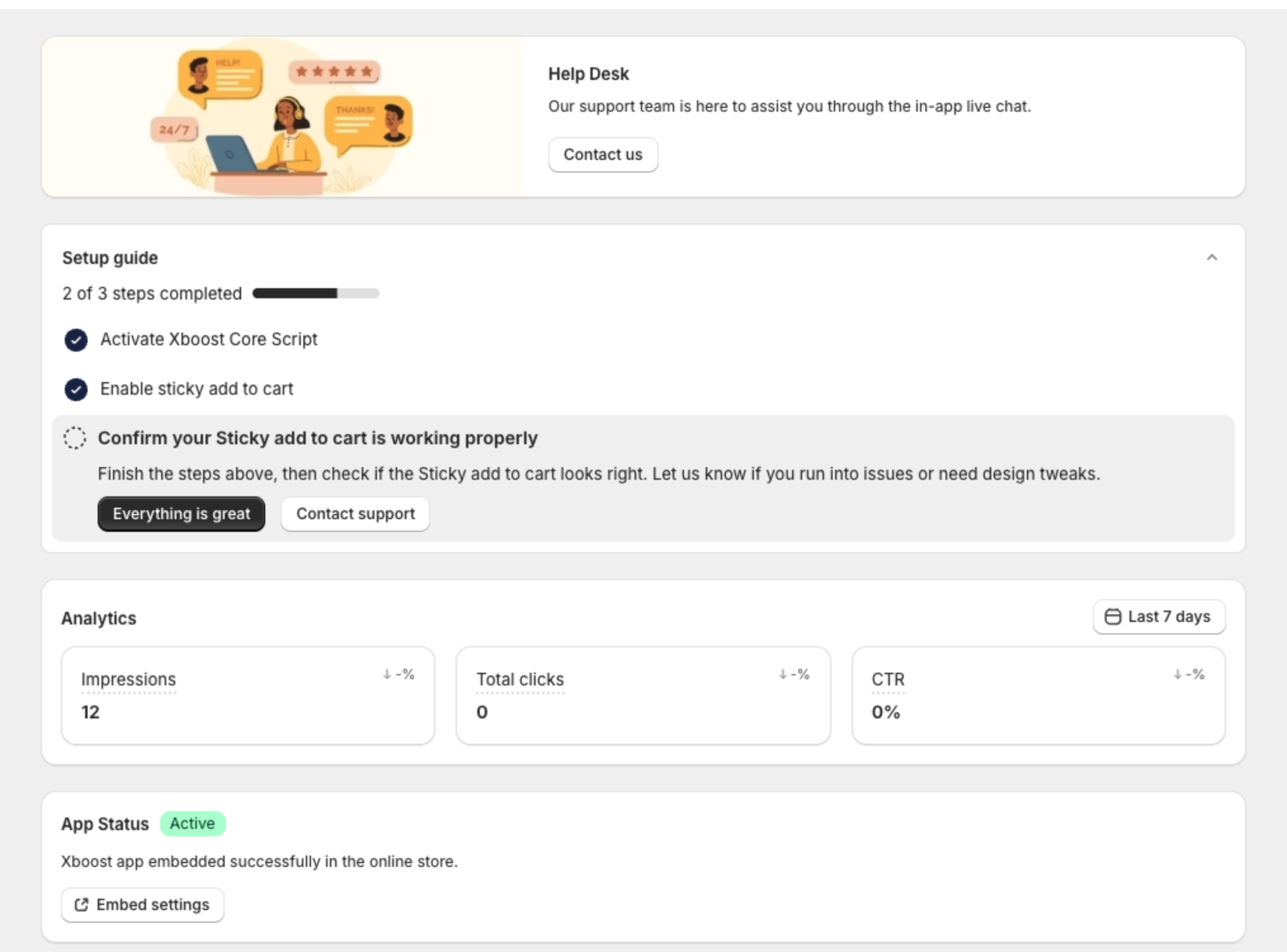
Help Desk
Click Contact us to chat with our support team in the app.
Setup guide
The guide shows how many steps are done, for example "2 of 3 steps completed". Click a step to see its button:
| Step | Button | What it does |
|---|---|---|
| Activate Xboost Core Script | Activate Xboost Core Script | Opens the theme editor to turn on the app embed. |
| Enable sticky add to cart | Enable sticky add to cart or Customize widget | Turns on the bar (available after the app embed is on), or opens the Sticky Add To Cart page. |
| Confirm your Sticky add to cart is working properly | Everything is great or Contact support | Marks the setup as done, or opens the chat. |
Analytics
The Analytics card shows how shoppers use the bar:
| Metric | What it counts |
|---|---|
| Impressions | Times the bar appears on a product page. Each page view counts once, so one shopper can count more than once. |
| Total clicks | Clicks on Add to cart in the bar. |
| CTR | Total clicks divided by Impressions, as a percentage. |
Click the date button, for example Last 7 days, to choose another period such as Today, Last 30 days or Month to date, or pick dates with Since and Until.

App Status
- Active: the app embed is on in your live theme.
- Disabled: the bar cannot show. Click the button on the card and turn on Xboost Sticky Add to Cart in App embeds. See Getting started with XB: Sticky Add To Cart Button.