
Getting started with XB: Sticky Add To Cart Button
Overview
XB: Sticky Add To Cart Button adds a bar with the product, its variants and an Add to cart button that stays on screen while shoppers scroll a product page. The bar can also show a countdown message. This guide turns it on for your store.
If you used Sticky Add to Cart inside XB: AI Cart Upsell Cart Drawer before, see Can I use the sticky bar with XB: AI Cart Upsell Cart Drawer?.
Before you start
- Install XB: Sticky Add To Cart Button from the Shopify App Store. In your Shopify admin, the app shows as XB: Sticky Add To Cart.
Steps
1. Open the app
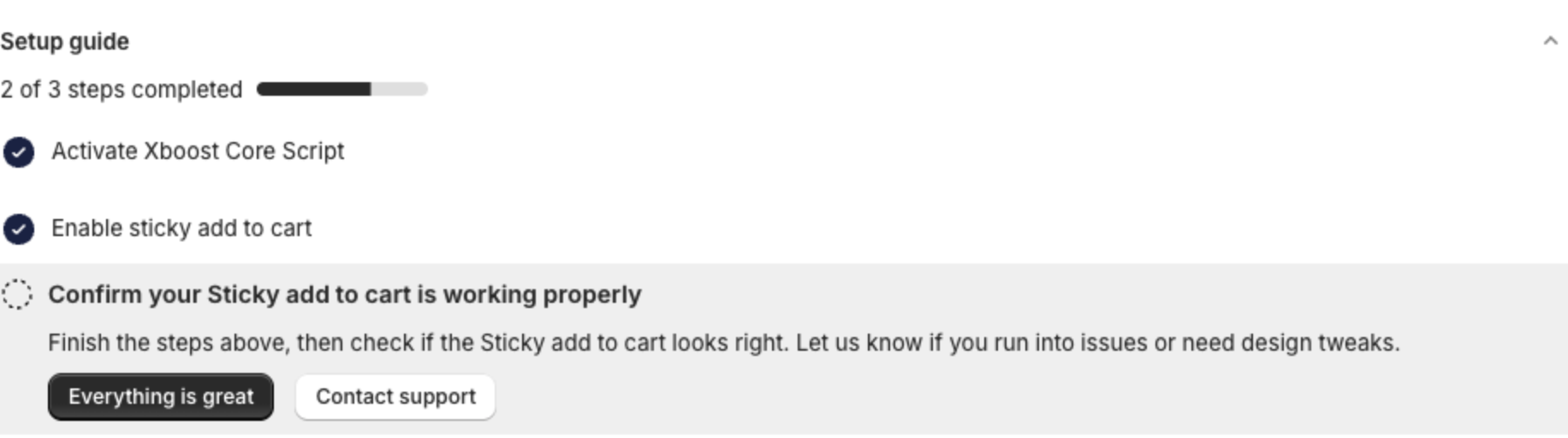
In your Shopify admin, go to Apps and open XB: Sticky Add To Cart. The dashboard opens with the Setup guide:
- Activate Xboost Core Script turns on the app embed.
- Enable sticky add to cart turns on the bar.
- Confirm your Sticky add to cart is working properly asks you to check the bar on your store.
2. Turn on the app embed
Find the App Status card on the dashboard.
- Active with "Xboost app embedded successfully in the online store." means the app embed is on. Go to step 3.
- If it shows Disabled, click the button on the card to open the theme editor.

In the theme editor:
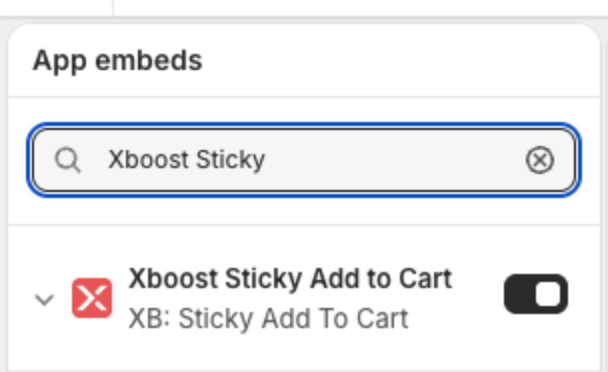
- Open App embeds in the left sidebar.
- Turn on Xboost Sticky Add to Cart (listed under XB: Sticky Add To Cart). To find it faster, type "Xboost Sticky" in the search box.
- Click Save.
If you switch to a new theme later, turn on the app embed again in that theme.
3. Turn on the sticky bar
- In the app menu, click Sticky Add To Cart.
- At the top right, turn on the switch so it reads Sticky add to cart is active.
- Click Save in the bar at the top of the page.

4. Check your store
Open a product page of your store and scroll down. The bar appears at the bottom of the screen. When it appears depends on Display Setting. See How to choose when and where the bar shows.
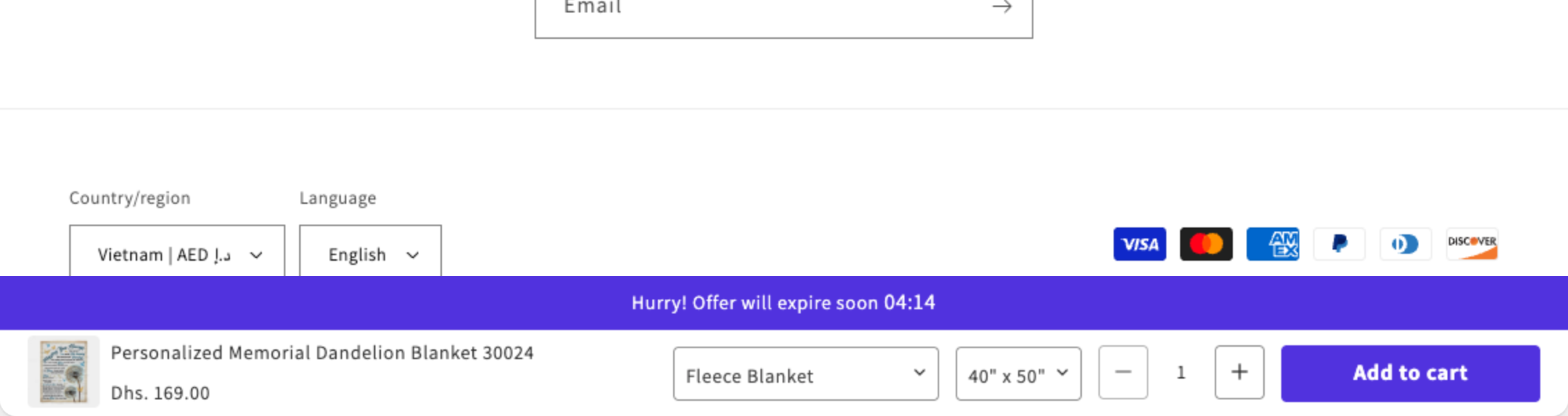
On the dashboard, click Everything is great if the bar looks right, or Contact support if you need help.