How to create product add-ons
Overview
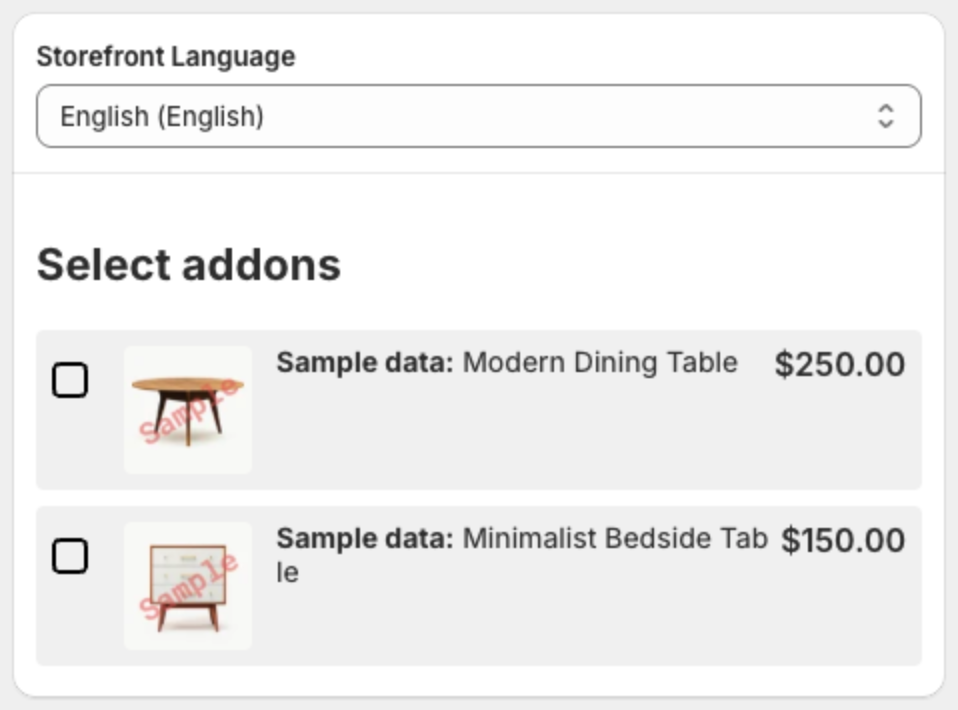
Product Add-Ons show a list of extra products with checkboxes under "Select addons" on the product page. Shoppers tick the add-ons they want and add them together with the main product, for example a warranty or gift wrapping.
Steps
1. Start the offer
- Open Offers and click Create offer.
- On Select offer type, click Create an offer on the Product Add-Ons card.
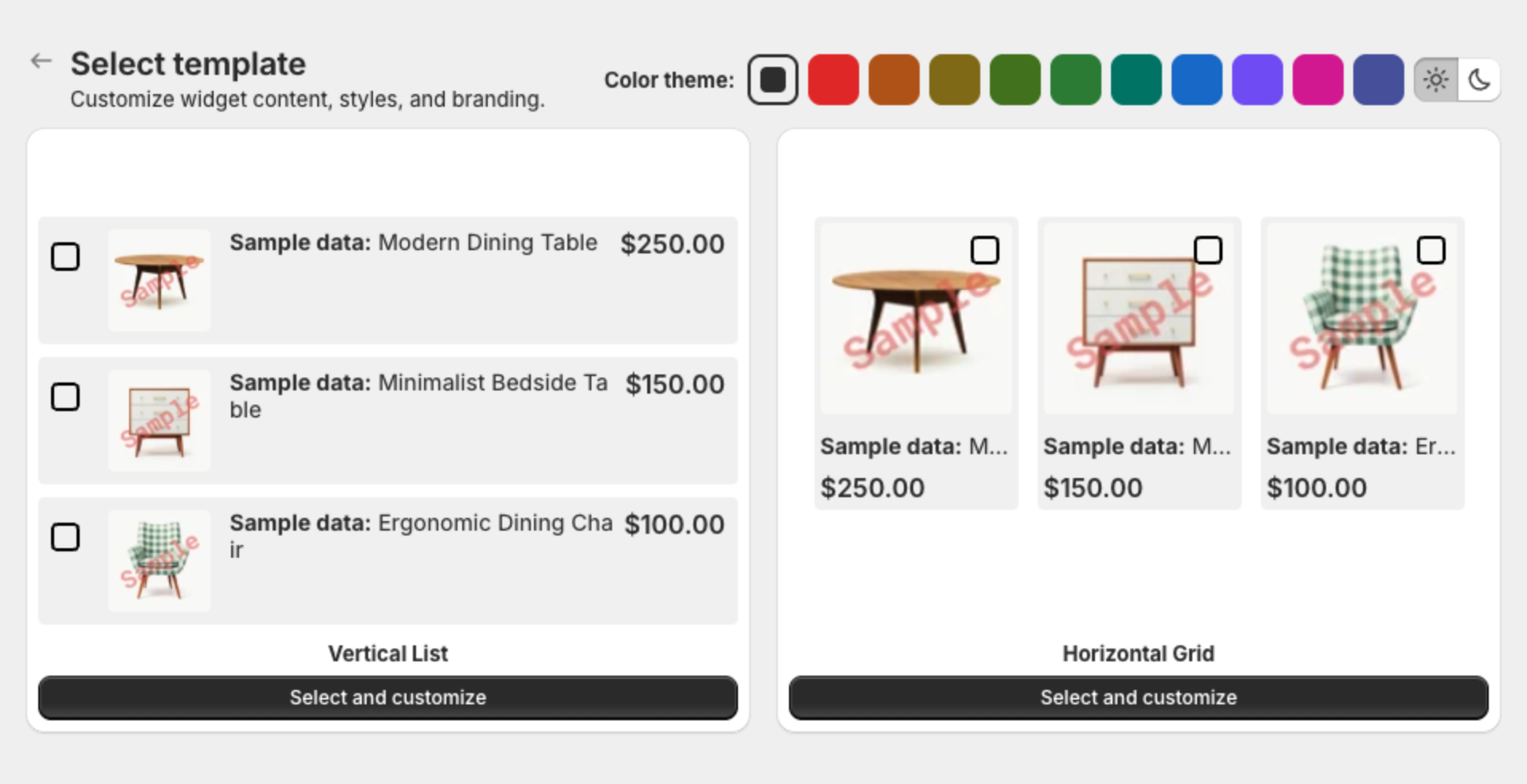
- Click Select and customize under a template.
2. Choose the trigger products (Trigger)
Under Trigger offer for, select Specific product, Automated (products in collections you pick) or All products. Optional: set a Scheduled time. Click Next.
3. Choose the add-ons (Offer)
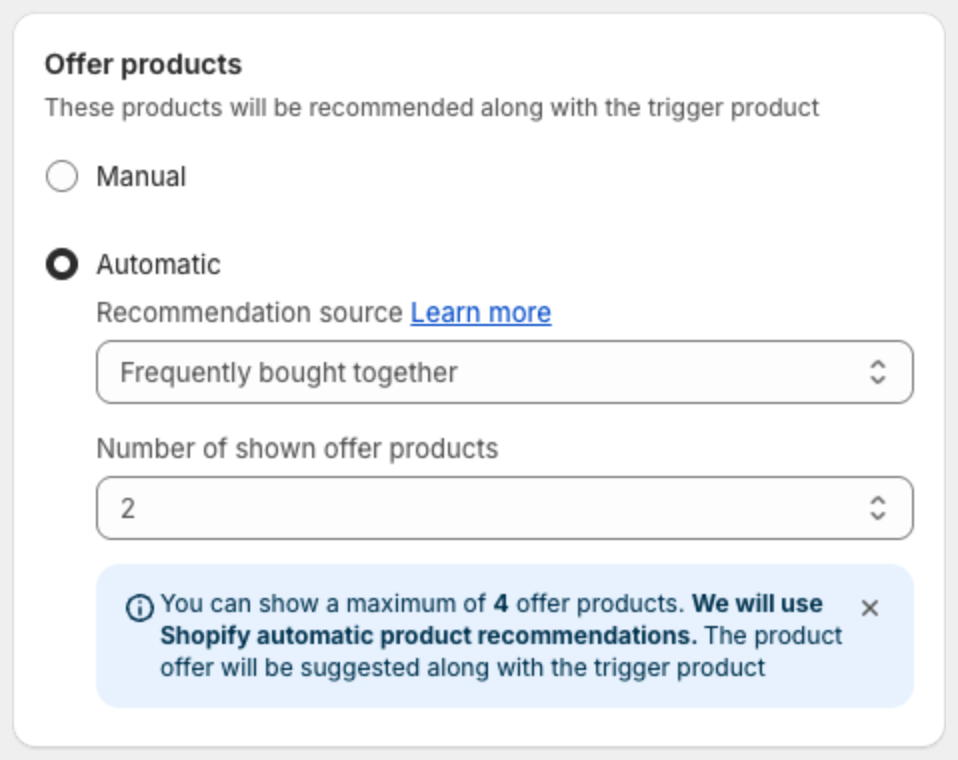
Under Offer products:
- Manual — pick the add-on products yourself.
- Automatic — choose a Recommendation source: Related items, Frequently bought together, AI-powered related items or AI-powered frequently bought together, and the Number of shown offer products. You can show up to 4 add-ons. Recommendations come from Shopify's automatic product recommendations for the trigger product.
4. Set a discount (optional)
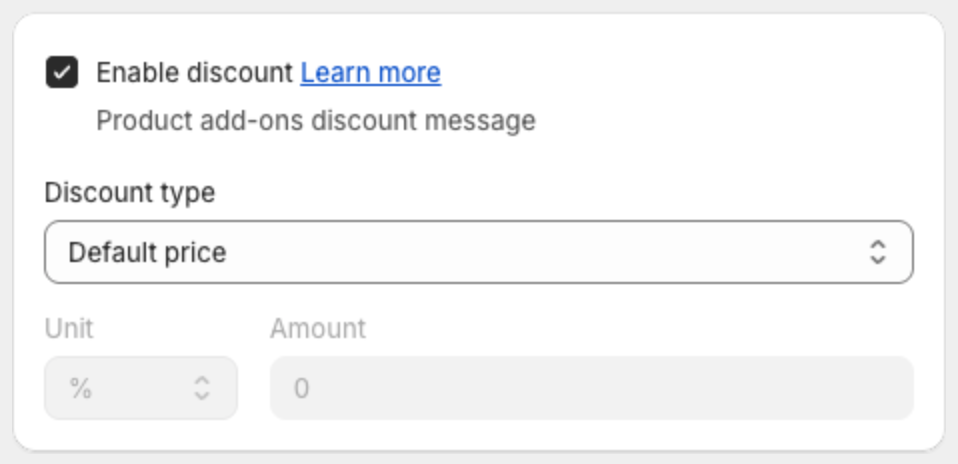
Select Enable discount, then choose the Discount type: Default price, Fixed discount or Percentage (with Unit and Amount) or Free gift.
Under Customization, set the Title, Subtitle and Discount message. Use {{discount}} for the discount in the texts.
5. Adjust the look and publish
In Appearance, choose Show compare price and Show quantity selection, the Photo size (Large, Medium or Small), spacing, colors and text sizes. Click Publish.