
How to choose offer products and a discount
Overview
The Offer step of a Product Page Upsell sets which products are suggested, an optional discount, and the texts.
Steps
1. Choose the products
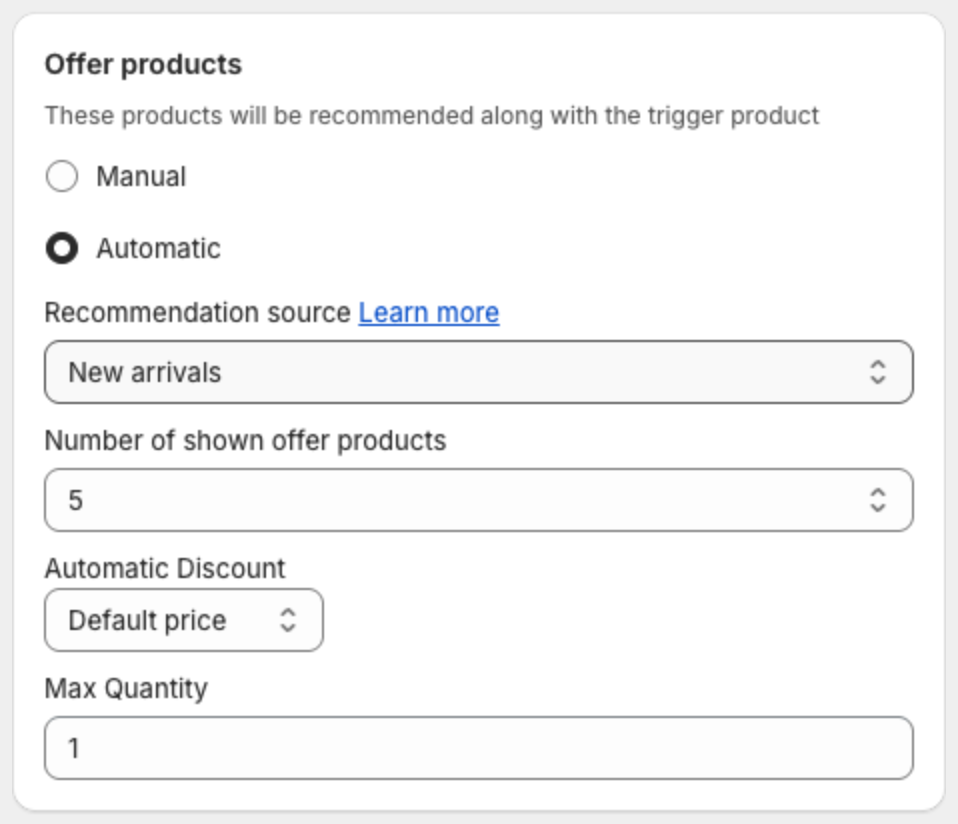
Open Offers, click the offer name, then click Offer. Under Offer products:
- Manual — click Add product and pick the products to suggest.
- Automatic — the app picks products for you. Choose the Recommendation source: New arrivals, Bestsellers, Recent views, Related items or Frequently bought together, and the Number of shown offer products (1 to 10).
2. Set a discount (optional)
For Automatic, choose the Automatic Discount: Default price (no discount), Fixed price, Bundle discount percentage (%) or Bundle discount amount, and the Max Quantity that gets the discount.
Under Discount label, write the label shown on discounted products. Use {{amount}} for the discount amount and {{percentage}} for the discount percentage, for example "Save {{percentage}}".
The discount is applied by an automatic discount that the app creates in Shopify, named XBoost Product Upsell. Keep it Active in Discounts in your Shopify admin.
3. Edit the texts
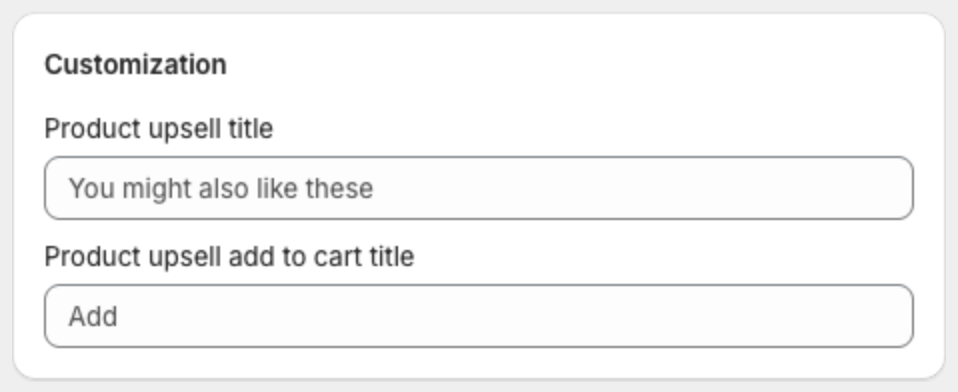
Under Customization, change the Product upsell title (default "You might also like these") and the Product upsell add to cart title (default "Add").
4. Choose what to hide
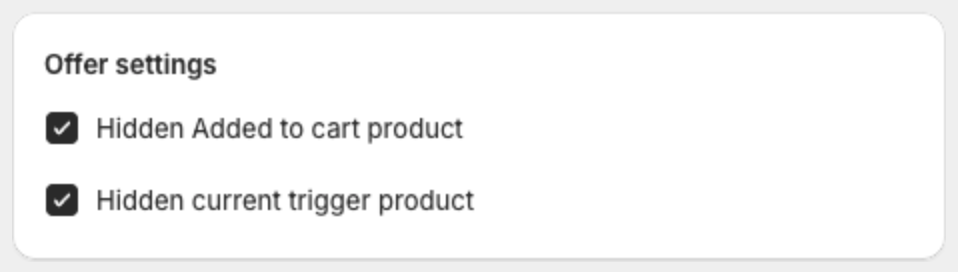
Under Offer settings:
- Hidden Added to cart product — hides products that are already in the cart.
- Hidden current trigger product — hides the product of the page the shopper is viewing.
5. Save
Click Next or Save in the bar at the top of the page.