How to create your first product upsell
Overview
XB: AI Product Upsell & Addons has two offer types for product pages:
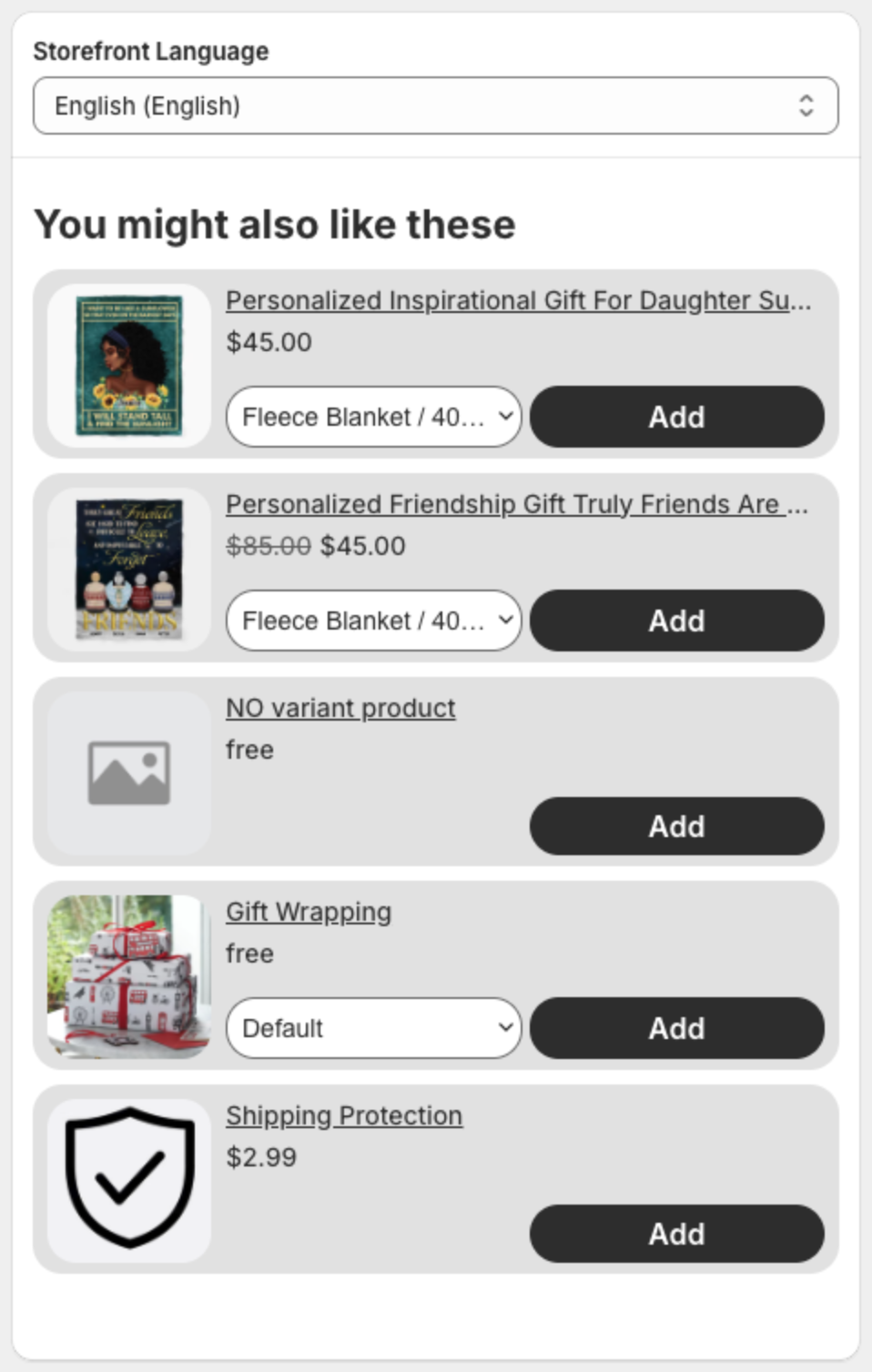
- Product Page Upsell — a "You might also like these" list of products, each with its own Add button.
- Product Add-Ons — checkboxes that let shoppers add extra products together with the main product. See How to create product add-ons.
This guide creates a Product Page Upsell in three steps: Trigger, Offer and Appearance.
Before you start
- Turn on the app embed. See How to enable the app embed.
Steps
1. Start a new offer
- Open XB: AI Product Upsell & Addons from Apps in your Shopify admin.
- Click Create offer on the dashboard or on the Offers page.
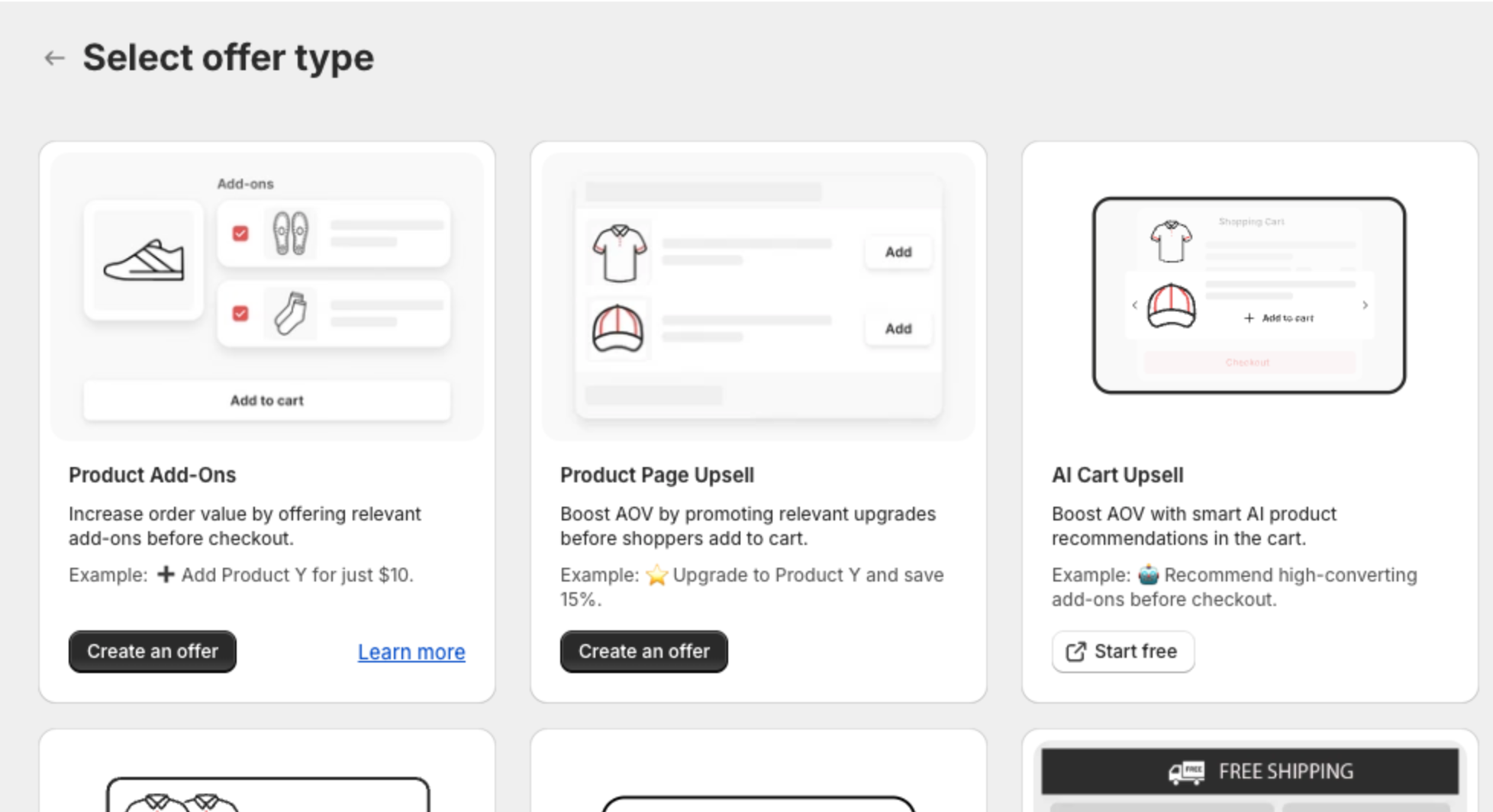
- On Select offer type, click Create an offer on the Product Page Upsell card.
2. Pick a template
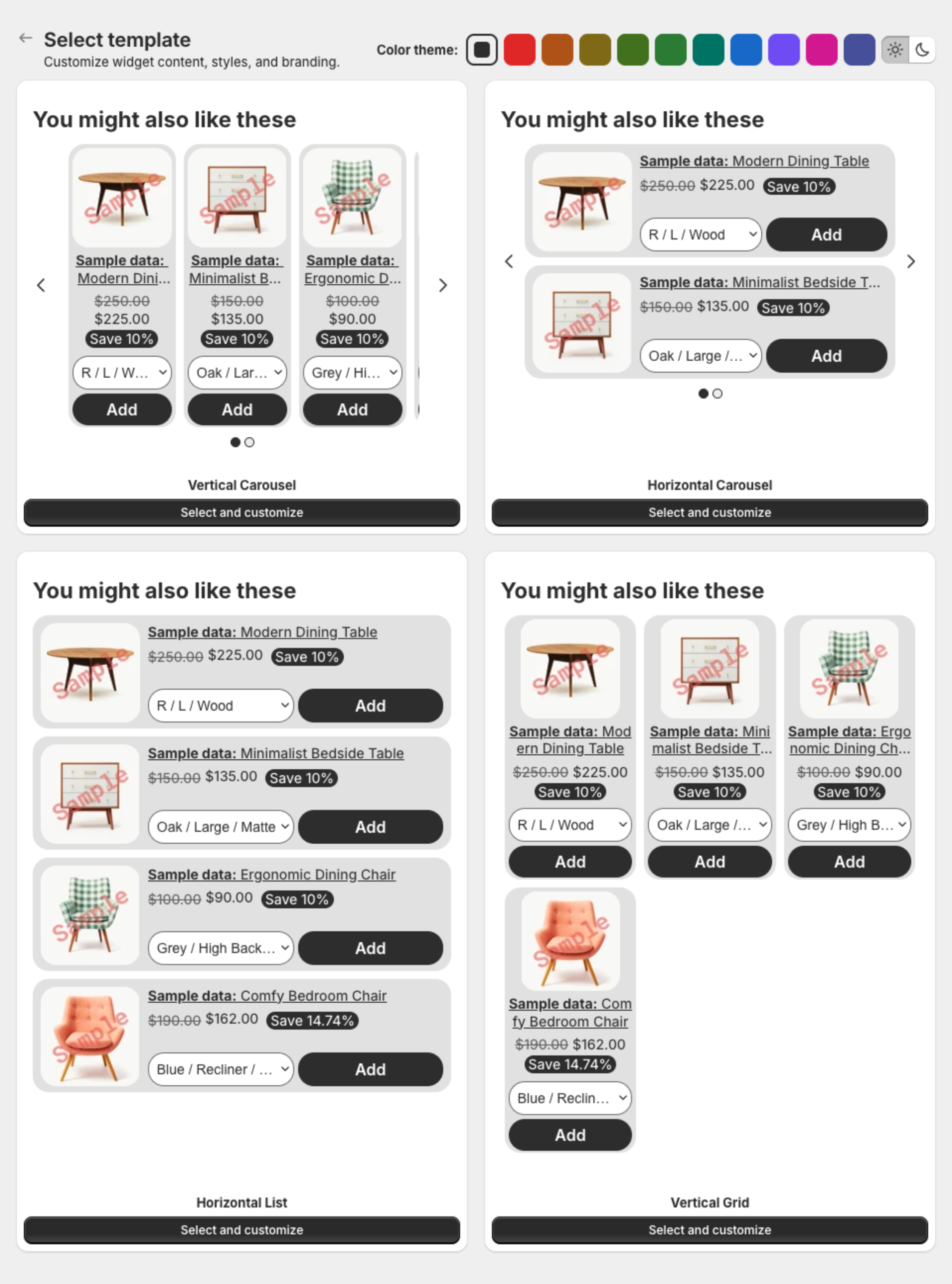
Click Select and customize under Vertical Carousel, Horizontal Carousel, Horizontal List or Vertical Grid. Optional: pick a Color theme first.
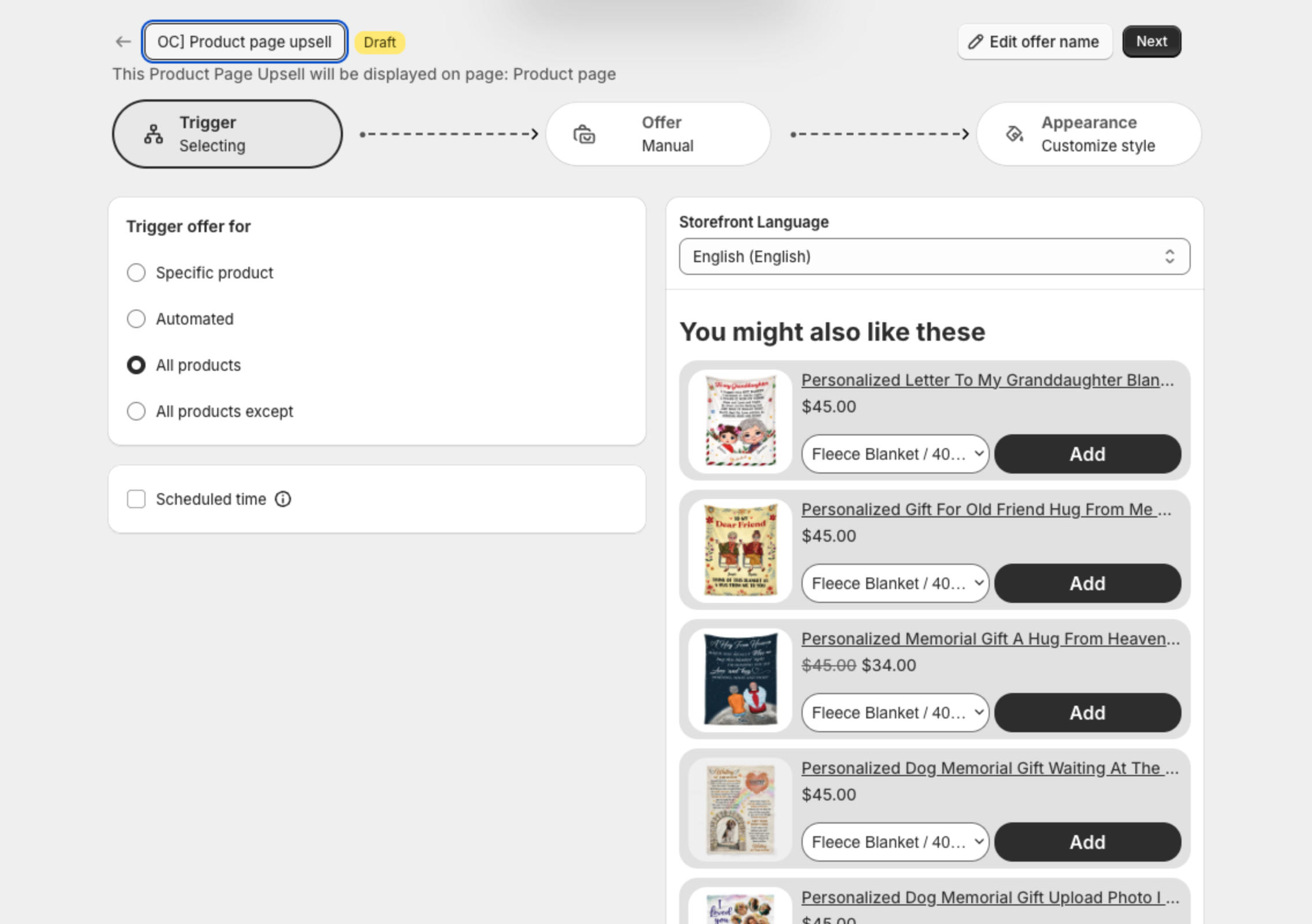
The offer opens as a Draft. Click Edit offer name to name it (up to 30 characters).
3. Choose the trigger products (Trigger)
Under Trigger offer for, keep All products to show the offer on every product page, or pick other products. Click Next.
4. Choose the offer products (Offer)
- Under Offer products, choose Manual and click Add product, or choose Automatic and a Recommendation source.
- Optional: set a discount and the texts.
- Click Next.
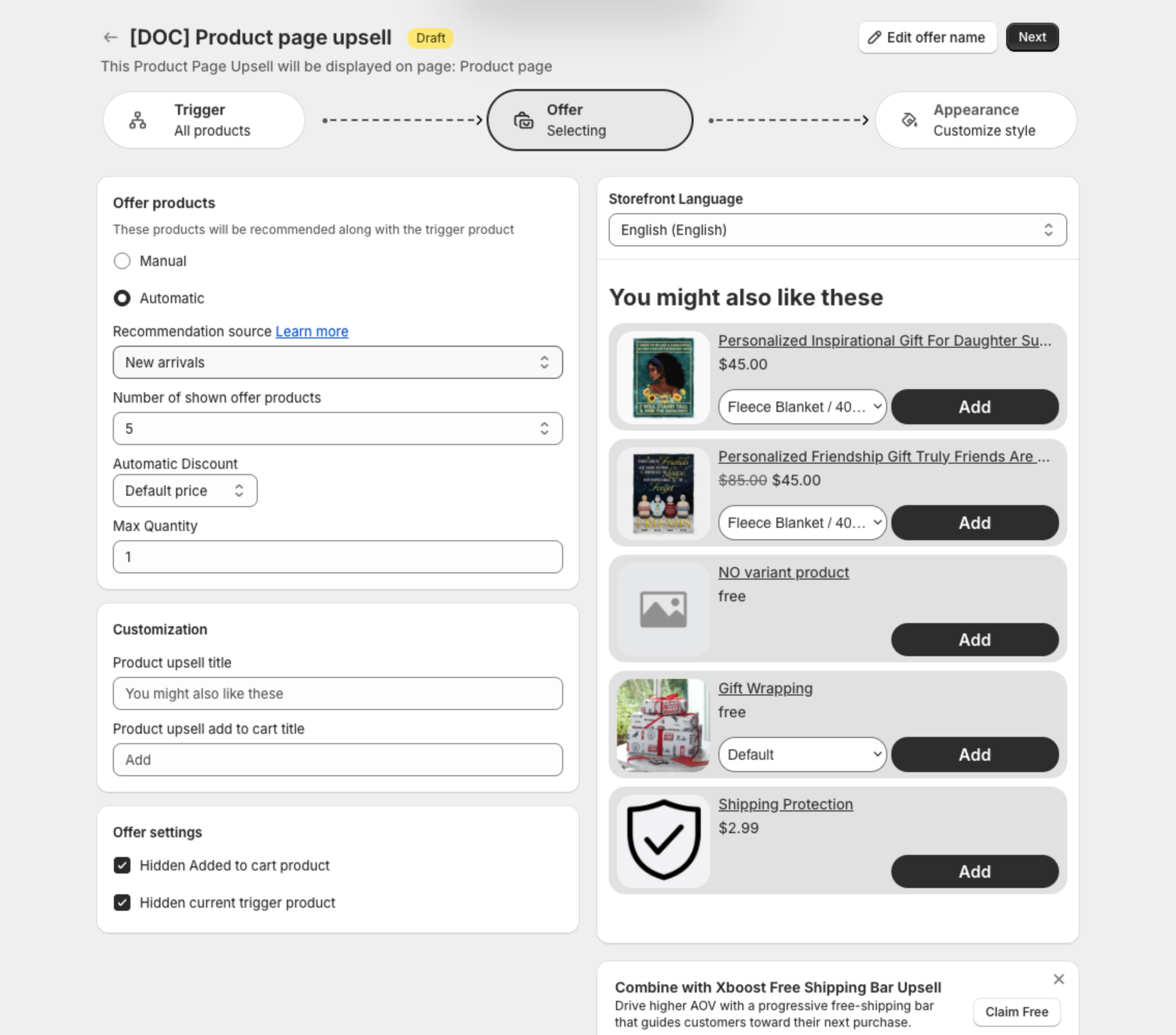
See How to choose offer products and a discount.
5. Adjust the look (Appearance) and publish
Change the layout, text sizes and colors, then click Publish. See How to customize the offer design.
On product pages, the offer shows above the add to cart button.